Can I Modify My Laptop For Gaming And Boost Performance
Yes, you can modify your laptop for gaming and see real gains in speed and visuals. This guide walks you through every upgrade option, from RAM and storage to cooling solutions and software tweaks. You will learn what works, what does not, and how to avoid costly mistakes.
So you love gaming but your laptop feels slow and laggy. Maybe your frames drop during intense action scenes. Perhaps your favorite games won’t even launch anymore. You have probably wondered, Can I Modify My Laptop For Gaming and get it running the way it used to. The short answer is yes. The longer answer is that it depends on what your laptop can handle and how much effort you are willing to put in.
Modifying a laptop for gaming performance is not the same as building a desktop PC. You have fewer options, but the ones you do have can make a huge difference. In this guide, we will walk you through every upgrade path, every software trick, and every mistake you should avoid. Whether you are a casual player or someone who wants to push your laptop gaming performance to the limit, this article has you covered.
Key Takeaways
- RAM and SSD upgrades are the easiest and most impactful changes you can make to any laptop.
- Laptop cooling solutions like cooling pads and thermal paste reapplication can prevent throttling during intense gaming sessions.
- Software tweaks and driver updates can boost gaming performance without opening your laptop at all.
- GPU upgrades are usually not possible in most laptops due to soldered graphics cards, so manage your expectations.
- Avoid common mistakes like removing factory thermal pads or forcing incompatible parts into your machine.
- Regular laptop maintenance keeps your system running smoothly and extends its gaming lifespan.
📑 Table of Contents
Can I Modify My Laptop For Gaming
The question of Can I Modify My Laptop For Gaming comes up more often than you might think. Laptops are not designed the same way as desktops. Most internal components are packed tightly together, and some parts are soldered directly to the motherboard. But that does not mean you are stuck with poor gaming performance. There are many things you can do.
Before you start buying parts or opening up your machine, it helps to understand what is possible and what is not. Laptop modification for gaming usually falls into three categories. First, you can upgrade parts that are removable. Second, you can improve cooling to keep your system running fast. Third, you can tweak software settings to squeeze out more performance. Each of these areas has its own set of rules and limitations. Let us break them down one by one.
What Makes A Laptop Good For Gaming
A gaming laptop is built with powerful internal components designed to handle heavy workloads. The processor, graphics card, memory, and storage all work together to deliver smooth gameplay. When any one of these parts falls behind, your gaming performance drops. Understanding this helps you know where to focus your upgrade efforts.
Most modern gaming laptops come with dedicated GPU cards, fast processors, and solid-state drives. However, even the best gaming laptops can slow down over time. Dust builds up. Thermal paste dries out. Software gets bloated. The good news is that you can reverse many of these issues with simple laptop maintenance and targeted upgrades.
What Upgrades Are Actually Possible
Not every part of a laptop can be swapped out or upgraded. In fact, many gaming laptops have components that are permanently attached to the motherboard. But there are still several areas where you can make meaningful improvements to your laptop gaming performance.
| Component | Upgradeable? | Impact on Gaming | Difficulty Level |
|---|---|---|---|
| RAM | Yes (usually) | High | Easy |
| Storage (SSD/HDD) | Yes | High | Easy |
| Battery | Yes | Low | Easy |
| Wi-Fi Card | Yes | Medium | Medium |
| GPU | Rarely | Very High | Not Possible |
| CPU | Rarely | High | Not Possible |
| Display | Sometimes | Medium | Hard |
As you can see from the table, RAM and storage upgrades offer the best balance of impact and ease. These are the two upgrades you should focus on first when trying to boost laptop speed for gaming. A RAM upgrade is especially effective if your laptop currently has 4GB or 8GB of memory.
RAM Upgrades
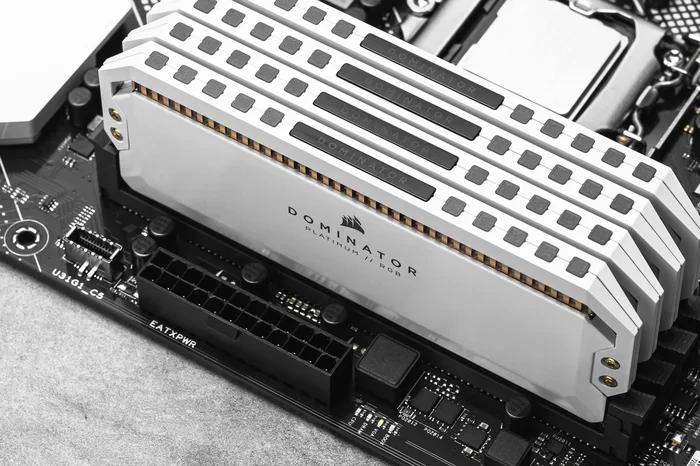
Memory plays a huge role in how well your laptop handles modern games. When you run a game, it loads textures, maps, and character data into your RAM. If your memory is full, your system has to swap data to your storage drive, which causes stuttering and lag. A RAM upgrade can fix this problem quickly.
Most gaming laptops support between 8GB and 32GB of RAM. Check your laptop’s manual or use a free tool like Crucial System Scanner to find out what your machine supports. If you have two RAM slots and one is empty, adding a matching stick can double your memory instantly. This is one of the easiest and cheapest ways to improve laptop gaming performance.
Storage Upgrades
Swapping out an old hard drive for a SSD upgrade is like giving your laptop a new lease on life. Solid-state drives load games faster, reduce texture popping, and make your entire system feel more responsive. If you are still using a traditional hard drive, a gaming laptop SSD upgrade should be your first priority.
Look for NVMe SSDs if your laptop has an M.2 slot. These drives are incredibly fast and can cut game load times in half. You can also use the extra bay to keep your old hard drive as storage for media files while your operating system and games run from the SSD.
How To Upgrade Your RAM And Storage
Upgrading your RAM and storage is the most hands-on part of laptop modification for gaming. But it is not as scary as it sounds. With the right tools and a little patience, most people can do it in under 30 minutes.
Before you start, make sure you have a small Phillips-head screwdriver, an anti-static wrist strap (optional but recommended), and a clean workspace. Back up your important files before opening your laptop, just in case something goes wrong.
For a RAM upgrade, locate the RAM access panel on the bottom of your laptop. Remove the screws, gently lift the panel, and press the clips on either side of the existing stick to pop it out. Align your new stick at a 30-degree angle and push it down until it clicks. Replace the panel and screw it back in.
For a storage upgrade, the process is similar but depends on your laptop model. Some laptops have a dedicated SSD bay on the bottom. Others require you to remove the entire bottom panel. Check online for a teardown guide specific to your laptop model. These guides are usually free on YouTube and make the process much easier.
Quick Tips For Safe Upgrades
- Always power off your laptop and unplug it before opening any panels.
- Handle RAM sticks by the edges to avoid touching the gold connectors.
- Do not force any component into a slot. If it does not fit easily, stop and check the alignment.
- Keep your screws in a small bowl so you do not lose them.
- Update your BIOS after installing new hardware to ensure full compatibility.
Cooling Solutions That Make A Difference
Heat is the enemy of gaming performance. When your laptop gets too hot, it automatically slows down to protect itself. This is called thermal throttling, and it can tank your frame rate and make games unplayable. Improving your laptop cooling is one of the most effective ways to boost laptop speed during gaming sessions.
There are several approaches to better cooling. Some are free and easy. Others require a small investment. Let us look at your options.
Clean Your Laptop Regularly
Dust is the number one cause of overheating in laptops. Over time, dust clogs the vents and fans, trapping heat inside the chassis. Cleaning your laptop every three to six months can dramatically improve laptop gaming performance. Use compressed air to blow dust out of the vents and fans. Hold the fan still with a finger while you blow air to prevent damage to the fan blades.
Reapply Thermal Paste
The thermal paste between your processor and the heatsink can dry out over time. When it does, heat transfer becomes less efficient. Replacing the old paste with fresh thermal paste can lower your laptop’s temperature by several degrees. This is a simple laptop maintenance task that makes a surprising difference.
You will need to open your laptop to access the processor and heatsink. Watch a teardown video for your specific model first. Apply a small dot of paste in the center of the processor and let the heatsink spread it evenly when you reassemble the laptop.
Use A Cooling Pad
A cooling pad is one of the simplest ways to improve laptop cooling. These pads sit under your laptop and blow air up through the bottom vents. They are not a magic fix, but they do help. Look for a cooling pad with fans that match the size and position of your laptop’s vents. A well-chosen cooling pad can reduce temperatures by 5 to 10 degrees Celsius.
Elevate Your Laptop
Even something as simple as elevating the back of your laptop can improve airflow. A small laptop stand or even a book placed under the rear edge can help hot air escape more easily. This is a free and instant way to give your laptop gaming performance a small boost.
Software Tweaks To Boost Gaming Performance
You do not always need to open your laptop to improve gaming performance. Many software adjustments can squeeze more frames out of your system. These tweaks are especially useful if your hardware is not upgradeable.
Update Your Graphics Drivers
Your GPU drivers control how your laptop renders graphics in games. Outdated drivers can cause stuttering, crashes, and poor frame rate performance. Visit the website of your graphic card manufacturer (NVIDIA or AMD) and download the latest drivers regularly. Both companies release driver updates that specifically optimize for new game releases.
Adjust In-Game Settings
Lowering certain game settings can have a massive impact on laptop gaming performance without making the game look bad. Start by reducing shadow quality, anti-aliasing, and volumetric lighting. These settings are the most demanding on your GPU and often have the smallest visual impact when lowered.
You can also cap your frame rate to match your display’s refresh rate. If you have a 60Hz monitor, limiting your game to 60 frames per second reduces the workload on your graphic card and can improve overall stability.
Disable Background Programs
Every program running in the background steals resources from your games. Before you launch a game, close unnecessary applications, especially web browsers and streaming software. Use the Task Manager to see what is using your processor speed and memory, and close anything you do not need.
Enable Game Mode In Windows
Windows 10 and 11 include a Game Mode feature that prioritizes system resources for your games. It disables notifications and optimizes background processes. Turn it on by going to Settings, then Gaming, then Game Mode. This simple tweak can improve gaming performance without any extra cost.
Consider Overclocking
Overclocking means pushing your hardware beyond its factory settings to get more performance. Some laptops allow you to overclock the GPU or CPU through software like MSI Afterburner or Intel XTU. This can boost frame rate and make games run smoother.
However, overclocking also increases heat and power consumption. It can shorten the lifespan of your components if done improperly. Only overclock if you have good laptop cooling in place, and always monitor your temperatures closely. Start with small increases and test for stability before pushing further.
Common Mistakes To Avoid When Modifying
Modifying your laptop for gaming comes with risks. Many people make mistakes that end up costing them money or damaging their machine. Here are the most common errors to watch out for.
Buying Incompatible Parts
Not all RAM sticks or SSDs work with every laptop. Before purchasing any upgrade, check your laptop’s specifications carefully. Look for the type of RAM (DDR4, DDR5), the maximum supported capacity, and the correct SSD form factor. Buying the wrong part will waste your money and leave you frustrated.
Removing Factory Thermal Pads
Some laptops use thermal pads instead of thermal paste to transfer heat from components to the heatsink. These pads are specifically chosen by the manufacturer for their thickness and conductivity. Removing them without replacing them with the correct pads can cause overheating and permanent damage. If you must remove factory thermal pads, replace them with identical pads from a reputable supplier.
Opening The Laptop While Under Warranty
Many gaming laptops come with warranties that become void if you open the chassis. Before you start any laptop modification, check your warranty terms. If your laptop is still under warranty, consider using external solutions like cooling pads or software tweaks instead of opening the machine.
Ignoring Thermals After Upgrades
Even after a successful upgrade, poor laptop cooling can undo all your progress. Always monitor your temperatures after making changes. Use free tools like HWMonitor or Core Temp to keep an eye on your processor speed and heat levels. If temperatures rise after an upgrade, you may need to reapply thermal paste or improve your cooling setup.
Expecting GPU Upgrades
One of the biggest misconceptions about laptop modification is that you can swap out the graphic card. In almost all laptops, the GPU is soldered to the motherboard and cannot be replaced. Do not spend money on services or products that promise a GPU upgrade for your laptop. Focus instead on upgrades that are actually possible, like RAM, storage, and cooling.
Expert Tips For Long-Term Gaming Performance
Modifying your laptop is not a one-time task. Keeping your gaming laptop running well requires ongoing attention and care. These expert tips will help you maintain strong gaming performance for years to come.
Create A Maintenance Schedule
Set a reminder to clean your laptop’s vents every three months. Check for driver updates once a month. Reapply thermal paste once a year. Following a regular laptop maintenance schedule prevents small issues from becoming big problems.
Keep Your System Clean
Uninstall games and programs you no longer use. Delete temporary files regularly. A cluttered hard drive slows down your entire system, including your gaming performance. Use Windows Disk Cleanup or a tool like CCleaner to free up space and keep your system running smoothly.
Monitor Your Temperatures
Make it a habit to check your laptop temperatures while gaming. If you notice temperatures climbing above 90 degrees Celsius, take action. Lower your in-game settings, improve your laptop cooling, or clean your vents. Consistently high temperatures will degrade your components faster and reduce the lifespan of your machine.
Invest In Good Peripherals
Sometimes the best way to improve your gaming experience is not to modify your laptop at all. A good gaming mouse, a mechanical keyboard, and a quality headset can make your setup feel like a gaming laptop designed for competitive play. These peripherals do not affect your frame rate, but they make a huge difference in how you experience your games.
Know When To Replace
Even with the best laptop modification efforts, there comes a time when your hardware simply cannot keep up with modern games. If you have upgraded everything possible and your gaming performance still falls short, it may be time to save for a new gaming laptop. Knowing when to upgrade saves you money and frustration in the long run.
Modifying your laptop for gaming is absolutely worth the effort. The upgrades you make today can extend the life of your machine by years. Whether you choose a simple RAM upgrade, a SSD upgrade, or a complete cooling overhaul, every improvement counts. Start with the easiest and cheapest changes first, and work your way up as needed.
The key to success with laptop modification is knowing your limits and working within them. You cannot turn every laptop into a gaming beast, but you can make meaningful improvements that enhance your experience. Focus on the upgrades that matter most, keep your system well-maintained, and enjoy the games you love on your own terms.
Take action today. Check your current specs, identify the weakest link in your setup, and make your first upgrade. You will be surprised how much better your favorite games can run with just a few targeted changes. Can I Modify My Laptop For Gaming and boost performance. The answer is yes, and now you have everything you need to get started.
Frequently Asked Questions
Can I upgrade the GPU in my laptop for better gaming performance?
In almost all cases, no. The GPU in most laptops is soldered to the motherboard and cannot be replaced. Focus on upgrades like RAM and storage instead, which are much more accessible and still provide significant gaming performance gains.
How much RAM do I need for gaming on a laptop?
16GB of RAM is the sweet spot for most modern games. If you have 8GB or less, a RAM upgrade will make a noticeable difference. Some games benefit from 32GB, but 16GB handles the vast majority of titles with ease.
Is it worth adding a cooling pad to my laptop?
Yes, a cooling pad is one of the simplest and most affordable ways to improve laptop cooling. It can reduce temperatures by several degrees, which helps prevent thermal throttling and keeps your gaming performance stable during long sessions.
Can I modify my laptop for gaming if it still has a hard drive?
Absolutely. Replacing an old hard drive with an SSD upgrade is one of the best things you can do for laptop gaming performance. Games load faster, the system feels more responsive, and you will notice an immediate improvement in speed.
Will modifying my laptop void the warranty?
This depends on your manufacturer and warranty terms. Some warranties become void if you open the chassis, while others allow certain upgrades like RAM and storage swaps. Always check your warranty before making any laptop modification.
How often should I reapply thermal paste to my laptop?
Every 12 to 18 months is a good rule of thumb. Over time, thermal paste dries out and loses its effectiveness. Replacing it keeps your processor speed stable and prevents overheating during demanding gaming sessions.
=== CONCLUSION ===
Can I Modify My Laptop For Gaming and boost performance? Yes, you absolutely can. With the right upgrades, smart software tweaks, and consistent laptop maintenance, you can transform a sluggish machine into a capable gaming laptop. Start with the easiest upgrades like a RAM upgrade or SSD upgrade, improve your laptop cooling with a cooling pad or fresh thermal paste, and fine-tune your software settings for the best results. Every improvement, no matter how small, adds up to a better gaming experience. Take the first step today and enjoy smoother gameplay on your terms.