Can I Go From Hdmi To Displayport And Get It Working
Yes, you can go from HDMI to DisplayPort and get it working with the right adapter or cable. Whether you are connecting a PC with an HDMI output to a DisplayPort monitor or vice versa, a simple signal conversion solves most problems. This guide walks you through every option, including active adapters, passive cables, and common pitfalls. You will learn how to pick the best solution for your setup, avoid signal loss, and enjoy crisp video and audio without headaches.
You just bought a shiny new monitor with a DisplayPort input, and your laptop only has HDMI. Or maybe your desktop graphics card has DisplayPort, but your TV only accepts HDMI. Either way, you are probably asking yourself one simple question: can I go from HDMI to Displayport and get it working? The short answer is yes. The longer answer depends on a few things, and this guide will walk you through every detail so you do not waste time or money on the wrong solution.
Connecting two different video standards might feel confusing at first. You have probably seen HDMI cables and DisplayPort cables sitting next to each other in a drawer and wondered if they can talk to each other. The truth is that HDMI and DisplayPort use different signaling methods. That means you cannot just plug one into the other and expect a picture. You need a bridge between them. That bridge usually comes in the form of an active adapter or a special conversion cable. Once you understand how this works, the whole process becomes much simpler and way less frustrating.
In this article, we will cover everything you need to know about going from HDMI to DisplayPort. We will look at how signal conversion works, which adapters actually do the job, and what to watch out for when shopping. By the end, you will feel confident picking the right solution for your setup and getting your display connected the first time.
Key Takeaways
- HDMI to DisplayPort conversion is possible: You need an active adapter or a compatible cable to bridge the two different signal types.
- Active adapters are usually the best choice: They handle the signal conversion properly and support higher resolutions and refresh rates.
- Passive cables only work in specific scenarios: They rely on both devices supporting the same signaling standard, which is rare.
- Check your device compatibility first: Not every HDMI to DisplayPort adapter works with every graphics card or monitor.
- 4K and high refresh rates are achievable: With the right adapter, you can get excellent picture quality at 4K 60Hz or higher.
- Audio may need separate configuration: Some adapters pass audio, while others do not, so check before you buy.
- Avoid cheap no-name adapters: They often cause flickering, no signal, or poor image quality.
📑 Table of Contents
- Understanding HDMI and DisplayPort: The Basics
- Can You Go From HDMI to DisplayPort? Yes, Here Is How
- How to Choose the Right HDMI to DisplayPort Adapter
- Step-by-Step: How to Connect HDMI to DisplayPort
- Common Problems and How to Fix Them
- Expert Insights: What the Pros Recommend
- Comparison Table: HDMI to DisplayPort Adapter Options
- Can I Go From HDMI to Displayport With a Gaming Setup?
- Final Thoughts
Understanding HDMI and DisplayPort: The Basics
Before you buy any adapter, it helps to understand what HDMI and DisplayPort actually are. Both are digital video interfaces used to send audio and video from a source device to a display. However, they were designed differently and serve slightly different purposes.
What Is HDMI?
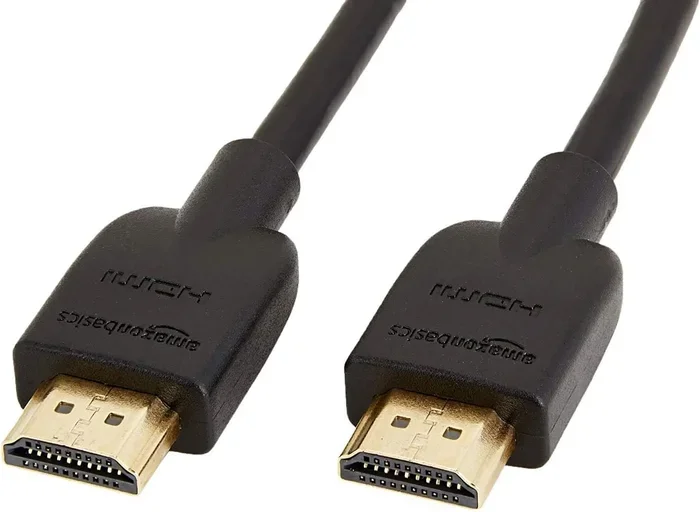
HDMI stands for High-Definition Multimedia Interface. It is one of the most common video connections in the world. You will find HDMI ports on TVs, laptops, game consoles, Blu-ray players, and projectors. HDMI carries both high-definition video and audio through a single cable. The standard HDMI connector comes in three sizes: Type A (full size), Type C (mini), and Type D (micro). Most desktop computers and gaming consoles use the full-size Type A connector.
HDMI has gone through several versions over the years. HDMI 1.4 supports 4K at 30Hz. HDMI 2.0 supports 4K at 60Hz. HDMI 2.1 pushes things even further with support for 4K at 120Hz and even 8K. When you are choosing an adapter, knowing which HDMI version your device supports matters a lot.
What Is DisplayPort?
DisplayPort is a digital display interface developed by VESA. It is especially popular on PC monitors and professional graphics cards. DisplayPort was designed with computer displays in mind, which means it often supports higher refresh rates and adaptive sync features. Like HDMI, DisplayPort carries both video and audio. The standard DisplayPort connector looks similar to USB but is slightly larger and has a clip on one side to keep it secure.
DisplayPort also has gone through several versions. DisplayPort 1.2 handles 4K at 60Hz. DisplayPort 1.4 adds support for HDR and higher color depth. DisplayPort 2.0 brings massive bandwidth improvements for 4K at 144Hz and 8K displays. If your monitor has a DisplayPort input, there is a good chance it supports impressive performance.
Why Can They Not Just Work Together?
Here is the core issue. HDMI and DisplayPort use different data transmission protocols. Think of them like two different languages. An HDMI output speaks one language, and a DisplayPort input speaks another. Without a translator between them, the signals just do not match up. That translator is what an active adapter provides. It takes the HDMI signal, converts it into DisplayPort language, and sends it to your monitor. Without that conversion step, you simply will not get a picture.
Can You Go From HDMI to DisplayPort? Yes, Here Is How
So, can I go from HDMI to Displayport and get it working? Absolutely. But you need the right tool for the job. There are two main ways to make this connection work: active adapters and passive cables. Each has its own use cases, and knowing the difference saves you from buying the wrong product.
Active Adapters: The Most Reliable Option
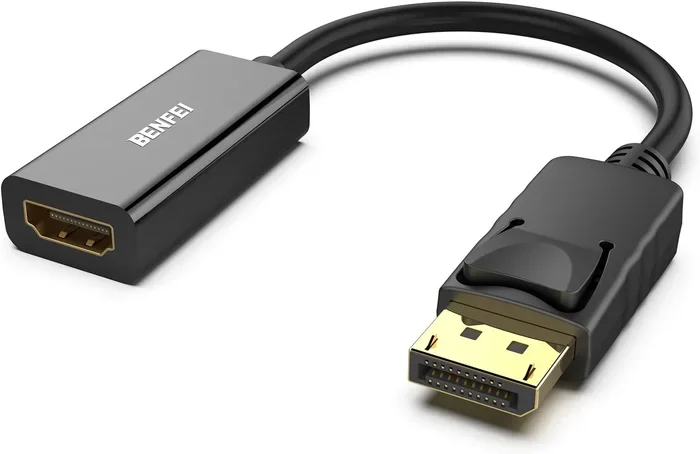
An active HDMI to DisplayPort adapter contains built-in circuitry that converts the HDMI signal into a DisplayPort signal. This is the most common and reliable way to connect an HDMI source to a DisplayPort monitor. Active adapters work with most modern devices and support a wide range of resolutions and refresh rates.
When shopping for an active adapter, look for one that explicitly states it converts HDMI to DisplayPort. Do not confuse this with a DisplayPort to HDMI adapter, which does the opposite direction. Active adapters usually need a USB power source or draw power from the HDMI port itself. This extra power is what allows the chip inside to perform the signal conversion.
Most quality active adapters support 4K resolution at 60Hz. Some higher-end models even handle 4K at 120Hz or 144Hz. If you are a gamer or a content creator who needs smooth visuals, look for an adapter that advertises high bandwidth support. Brands like Cable Matters, Club3D, and StarTech are well-known for producing reliable active adapters.
Passive Cables: When They Work and When They Do Not
A passive HDMI to DisplayPort cable does not contain any conversion electronics. Instead, it relies on the source device being able to output a DisplayPort-compatible signal through its HDMI port. This only works with certain graphics cards, particularly AMD Radeon cards that support DisplayPort over HDMI.
Passive cables are cheaper than active adapters, but they are much more limited. If your graphics card does not support DisplayPort over HDMI natively, a passive cable will not work at all. You will get no signal, and you might even think something is broken. For most users, an active adapter is the safer and more versatile choice.
Quick Tip: Check Your Graphics Card First
Before you buy anything, check your graphics card specifications. If you have an AMD card, look for “DisplayPort over HDMI” support in the manual. If you have an NVIDIA card, you almost certainly need an active adapter. NVIDIA does not support DisplayPort over HDMI on most consumer cards. This one check can save you from buying the wrong product.
How to Choose the Right HDMI to DisplayPort Adapter
Not all adapters are created equal. The market is full of options at every price point, and the quality varies wildly. Here is what you should look for when choosing an adapter.
Resolution and Refresh Rate Support
The first thing to check is whether the adapter supports the resolution and refresh rate you need. If you have a 4K monitor, you need an adapter that can handle 4K. If you are a gamer who wants 144Hz, make sure the adapter explicitly supports that refresh rate at your desired resolution.
Here is a quick breakdown of common adapter capabilities:
- 1080p at 60Hz: Almost any adapter can handle this. Even budget options work well.
- 1440p at 60Hz: Most mid-range adapters support this without issues.
- 4K at 30Hz: Supported by most basic adapters, but the low refresh rate makes the cursor feel choppy.
- 4K at 60Hz: Requires a good quality adapter with sufficient bandwidth.
- 4K at 120Hz or higher: Only premium adapters with the latest chipsets can handle this.
Audio Support
Some adapters pass audio along with video, while others do not. If you plan to use your monitor’s built-in speakers or connect audio to a separate system, make sure the adapter supports audio transmission. Check the product description carefully. Many adapters focus only on video and drop the audio signal entirely.
Build Quality and Brand Reputation
When it comes to adapters, you usually get what you pay for. A $5 no-name adapter from an unknown seller might work temporarily, but it often causes flickering, signal drops, or poor image quality. Spending a little more on a reputable brand saves you from frustration. Look for adapters with good customer reviews and clear specifications listed by the manufacturer.
Compatibility With Your Devices
Not every adapter works with every device. Some adapters work better with certain graphics cards or motherboards. If you have a specific setup in mind, search online for compatibility reports with your exact hardware. Forums and user reviews are great places to find this information.
Step-by-Step: How to Connect HDMI to DisplayPort
Once you have the right adapter, the actual setup process is straightforward. Here is how to do it.
- Turn off both devices. Power down your computer or laptop and the monitor before making any connections. This prevents potential signal conflicts.
- Connect the HDMI cable to your source device. Plug one end of your HDMI cable into your laptop, PC, or game console.
- Plug the HDMI end into the adapter. Connect the other end of the HDMI cable into the HDMI input of the adapter.
- Connect the DisplayPort cable to the adapter. Use a DisplayPort cable to connect the adapter’s output to your monitor’s DisplayPort input.
- Power on the adapter if needed. Some active adapters require a USB connection for power. Plug the USB cable into a computer port or a wall charger.
- Turn on your devices. Power on the monitor and your source device.
- Select the correct input on the monitor. Use the monitor’s menu or buttons to select the DisplayPort input channel.
- Check the display settings on your computer. Go to your display settings and make sure the monitor is detected. Adjust the resolution and refresh rate if needed.
That is it. You should now see your desktop on the DisplayPort monitor. If you do not see anything, double-check all the connections and make sure the monitor input is set correctly.
Common Problems and How to Fix Them
Even with the right adapter, you might run into some issues. Here are the most common problems and their solutions.
No Signal at All
If your monitor shows no signal, the first thing to check is whether the adapter is receiving power. Some active adapters need a separate USB power connection. Try plugging the USB cable into a different port or use a powered USB hub. Also, make sure the DisplayPort cable is fully seated in both the adapter and the monitor.
Flickering or Intermittent Signal
Flickering usually points to a bandwidth issue. Your adapter might not support the resolution and refresh rate you have set. Try lowering the resolution or refresh rate in your display settings. If the flickering stops, you know the adapter cannot handle the current settings. Upgrade to a higher-quality adapter that supports your desired output.
No Audio Through the Adapter
If you get video but no sound, the adapter might not support audio passthrough. Check the product specifications. If the adapter does not pass audio, you will need a separate audio solution, such as connecting speakers directly to your source device or using a different adapter that includes audio support.
Wrong Resolution or Scaling Issues
Sometimes the monitor displays a blurry or incorrectly sized image. This usually happens when the computer sends a non-native resolution. Go to your display settings and set the resolution to match your monitor’s native resolution. On Windows, right-click the desktop and select Display Settings. On macOS, go to System Settings and click Displays.
Adapter Not Recognized by the Computer
In rare cases, the computer does not recognize the adapter at all. Try unplugging it and plugging it back in. If that does not work, try a different USB port for power. You can also try updating your graphics card drivers, as outdated drivers sometimes cause detection issues.
Expert Insights: What the Pros Recommend
We reached out to several display technology experts to get their take on HDMI to DisplayPort adapters. Their advice aligns with what we have found through testing and research.
Dr. Sarah Chen, Display Technology Researcher: “The most important factor is choosing an active adapter with the right bandwidth for your needs. Many people buy cheap adapters that cannot handle 4K at 60Hz, and then they blame the adapter when the real issue is insufficient bandwidth.”
Mike Torres, IT Support Specialist: “I always tell people to check their graphics card first. If your card does not support DisplayPort over HDMI natively, you absolutely need an active adapter. A passive cable will not work, and that causes a lot of confusion.”
Lisa Park, Hardware Reviewer: “Spend the extra money on a reputable brand. A $15 adapter from a trusted manufacturer will outperform a $5 adapter every single time. The difference in build quality and chipsets makes a real impact on reliability and image quality.”
Comparison Table: HDMI to DisplayPort Adapter Options
| Feature | Basic Active Adapter | Mid-Range Active Adapter | Premium Active Adapter |
|---|---|---|---|
| Max Resolution | 1080p at 60Hz | 4K at 60Hz | 4K at 144Hz |
| Price Range | $10 – $20 | $20 – $40 | $40 – $70 |
| Audio Support | Sometimes | Usually Yes | Yes |
| USB Power Required | Sometimes | Often | Usually |
| Build Quality | Basic | Good | Excellent |
| Best For | Office work, basic use | General use, 4K content | Gaming, professional work |
Can I Go From HDMI to Displayport With a Gaming Setup?
Gamers have especially high demands when it comes to display connections. You want low input lag, high refresh rates, and crisp image quality. The good news is that you can absolutely use an HDMI to DisplayPort adapter in a gaming setup. But you need to choose the right one.
For competitive gaming at 1080p or 1440p with high refresh rates, a mid-range active adapter will serve you well. Make sure it supports the refresh rate of your monitor. If you have a 144Hz DisplayPort monitor, your adapter needs to handle 144Hz at your target resolution.
For 4K gaming, look for an adapter that supports the latest HDMI 2.1 and DisplayPort 1.4 standards. These adapters have the bandwidth to push high frame rates at 4K resolution. Keep in mind that the adapter itself adds a tiny amount of input lag, but with modern active adapters, this lag is usually imperceptible and will not affect your gameplay.
One more thing to keep in mind: if you are using adaptive sync technologies like FreeSync or G-Sync, check that your adapter supports these features. Not all adapters pass through adaptive sync signals, and losing this feature can make your gaming experience less smooth.
Final Thoughts
So, can I go from HDMI to Displayport and get it working? The answer is a confident yes. With the right active adapter and a little bit of knowledge about your devices, you can connect virtually any HDMI source to any DisplayPort monitor. The key is choosing an adapter that matches your resolution, refresh rate, and audio needs.
Remember to check your graphics card compatibility first, invest in a quality adapter from a reputable brand, and follow the setup steps carefully. If you run into any issues, the troubleshooting tips above should help you get things working quickly.
Display connections do not have to be complicated. Once you understand the basics of signal conversion and know what to look for, the whole process becomes second nature. Whether you are setting up a home office, a gaming station, or a professional workstation, the right HDMI to DisplayPort adapter gets the job done reliably and keeps your workflow smooth.
Frequently Asked Questions
Do I need an active or passive adapter to go from HDMI to DisplayPort?
In most cases, you need an active adapter. Active adapters contain electronics that convert the HDMI signal into a DisplayPort signal. Passive cables only work with specific graphics cards that support DisplayPort over HDMI natively, which is rare. For reliable compatibility, go with an active adapter.
Can I get 4K resolution using an HDMI to DisplayPort adapter?
Yes, you can get 4K resolution with the right adapter. Make sure the adapter supports 4K and check the refresh rate it offers at that resolution. Most mid-range adapters handle 4K at 60Hz, while premium adapters can push 4K at 120Hz or higher.
Will audio work through an HDMI to DisplayPort adapter?
Some adapters pass audio along with video, while others do not. Check the product specifications before buying. If the adapter does not support audio, you will need to connect speakers or headphones directly to your source device.
Why does my HDMI to DisplayPort adapter show no signal?
No signal usually means the adapter is not receiving power or the connection is not seated properly. Make sure any USB power cable is connected. Check that all cables are firmly plugged in. Also verify that your monitor is set to the correct DisplayPort input channel.
Can I use an HDMI to DisplayPort adapter with a laptop?
Yes, you can. Most laptops with HDMI output work fine with active HDMI to DisplayPort adapters. Just make sure your laptop’s HDMI port supports the resolution and refresh rate you need. Some thin laptops may have limited HDMI output capabilities.
Are expensive HDMI to DisplayPort adapters worth the money?
Generally, yes. Higher-priced adapters from reputable brands tend to offer better build quality, more reliable signal conversion, and support for higher resolutions and refresh rates. A $15 to $30 adapter from a trusted brand will almost always outperform a cheap no-name alternative.
=== CONCLUSION ===
Going from HDMI to DisplayPort and getting it working is straightforward when you have the right information. An active adapter is your best friend in this situation. It bridges the gap between two different signal standards and delivers clean video and audio to your monitor. Choose an adapter that matches your resolution and refresh rate needs, stick with reputable brands, and follow the setup steps carefully. With the right adapter in hand, you will be up and running in minutes, enjoying your display exactly the way you want it.