Can I Convert Usb To Ethernet And Boost My Connection
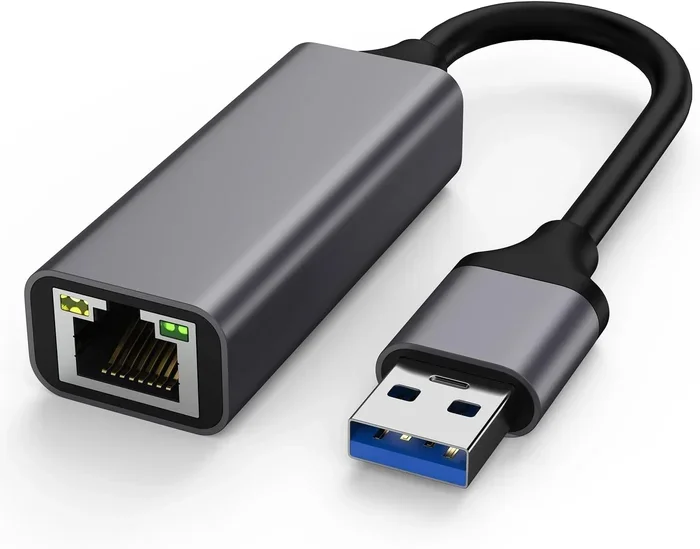
Yes, you can convert USB to Ethernet and dramatically improve your internet experience. A USB to Ethernet adapter is a simple, affordable device that turns any USB port into a wired network connection. This guide walks you through everything you need to know, from choosing the right adapter to setting it up and troubleshooting common issues.
Have you ever been stuck with a weak Wi-Fi signal and wondered if there was a better way to connect to the internet? Maybe your laptop has no Ethernet port, or your desktop is far from the router. Whatever the reason, the idea of converting USB to Ethernet might have crossed your mind.
The good news is that it is absolutely possible. You can turn any available USB port into a reliable wired network connection. A small device called a USB to Ethernet adapter makes this happen. It is one of the simplest and most effective ways to boost your connection without spending a fortune.
In this guide, we will cover everything you need to know. We will look at how these adapters work, the different types available, how to choose the right one, and how to set it up in just a few minutes. Whether you are a student, a remote worker, or a casual internet user, this guide has something for you.
Let us dive in and explore how converting USB to Ethernet can transform your online experience.
Key Takeaways
- Easy Plug-and-Play Setup: Most USB to Ethernet adapters work instantly without complex installation or technical skills.
- Faster, More Stable Connection: A wired Ethernet connection offers lower latency and higher speeds compared to Wi-Fi in many cases.
- Affordable Solution: USB to Ethernet adapters cost between $10 and $50, making them a budget-friendly upgrade for any device.
- Wide Compatibility: These adapters work with laptops, desktops, tablets, and even some smart TVs and gaming consoles.
- Multiple Types Available: USB-A, USB-C, and gigabit options let you pick the perfect adapter for your needs.
- Simple Troubleshooting: Most connection issues can be resolved with basic steps like updating drivers or trying a different USB port.
📑 Table of Contents
- What Is a USB to Ethernet Adapter?
- Why Convert USB to Ethernet?
- Types of USB to Ethernet Adapters
- How to Choose the Right USB to Ethernet Adapter
- How to Set Up Your USB to Ethernet Adapter
- Common Problems and How to Fix Them
- Expert Tips for Maximizing Your Ethernet Connection
- Key Takeaways
- Conclusion
What Is a USB to Ethernet Adapter?
A USB to Ethernet adapter is a small hardware device that bridges your USB port and an Ethernet cable. It acts as a network interface card (NIC) for your device. Without it, many modern laptops and tablets cannot connect directly to a wired network because they lack a built-in Ethernet port.
Think of it as a translator. Your USB port speaks one language, and your Ethernet cable speaks another. The adapter makes them understand each other. Once plugged in, your device recognizes the adapter as a network connection option.
These adapters come in different shapes and sizes. Some are tiny thumb-drive-sized dongles. Others are larger USB hub-style devices with extra ports. But they all serve the same core purpose: to give your device a wired Ethernet connection through a USB port.
How Does It Work?
When you plug a USB to Ethernet adapter into your device, the operating system detects it as a new network hardware. It then loads the necessary drivers, which are small software programs that help your computer communicate with the adapter. Once the drivers are ready, you simply plug in an Ethernet cable, and your device connects to the network.
The adapter handles the conversion of data signals between the USB protocol and the Ethernet protocol. This happens almost instantly. Most modern adapters support plug and play, meaning you do not need to install anything manually. The operating system takes care of it for you.
Why Convert USB to Ethernet?
You might be wondering why you should bother with a wired connection when Wi-Fi is so convenient. The truth is, there are many compelling reasons to use a USB to Ethernet adapter and switch to a wired network connection.
Faster and More Stable Speeds
Wi-Fi is convenient, but it has limitations. Wireless signals can weaken through walls, get crowded by neighboring networks, and suffer from interference. A wired Ethernet connection bypasses all of these problems. You get a direct, dedicated path between your device and the router.
In real-world tests, a wired connection often delivers higher and more consistent internet speed compared to Wi-Fi. This is especially true for activities like online gaming, video conferencing, and large file downloads. If you have ever experienced lag during a video call or buffering during a movie, a wired connection can make a noticeable difference.
Lower Latency for Gaming and Streaming
Latency is the delay between sending a request and receiving a response. In simple terms, it is how fast your device talks to the internet. Wi-Fi tends to have higher latency than a wired connection. For online gamers, this difference can mean the gap between winning and losing.
A USB to Ethernet adapter can significantly reduce latency. This leads to smoother gameplay, faster load times, and a more responsive experience. Even for casual streaming, a lower latency connection means fewer buffering pauses and better video quality.
Better Security
Wi-Fi signals travel through the air, which means they can be intercepted. A wired Ethernet connection is much harder to access from outside your physical location. For people who handle sensitive data or work with confidential files, a wired network connection adds an extra layer of security.
Reliability for Remote Work
If you work from home, a stable internet connection is non-negotiable. Wi-Fi drops, slows down, and fluctuates throughout the day. A wired connection through a USB to Ethernet adapter gives you a dependable link that stays consistent. This is especially important for video meetings, cloud-based applications, and uploading large files.
Types of USB to Ethernet Adapters
Not all adapters are the same. Understanding the different types helps you choose the right one for your device and needs. Here are the most common options available on the market today.
USB-A to Ethernet Adapters
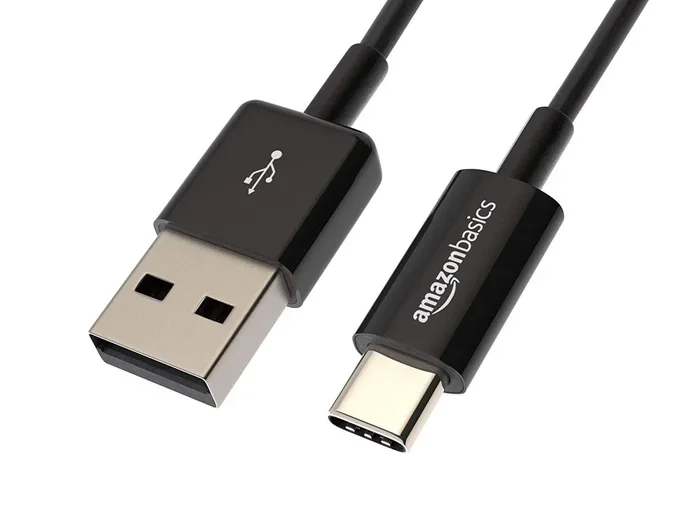
This is the most traditional type. It has a standard rectangular USB-A plug on one end and an Ethernet port on the other. These adapters work with most desktop computers, older laptops, and any device with a USB-A port. They are affordable and widely available.
Most USB-A to Ethernet adapters support speeds up to 100 Mbps or 1000 Mbps (gigabit). The gigabit versions offer much faster data transfer rates and are ideal for users who need high-speed broadband connections.
USB-C to Ethernet Adapters
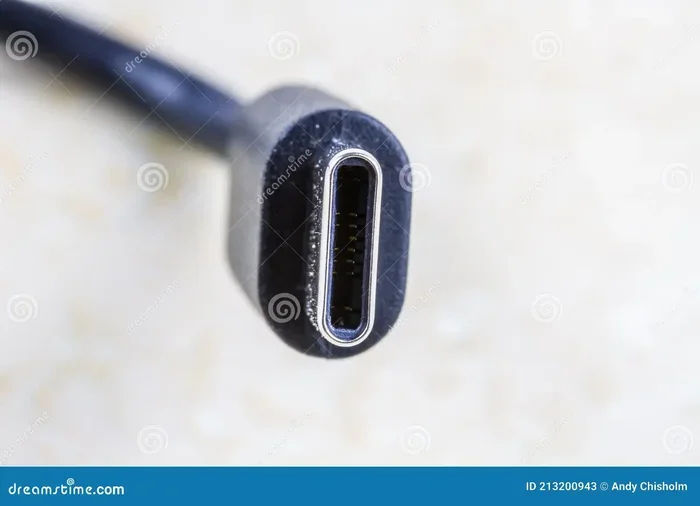
USB-C is the newer, reversible connector found on modern laptops, tablets, and smartphones. A USB-C to Ethernet adapter lets these devices connect to a wired network. These adapters are compact and often support gigabit Ethernet speeds.
Some USB-C adapters also carry power, meaning you can charge your device while staying connected to the internet. This is a great feature for travelers and remote workers who need both power and connectivity on the go.
USB 3.0 vs. USB 2.0 Adapters
The USB version matters more than you might think. A USB 3.0 to Ethernet adapter can handle gigabit speeds without bottlenecking. A USB 2.0 adapter, on the other hand, will cap your connection at around 300 Mbps, even if your Ethernet cable supports higher speeds.
If your device has USB 3.0 ports (they are usually blue inside), always choose a USB 3.0 adapter. It ensures you get the full benefit of your wired connection and maximizes your internet speed.
USB Ethernet Adapters with Built-in Hubs
Some adapters come with extra USB ports built in. These act as a small hub, giving you additional USB ports for charging, connecting peripherals, or transferring data. They are a great all-in-one solution if you need more connectivity options on your device.
How to Choose the Right USB to Ethernet Adapter
With so many options available, picking the right adapter can feel overwhelming. Here are the key factors to consider before you buy.
Check Your Device’s USB Port Type
First, look at the USB ports on your device. Do you have USB-A or USB-C? This single detail determines which adapter you need. Using the wrong type means you will need an additional cable or adapter, which adds clutter and potential points of failure.
Consider Your Speed Needs
What do you use your internet connection for? If you browse the web, check email, and stream videos, a basic 100 Mbps adapter may be enough. But if you game, stream in 4K, or work with large files, invest in a gigabit Ethernet adapter that supports 1000 Mbps speeds.
Look for Driver Compatibility
Before purchasing, check that the adapter is compatible with your operating system. Most adapters work with Windows, macOS, and ChromeOS. Some also support Linux. Always read the product specifications to confirm plug and play support and driver availability.
Brand Reputation and Reviews
Stick with reputable brands that have positive customer reviews. Popular brands in this space include UGREEN, Sabrent, TP-Link, and Amazon Basics. Reading reviews helps you avoid adapters that overheat, disconnect frequently, or have poor driver support.
Price Range
You do not need to spend a lot to get a good adapter. Basic USB-A to Ethernet adapters start around $10. USB-C gigabit adapters range from $15 to $35. Adapters with built-in USB hubs may cost a bit more but offer extra convenience.
| Adapter Type | Speed | Price Range | Best For |
|---|---|---|---|
| USB-A to Ethernet (100 Mbps) | Up to 100 Mbps | $8 – $15 | Basic browsing and email |
| USB-A to Ethernet (Gigabit) | Up to 1000 Mbps | $15 – $30 | Streaming, gaming, work |
| USB-C to Ethernet (Gigabit) | Up to 1000 Mbps | $15 – $35 | Modern laptops and tablets |
| USB-C with Built-in Hub | Up to 1000 Mbps | $25 – $50 | Travelers and multi-device users |
How to Set Up Your USB to Ethernet Adapter
Setting up a USB to Ethernet adapter is straightforward. Most adapters follow the same basic process. Here is a step-by-step guide to get you connected in minutes.
Step 1: Plug in the Adapter
Insert the adapter into an available USB port on your device. If you are using a USB-A adapter, plug it into any standard USB-A port. For USB-C adapters, use a USB-C port. Avoid using USB hubs in the first step. Plug directly into your device for the best connection.
Step 2: Wait for Driver Installation
Most modern operating systems recognize the adapter automatically. You may see a notification saying a new device is being installed. Wait for this process to complete. It usually takes 10 to 30 seconds.
If your operating system does not install the driver automatically, visit the manufacturer’s website and download the latest driver for your model. Follow the on-screen instructions to complete the installation.
Step 3: Connect the Ethernet Cable
Take your Ethernet cable and plug one end into the adapter and the other end into your router, switch, or wall Ethernet jack. The connection should establish within a few seconds.
You will see a small light on the adapter turn on or blink. This indicates that the connection is active. On your device, you should see a new network icon appear in your system tray.
Step 4: Verify Your Connection
Open your web browser and visit any website. If the page loads normally, you are connected. You can also go to your network settings to confirm the connection speed and status.
To check your speed, visit a speed test website like Speedtest.net. Compare the results with your Wi-Fi speeds to see the improvement. Many users are surprised by how much faster a wired connection can be.
Quick Tips for a Smooth Setup
- Always use a high-quality Ethernet cable. A cheap or damaged cable can limit your speeds.
- Plug the adapter directly into your device, not through a USB hub, for the best performance.
- If you experience issues, try a different USB port to rule out a faulty port.
- Keep your adapter drivers updated. Manufacturers often release updates that improve performance and fix bugs.
- Restart your device after connecting the adapter if the network does not appear immediately.
Common Problems and How to Fix Them
While USB to Ethernet adapters are generally reliable, you may run into occasional issues. Here are the most common problems and simple solutions.
Adapter Not Recognized by the Device
If your device does not detect the adapter, try plugging it into a different USB port. Some USB ports provide less power than others. Also, check if the adapter works on another device to rule out a hardware defect.
On Windows, go to Device Manager and look for any unrecognized devices or yellow warning icons. Right-click and select “Update driver” to let Windows search for the correct software automatically.
Slow Connection Speeds
If your wired connection is slower than expected, several factors could be at play. First, check your Ethernet cable. Cat5e or Cat6 cables support gigabit speeds. Older cables may limit your connection.
Second, make sure your router supports the speed you are paying for. A gigabit adapter connected to a 100 Mbps router will only deliver 100 Mbps. Third, check that you are using a USB 3.0 port if you have a gigabit adapter.
Intermittent Disconnections
If your connection drops frequently, the adapter may be overheating. Cheap adapters without proper cooling can throttle performance or disconnect entirely. Try using the adapter in a well-ventilated area or with a small USB fan nearby.
Also, update your network adapter drivers. Outdated drivers are a common cause of unstable connections. Visit the manufacturer’s website for the latest driver version.
No Internet Access After Connecting
Sometimes the adapter connects to the router but does not provide internet access. This usually means your device is not receiving an IP address. Try releasing and renewing your IP address through your network settings. On Windows, open Command Prompt and type ipconfig /release followed by ipconfig /renew.
If that does not work, restart your router and the adapter. A simple reboot often resolves temporary network glitches and restores your network connection.
Expert Tips for Maximizing Your Ethernet Connection
Once you have your USB to Ethernet adapter working, you can take a few extra steps to get the most out of your wired network connection.
Use the Shortest Ethernet Cable Possible
Longer cables can cause slight signal loss. For the best performance, use the shortest cable that reaches from your router to your device. A 3 to 6-foot cable is ideal for most setups.
Keep Your Adapter Cool
Adapters can heat up during extended use, especially during heavy data transfers. Place the adapter in an open area where air can circulate around it. Avoid stacking it under other devices or burying it in a bag.
Enable Jumbo Frames (Advanced)
If you are a power user, enabling jumbo frames on your network adapter can improve throughput for large file transfers. This setting allows larger data packets to travel across your network, reducing overhead. Check your adapter settings in your network adapter properties to find this option.
Combine with a USB-C Dock for Maximum Productivity
If you use a laptop with limited ports, consider a USB-C docking station that includes an Ethernet port. These docks give you internet access plus multiple USB ports, HDMI output, and sometimes even SD card readers. It is a clean, organized way to expand your connectivity options.
Regularly Update Firmware and Drivers
Manufacturers occasionally release firmware and driver updates that improve compatibility and performance. Check the manufacturer’s website every few months to see if updates are available for your adapter model.
Key Takeaways
- Simple and Affordable: A USB to Ethernet adapter is one of the easiest and most cost-effective ways to improve your internet connection.
- Wired Is Better for Performance: A wired network connection offers faster speeds, lower latency, and greater stability compared to Wi-Fi.
- Choose the Right Type: Match your adapter to your device’s USB port type and your speed requirements for the best results.
- Setup Takes Minutes: Most adapters work with plug and play. You do not need technical expertise to get started.
- Troubleshooting Is Simple: Most issues can be fixed with a different USB port, updated drivers, or a quick restart.
- Great for Remote Work and Gaming: The improved stability and lower latency make adapters ideal for work, gaming, and streaming.
Conclusion
The answer to the question can I convert USB to Ethernet is a resounding yes. A USB to Ethernet adapter is a small investment that can deliver big improvements to your internet experience. Whether you need faster speeds, a more stable connection, or lower latency for gaming, this simple device has you covered.
With so many affordable options available, there is no reason to settle for a weak Wi-Fi signal. Choose the right adapter for your device, follow the setup steps in this guide, and enjoy the benefits of a wired Ethernet connection. You will wonder why you did not make the switch sooner.
Take action today. Pick up a USB to Ethernet adapter, plug it in, and feel the difference in your internet speed and connection quality. Your online experience will thank you.
Frequently Asked Questions
Is converting USB to Ethernet safe for my device?
Yes, it is completely safe. USB to Ethernet adapters are designed to work with your device without causing any harm. They draw minimal power from the USB port and do not affect your device’s performance or warranty. Always buy from reputable brands to ensure safety and quality.
Can I use a USB to Ethernet adapter on a smart TV?
Many smart TVs and streaming devices support USB to Ethernet adapters, but compatibility varies by model. Check your TV’s manual or manufacturer website to confirm support. Some smart TVs require specific adapter models, so it is best to verify before purchasing.
Will a USB to Ethernet adapter improve my internet speed?
It can, especially if your current Wi-Fi connection is weak or congested. A wired connection provides a more direct and stable path to your router, which often results in higher and more consistent speeds. The actual improvement depends on your internet plan and router capabilities.
Do I need to install drivers for a USB to Ethernet adapter?
Most modern adapters support plug and play and do not require manual driver installation. However, some adapters may need drivers that your operating system downloads automatically. If the adapter is not recognized, visit the manufacturer’s website to download the latest drivers for your operating system.
Can I use a USB to Ethernet adapter with a USB hub?
Yes, you can, but it is better to plug the adapter directly into your device’s USB port for optimal performance. Using a USB hub can sometimes cause power or bandwidth issues that affect your connection speed and stability. Direct connection is always recommended.
What is the difference between USB 2.0 and USB 3.0 Ethernet adapters?
The main difference is speed. A USB 3.0 adapter can handle gigabit Ethernet speeds up to 1000 Mbps, while a USB 2.0 adapter caps out at around 300 Mbps. If your device has USB 3.0 ports, always choose a USB 3.0 adapter to get the full benefit of your wired connection and maximize your broadband speed.