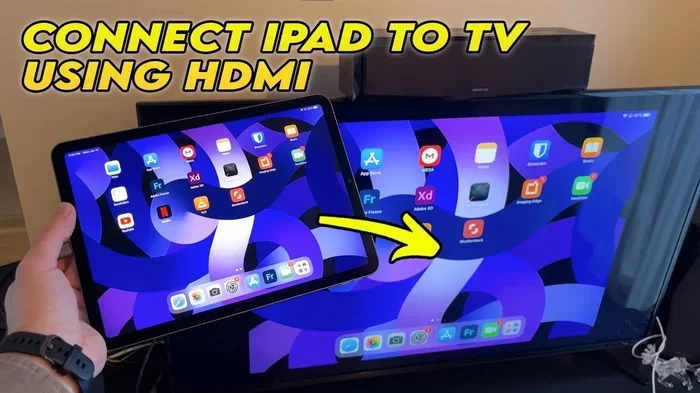
Can I Connect My Ipad With Hdmi And Watch Anything
Yes, you can connect your iPad with HDMI and watch movies, shows, presentations, and games on a bigger screen. Whether you own an iPad Pro, iPad Air, or iPad mini, the right adapter makes it simple. This guide walks you through every step, from picking the correct cable to fixing common connection issues.
Have you ever wanted to share what is on your iPad screen with a group of people? Or maybe you just want to watch your favorite show on a bigger TV. The good news is that connecting your iPad with HDMI is easier than most people think. You do not need to be a tech expert to make it work. In this guide, we will show you exactly how to do it, step by step.
Whether you want to stream movies from your iPad to your TV, give a presentation at work, or play games on a larger display, an HDMI connection makes it all possible. We will cover which adapters you need, how to set everything up, and what to do when things do not go as planned. By the end of this article, you will feel confident making the connection yourself.
The process depends on your iPad model and the type of port it has. Newer iPads use USB-C, while older models use the Lightning connector. Both can connect to HDMI with the right adapter. Let us dive into the details and help you get started.
Key Takeaways
- Multiple adapter types work: Lightning to HDMI and USB-C to HDMI adapters support most iPad models.
- You can watch almost anything: Streaming apps, downloaded videos, games, and presentations all display on external screens.
- Setup is quick and easy: Plug in the adapter, connect an HDMI cable, and select the right input on your TV or monitor.
- Common issues have simple fixes: Most problems like no signal or audio issues can be solved in minutes.
- Compatibility matters: Always check your iPad model and adapter type before buying.
📑 Table of Contents
Understanding How iPad Connects to HDMI
Before you buy any cable or adapter, it helps to understand the basics. Your iPad does not have a built-in HDMI port. So you need an adapter that bridges the gap between your iPad and the HDMI cable. Think of it as a translator between two different languages.
The adapter takes the digital signal from your iPad and converts it into an HDMI signal that your TV or monitor can read. Once connected, your iPad screen mirrors to the external display. You can watch anything you normally watch on your iPad, just on a bigger screen.
Lightning vs USB-C: What Does Your iPad Use?
Apple has used two main connector types over the years. The Lightning connector was the standard for many years. It is the small, flat connector found on older iPad models. The USB-C connector is newer and looks like a slightly rounded rectangle. It is found on iPad Pro models from 2018 onward, iPad Air (4th generation and later), and iPad mini (6th generation and later).
Knowing which connector your iPad uses is the first step. You cannot use a Lightning adapter with a USB-C iPad, and vice versa. Check the bottom of your iPad or go to Settings, then General, then About to find your model number.
Does Every iPad Support HDMI Output
Most iPads support HDMI output through an adapter. This includes iPad Pro, iPad Air, iPad (5th generation and later), and iPad mini (4th generation and later). However, very old iPad models may have limited support. Always check Apple’s official compatibility list before purchasing an adapter.
The good news is that iPad HDMI compatibility is broad. If your iPad was made in the last seven to eight years, there is a good chance it supports HDMI output. The key is using the correct adapter for your specific model.
Types of HDMI Adapters for iPad
Not all adapters are the same. Choosing the right one depends on your iPad model, your budget, and what you plan to do. Let us look at the main options available.
Apple Lightning to HDMI Adapter
This is the official adapter made by Apple for older iPads with the Lightning port. It is reliable and works seamlessly with most iPad models. The adapter plugs into your iPad, and you connect a standard HDMI cable from the adapter to your TV.
One downside is the price. Apple adapters tend to cost more than third-party options. But they offer solid performance and rarely cause compatibility issues. If you want a plug-and-play experience, this is a safe choice.
USB-C to HDMI Adapter
If you have a newer iPad with USB-C, this is the adapter you need. USB-C to HDMI adapters come in many shapes and sizes. Some are simple adapters that plug directly into your iPad. Others are docking stations that add extra ports like USB-A or SD card slots.
Many people prefer USB-C adapters because they support higher resolutions. Some can output 4K video at 60 frames per second. This makes them great for watching high-quality content or giving polished presentations.
Third-Party HDMI Adapters
You do not have to buy the Apple adapter. Many third-party brands make excellent HDMI adapters for iPad. Brands like Belkin, Anker, and UGREEN offer reliable options at lower prices.
When buying a third-party adapter, look for ones that are MFi certified (Made for iPhone/iPad). This certification means the adapter meets Apple’s quality standards. Avoid cheap, uncertified adapters, as they may not work consistently or could damage your device.
| Adapter Type | Best For | Price Range | Max Resolution |
|---|---|---|---|
| Apple Lightning to HDMI | Older iPad models | $30-$50 | 1080p |
| USB-C to HDMI | Newer iPad models | $15-$40 | 4K at 60Hz |
| Third-Party Lightning to HDMI | Budget-friendly option | $10-$25 | 1080p |
| USB-C Docking Station | Presentations and multitasking | $40-$80 | 4K at 60Hz |
Step-by-Step Guide to Connecting iPad to HDMI
Now that you have the right adapter, let us walk through the setup process. It takes less than two minutes once you know the steps.
Step 1: Gather Your Equipment
You will need three things:
- Your iPad, fully charged or plugged in
- The correct HDMI adapter for your iPad model
- An HDMI cable (most TVs come with one included)
Make sure your HDMI cable is in good condition. A damaged cable can cause signal problems. If you are unsure, try a different cable to rule out issues.
Step 2: Plug in the Adapter
Connect the adapter to the charging port on the bottom of your iPad. You should feel it click into place. If it does not fit, double-check that you have the right adapter type for your iPad.
Step 3: Connect the HDMI Cable
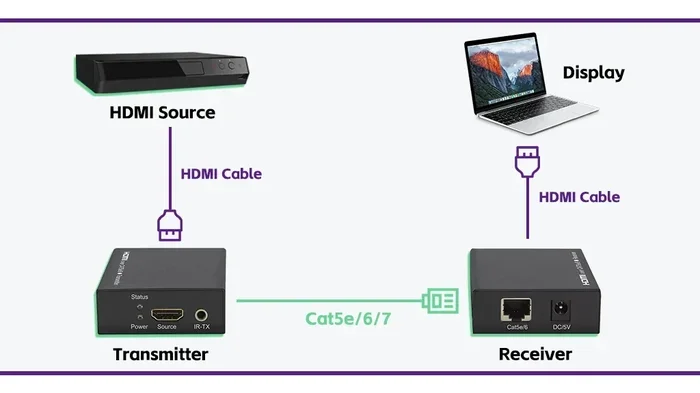
Plug one end of the HDMI cable into the adapter. Then plug the other end into an available HDMI port on your TV or monitor. Use a port labeled HDMI 1, HDMI 2, and so on. You will need to remember which port you used.
Step 4: Switch Your TV to the Correct Input
Turn on your TV and use the remote to switch to the HDMI input you plugged the cable into. Most TVs have a button labeled “Input,” “Source,” or “HDMI” on the remote. Select the correct HDMI port, and your iPad screen should appear on the TV.
Step 5: Adjust Settings If Needed
If the screen does not appear right away, do not worry. Try unplugging the adapter and plugging it back in. You can also restart your iPad. On newer iPads, you may need to go to Settings, then Display & Brightness, and look for the external display option.
Quick Tips for a Smooth Setup
- Always use a high-quality HDMI cable for the best picture.
- Keep your iPad plugged in during long viewing sessions to avoid battery drain.
- If the screen looks stretched or distorted, adjust the aspect ratio in your TV settings.
- Use a cable shorter than 6 feet for the strongest signal.
What Can You Watch When Connected to HDMI
Once your iPad is connected to HDMI, the possibilities are wide open. You can display almost anything from your iPad on a bigger screen. Here is a look at what works best.
Streaming Apps Like Netflix, Disney Plus, and YouTube
Streaming services work great through HDMI. Open Netflix, Disney Plus, Hulu, or YouTube on your iPad, and the content will display on your TV. This is perfect for movie nights or watching sports with friends. The video quality depends on your subscription plan and your internet speed.
Keep in mind that some streaming apps use HDCP (High-bandwidth Digital Content Protection). This is a copyright protection feature. Most modern adapters support HDCP, but very cheap adapters may not. If you see a black screen while streaming, HDCP compatibility could be the issue.
Downloaded Movies and Personal Videos
You can also watch downloaded movies, home videos, or files saved on your iPad. Connect to HDMI, open your video app or file manager, and play the content. The quality will be excellent, especially if your video files are high resolution.
Presentations and Slideshows
If you use your iPad for work or school, HDMI output is a game changer. You can display Keynote or PowerPoint presentations on a large screen. This works well for meetings, classrooms, and conferences. Use a USB-C to HDMI adapter for the smoothest experience.
Gaming on a Bigger Screen
Gamers will love the ability to play iPad games on a TV. Whether you are playing casual games or demanding titles, the larger screen makes the experience more immersive. Some games even support game controllers, which you can connect through Bluetooth or a USB hub.
Using Your iPad as a Second Monitor
With the right setup, you can use your iPad as a second monitor for your computer. This is called screen extension, not mirroring. It lets you spread your work across two screens, which is great for multitasking. Apps like Duet Display and Luna Display make this possible.
Common Problems and How to Fix Them
Even with the right equipment, you might run into issues. Here are the most common problems people face when connecting their iPad to HDMI, along with simple solutions.
No Signal on the TV
This is the most common issue. It usually happens when the TV is on the wrong input or the cable is loose. Try switching the TV input to the correct HDMI port. Unplug the adapter and plug it back in. Restart your iPad if needed.
Black Screen While Streaming
A black screen during streaming is often caused by HDCP incompatibility. Make sure your adapter supports HDCP. Also, try lowering the streaming quality in the app settings. If that does not work, disconnect and reconnect the adapter.
No Audio Through the TV
If the picture works but there is no sound, check a few things. First, make sure your TV is not muted. Then, go to Settings on your iPad, then Sounds & Haptics, and check the volume. Sometimes the audio output is set to the iPad speakers instead of the HDMI display. You can change this in Control Center by tapping the audio output icon.
Flickering or Distorted Image
A flickering screen is often caused by a bad HDMI cable. Replace the cable and see if the problem goes away. Also, make sure your adapter is firmly connected. If you are using a docking station, try connecting directly to the iPad without the dock to isolate the issue.
Common Mistakes to Avoid
- Buying the wrong adapter type for your iPad model.
- Using a cheap, uncertified adapter that does not support HDCP.
- Forgetting to switch the TV to the correct HDMI input.
- Using a damaged or overly long HDMI cable.
- Not keeping your iPad charged during long viewing sessions.
Expert Tips for the Best HDMI Experience
Once you have your iPad connected to HDMI and working, you can take your setup to the next level. These expert tips will help you get the best picture, sound, and overall experience.
Invest in a Good Adapter
Your adapter is the most important piece of equipment. A quality adapter ensures stable connections, better video quality, and fewer headaches. Look for adapters with good reviews and certifications. Spending a little more upfront saves you from buying replacements later.
Use an HDMI Splitter for Multiple Screens
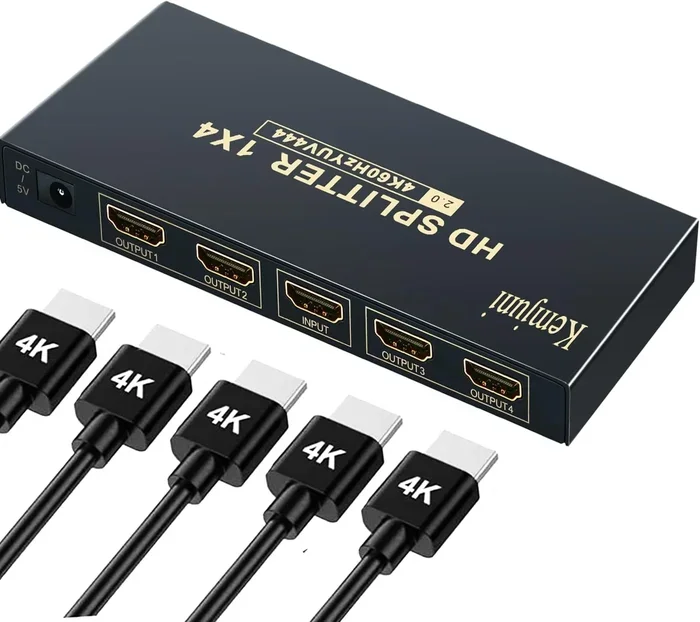
Want to display your iPad on two TVs at once? An HDMI splitter lets you do this. It takes one HDMI signal and splits it into two or more outputs. This is great for events, classrooms, or family gatherings where people are seated in different rooms.
Optimize Your iPad Settings
Go to Settings, then Display & Brightness, and adjust your iPad screen brightness before connecting. A brighter iPad screen can affect the mirrored display. Also, turn on Low Power Mode if you plan to watch for a long time. It helps conserve battery while the screen is mirrored.
Consider a Wireless Option Too
While HDMI gives you the best quality and reliability, do not overlook wireless options. AirPlay lets you stream from your iPad to an Apple TV or a compatible smart TV without any cables. It is not as reliable as a wired connection, but it is convenient for casual viewing. You can also use Chromecast or Roku devices to cast content from your iPad to your TV.
Expert Insight
According to tech reviewers, the USB-C to HDMI adapter is the best choice for most users today. It supports higher resolutions, charges your iPad while connected, and works with the latest iPad models. If you own an iPad Pro or iPad Air (4th gen or later), a USB-C adapter is the way to go.
Conclusion
Connecting your iPad with HDMI and watching anything you want on a bigger screen is simple, affordable, and incredibly useful. Whether you are streaming movies, giving presentations, playing games, or sharing photos with family, an HDMI setup transforms your iPad into a powerful media hub.
The key is choosing the right adapter for your iPad model. Check whether you need a Lightning to HDMI or USB-C to HDMI adapter, and buy from a reputable brand. Follow the setup steps carefully, and you will be watching on the big screen in minutes.
Do not let connection problems discourage you. Most issues have quick and easy fixes. With the right equipment and a little patience, you will enjoy a seamless viewing experience every time. Start setting up your iPad HDMI connection today and enjoy your favorite content the way it was meant to be seen.
Frequently Asked Questions
Do I Need a Special HDMI Cable to Connect My iPad to a TV?
No, you do not need a special HDMI cable. Any standard HDMI cable will work. However, using a high-quality, well-shielded cable ensures a stable connection and better picture quality. Avoid cables that are longer than 10 feet, as they may lose signal strength.
Can I Charge My iPad While It Is Connected to HDMI?
Yes, you can charge your iPad while it is connected to HDMI. If you use a USB-C to HDMI adapter, you can plug a USB-C charger into the same adapter or use a separate charging cable. For Lightning adapters, you may need a charging adapter that splits the connection.
Why Does My iPad Screen Look Stretched on the TV?
A stretched screen usually means the aspect ratio does not match. Go to your TV settings and adjust the aspect ratio or picture size. On your iPad, make sure the screen resolution is set correctly. Most iPads automatically adjust, but sometimes manual tweaking is needed.
Can I Connect My iPad to a Monitor Instead of a TV?
Yes, you can connect your iPad to any monitor with an HDMI input. The process is the same as connecting to a TV. Just make sure your monitor has an available HDMI port and use the correct adapter for your iPad model.
Does Connecting iPad to HDMI Drain the Battery Faster?
Yes, mirroring your iPad screen to an external display uses more battery. The iPad is essentially running two displays. To prevent battery drain, keep your iPad plugged in while using it with HDMI. You can also lower the screen brightness on your iPad to save power.
Is It Possible to Use HDMI and Charge at the Same Time on Older iPads?
It can be tricky with older Lightning-based iPads. Some Lightning adapters have a pass-through charging port, which lets you charge while connected to HDMI. If your adapter does not have this feature, you may need a separate charging cable or a powered USB hub.