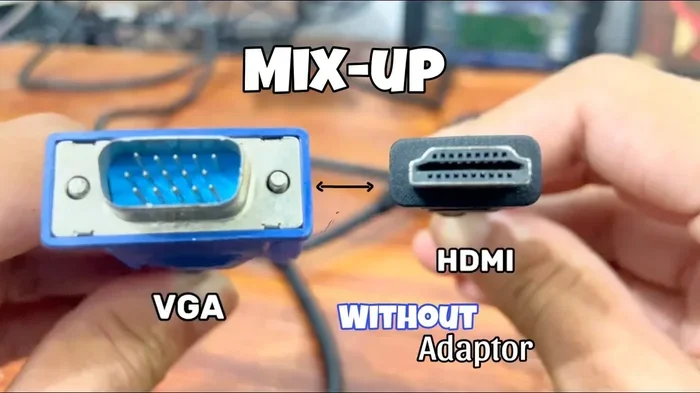
Can I Connect Hdmi Cable To Vga Port Without Adapters
The short answer is no — you cannot connect an HDMI cable directly to a VGA port without an adapter. HDMI is a digital signal, while VGA carries an analog signal, making them incompatible by design. You will need an active HDMI to VGA adapter to bridge the gap between these two different video connection types. This guide breaks down exactly why direct connection fails, which adapters work best, and how to set up your display the right way every time.
Can I Connect HDMI Cable to VGA Port Without Adapters? This is one of the most common questions people ask when they have a newer device with only HDMI output and an older screen or projector with a VGA input. The quick truth is that you cannot make this work without some kind of converter. But the good news is that the solution is simple, affordable, and easy to set up once you understand how the two connection types differ.
In this guide, we will walk through everything you need to know about connecting HDMI to VGA. We will cover why direct connection does not work, which adapter you need, how to set it up step by step, and what common problems to watch out for. Whether you are trying to hook up a laptop to an old projector in a classroom or connect a modern desktop to a legacy monitor, this article has you covered.
Key Takeaways
- Direct connection is impossible: HDMI and VGA use different signal types, so a cable alone will not work.
- An active adapter is required: You need a converter that changes digital signals to analog signals.
- You will lose audio: VGA does not carry sound, so you need a separate audio solution.
- Resolution may drop: Expect lower display quality when converting from HDMI to VGA.
- Not all adapters are equal: Active adapters with built-in chipsets perform much better than passive ones.
- Check your device settings: Display configuration on your computer matters for a successful connection.
- Older projectors and monitors benefit most: This setup is common in classrooms, offices, and legacy systems.
📑 Table of Contents
What Happens When You Try to Connect HDMI to VGA Directly?
If you plug an HDMI cable straight into a VGA port, nothing will happen. The cable simply will not fit. HDMI connectors are much smaller and have a different shape than VGA connectors. Even if you somehow forced a physical connection, the signal would not work because the two systems speak completely different languages.
HDMI sends a digital signal. This means the video data is transmitted as a series of ones and zeros. VGA sends an analog signal. This means the video data is sent as continuous electrical waves. These two formats are fundamentally different, and they cannot talk to each other without a translator. That translator is what we call an adapter or converter.
Some people try to use a simple cable with different ends on each side. This is called a passive cable. In most cases, a passive HDMI to VGA cable will not work. You need an active adapter that contains a chip to convert the digital HDMI signal into an analog VGA signal. Without that chip, the connection fails.
Why the Signal Types Matter
Think of it like this. Imagine you are speaking English and the other person only speaks Spanish. A regular cable is like handing them a piece of paper with English words on it. They still will not understand you. An active adapter is like a real translator sitting between you, converting your words into something the other person can understand.
This is exactly what happens inside an HDMI to VGA adapter. The small chip inside the adapter takes the digital video data from your HDMI source and converts it into an analog signal that a VGA display can read. Without this conversion, the VGA monitor or projector has no way to interpret the HDMI signal.
Why You Need an Adapter to Connect HDMI to VGA
The need for an adapter comes down to basic technology differences. HDMI was introduced in 2003 and was designed to carry both high-definition video and audio in one cable. VGA dates back to 1987 and was designed only for analog video. These two standards were built for different eras of technology, and they do not share a common language.
When you use an HDMI to VGA adapter, you are essentially bridging two decades of display technology. The adapter handles the hard work of signal conversion so your devices can communicate. This is why no matter what cable you buy, you cannot skip the adapter step.
Understanding Digital vs Analog Signals
A digital signal is like a staircase. It moves in clear, sharp steps from one value to the next. This is what HDMI uses. The picture is crisp, and the data is precise. An analog signal is like a ramp. It moves smoothly and continuously. This is what VGA uses. The picture can be slightly less sharp because the signal is more prone to interference and degradation over distance.
When you convert from digital to analog, some quality is always lost. This is a natural part of the process. The better the adapter, the less quality loss you will notice. Cheap adapters may produce a blurry or flickering image. Quality adapters preserve much more of the original clarity.
How Active Adapters Handle Signal Conversion
An active HDMI to VGA adapter has a built-in processor chip. This chip does the real work of converting the signal. It takes the digital HDMI data, processes it, and outputs a matching analog VGA signal. Active adapters also often include a USB port for extra power. This ensures the conversion happens cleanly and reliably.
Some adapters also include a 3.5mm audio jack. This lets you pull the audio signal from your HDMI source and send it to speakers or headphones separately. Since VGA does not carry audio, this feature is very helpful if you need sound along with your video.
Types of HDMI to VGA Adapters Available
Not all adapters are the same. There are several types on the market, and choosing the right one makes a big difference in your experience. Let us look at the main options available for connecting HDMI to VGA.
Active HDMI to VGA Adapters
An active adapter is the most common and reliable option. It has a built-in conversion chip and usually needs its own power source, often through a USB cable. These adapters work with most laptops, desktops, and media players. They handle the digital to analog conversion smoothly and produce a usable image on VGA displays.
Active adapters are the best choice for most people. They are widely available, reasonably priced, and easy to use. You can find them online or at electronics stores for around fifteen to thirty dollars. Popular brands include Cable Matters, UGREEN, and Sabrent.
Passive vs Active: Which One Do You Need?
A passive adapter does not have a conversion chip. It simply changes the physical connector shape. Passive adapters only work in very specific situations, such as when a device has dual-mode HDMI output that can switch to VGA. Most modern devices do not support this, so passive adapters rarely work.
An active adapter is what you need in almost every case. It actually converts the signal and gives you a reliable connection. If you are buying an adapter to connect HDMI to VGA, always look for one that is labeled as active. Passive cables and adapters will likely waste your time and money.
Adapters with Audio Support
Since VGA does not carry audio, you need a separate way to get sound if your HDMI source also outputs audio. Some HDMI to VGA adapters with audio include a built-in 3.5mm headphone jack. This lets you plug in speakers or headphones directly into the adapter.
These combo adapters are very convenient. They save you from running separate audio cables. If you are setting up a presentation or a home theater with an older projector, an adapter with audio support is a smart choice. Just make sure the adapter you buy includes this feature before you purchase it.
Step-by-Step Guide to Connecting HDMI to VGA
Setting up an HDMI to VGA connection is straightforward once you have the right adapter. Follow these steps to get your display working quickly and correctly.
What You Will Need
Before you start, gather the following items:
- An active HDMI to VGA adapter
- An HDMI cable (standard or mini, depending on your device)
- A VGA cable (usually comes with the monitor or projector)
- A USB cable for powering the adapter (if required)
- A 3.5mm audio cable if you need sound and your adapter does not have a built-in jack
Once you have all the pieces, you are ready to set up the connection. Make sure your devices are powered off before plugging in any cables.
Setting Up the Connection
First, plug the HDMI cable into your source device, such as a laptop or desktop. Next, connect the other end of the HDMI cable into the input side of the active adapter. Then, plug the VGA cable into the output side of the adapter. Finally, connect the other end of the VGA cable into the VGA port on your monitor or projector.
If your adapter requires external power, plug the USB cable into the adapter and connect it to a USB port on your computer or a wall charger. Turn on your display device and your source device. The adapter should now convert the signal, and you should see an image on your VGA screen.
Configuring Display Settings
After the physical connection is made, you may need to adjust your display settings. On Windows, right-click the desktop and select Display Settings. You can choose to duplicate the screen, extend it, or show the display only on the VGA monitor. On a Mac, go to System Settings, then Displays, and arrange your screens as needed.
If the image looks stretched or cut off, try adjusting the resolution. VGA typically works best at 1920 by 1080 or lower. Going above this resolution may cause the image to not fit properly on the screen. Lowering the resolution to match the VGA display can fix this issue quickly.
Common Problems When Connecting HDMI to VGA
Even with the right adapter, you might run into some issues. Here are the most common problems and how to fix them.
No Signal or Blank Screen
If your VGA display shows a blank screen, the first thing to check is the physical connections. Make sure both the HDMI and VGA cables are firmly plugged in. A loose cable is the most common cause of no signal. Try unplugging and replugging each connection.
Next, check that the adapter is powered on if it requires external power. Some adapters have a small LED light that shows they are receiving power. If the light is off, try a different USB port or a different power source.
Poor Image Quality
If the image on your VGA screen looks blurry, fuzzy, or has ghosting, the signal quality may be degrading. This can happen with long VGA cables or cheap adapters. Try shortening the VGA cable if possible. Also, make sure your resolution is set to 1080p or lower for the best results on a VGA display.
Another cause of poor image quality is a low-quality adapter. If you bought a very cheap adapter online, it may not convert the signal well. Investing in a reputable brand can make a noticeable difference in image sharpness and color accuracy.
No Audio Output
Remember that VGA does not carry audio. If you are not getting sound through your VGA display, that is completely normal. You need to connect audio separately. Use a 3.5mm audio cable from your source device to your speakers or headphones. Or, if your adapter has a built-in audio jack, use that to connect external speakers.
On some computers, you may also need to change the default audio output in your sound settings. Go to your system sound preferences and make sure the audio is set to output through the correct port, not through HDMI.
Expert Tips for the Best Connection Experience
Getting the most out of your HDMI to VGA setup comes down to a few smart choices. Here are some tips from experienced users and tech professionals.
First, always buy an active adapter from a trusted brand. Cheap no-name adapters often fail or produce poor image quality. Spending a little more upfront saves you frustration later. Look for adapters with good reviews and a solid warranty.
Second, keep your cables as short as possible. Longer cables mean more signal loss, especially with VGA. A six-foot HDMI cable and a six-foot VGA cable will work well. If you need longer runs, consider using higher-quality shielded cables to reduce interference.
Third, update your display drivers before setting up the connection. On Windows, go to Device Manager and check for display adapter updates. On a Mac, check for system updates. Fresh drivers help your computer recognize the adapter and display correctly.
Fourth, if you are using a projector, make sure the projector is set to the correct input mode. Most projectors have a source or input button on the remote or control panel. Press it and select VGA or PC. This tells the projector to look for a signal on the VGA port.
Fifth, be patient with the setup. Sometimes the first connection attempt does not work right away. Unplug everything, wait a few seconds, and plug it back in. Restarting both the source device and the display can also help the system recognize the new connection.
Final Thoughts
So, can I connect HDMI cable to VGA port without adapters? The clear answer is no. HDMI and VGA are different technologies that cannot work together directly. You need an active HDMI to VGA adapter to bridge the gap between digital and analog signals. Once you have the right adapter, the setup process is simple and straightforward.
Remember to choose an active adapter, check your display settings, and handle audio separately since VGA does not support sound. With the right approach, you can connect modern HDMI devices to older VGA screens and projectors without any hassle. This setup is incredibly useful in classrooms, conference rooms, and home setups where legacy displays are still in use.
Take the time to pick a quality adapter, follow the setup steps in this guide, and troubleshoot any issues that come up. You will have a working HDMI to VGA connection in no time. The key is understanding that the adapter does the heavy lifting, so invest in one that does the job right.
Frequently Asked Questions
Can I Connect HDMI to VGA Without Any Adapter at All?
No, you cannot connect HDMI to VGA without an adapter. HDMI is a digital signal and VGA is an analog signal. They use different connector shapes and different transmission methods. A direct connection is physically and technically impossible. You must use an active HDMI to VGA adapter to make the two work together.
Will I Get Audio Through a VGA Connection?
No, VGA does not carry audio. It only transmits video signals. If you need sound along with your video, you must connect audio separately using a 3.5mm cable or Bluetooth speakers. Some active adapters include a built-in audio jack, which makes this process much easier and more convenient.
What Resolution Can I Expect With an HDMI to VGA Adapter?
Most HDMI to VGA adapters support resolutions up to 1080p (1920 by 1080). Some adapters may support lower resolutions like 720p. Going above 1080p may cause display issues or a blank screen. For the best results, set your source device to 1080p or lower when using a VGA display.
Are HDMI to VGA Adapters Expensive?
No, most active HDMI to VGA adapters are very affordable. You can find reliable options for between fifteen and thirty dollars. Higher-end adapters with better build quality and audio support may cost a bit more, but you do not need to spend a lot to get a solid connection. Avoid the cheapest no-name options, as they tend to have poor signal conversion.
Can I Use a VGA to HDMI Cable Instead of an Adapter?
A VGA to HDMI cable is designed for the opposite direction. It tries to convert analog VGA to digital HDMI, which also requires a built-in conversion chip. These cables work for connecting a VGA source to an HDMI display. However, for connecting HDMI to VGA, you still need a dedicated active HDMI to VGA adapter. The direction of conversion matters.
Do I Need to Install Drivers for HDMI to VGA Adapters?
Most HDMI to VGA adapters work plug and play without any driver installation. However, if you experience issues, updating your display drivers through Device Manager on Windows or System Preferences on a Mac can help. In rare cases, a specific driver may be required, but this is uncommon with modern adapters from reputable brands.