Can I Uninstall And Reinstall Bluetooth On Windows 10
Yes, you can uninstall and reinstall Bluetooth on Windows 10 using simple built-in tools like Device Manager or Settings. This process helps fix Bluetooth problems such as connectivity issues, missing devices, and pairing failures. Whether your Bluetooth adapter is acting up or you just need a fresh start, this guide walks you through every step with clear instructions. You do not need to be a tech expert to get your Bluetooth working again.
Have you ever stared at your screen wondering why your Bluetooth just stopped working? Maybe your favorite wireless headphones suddenly refuse to connect, or your keyboard keeps dropping out mid-sentence. It is frustrating, right? The good news is that you can fix this by uninstalling and reinstalling Bluetooth on Windows 10. This simple fix solves most Bluetooth problems without needing a technician or expensive tools.
Windows 10 makes it easy to manage your Bluetooth connections. Whether the Bluetooth adapter is glitching, a driver update went wrong, or you just need a clean slate, this guide has you covered. We will walk through every step in plain language. No jargon. No confusing tech talk. Just straightforward instructions that actually work.
Key Takeaways
- Uninstalling and reinstalling Bluetooth on Windows 10 is simple: You can do it through Device Manager or Settings without any third-party tools.
- It fixes common Bluetooth problems: This process resolves connectivity issues, pairing failures, and missing Bluetooth icons on your PC.
- Driver updates matter: After reinstalling, always check for the latest Bluetooth driver to avoid future issues.
- Restarting your PC is essential: A reboot after uninstalling helps Windows recognize the fresh Bluetooth configuration.
- You can also reset Bluetooth through Settings: The Remove device option in Windows 10 Settings offers a quick alternative to Device Manager.
- Prevent future problems: Keeping your system updated and avoiding conflicting software helps maintain stable Bluetooth performance.
📑 Table of Contents
- Why Would You Need to Uninstall and Reinstall Bluetooth?
- How to Uninstall Bluetooth on Windows 10 Using Device Manager
- How to Reinstall Bluetooth on Windows 10 Through Settings
- Updating Your Bluetooth Driver After Reinstallation
- Common Bluetooth Problems and How to Fix Them
- Preventing Future Bluetooth Issues
- Expert Insights: When to Seek Professional Help
- Key Takeaways
- Frequently Asked Questions
- Final Thoughts
Why Would You Need to Uninstall and Reinstall Bluetooth?
You might be asking yourself, “Why would I even need to do this?” Great question. Bluetooth issues are more common than you think. Here are the most common reasons people need to reinstall their Bluetooth on Windows 10:
- Bluetooth is not showing up in Settings: The Bluetooth icon disappears from your taskbar or Settings menu.
- Devices will not pair: Your phone, headphones, or speakers refuse to connect even though they are in pairing mode.
- Random disconnections: Your Bluetooth device keeps dropping the connection without warning.
- Driver conflicts: A recent Windows update or software install broke your Bluetooth functionality.
- Slow or laggy connections: Your Bluetooth devices respond slowly or experience audio stuttering.
- Bluetooth toggle is grayed out: You cannot turn Bluetooth on or off in the Settings menu.
Each of these problems can be annoying. But here is the thing — most of them come down to a software or driver issue. And software issues have software fixes. Uninstalling and reinstalling your Bluetooth adapter gives you that fresh start. It clears out corrupted files, resets the driver, and forces Windows to rebuild the connection from scratch.
Think of it like restarting your phone when it acts weird. Sometimes a simple reset is all you need. The same idea applies here. You are not breaking anything. You are just giving your Bluetooth a clean slate to work with.
How to Uninstall Bluetooth on Windows 10 Using Device Manager
Device Manager is the go-to tool for managing hardware on your PC. It is built right into Windows 10, and it gives you full control over your Bluetooth adapter. Follow these steps carefully to uninstall your Bluetooth device the right way.
Step 1: Open Device Manager
First, press the Windows key and type “Device Manager.” Click on the app when it appears. You can also right-click the Start button and choose Device Manager from the quick menu. This opens a window that lists all the hardware connected to your computer.
Step 2: Find the Bluetooth Section
In Device Manager, look for the category called “Bluetooth.” Click the arrow next to it to expand the list. You will see your Bluetooth adapter listed there. It might have a name like “Intel Wireless Bluetooth” or “Realtek Bluetooth.”
Step 3: Uninstall the Bluetooth Adapter
Right-click on your Bluetooth adapter. A menu will pop up. Choose “Uninstall device” from the list. A confirmation window will appear asking if you are sure you want to remove it. Click “Uninstall” to confirm.
Important: Do not check the box that says “Delete the driver software for this device” unless you specifically want to remove the driver too. In most cases, it is better to leave that unchecked so Windows can reinstall a fresh driver later.
Step 4: Restart Your PC
After uninstalling, restart your computer. This step is crucial. When Windows boots back up, it automatically detects the missing Bluetooth adapter and installs a fresh driver. Your Bluetooth should be back and working.
If your Bluetooth is still not showing up after the restart, do not panic. Move on to the next method. There is more than one way to fix this.
How to Reinstall Bluetooth on Windows 10 Through Settings
Sometimes the Device Manager method is not enough. Maybe the driver did not reinstall properly, or you want a different approach. The Settings app offers another way to remove and restore your Bluetooth connection. This method is especially useful if you want to remove a specific paired device rather than the entire adapter.
Step 1: Open Settings
Press the Windows key and the I key at the same time to open Settings. Alternatively, click the Start button and select the gear icon. This takes you to the main Settings menu.
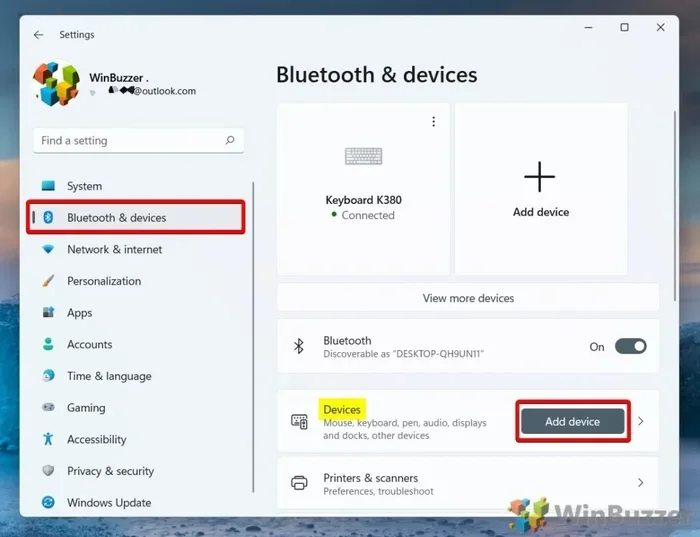
Step 2: Go to Bluetooth & Devices
Click on “Bluetooth & Devices” in the left sidebar. This section shows all your connected and paired Bluetooth devices. You can see your headphones, speakers, mouse, keyboard, and anything else connected wirelessly.
Step 3: Remove the Problematic Device
Find the device that is giving you trouble. Click on it, then click the “Remove device” button. Confirm the removal when prompted. This clears the pairing information and lets you start fresh.
Step 4: Re-pair Your Device
Turn your Bluetooth device back on and put it in pairing mode. Click “Add device” in the Bluetooth & Devices section. Select “Bluetooth” and choose your device from the list. Follow any on-screen prompts to complete the pairing process.
This method works great when only one device is acting up. But if your entire Bluetooth system is broken, you will want to use the Device Manager method we covered earlier.
Updating Your Bluetooth Driver After Reinstallation
Simply reinstalling Bluetooth is not always enough. Outdated or corrupted drivers are the number one cause of Bluetooth problems on Windows 10. After you uninstall and reinstall, updating the driver ensures everything runs smoothly.
Option 1: Let Windows Update the Driver
Windows 10 can automatically search for and install the latest drivers. After your PC restarts, go to Settings > Windows Update > Advanced options > Optional updates. Look under “Driver updates” for any Bluetooth-related updates. If you see one, select it and click “Download and install.”
Option 2: Download from the Manufacturer Website
For the best results, download the driver directly from the manufacturer. Visit the website of your laptop or PC brand — Dell, HP, Lenovo, ASUS, etc. Search for your model number and find the latest Bluetooth driver. Download and install it following the on-screen instructions.
Option 3: Use Device Manager to Update
Open Device Manager again. Right-click your Bluetooth adapter and select “Update driver.” Choose “Search automatically for drivers.” Windows will look online for the latest version and install it if found.
Pro tip: Always restart your PC after updating any driver. This ensures the new driver loads properly and does not conflict with existing system files.
Common Bluetooth Problems and How to Fix Them
Even after reinstalling Bluetooth, you might run into some hiccups. Here are the most common problems and their solutions.
Bluetooth Is Not Showing Up at All
If the Bluetooth option is completely missing from Settings, your Bluetooth adapter might be disabled. Open Device Manager, right-click the Bluetooth adapter, and select “Enable device.” If it is already enabled, try uninstalling it completely and restarting your PC.
Bluetooth Keeps Disconnecting
Frequent disconnections usually mean the signal is weak or there is interference. Move closer to your Bluetooth device. Remove other wireless devices from the area. Also, check if other USB devices are causing interference — some USB 3.0 ports can disrupt Bluetooth signals.
Pairing Fails Repeatedly
If your device will not pair, try removing it from the Bluetooth list and pairing it again from scratch. Make sure the device is in pairing mode. Restarting both your PC and the Bluetooth device can also help clear temporary glitches.
Audio Stutters or Cuts Out
For Bluetooth headphones and speakers, audio stuttering often points to a driver issue. Update your Bluetooth driver using the methods described above. You can also try reducing the audio quality slightly — go to Sound Settings and lower the bitrate to improve stability.
Preventing Future Bluetooth Issues
Once you get your Bluetooth working again, you want to keep it that way. Prevention is always better than fixing problems after they happen. Here are some simple habits that keep your Bluetooth running smoothly on Windows 10.
- Keep Windows updated: Regular Windows updates include driver improvements and bug fixes for Bluetooth connectivity.
- Avoid conflicting software: Some third-party apps can interfere with Bluetooth. If you notice issues after installing new software, consider removing it.
- Do not overload your Bluetooth hub: Too many connected devices can strain your Bluetooth adapter. Disconnect devices you are not using.
- Restart your PC regularly: A simple restart clears temporary files and refreshes your system’s hardware connections.
- Check for driver updates monthly: Spend a few minutes each month checking for Bluetooth driver updates through Device Manager or your manufacturer’s website.
- Keep your Bluetooth devices charged: Low battery can cause connection drops and pairing failures.
These small habits go a long way. They save you time, frustration, and the need to constantly troubleshoot your Bluetooth connections. A little prevention today saves a lot of headaches tomorrow.
Expert Insights: When to Seek Professional Help
Most Bluetooth issues can be fixed at home using the methods in this guide. But sometimes, the problem is deeper than a simple driver reset. Here are signs that you might need professional help:
- Bluetooth still does not work after a full uninstall and reinstall: This could indicate a hardware failure in the Bluetooth adapter.
- Your PC does not have Bluetooth at all: Some older computers lack built-in Bluetooth. You may need a USB Bluetooth dongle.
- You see error codes in Device Manager: Error codes like Code 10 or Code 43 often point to hardware problems that software fixes cannot resolve.
- Bluetooth works intermittently after every fix: A pattern of recurring issues suggests an underlying hardware or configuration problem.
In these cases, contact your PC manufacturer’s support team or visit a certified technician. They can run diagnostic tests and determine if your Bluetooth adapter needs replacement. Do not try to open your computer yourself unless you have experience — it can void your warranty.
Key Takeaways
- Uninstalling and reinstalling Bluetooth on Windows 10 is simple: You can do it through Device Manager or Settings without any third-party tools.
- It fixes most common Bluetooth problems: This process resolves connectivity issues, pairing failures, and missing Bluetooth icons on your PC.
- Driver updates are critical after reinstallation: Always check for the latest Bluetooth driver to avoid future issues and ensure optimal performance.
- Restarting your PC is essential: A reboot after uninstalling helps Windows recognize the fresh Bluetooth configuration and load a clean driver.
- Prevention keeps Bluetooth running smoothly: Regular updates, avoiding device overload, and periodic driver checks reduce the chances of future problems.
- Hardware issues need professional attention: If software fixes do not work, the Bluetooth adapter itself may need replacement by a qualified technician.
Frequently Asked Questions
Can I uninstall and reinstall Bluetooth on Windows 10 without losing my paired devices?
Yes, you can. Uninstalling the Bluetooth adapter does not delete your paired device list permanently. However, after reinstalling, you will need to pair your devices again. The pairing process is quick and straightforward — just put your device in pairing mode and select it from the Bluetooth settings.
Is it safe to uninstall the Bluetooth driver on Windows 10?
Absolutely. Windows 10 is designed to handle driver removal safely. After you uninstall the Bluetooth driver and restart your PC, Windows automatically reinstalls a fresh, working driver. This is a standard troubleshooting step recommended by Microsoft support.
Why does Bluetooth keep disappearing from my Windows 10 PC?
This usually happens due to driver conflicts, Windows update glitches, or disabled Bluetooth services. Uninstalling and reinstalling the Bluetooth adapter through Device Manager typically fixes this. If the problem persists, check the Bluetooth Support Service in your system services and make sure it is set to run automatically.
How long does it take to uninstall and reinstall Bluetooth on Windows 10?
The entire process takes about 5 to 10 minutes. Uninstalling takes less than a minute. Restarting your PC takes a couple of minutes. And reinstalling the driver happens automatically during the boot process. It is one of the fastest fixes for Bluetooth problems.
Do I need any special software to reinstall Bluetooth on Windows 10?
No, you do not need any special software. Windows 10 has all the tools you need built in. Device Manager and Settings are both free and already installed on your PC. You only need to download a driver from the manufacturer if Windows cannot find a compatible one on its own.
What should I do if Bluetooth still does not work after reinstalling?
Try running the Windows Bluetooth troubleshooter. Go to Settings > System > Troubleshoot > Other troubleshooters > Bluetooth. If the troubleshooter does not fix the issue, check for Windows updates, try a USB Bluetooth adapter as an alternative, or contact your PC manufacturer for hardware diagnostics.
Final Thoughts
Bluetooth problems can disrupt your entire day. You cannot connect your headphones, your keyboard stops working, and your phone will not sync. But the solution is often simpler than you think. Uninstalling and reinstalling Bluetooth on Windows 10 is a powerful fix that resolves the majority of Bluetooth issues. It takes just a few minutes, requires no special tools, and works for almost everyone.
Whether you use Device Manager or the Settings app, the process is straightforward. Clear out the old, restart your PC, and let Windows build a fresh Bluetooth connection. Add updated drivers, pair your devices again, and you are back in business.
Do not let Bluetooth frustration take over your day. Try these steps the next time your wireless devices act up. You might be surprised how quickly the problem disappears. And if it does not, you now know exactly when to seek professional help. Your Bluetooth connection deserves a fresh start — give it one and enjoy the wireless freedom you deserve.