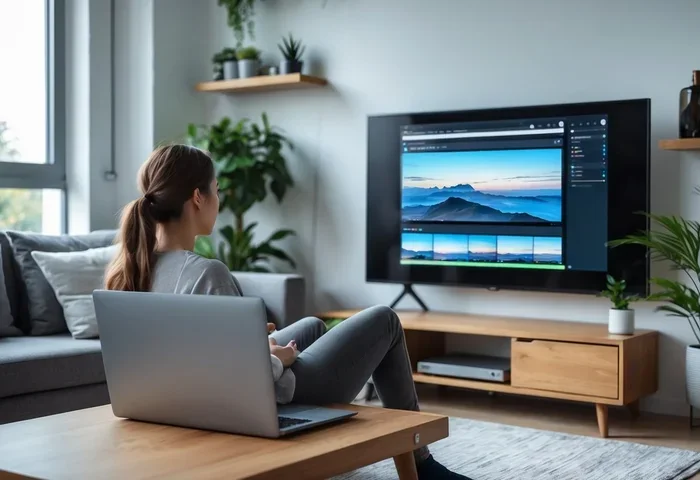
Can I Smart Cast To My Laptop And See How Simple It Is
Yes, you can smart cast to your laptop, and it is simpler than most people think. Whether you want to mirror your screen, extend your display, or stream media, smart casting lets you wirelessly send content from your phone or tablet straight to your laptop. This guide walks you through every method, from built-in Windows features to popular casting devices, so you can get started right away.
Have you ever wanted to show something on your phone but wished you could see it on a bigger screen? Maybe you have a presentation, a photo, or a video you want to share with friends on your laptop. The good news is that you can smart cast to your laptop without buying expensive equipment or hiring a tech expert.
Smart casting has changed the way we share content between devices. Instead of plugging in cables or transferring files, you can now send what is on one screen to another device in seconds. This guide will show you exactly how to do it. We will cover every method, fix common problems, and give you tips you will actually use.
By the end of this article, you will know how to cast from your phone, tablet, or another device to your laptop. You will also understand the different protocols, the best apps, and the common mistakes to avoid. Let us get into it.
Key Takeaways
- Smart casting to your laptop is easy: Multiple methods work, including built-in Windows features and third-party apps.
- You do not need extra hardware: Most modern laptops support wireless display protocols natively.
- Screen mirroring and screen extending are different: Know which mode suits your needs before you start.
- Wi-Fi quality matters: A stable connection ensures smooth casting with no lag or stuttering.
- Troubleshooting is simple: Most common issues have quick fixes you can try at home.
- Multiple devices support casting: Phones, tablets, and even other laptops can cast to your laptop.
- Security matters: Always use trusted apps and secure your Wi-Fi network for safe casting.
📑 Table of Contents
- What Does It Mean to Smart Cast to Your Laptop
- How to Smart Cast to Your Laptop Using Built-In Windows Features
- Popular Apps and Tools for Smart Casting to Your Laptop
- How to Extend Your Laptop Display Wirelessly
- Common Problems When You Try to Smart Cast to Your Laptop
- Quick Tips for the Best Smart Casting Experience
- Expert Insights on Smart Casting Technology
- Key Takeaways
- Conclusion
What Does It Mean to Smart Cast to Your Laptop
Smart casting is the process of wirelessly sending audio, video, or your entire screen from one device to another. When you smart cast to your laptop, you are using your laptop as a receiving screen. Think of it like a TV that happens to be a computer.
The technology behind this is called a wireless display protocol. The most common ones are Miracast, Wi-Fi Direct, and Chromecast protocols. These protocols let devices find each other on the same network and share content without wires. Your laptop acts as the display, and your phone or tablet acts as the sender.
Many people confuse smart casting with screen mirroring. They are related but not the same. Screen mirroring shows an exact copy of your phone screen on your laptop. Smart casting can also mean streaming specific media or extending your display. We will explain the differences later in this guide.
Why People Love to Cast to Laptops
There are many reasons people want to cast to their laptop. Here are the most common ones:
- Bigger screen for viewing: Watching videos or photos on a laptop screen is more comfortable than squinting at a small phone display.
- Presentations at work or school: You can show your phone screen on a laptop during a meeting without fumbling with cables.
- Gaming on a bigger display: Some people cast their mobile games to a laptop for a more immersive experience.
- Sharing content with friends: Showing vacation photos or funny videos on a laptop screen is easier for group viewing.
- Media streaming: You can cast Netflix, YouTube, or Spotify from your phone to your laptop for better audio quality.
How to Smart Cast to Your Laptop Using Built-In Windows Features
Windows 10 and Windows 11 come with built-in casting features. You do not need to download anything extra to get started. The feature is called Wireless Display, and it uses the Miracast protocol.
Step-by-Step Guide for Windows 11
Here is how to set up wireless screen mirroring on Windows 11:
- Click the Start menu and go to Settings.
- Select System and then click Projecting to this PC.
- Choose your preferred settings. You can set it to available everywhere or only on secure networks.
- Make sure the Wireless Display option is turned on.
- On your phone, open the Cast feature or use a third-party app.
- Select your laptop from the list of available devices.
- Your screen will now appear on your laptop.
Step-by-Step Guide for Windows 10
Windows 10 works similarly but has a slightly different path:
- Open Settings and go to System.
- Click on Projecting to this PC.
- Set the first drop-down to Available everywhere or Available on secure networks.
- Toggle on the option to allow wireless displays to connect.
- On your sending device, look for the Cast icon and select your laptop.
Both methods are free and use your existing Wi-Fi network. You do not need any cables or special adapters if your laptop supports the Wireless Display feature.
Popular Apps and Tools for Smart Casting to Your Laptop
While Windows has built-in tools, many people prefer third-party apps for more features and better performance. Here are the best options available right now.
AirScreen
AirScreen is a great app if you use Apple devices. It lets you use AirPlay to cast from your iPhone or iPad to your laptop. It supports both screen mirroring and media streaming. The app works on Windows and Mac laptops, making it very versatile.
LetsView
LetsView is a free screen mirroring app that works across all devices. You can cast from Android, iPhone, Windows, and Mac to your laptop. It supports high-quality video and has low latency. Many users love it because it is simple and does not require any technical knowledge.
ApowerMirror
ApowerMirror is a premium app with excellent features. It supports both wireless and USB casting. You can mirror your phone screen or control your phone from your laptop. It works well for presentations and gaming. The free version has some limitations, but the paid version is worth it for heavy users.
Chrome Remote Desktop
Google Chrome has a built-in remote desktop feature. You can cast your phone screen to your laptop using Chrome. This method is great if you already use Chrome on both devices. It is free and does not require any additional software.
Comparison Table: Best Casting Apps for Laptops
| App Name | Free | Platforms | Screen Mirroring | Media Streaming | Ease of Use |
|---|---|---|---|---|---|
| AirScreen | Yes | Windows, Mac | Yes | Yes | Very Easy |
| LetsView | Yes | Windows, Mac, Android, iOS | Yes | Yes | Very Easy |
| ApowerMirror | Free/Paid | Windows, Mac, Android, iOS | Yes | Yes | Easy |
| Chrome Remote Desktop | Yes | Windows, Mac, Linux | Yes | Limited | Moderate |
How to Extend Your Laptop Display Wirelessly
Casting does not have to mean mirroring. You can also extend your laptop display wirelessly. This means your laptop screen stays the same, and your phone or another device becomes a second screen. This is incredibly useful for multitasking.
Using Windows Projecting to This PC
The same Wireless Display feature we discussed earlier supports extending your display. When you connect your phone, you can choose between mirroring, extending, or just showing the second screen. To extend your display:
- Connect your phone to your laptop using the Wireless Display feature.
- Press Windows key + P on your laptop.
- Select Extend instead of Duplicate or Mirror.
- Your phone will now act as a second monitor.
Using Third-Party Apps for Dual Screen Setup
Apps like Duet Display and Spacedesk let you use your phone or tablet as an extended screen for your laptop. These apps use Wi-Fi or USB to create a wireless or wired second display. They are popular among professionals who need more screen space while working on the go.
Common Problems When You Try to Smart Cast to Your Laptop
Even though smart casting is simple, things can go wrong sometimes. Here are the most common issues and how to fix them.
Laptop Does Not Show Up as a Casting Device
If your laptop does not appear on your phone, try these steps:
- Make sure both devices are on the same Wi-Fi network.
- Restart the Wireless Display service on your laptop.
- Update your Wi-Fi drivers through Device Manager.
- Turn your laptop Wi-Fi off and on again.
- Check if your laptop supports Miracast by searching for Wi-Fi Display in the Action Center.
Lag or Stuttering During Casting
Lag is the most frustrating part of wireless casting. Here is how to reduce it:
- Move closer to your Wi-Fi router for a stronger signal.
- Use the 5GHz Wi-Fi band instead of 2.4GHz for faster speeds.
- Close other apps that use bandwidth, like downloads or streaming services.
- Lower the casting resolution in your app settings.
- Restart your router to clear the network cache.
Audio and Video Are Out of Sync
If the sound does not match the video, try these fixes:
- Check your laptop audio settings and make sure the correct output device is selected.
- Reduce the casting quality to lower the processing load.
- Update the casting app to the latest version.
- Restart both devices to reset the connection.
Quick Tips for the Best Smart Casting Experience
Want to get the most out of your casting setup? Follow these quick tips:
- Use a strong Wi-Fi connection: A good router makes all the difference in casting quality.
- Keep your devices updated: Software updates often include fixes for casting bugs and performance issues.
- Close unnecessary programs: Free up your laptop resources so it can focus on receiving the cast.
- Use the 5GHz band: It is faster and less crowded than the 2.4GHz band.
- Test before important meetings: Always do a test cast before a presentation to avoid surprises.
- Experiment with different apps: Not every app works perfectly with every device. Try a few to find your favorite.
- Secure your network: Use a strong Wi-Fi password to prevent unauthorized devices from connecting.
Expert Insights on Smart Casting Technology
Smart casting has come a long way since it first appeared. Early wireless display technology was slow and unreliable. Today, protocols like Miracast and Wi-Fi Direct deliver smooth, high-quality screen sharing with minimal delay. Experts say the technology is now good enough for professional use, not just casual sharing.
One thing experts emphasize is the importance of a quality Wi-Fi setup. A cheap router or an old network can ruin the casting experience even if your devices are top-of-the-line. Investing in a modern Wi-Fi 6 router can dramatically improve your casting performance.
Another expert tip is to always check your laptop graphics card compatibility. Some older laptops may struggle with receiving wireless displays because the graphics hardware is not powerful enough to handle the incoming stream. If you experience persistent issues, your laptop hardware might be the limiting factor.
Key Takeaways
- Smart casting to your laptop is easy: Built-in Windows features and free apps make it accessible to everyone.
- You do not need extra hardware: Most modern laptops support wireless display protocols natively.
- Screen mirroring and screen extending are different: Know which mode suits your needs before you start.
- Wi-Fi quality matters: A stable connection ensures smooth casting with no lag or stuttering.
- Troubleshooting is simple: Most common issues have quick fixes you can try at home.
- Multiple devices support casting: Phones, tablets, and even other laptops can cast to your laptop.
- Security matters: Always use trusted apps and secure your Wi-Fi network for safe casting.
Conclusion
So, can you smart cast to your laptop? Absolutely. The technology is built into your computer, the apps are free, and the process is straightforward. You no longer need cables, adapters, or expensive equipment to share your screen with others.
Whether you want to mirror your phone, extend your display, or stream media, smart casting gives you the flexibility to work and share however you want. The methods we covered in this guide work for most laptops and devices, and the tips will help you avoid the most common pitfalls.
Now that you know how easy it is, try it out today. Pick one method from this guide, follow the steps, and see how simple smart casting to your laptop really is. You will wonder why you did not try it sooner.
Frequently Asked Questions
Do I need any special software to smart cast to my laptop?
Not necessarily. Windows 10 and Windows 11 have built-in wireless display features that work without any extra software. However, third-party apps like LetsView or AirScreen can give you more features and better compatibility with different devices. Most users find that the built-in tools work perfectly for everyday casting needs.
Can I smart cast from an iPhone to a Windows laptop?
Yes, you can. Apple devices use AirPlay, which is not natively supported on Windows laptops. You will need an app like AirScreen or LetsView to receive AirPlay signals on your Windows laptop. Once the app is installed and running, your iPhone will recognize your laptop as a casting target just like an Apple TV would.
Why is my smart cast lagging or buffering?
Lagging usually happens because of a weak Wi-Fi signal or network congestion. Try moving closer to your router, switching to the 5GHz band, or closing other bandwidth-heavy apps. If the problem persists, restarting both devices and your router often resolves the issue. Updating your Wi-Fi drivers on the laptop can also help significantly.
Can I cast from multiple devices at the same time?
Most laptop casting setups only support one sender device at a time. However, some apps like LetsView allow you to switch between multiple connected devices. For most users, casting from one device at a time works perfectly and provides the best performance and stability.
Is smart casting to my laptop safe and secure?
Yes, as long as you take basic precautions. Always use trusted apps from official sources, keep your Wi-Fi network password-protected, and avoid casting on public or unsecured networks. Built-in Windows casting features are generally very secure, especially when you set the projection mode to available only on secure networks.
Can I use smart casting without an internet connection?
Yes, you can. Many wireless display protocols like Miracast and Wi-Fi Direct create a direct connection between devices without needing an internet connection. You only need both devices to have Wi-Fi enabled. This is great for casting in locations without Wi-Fi access, such as during travel or in areas with limited connectivity.