Do I Need To Reset My Wifi Heres What You Should Know
Do I Need To Reset My Wifi is one of the most common questions people ask when their internet acts up. Sometimes a simple restart fixes everything, and other times you need a deeper reset. This guide walks you through exactly when to reset, how to do it safely, and what to avoid so your wifi stays fast and reliable.
Have you ever stared at a blank screen while your wifi just refuses to cooperate? It is one of the most frustrating feelings in modern life. You are trying to work, stream a movie, or video call a friend, and nothing loads. Your first thought might be, “Do I need to reset my wifi?”
The short answer is: it depends. Sometimes a quick restart solves the problem in seconds. Other times, you need a full factory reset to get things working again. This guide breaks down everything you need to know about wifi resets. You will learn when a reset actually helps, how to do it the right way, and the mistakes that make things worse.
Let us be honest. Most of us are not networking experts. We just want our internet to work. That is exactly why this article exists. By the end, you will feel confident about whether your wifi needs a reset and exactly how to handle it. No guesswork. No jargon. Just clear, practical advice you can use right now.
Key Takeaways
- Not every wifi problem requires a reset: Many issues resolve with a simple restart or power cycle.
- Soft resets and hard resets are very different: A soft reset refreshes your connection, while a hard reset wipes all settings.
- Watch for warning signs: Slow speeds, blinking lights, and frequent disconnects often mean a reset is needed.
- Always back up your settings first: A factory reset erases everything, so save your configuration before you start.
- Resetting too often can cause more harm than good: Frequent resets wear out your router and create new problems.
- Try basic fixes before resetting: Move closer to the router, check cables, and restart devices first.
- Contact your internet service provider if problems persist: A reset won’t fix issues caused by outages or account problems.
📑 Table of Contents
- Why Your Wifi Might Need a Reset
- How to Tell If You Actually Need to Reset Your Wifi
- How to Reset Your Wifi Router Step by Step
- Soft Reset vs Hard Reset: What Is the Difference
- Common Mistakes People Make When Resetting Wifi
- How Often Should You Reset Your Wifi
- Quick Tips to Keep Your Wifi Running Smoothly
- Conclusion
Why Your Wifi Might Need a Reset
Wifi problems come in all shapes and sizes. Some are tiny glitches that fix themselves. Others are persistent issues that refuse to go away. Understanding why your wifi acts up is the first step toward fixing it.
Your Router Gets Overwhelmed
Think of your router like a traffic cop. It handles all the data flowing to and from your devices. When too many devices connect at once, the router gets bogged down. Streaming videos, gaming, and video calls all compete for bandwidth. Over time, the router slows down and struggles to keep up.
A reset clears the router’s memory and gives it a fresh start. It is like closing all the apps on your phone when it starts running slow. The router can then manage traffic more efficiently after the restart.
Software Glitches Happen More Than You Think
Routers run on software, just like your phone or computer. Sometimes that software hits a bug. A firmware glitch can cause your wifi to drop connections randomly or refuse to broadcast a signal. These glitches do not always fix themselves. A reset clears the temporary errors and reloads the software from scratch.
Many people do not realize that routers need updates too. Outdated firmware can cause all sorts of connectivity problems. A reset after a firmware update often helps the new software load properly.
Your Internet Service Provider Changes Things
Your internet service provider, or ISP, sometimes makes changes on their end. They might update network settings, change your IP address, or perform maintenance. These changes can throw your local network off balance. A router reset helps your device re-establish the connection with the updated network settings.
If you notice wifi problems right after a storm or a power outage, this could be the reason. Your ISP may have adjusted things during the disruption, and your router needs a reset to catch up.
How to Tell If You Actually Need to Reset Your Wifi
Not every wifi problem requires a reset. In fact, jumping straight to a reset can sometimes make things worse. Here is how to tell if a reset is really necessary.
Signs You Should Reset Your Wifi
Watch for these clear warning signs. If you notice more than two of them, a reset is probably a good idea.
- Your wifi speed drops suddenly: Pages take forever to load, and videos keep buffering even though they worked fine yesterday.
- Your router lights are blinking strangely: Most routers have status lights. If the internet light or the wifi light is flashing red or orange, something is wrong.
- Devices keep disconnecting: Your phone, laptop, or smart TV keeps dropping the wifi connection throughout the day.
- You cannot find your network: Your wifi name disappears from the list of available networks on all your devices.
- Your connection keeps timing out: You get “no internet” or “connection failed” messages even though other devices in your home work fine.
- Your router feels hot: An overheating router can cause connection drops. A reset can sometimes help the router cool down and recalibrate.
Signs You Do NOT Need a Reset
Before you reset, rule out these simple issues first. Many people skip this step and reset their router unnecessarily.
- Only one device has a problem: If your laptop cannot connect but your phone works fine, the issue is probably with that one device, not your wifi.
- You are far from the router: Distance weakens wifi signals. Moving closer to the router might solve the problem without any reset at all.
- Your internet is slow but connected: Slow speeds do not always mean your wifi needs a reset. Bandwidth-heavy activities like downloading large files can slow things down temporarily.
- It is a brief outage: Sometimes your internet provider has a short outage that resolves on its own within a few minutes.
How to Reset Your Wifi Router Step by Step
If you have determined that a reset is necessary, it is time to take action. Follow these steps carefully to avoid any problems.
Step 1: Unplug Your Router and Modem
Start by unplugging the power cable from your router. Then unplug the power cable from your modem if you have a separate one. Wait at least 30 seconds. This allows the devices to fully drain their power and clear any temporary data stored in their memory.
Many people skip the 30-second wait. Do not make that mistake. The waiting period is important because it gives the devices time to fully reset their internal systems.
Step 2: Plug the Modem Back In First
Plug your modem back in first. Wait for it to fully start up. You will see the lights on the modem stabilize. This usually takes about one to two minutes. The modem needs to reconnect to your internet service provider before your router can work properly.
If you plug the router in before the modem is ready, you will still have connection problems. Patience matters here.
Step 3: Plug Your Router Back In
Once the modem is fully back online, plug your router back in. Wait another one to two minutes for the router to boot up completely. Check the lights on the front panel. A solid green or white light usually means everything is working correctly.
Now try connecting a device to your wifi. Open a browser and visit a website. If the page loads, your reset worked. If not, you may need to try additional troubleshooting steps.
Step 4: Reconnect Your Devices
After the reset, all your previously connected devices will lose their wifi connection. You will need to reconnect each one using your wifi password. This is normal and expected after a reset.
Quick tip: write down your wifi password before you reset if you have not already saved it somewhere. You do not want to scramble to find it after everything is back up and running.
Soft Reset vs Hard Reset: What Is the Difference
Not all resets are created equal. Understanding the difference between a soft reset and a hard reset is crucial. Each one serves a different purpose and produces different results.
What Is a Soft Reset
A soft reset is simply restarting your router. You unplug it, wait a moment, and plug it back in. This is the most common type of reset and it does not change any of your settings. Your wifi name, password, and network configuration all stay exactly the same.
A soft reset clears temporary data from the router’s memory. It refreshes the connection between your router and your modem. Most networking experts recommend trying a soft reset first before moving to anything more drastic.
What Is a Hard Reset
A hard reset, also called a factory reset, wipes your router back to its original settings. Everything you customized gets erased. Your wifi name reverts to the default name printed on the router. Your password goes back to the default password on the label. All custom settings, port forwards, and parental controls disappear.
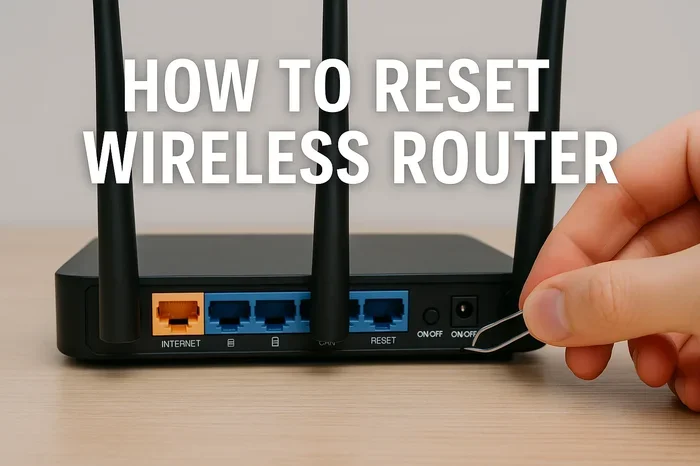
You should only perform a hard reset when nothing else works. Use the reset button on the back of your router. Press and hold it for about 10 to 15 seconds with a paperclip or a small pin. The router will restart and restore all factory settings.
When to Use Each Type
| Feature | Soft Reset | Hard Reset |
|---|---|---|
| Wipes custom settings | No | Yes |
| Takes how long | 1-2 minutes | 5-10 minutes |
| Best for | Slow speeds, minor glitches | Persistent connection failures, security issues |
| Requires password reset | No | Yes |
| Risk level | Very low | Medium |
| Frequency of use | As often as needed | Rarely, only when necessary |
Most wifi problems can be solved with a soft reset. Save the hard reset for situations where nothing else has worked. A hard reset should be your last resort, not your first move.
Common Mistakes People Make When Resetting Wifi
Resetting your wifi sounds simple, but people make mistakes all the time. Here are the most common errors and how to avoid them.
Resetting Without Checking the Cables First
Loose or damaged cables cause more wifi problems than most people realize. Before you reset anything, check all the cables connected to your router and modem. Make sure the ethernet cables are firmly plugged in. Look for frayed or bent cables that might be causing intermittent connection issues.
A simple cable fix can save you from an unnecessary reset. It takes five seconds to check and can solve the problem entirely.
Forgetting to Restart Your Devices Too
Sometimes the problem is not your router. It is the device you are using. Your phone, laptop, or tablet might have a network glitch that a router reset cannot fix. Restart your device after you reset your router to ensure both are syncing up properly.
Flushing your dns cache on your computer can also help after a reset. On Windows, open the command prompt and type ipconfig flushdns. On Mac, use the terminal command sudo dscacheutil flushcache. These small steps can make a big difference.
Resetting Your Router Too Often
Here is something most people do not know. Resetting your router too frequently can actually damage it. Each reset puts stress on the hardware. The flash memory in your router has a limited number of write cycles. Resetting every day wears out this memory over time.
If you find yourself needing to reset your router more than once a week, there is probably a deeper problem. Contact your internet service provider or consider replacing your router altogether.
Not Writing Down Your Settings Before a Hard Reset
A factory reset erases everything. If you do not write down your wifi name, password, and any custom settings beforehand, you will have to set everything up again from scratch. This can be a real headache if you have a complex network setup with multiple devices.
Before performing a hard reset, take a photo of your router settings screen or write everything down on a piece of paper. This small step saves a lot of time and frustration afterward.
How Often Should You Reset Your Wifi
The honest answer is: not very often. Most routers are designed to run continuously without needing regular resets. However, occasional restarts can keep things running smoothly.
A Good Rule of Thumb
Restarting your router once a month is a solid habit. This clears out accumulated temporary data and keeps the software running efficiently. Think of it like restarting your computer once in a while to install updates and clear memory.
If you live in an area with frequent power fluctuations or storms, you might need to reset more often. Unstable power can cause your router to behave erratically. A monthly restart helps counteract this effect.
When to Call a Professional
If you have tried resetting your router multiple times and the problems keep coming back, it is time to call in the experts. Persistent wifi issues could indicate a faulty router, outdated equipment, or problems with your internet service plan.
Your internet service provider can run diagnostics from their end. They can also tell you if there are any outages or maintenance activities affecting your area. Sometimes the problem is on their side, and no amount of resetting will fix it.
Consider upgrading your router if it is more than five years old. Older routers do not handle modern internet speeds well. A new router with the latest wifi standards can dramatically improve your connection quality and reduce the need for resets.
Quick Tips to Keep Your Wifi Running Smoothly
Prevention is always better than cure. Here are some simple habits that keep your wifi healthy and reduce the need for resets.
- Restart your router monthly: A regular restart keeps things running smoothly and clears out temporary bugs.
- Keep your router in a central location: Place it in an open area away from walls and metal objects for the best signal coverage.
- Update your router firmware regularly: Check for firmware updates in your router settings at least once a month.
- Use a strong, unique wifi password: This prevents unauthorized users from hogging your bandwidth and keeps your network secure.
- Limit the number of connected devices: Too many devices strain your router. Disconnect devices you are not actively using.
- Use an ethernet cable for stationary devices: Desktop computers, gaming consoles, and smart TVs perform better with a wired connection.
- Keep your router cool: Overheating causes performance issues. Make sure the vents are not blocked by furniture or other objects.
Conclusion
So, do you need to reset your wifi? The answer depends on the symptoms you are experiencing. A simple soft reset works for most everyday problems like slow speeds, dropped connections, and minor glitches. A hard reset is reserved for serious, persistent issues that nothing else can fix.
Remember to try the basics first. Check your cables. Restart your devices. Move closer to the router. Only move to a full reset if those steps do not work. And always write down your settings before a factory reset so you do not lose your custom configuration.
Taking care of your wifi router goes a long way. Regular maintenance, smart placement, and timely updates keep your network running smoothly for years. You do not need to be a tech expert to manage your wifi effectively. With the right knowledge and a little patience, you can handle most wifi problems on your own.
Next time your internet acts up, you will know exactly what to do. You will not panic. You will not blindly hit that reset button. You will follow the right steps and get your connection back up and running with confidence. That is the real power of understanding your wifi and how it works.
Frequently Asked Questions
How long does it take to reset my wifi router?
A soft reset usually takes one to two minutes. You unplug the router, wait 30 seconds, and plug it back in. The router needs another minute or two to fully reconnect to your modem and broadcast the wifi signal again. A hard reset takes longer, usually five to ten minutes, because the router needs to reboot and restore all factory settings.
Will resetting my wifi delete my internet history?
No, resetting your router does not delete your internet browsing history. Your browsing history is stored on your individual devices like your phone, tablet, or computer. The router itself does not keep a record of the websites you visit. To clear your browsing history, you need to do it on each device separately through your browser settings.
Can I reset my wifi router without the reset button?
Yes, you can perform a soft reset without the reset button. Simply unplug the router from power, wait 30 seconds, and plug it back in. This restarts the router and clears temporary issues. A hard reset, however, requires pressing the reset button on the back of the router to restore factory settings.
Why does my wifi keep disconnecting even after a reset?
If your wifi keeps disconnecting after a reset, the problem might be deeper than a simple router issue. Check for firmware updates, interference from other electronic devices, or signal congestion in your area. Your internet service provider might also be experiencing outages in your neighborhood. If the problem persists after multiple resets, contact your ISP for help.
Is it safe to reset my wifi router every day?
No, resetting your router every day is not safe. Frequent resets put unnecessary stress on the hardware and wear out the flash memory over time. Daily resets can also disrupt your internet connection and cause devices to lose their saved network settings. If you need to reset daily, there is likely an underlying issue that needs professional attention.
Do I need to reset both my modem and my router?
It depends on your setup. If you have a modem and a router as separate devices, it is best to reset both. Start with the modem first, wait for it to fully boot up, and then reset the router. If you have a modem-router combo unit, resetting that single device is all you need to do. Always wait at least 30 seconds between unplugging and plugging devices back in.