Difference Between Wireless Lan and Wifi Connection
The difference between Wireless LAN and WiFi is that Wireless LAN refers to the entire local network setup using wireless technology, while WiFi is the specific wireless protocol that devices use to connect within that network. Many people use these terms interchangeably, but they are not the same thing. Understanding this distinction helps you set up better home networks, troubleshoot connectivity issues, and make smarter purchasing decisions. In this guide, we break down everything you need to know in simple, easy-to-understand terms.
Have you ever wondered about the difference between Wireless LAN and WiFi? These two terms pop up everywhere when we talk about internet connections. People use them like they mean the same thing. But they actually don’t.
A Wireless LAN is the whole network. It is the big picture of all your wireless devices talking to each other. WiFi, on the other hand, is just one way those devices connect. Think of it like this. A Wireless LAN is the entire highway system. WiFi is just one lane on that highway. Both are important. But they are not the same.
In this article, we will walk you through everything you need to know. We will explain what each term means, how they differ, and why the difference between Wireless LAN and WiFi matters for your everyday internet use. Whether you are setting up a home network or just curious about how things work, this guide has you covered.
Key Takeaways
- Wireless LAN is the broader network: It covers all wireless devices connected within a local area, including routers, access points, and connected devices.
- WiFi is a wireless technology standard: It is one of the methods used to create a Wireless LAN, based on IEEE 802.11 protocols.
- They work together but are not the same: A Wireless LAN can use other technologies besides WiFi, such as Bluetooth or Zigbee.
- WiFi has a limited range: Typically around 150 feet indoors, while a full Wireless LAN setup can extend further with additional access points.
- Security differs between the two: Wireless LAN security involves the entire network setup, while WiFi security focuses on the wireless signal and encryption.
- Speed depends on the standard used: Newer WiFi standards like WiFi 6 offer much faster wireless networking speeds than older versions.
- Choosing the right setup matters: Knowing the difference helps you build a faster, more reliable wireless connection for your home or office.
📑 Table of Contents
What Is a Wireless LAN?
A Wireless LAN stands for Wireless Local Area Network. It is a computer network that connects devices without using wires. The devices communicate through radio waves or other wireless signals. This type of network usually covers a small area. Think of your home, office, or school.
A Wireless LAN can include many different types of connections. It is not limited to just one technology. You might have devices connected through WiFi, Bluetooth, or even Zigbee. All of these can be part of the same wireless network. The key idea is that everything communicates without cables.
How Does a Wireless LAN Work?
A Wireless LAN uses a central device, usually a wireless router, to manage connections. This router sends out signals that devices can pick up. Each device then connects to the network wirelessly. The router acts like a traffic controller. It makes sure data goes to the right place.
Here is how the process works in simple steps:
- The wireless router connects to your internet source, like a modem.
- The router broadcasts a wireless signal using radio frequencies.
- Devices nearby detect the signal and connect to the network.
- The router manages data flow between all connected devices.
- Devices can now access the internet and talk to each other.
The wireless LAN range depends on several factors. The router’s power, the building materials, and interference from other devices all play a role. A typical home wireless LAN covers about 150 to 300 feet indoors. You can extend this range with additional access points or mesh systems.
Components of a Wireless LAN
Setting up a Wireless LAN involves a few key pieces of equipment. Understanding these helps you build a better network.
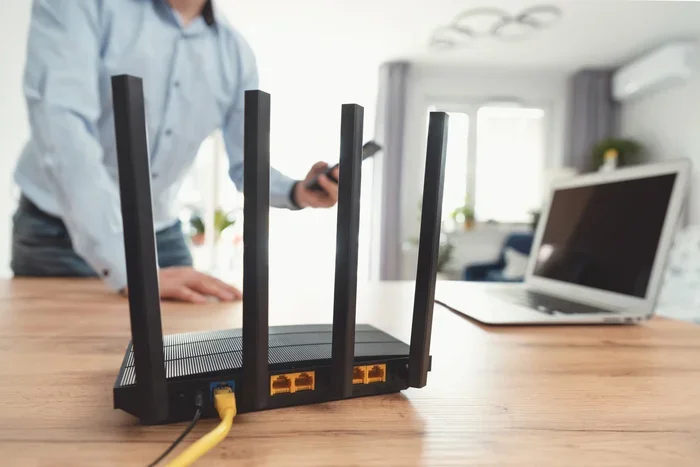
- Wireless Router: The main hub that sends and receives wireless signals. It connects your local network to the internet.
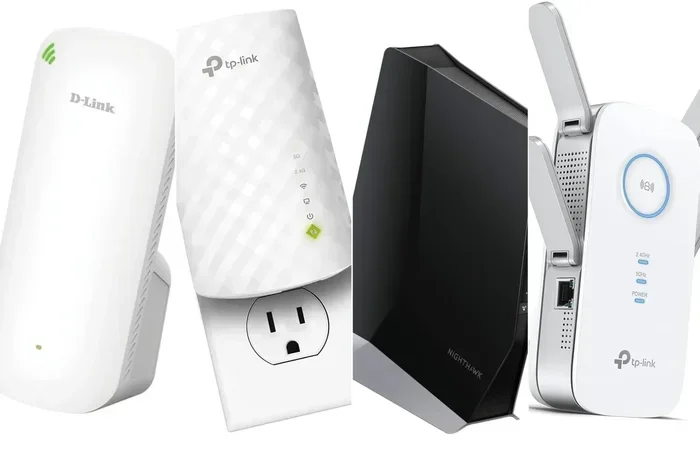
- Access Points: Extra devices that boost the wireless signal and extend coverage to larger areas.
- Wireless Network Interface Cards (WNICs): These are built into your devices. They allow laptops, phones, and tablets to connect to the network.
- Modem: This brings the internet into your home from your Internet Service Provider.
- Wireless Clients: Any device that connects to the network, such as smartphones, laptops, smart TVs, and smart home gadgets.
All these parts work together to create a seamless wireless networking experience. When one piece fails, the whole LAN connection can suffer. That is why quality equipment matters.
What Is WiFi?
WiFi is a specific technology that allows devices to connect to a network without wires. It uses radio waves to transmit data. The term WiFi comes from “Wireless Fidelity.” It is based on standards set by the Institute of Electrical and Electronics Engineers, known as IEEE 802.11.
When you connect your phone to your home internet, you are most likely using WiFi. It is the most common wireless technology in the world today. Billions of devices rely on WiFi every single day. From streaming movies to video calls, WiFi makes it all possible.
How Does WiFi Work?
WiFi works by sending data through radio waves on specific frequencies. Most home WiFi networks use two frequencies: 2.4 GHz and 5 GHz. Each frequency has its own strengths.
The 2.4 GHz frequency travels farther but is slower. It also picks up more interference from other devices like microwaves and baby monitors. The 5 GHz frequency is faster but has a shorter range. It is less crowded, which means fewer interruptions.
Here is a simple breakdown of how WiFi connects your devices:
- Your wireless router broadcasts a WiFi signal using an SSID (the network name you see).
- Your device detects the signal and requests to connect.
- You enter the WiFi password, which authenticates your device.
- The router and device establish a secure wireless connection using encryption.
- Data flows back and forth between your device and the internet through the router.
WiFi has evolved a lot over the years. The latest standard, WiFi 6, offers much faster speeds and better performance in crowded areas. Older standards like WiFi 4 (802.11n) and WiFi 5 (802.11ac) are still widely used. Each new generation brings improvements in network speed and reliability.
WiFi vs. Internet: A Common Confusion
Many people confuse WiFi with the internet itself. They are not the same thing. WiFi is just the wireless connection between your device and your router. The internet is the global network that your router connects to through your ISP. You can have WiFi without internet. Think of a WiFi hotspot at a café. The WiFi signal is there, but it only connects to the café’s local network.
Key Differences Between Wireless LAN and WiFi
Now that we know what each term means, let us look at the difference between Wireless LAN and WiFi more closely. This comparison makes it easy to see how they relate and where they differ.
| Feature | Wireless LAN | WiFi |
|---|---|---|
| Definition | A local network that uses wireless technology to connect devices | A specific wireless technology standard based on IEEE 802.11 protocols |
| Scope | Broad term covering all wireless networking in a local area | Narrow term referring to one specific wireless technology |
| Technologies Used | WiFi, Bluetooth, Zigbee, RFID, and more | Only uses IEEE 802.11 standards |
| Range | Can be extended with multiple access points | Typically 150 feet indoors for a single router |
| Speed | Depends on the technology used | Varies by WiFi standard (up to 9.6 Gbps with WiFi 6) |
| Security | Network-level security across all connected technologies | WiFi-specific encryption like WPA3 and WPA2 |
| Devices | All wireless devices in the network | Only devices using WiFi technology |
| Setup Complexity | Can be complex with multiple technologies | Simple plug-and-play setup |
The biggest takeaway from this table is that WiFi is a part of Wireless LAN, not the other way around. A Wireless LAN can exist without WiFi. For example, a factory might use Bluetooth sensors and RFID tags. That would still be a wireless LAN. But it would not be a WiFi network.
Range and Coverage Differences
WiFi has a limited range from a single router. Walls, floors, and electronic devices can weaken the wireless signal. A typical home WiFi network covers one floor well. Larger homes often need extra equipment.
A Wireless LAN can cover much more ground. By adding access points or mesh nodes, you can extend the network across an entire building. This is common in offices, schools, and hospitals. The wireless LAN stays seamless even as you move from room to room.
Speed and Performance Differences
WiFi speed depends on the standard your router supports. WiFi 6 can deliver up to 9.6 Gbps in ideal conditions. Older standards like WiFi 4 top out around 600 Mbps. Real-world speeds are always lower than these numbers.
A Wireless LAN speed depends on the technology in use. Bluetooth is much slower than WiFi. It is designed for short-range, low-data tasks like connecting wireless headphones. Zigbee is also slow but perfect for smart home devices that need small data packets. So the difference between Wireless LAN and WiFi in speed comes down to which technology is doing the work.
How Wireless LAN and WiFi Work Together
In most homes and offices, WiFi and Wireless LAN work hand in hand. When you set up a home network, your wireless router creates a WiFi signal. That signal becomes the backbone of your Wireless LAN. All your wireless devices connect through this WiFi connection to form the local area network.
This is why the two terms get mixed up so often. In everyday use, a Wireless LAN almost always involves WiFi. But technically, the Wireless LAN is the network, and WiFi is the tool that builds it.
Setting Up a Home Wireless LAN with WiFi
Building a solid home network is easier than you think. Here is a simple setup process:
- Connect your modem to your internet source from your ISP.
- Attach your wireless router to the modem using an ethernet cable.
- Power on the router and configure the WiFi settings through the admin panel.
- Set a strong wireless security password using WPA3 or WPA2 encryption.
- Connect your devices to the WiFi network by selecting the SSID and entering the password.
- Test the network speed and adjust router placement if needed.
Once set up, your home has a fully functional Wireless LAN powered by WiFi technology. You can now stream, browse, and game without any wires cluttering your space.
Common Uses and Applications
Both Wireless LAN and WiFi serve important roles in our daily lives. Let us look at where each one shines.
Home Networking
Most home networks are built around WiFi. Smart TVs, phones, laptops, and smart home devices all connect through WiFi to form a Wireless LAN. This setup lets families share files, stream content, and browse the internet from any room.
Office and Enterprise Networks
Businesses use Wireless LAN setups that go beyond just WiFi. They might use WiFi for employee devices, Bluetooth for wireless keyboards and mice, and Zigbee for smart building systems. The wireless networking infrastructure in an office is a full Wireless LAN with multiple technologies working together.
Public WiFi Hotspots
Cafés, airports, and hotels offer WiFi hotspots for customers. These are essentially small Wireless LAN setups. They provide wireless internet connectivity to anyone within range. The WiFi connection is the gateway to the local area network that the business provides.
Smart Homes and IoT
Smart home devices often use a mix of WiFi and other wireless technologies. Your smart thermostat might use WiFi to connect to the internet. Your smart lights might use Zigbee. Your door lock might use Bluetooth. Together, all these devices form a Wireless LAN that makes your home smart and connected.
Which One Should You Focus On?
If you are setting up a home or office network, you should focus on both. But your primary concern is usually WiFi, since it handles most of the heavy lifting. Here are some tips to get the most out of your wireless connection.
First, invest in a good wireless router. A WiFi 6 router offers the best performance for modern devices. Second, place your router in a central location. This maximizes the wireless signal coverage throughout your space. Third, use wireless security features like WPA3 to protect your LAN connection from unauthorized access.
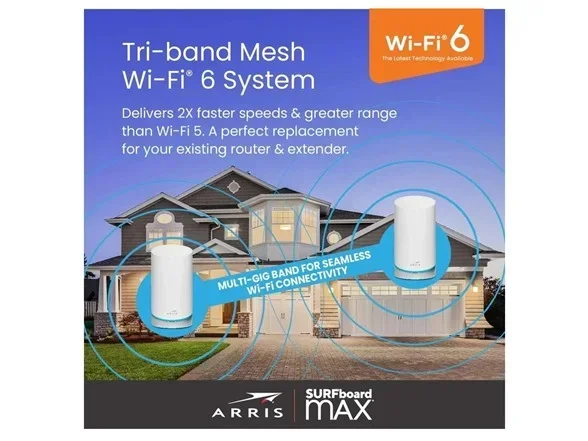
Fourth, consider a mesh WiFi system if your home is large. Mesh systems extend the wireless network by using multiple nodes. They eliminate dead zones and keep your Wireless LAN strong everywhere. Finally, keep your router firmware updated. Updates fix security flaws and improve network speed and stability.
Common Mistakes People Make
Many people make avoidable mistakes when setting up their wireless networking. Here are a few to watch out for.
- Confusing WiFi with internet: A strong WiFi signal does not mean fast internet. Your ISP speed is what limits your connection.
- Ignoring router placement: Walls and metal objects block wireless signals. Keep your router in an open, central spot.
- Using old WiFi standards: Older routers with WiFi 4 or WiFi 5 cannot match the speeds of WiFi 6. Upgrade if your devices support it.
- Skipping wireless security: An open WiFi network is a security risk. Always use WPA2 or WPA3 encryption.
- Overloading one band: If too many devices use the 2.4 GHz band, performance drops. Switch devices to the 5 GHz band when possible.
Expert Insights on Wireless LAN and WiFi
Networking experts often emphasize that understanding the difference between Wireless LAN and WiFi is key to troubleshooting. When your internet acts up, knowing whether the problem is with your WiFi signal or your broader LAN connection helps you fix it faster.
“Most people think their WiFi is broken when really the issue is with their wireless LAN setup,” says Mark Chen, a certified network technician with over 15 years of experience. “Checking the router placement, the number of access points, and the overall network speed can solve problems that people blame on WiFi alone.”
Experts also recommend regular network speed tests. These tests help you see if your wireless connection is performing as it should. If speeds drop significantly, it might be time to reposition your router or upgrade your equipment.
Key Takeaways
- Wireless LAN is the full network: It includes all wireless devices and connections in your local area.
- WiFi is one technology within that network: It uses IEEE 802.11 standards to create wireless connections.
- A Wireless LAN can exist without WiFi: Other technologies like Bluetooth and Zigbee can form the network too.
- Most home networks use WiFi as the backbone: It is the most common and practical wireless technology for everyday use.
- Understanding both helps you troubleshoot better: Knowing where the problem lies saves time and money.
- Invest in quality equipment: A good router and proper setup make a huge difference in network speed and reliability.
- Security matters for both: Protect your wireless LAN and WiFi network with strong passwords and encryption.
Conclusion
The difference between Wireless LAN and WiFi is simpler than it sounds. A Wireless LAN is the entire wireless network in your home or office. WiFi is the specific technology that most of those wireless connections use. They work together to give you the wireless internet connectivity you rely on every day.
Knowing this distinction makes you a smarter user. You can set up better networks, troubleshoot problems faster, and choose the right equipment for your needs. Whether you are a casual internet user or running a busy office, understanding wireless networking basics always pays off.
Take some time to review your current setup. Make sure your WiFi is secure, your wireless signal is strong, and your LAN connection is performing well. A little effort goes a long way toward a faster, more reliable internet experience.
Frequently Asked Questions
Is WiFi the same as a Wireless LAN?
No, they are not the same. A Wireless LAN is the entire local network that uses wireless technology. WiFi is just one specific wireless technology used to build that network. Think of WiFi as a tool and Wireless LAN as the finished project.
Can a Wireless LAN work without WiFi?
Yes, it can. A Wireless LAN can use other technologies like Bluetooth, Zigbee, or RFID. However, in most homes and offices, WiFi is the primary technology used to create the Wireless LAN because it offers the best speed and range.
What is the range of a typical WiFi connection?
A standard WiFi router covers about 150 feet indoors and up to 300 feet outdoors. However, walls, floors, and electronic interference can reduce this range significantly. Using mesh WiFi systems or access points can extend the coverage across larger spaces.
Which WiFi standard should I use for my home network?
WiFi 6 is the latest standard and offers the best performance for modern devices. It provides faster speeds, better battery life for connected devices, and improved performance in crowded areas. If your devices support WiFi 6, it is the best choice for a new setup.
How can I improve my Wireless LAN performance?
You can improve performance by placing your router in a central location, using the 5 GHz band for faster speeds, keeping firmware updated, and avoiding interference from other electronics. Adding access points or a mesh system can also extend coverage and boost speed throughout your home.
Is a Wireless LAN secure?
A Wireless LAN can be secure if you use proper wireless security measures. Always use WPA3 or WPA2 encryption, set a strong password, and keep your router firmware updated. Avoid using open networks without passwords, as they leave your LAN connection vulnerable to unauthorized access.