Do I Want Collated Or Not The Answer Might Surprise You
Do I want collated or not? The answer might surprise you. Many people overlook this simple print setting, yet it can save time, reduce errors, and make your documents look professional. Whether you are printing a stack of reports or party handouts, understanding collation is a small skill that makes a big difference.
You are standing at the printer. You hit the print button. Then you stare at a messy stack of pages that are completely out of order. Sound familiar?
Most people never think about their print collation settings until something goes wrong. And when it does, it is frustrating. Pages are mixed up. Copies are incomplete. You end up spending extra time sorting everything by hand.
The good news is that this problem is completely avoidable. The answer to do I want collated or not is simpler than you think. Once you understand what collation does, you will never mix up your print jobs again. Let us break it all down in a way that is easy to follow and actually useful.
Key Takeaways
- Collated printing produces complete sets of pages in order for each copy.
- Uncollated printing groups all identical pages together, which suits large batches.
- Choosing the wrong setting can lead to messy stacks and wasted paper.
- Modern printers handle collation automatically, so you rarely need to sort by hand.
- Office environments benefit greatly from understanding collation options.
- Quick tips can help you avoid common collation mistakes every time.
📑 Table of Contents
- What Does “Collated” Actually Mean?
- When Should You Choose Collated Printing?
- When Is Uncollated Printing the Better Choice?
- Collated vs Uncollated: A Side-by-Side Comparison
- Common Mistakes People Make With Collation Settings
- Expert Tips for Getting the Perfect Print Every Time
- Key Takeaways
- Conclusion
What Does “Collated” Actually Mean?
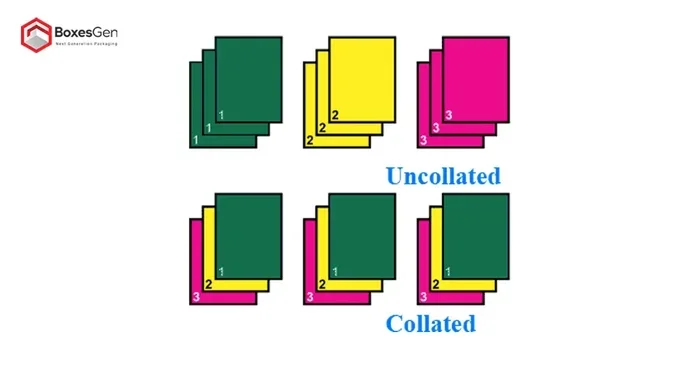
The word “collated” might sound technical, but the concept is really straightforward. When you collate documents, each copy prints in the correct page order. So if you are printing three copies of a five-page report, you get three complete sets. Copy one has pages 1 through 5. Copy two has pages 1 through 5. Copy three has pages 1 through 5.
Now think about what happens without collation. The printer produces all the page ones first. Then all the page twos. Then all the page threes. You end up with five stacks of paper. You have to physically gather and sort them into complete sets.
How Collation Works Behind the Scenes
Your print spooler manages the job queue. When collation is turned on, the printer driver sends a signal to produce each set in full before moving to the next. This happens automatically. You do not need to lift a finger.
Here is what happens step by step:
- The computer sends the document to the printer.
- The printer driver reads the collation setting.
- If collation is enabled, the printer prints pages 1, 2, 3, 4, 5 for copy one.
- Then it repeats the sequence for copy two.
- Then it repeats again for copy three.
If collation is disabled, the sequence changes completely. The printer prints page 1 three times, then page 2 three times, and so on. You get the same total number of pages, but the order is completely different.
A Quick Example to Make It Crystal Clear
Imagine you are printing a multi-page document for a team meeting. You need five copies of an eight-page presentation. With collation turned on, each person picks up a neat stack. Pages are in perfect order. Everything looks professional and organized.
Without collation, that same print job gives you eight separate stacks. One stack has all the title pages. Another stack has all the second pages. You would need to walk around and hand-sort every single page. That is a waste of your time and energy.
When Should You Choose Collated Printing?
There are clear situations where collated printing is the right choice. Most of the time, when you are printing multiple copies of a document for people to read, you want collation on.
Office and Business Documents
In any office environment, collation saves valuable time. Think about reports, proposals, contracts, and training manuals. These documents have a natural page order. Readers expect to go from page one to the last page without interruption.
When you print bound documents or stapled handouts, collation is essential. A misordered stack looks sloppy and unprofessional. Clients and colleagues notice these details, even if they do not say anything.
Event Materials and Handouts
Are you printing programs for a conference? Booklets for a workshop? Party handouts for a birthday celebration? All of these materials benefit from collation. Each guest or attendee gets a complete, ordered set.
Think about a wedding program. It has the order of service, readings, songs, and instructions. If the pages are out of order, guests get confused. Collated printing ensures every program is identical and easy to follow.
Student and Educational Materials
Teachers and educators print worksheets, study guides, and reading materials every day. When a class of 25 students each needs a 10-page packet, collation is a lifesaver. One click produces 25 complete, ordered packets ready to hand out.
Without collation, the teacher would face 10 stacks of 25 pages each. Sorting that by hand takes forever. It is tedious work that nobody enjoys.
Booklet and Brochure Printing
Booklet printing is one of the best use cases for collation. Booklets have a specific page order that must be followed. If the pages are scrambled, the booklet makes no sense.
Whether you are printing a product catalog, a menu for a restaurant, or a small magazine, collation keeps everything in sequence. The final result looks clean, polished, and ready to distribute.
When Is Uncollated Printing the Better Choice?
Here is where things get interesting. Not every print job needs collation. In fact, there are several situations where uncollated printing is actually the smarter option.
Printing Large Batches of the Same Page
Say you need 50 copies of a single-page form. There is no page order to maintain because there is only one page. In this case, collation does nothing useful. The printer simply prints the same page 50 times in sequence.
Turning off collation in this scenario does not change the outcome. But understanding this helps you make informed decisions about your print queue settings.
Creating Stacks for Sorting Later
Sometimes you need multiple copies of individual pages for a specific purpose. Maybe you are preparing a mail merge and need separate pages for different recipients. Or perhaps you are assembling a custom document where each person gets different content.
In these cases, uncollated printing gives you the flexibility to sort pages later. You can group them however you need without fighting against the printer’s default order.
Draft Prints and Proofreading
When you are proofreading a long document, uncollated printing can be helpful. You might want to review all the title pages together, then all the body pages, then all the appendix pages. This approach lets you focus on specific sections without flipping through entire copies.
Some proofreaders prefer this method because it highlights formatting errors more clearly. You can spot inconsistencies across pages more easily when they are grouped together.
Large-Scale Distribution Lists
Imagine you are a manager sending out personalized documents to 100 employees. Each document has different content based on the recipient’s role or department. You might print all the cover pages first, then all the section one pages, and so on.
Uncollated printing supports this kind of workflow. It gives you control over how you assemble the final packets.
Collated vs Uncollated: A Side-by-Side Comparison
Let us put this into perspective with a clear comparison. Understanding the differences helps you make faster, better decisions at the printer.
| Feature | Collated | Uncollated |
|---|---|---|
| Page Order | Complete sequence per copy | All identical pages grouped |
| Best For | Multi-page documents for people | Single pages or custom sorting |
| Time to Assemble | None, already sorted | Requires manual sorting |
| Professional Look | Clean and organized | Can look messy if unsorted |
| Best Use Case | Reports, booklets, handouts | Forms, draft prints, mail merges |
| Printer Effort | Slightly more processing | Simpler print sequence |
This table shows that the choice between collated and uncollated depends entirely on your goal. There is no one-size-fits-all answer. The key is knowing which setting matches your current task.
Quick Memory Trick
Here is a simple way to remember the difference. Think of “collated” as “collected together.” Each copy is collected as a complete set before the printer moves to the next copy. Think of “uncollated” as “ungrouped.” Pages stay in their own separate groups until you sort them yourself.
Once you have this mental picture, you will never forget which setting to use.
Common Mistakes People Make With Collation Settings
Even experienced users make mistakes with collation. These errors lead to wasted paper, wasted ink, and wasted time. Let us look at the most common pitfalls and how to avoid them.
Assuming the Default Setting Is Always Correct
Many printers default to collation being turned on. This works fine most of the time. But if you previously printed an uncollated job and forgot to switch the setting back, your next multi-page printout could come out in the wrong order.
Always double-check your collation setting before hitting the print button. It takes two seconds and saves you from a major headache.
Confusing Collation with Duplex Printing
Some people mix up collation with duplex (double-sided) printing. These are two completely different settings. Collation controls the order of pages across copies. Duplex printing controls whether pages print on one side or both sides of the paper.
You can use both settings together. You can also use neither. Understanding the difference gives you full control over your print jobs.
Not Checking the Print Preview
Most operating systems offer a print preview feature. This lets you see how your document will look before it hits the paper. Use it. The preview often shows you the page order and can alert you to collation issues before you waste resources.
Make it a habit to glance at the preview, especially for important documents. It is a small step that prevents big problems.
Ignoring Printer Driver Settings
Your printer driver contains advanced settings that affect collation. Sometimes the default driver settings override your application preferences. If collation is not working as expected, check the driver settings directly.
Access the printer properties through your system settings. Look for the collation or page ordering option. Make sure it matches your needs for the current job.
Forgetting About Network Printers
In shared office environments, network printers can behave differently. The print queue might be shared among multiple users. If someone else changed the collation setting for a previous job, it might still be active when you send your document.
Always verify the settings on shared printers before printing. A quick check can save you from discovering a mix-up later.
Expert Tips for Getting the Perfect Print Every Time
Now that you understand collation inside and out, let us look at some practical tips. These insights come from everyday printing experience and will help you get better results every time.
Save Custom Print Presets
Most modern printers let you save custom presets. Create one preset for collated documents and another for uncollated jobs. This way, you never have to dig through settings menus. You simply select the right preset and print.
This is especially helpful if you switch between collated and uncollated jobs frequently throughout the day.
Use the “Collate” Checkbox Wisely
In most print dialog boxes, the collate option is a simple checkbox. Check it for multi-page documents that need to stay in order. Uncheck it when you want pages grouped by type.
It is a tiny checkbox with a big impact. Do not ignore it.
Test Before You Print in Bulk
Before printing 100 copies of anything, print one test copy first. Check the page order. Make sure the collation is working correctly. This one extra copy can save you from reprinting a massive batch of misordered documents.
Think of it as a quality control step. It costs a single sheet of paper but saves you hours of frustration.
Keep Your Printer Drivers Updated
Outdated printer drivers can cause unexpected behavior with collation settings. Manufacturers regularly release updates that fix bugs and improve performance. Keeping your drivers current ensures that collation works exactly as it should.
Visit the printer manufacturer’s website regularly. Download and install the latest driver for your specific model.
Teach Your Team
If you work in an office, share this knowledge with your colleagues. Many people do not understand collation settings. A quick five-minute training session can save your team hours of wasted time every month.
Create a simple guide or a quick-reference card and post it near the printer. Small investments in knowledge pay off big.
Key Takeaways
- Collated printing produces complete sets of pages in order for each copy you print.
- Uncollated printing groups all identical pages together, which suits specific workflows.
- Choosing the wrong setting can lead to messy stacks and wasted paper and ink.
- Modern printers handle collation automatically through the print driver settings.
- Office environments benefit greatly from understanding and using collation correctly.
- Always check your print preview before sending large jobs to the printer.
- Small habits like saving presets and printing test copies prevent big problems.
Conclusion
The next time you stand in front of a printer and wonder do I want collated or not, you will know exactly what to do. The answer depends on your document, your audience, and your purpose.
For most multi-page print jobs that other people will read, collated printing is the right choice. It keeps pages in order, looks professional, and saves you from sorting stacks by hand. For single-page jobs, custom assembly tasks, or draft reviews, uncollated printing might be the better option.
The beautiful thing about understanding collation is how much time and frustration it saves you. It is one of those small skills that makes a surprisingly big difference in your daily workflow. Once you know the difference, you will never look at a print job the same way again.
So go ahead. Check your collation setting. Print with confidence. And enjoy the satisfaction of perfectly ordered pages every single time.
Frequently Asked Questions
What happens if I print without collation for a multi-page document?
Without collation, the printer prints all copies of page 1 first, then all copies of page 2, and so on. You end up with separate stacks that need to be manually sorted into complete sets. This wastes your time and can lead to confusion.
For any document where the page order matters, collation is the better choice. It delivers ready-to-use copies straight from the printer.
Can I collate documents on any printer?
Most modern printers support collation through their software or driver settings. Whether you use an inkjet, laser, or network printer, collation is typically available. Check your printer’s manual or settings menu to confirm.
Older or basic printers may not offer collation as a built-in feature. In those cases, you would need to sort the pages by hand after printing.
Does collation use more ink or toner?
No, collation does not affect ink or toner usage. The total number of pages printed remains the same. The only difference is the order in which pages are produced. Collation simply changes the print sequence, not the amount of material used.
Is collation the same as stapling?
No, these are two different features. Collation orders the pages correctly across multiple copies. Stapling physically binds the pages together. Some printers offer both features, but they serve different purposes.
You can collate without stapling and staple without collating. Many modern printers let you enable both options at the same time for a finished, professional document.
How do I find the collation setting on my computer?
Open the print dialog box from any application. Look for a checkbox or dropdown labeled “Collate,” “Page Ordering,” or “Sort Pages.” On Windows, this is usually found in the printer properties. On Mac, it appears in the print preview sidebar.
If you cannot find the setting, try updating your printer driver. Older drivers sometimes hide advanced options like collation in less obvious places.
What is the difference between collated and sorted printing?
Collation and sorted printing are essentially the same thing in most contexts. Both terms refer to arranging pages in the correct order for each copy. Some software uses one term over the other, but the result is identical.
If your print dialog offers both options, they will typically produce the same output. Look for the one that is clearly labeled in your specific application or printer driver.
=== META DESCRIPTION ===
Discover whether you need collated printing for your documents. This guide explains collation settings, benefits, and when to choose collated vs uncollated.
=== URL SLUG ===
/do-i-want-collated-or-not
=== SEO TITLE ===
Do I Want Collated Or Not The Answer Might Surprise You
=== META TITLE ===
Do I Want Collated or Not? The Surprising Answer
=== META DESCRIPTION ===
Discover whether you need collated printing for your documents. This guide explains collation settings, benefits, and when to choose collated vs uncollated.