Can Laptops Play Blu Ray Dvds Everything You Need To Know
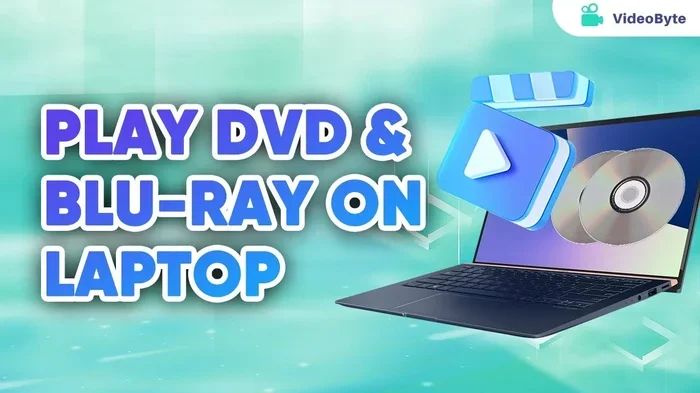
Yes, laptops can play Blu Ray DVDs, but it depends on your hardware and software setup. Most modern laptops do not come with a built-in optical disc drive, which is the biggest hurdle. However, you can still enjoy your Blu Ray collection using an external Blu-ray drive and the right playback software. In this guide, we will cover every method, requirement, and tip you need to know. Whether your laptop has a disc drive or not, you will find a clear path to watching your favorite movies.
Key Takeaways
- Built-in drives are rare: Most new laptops do not include an optical disc drive anymore.
- External drives work great: A USB Blu-ray drive can make any laptop Blu-ray compatible.
- Software matters: You need proper Blu-ray player software even if you have a compatible drive.
- Region coding exists: Blu-ray discs are region-locked, so check compatibility before purchasing.
- Digital copies are a solid alternative: Many movies come with digital download codes or can be streamed.
- Laptop specs affect playback: Screen resolution and GPU performance impact your viewing experience.
- Ripping is an option: You can convert Blu-ray discs to digital files for easier playback.
📑 Table of Contents
- Can Laptops Play Blu Ray DVDs Everything You Need To Know
- Understanding Blu-ray and DVD Formats
- Do Laptops Still Come with Blu-ray Drives?
- Software You Need to Play Blu-ray on a Laptop
- How to Set Up Blu-ray Playback on Your Laptop
- Common Problems and How to Fix Them
- Laptop Screen Quality and the Viewing Experience
- Alternatives to Playing Physical Blu-ray Discs
- Expert Insights on Blu-ray Playback
- Common Mistakes to Avoid
- Final Thoughts
Can Laptops Play Blu Ray DVDs Everything You Need To Know
So, can laptops play Blu Ray DVDs? The short answer is yes. But the full answer is a little more involved. You need the right drive, the right software, and sometimes a little patience. Many people buy a shiny new laptop only to realize it cannot read a Blu-ray disc out of the box. This is a common frustration, and it is not your fault. Laptop manufacturers have been dropping optical disc drives for years now. They assume everyone streams everything. But what if you still have a collection of Blu-ray discs? What if you prefer physical media? What if you just want to watch a movie on a long flight without relying on Wi-Fi?
That is exactly why this guide exists. We will walk you through every possible way to get Blu-ray playback working on your laptop. We will cover hardware options, software solutions, and common pitfalls. By the end, you will know exactly what you need and what to avoid. No fluff. No guesswork. Just clear, practical advice that actually works.
Let us start with the basics. Understanding how Blu-ray technology works on laptops will save you time and money. You will not waste cash on the wrong drive or the wrong software. You will make informed decisions. So grab a cup of coffee, and let us dive in.
Understanding Blu-ray and DVD Formats
What Is a Blu-ray Disc?
A Blu-ray disc is a high-definition optical disc format. It was introduced in 2006 and replaced DVDs as the top physical media format. A standard Blu-ray disc holds up to 25 GB of data. A dual-layer disc can hold 50 GB. This massive storage capacity allows for stunning picture quality. Blu-ray discs support resolutions up to 4K in some cases. The video quality is far superior to standard DVDs.
There are different types of Blu-ray discs. The standard Blu-ray offers 1080p resolution. The 4K Ultra HD Blu-ray offers even higher resolution. Regular Blu-ray players and drives can read standard Blu-ray discs. But 4K Ultra HD Blu-ray requires special drives. This distinction matters a lot when choosing hardware.
What Is a DVD?
A DVD is the older disc format. It stands for Digital Versatile Disc. A standard DVD holds about 4.7 GB of data. It supports standard definition video, usually 480p or 576p. DVDs were the dominant format for many years. Most laptops that came with disc drives could play DVDs easily. But DVDs cannot match the quality of Blu-ray discs. If you want the best picture quality, Blu-ray is the way to go.
How Do These Formats Work on Laptops?
Laptops read discs using an optical disc drive. This drive uses a laser to read the bumps and grooves on the disc surface. The laser translates those physical patterns into digital data. Your laptop then decodes that data into video and audio. The process happens in real time. It requires both a compatible drive and enough processing power to decode the content smoothly.
Do Laptops Still Come with Blu-ray Drives?
The honest answer is no. Most laptops today do not include a built-in optical disc drive. Apple removed the optical drive from MacBooks back in 2012. Many Windows laptop makers followed suit. The trend toward thinner, lighter laptops made disc drives impractical. They add bulk, weight, and thickness. Most consumers now prefer streaming content anyway. So manufacturers stopped including these drives.
But that does not mean you are out of luck. You can still add Blu-ray capability to any laptop. The solution is an external Blu-ray drive. These drives connect through USB. They are portable and lightweight. You can carry one in your laptop bag. When you need to watch a disc, you plug it in. When you are done, you unplug it and store it away.
Types of External Blu-ray Drives
Not all external drives are the same. Here are the main types you will encounter:
- Standard Blu-ray drives: These read and write standard Blu-ray discs, DVDs, and CDs. They are the most common and affordable option.
- 4K Ultra HD Blu-ray drives: These can read 4K Ultra HD discs. They are more expensive and less common. You only need one if you own 4K Blu-ray discs.
- DVD-only drives: These are cheaper but cannot read Blu-ray discs. Avoid these if your goal is Blu-ray playback.
- Burner drives: These can write discs in addition to reading them. Useful if you want to copy or back up your discs.
When shopping for an external drive, check the product description carefully. Make sure it explicitly says it reads Blu-ray discs. Some drives only support DVDs and CDs. That would defeat the purpose entirely.
Software You Need to Play Blu-ray on a Laptop
Having a compatible drive is only half the battle. You also need the right software. Blu-ray discs use encryption and special formatting. Not every video player can handle them. You need a dedicated Blu-ray player application. Without it, your laptop will not recognize the disc content properly.
Top Blu-ray Player Software Options
Here are the most reliable software options for playing Blu-ray discs on laptops:
- PowerDVD: This is one of the most popular Blu-ray players. It supports a wide range of disc formats. It also handles 4K content well. The downside is that it requires a paid license.
- VLC Media Player: VLC is free and open source. It can play many disc formats. However, it may struggle with some newer Blu-ray encryption. It is still a great option for everyday use.
- Leawo Blu-ray Player: This is a free option that supports Blu-ray playback. It works well with standard Blu-ray discs.
- WinDVD: Another paid option with strong Blu-ray support. It offers good performance and a user-friendly interface.
Free software is tempting, but paid options often provide better compatibility and fewer playback issues. If you watch Blu-ray discs regularly, a paid player is worth the investment.
Why Software Compatibility Matters
Blu-ray discs use AACS encryption. This is a digital rights management system. It prevents unauthorized copying. Your playback software must have the correct decryption keys to read the disc. Software companies regularly update their key databases. This is why keeping your software up to date is important. Without updates, newer Blu-ray releases may not play.
How to Set Up Blu-ray Playback on Your Laptop
Setting up Blu-ray playback is straightforward once you have the right equipment. Here is a step-by-step guide that works for most laptops.
- Get an external Blu-ray drive. Plug it into a USB port on your laptop. Most drives use USB 3.0 for fast data transfer.
- Install Blu-ray player software. Download and install a compatible player application. Follow the setup instructions.
- Insert your Blu-ray disc. Place the disc into the external drive with the label facing up.
- Open your player software. The software should detect the disc automatically.
- Select your audio and subtitle options. Most players let you customize these before playback starts.
- Enjoy your movie. Sit back and watch.
The entire process takes less than five minutes once you have everything set up. It becomes second nature after a few tries.
Quick Tips for Smooth Playback
- Use a USB 3.0 port for faster disc reading speeds.
- Make sure your laptop battery is charged or plugged in.
- Close unnecessary background applications to free up processing power.
- Update your graphics drivers before playing high-definition content.
- Keep your Blu-ray player software updated to the latest version.
Common Problems and How to Fix Them
Even with the right setup, you may run into issues. Blu-ray playback on laptops is not always perfect. Here are the most common problems and their solutions.
Disc Not Recognized by the Drive
This is the most frequent issue. It usually happens because of a dirty disc or a dirty drive lens. Try wiping the disc with a soft cloth. If that does not work, clean the external drive lens using a cleaning disc. Also check that the USB connection is secure. A loose connection can prevent the drive from being detected.
Playback Stuttering or Freezing
Stuttering playback often means your laptop is struggling to decode the video. Blu-ray files are large and require significant processing power. Check that your laptop meets the minimum requirements for smooth playback. Closing other apps helps. Updating your GPU drivers can also make a big difference.
Audio or Subtitle Sync Issues
Sometimes the audio and video get out of sync. This is usually a software issue. Try switching to a different audio track in your player settings. Updating the player software often fixes sync problems too.
Region Code Errors
Blu-ray discs use region coding. A disc purchased in one country may not play on a drive set to a different region. Most Blu-ray player software lets you change the region setting. However, you usually have a limited number of region changes before the lock becomes permanent. Check the region code of your disc before purchasing if you travel frequently.
Laptop Screen Quality and the Viewing Experience
One thing many people overlook is the laptop screen itself. A Blu-ray disc contains high-definition video. But if your laptop screen is low resolution, you will not see the full benefit. A 1080p screen can display standard Blu-ray content nicely. A 4K screen is even better. But a 720p or lower screen will not show off the disc quality.
Screen size also matters. A 13-inch laptop screen is quite small for watching movies. A 15 or 17-inch screen provides a more immersive experience. If you plan to watch Blu-ray discs regularly, consider a laptop with a larger, high-resolution display.
Brightness and color accuracy matter too. A dull, washed-out screen will make even the best Blu-ray content look mediocre. Look for laptops with good IPS panels or OLED displays for the best results.
Do You Need a Dedicated GPU?
For smooth Blu-ray playback, a dedicated graphics card helps but is not always required. Most modern laptop processors can handle 1080p Blu-ray decoding. However, 4K content is more demanding. If you want to watch 4K Ultra HD Blu-ray discs, a laptop with a dedicated GPU will provide a much smoother experience. Integrated graphics can struggle with the higher data rates.
Alternatives to Playing Physical Blu-ray Discs
Not everyone wants to deal with discs. There are excellent alternatives that let you watch movies without any physical media.
Digital Movie Purchases and Rentals
Services like Apple TV, Amazon Prime Video, Google Play Movies, and Vudu let you buy or rent digital copies of movies. The quality is often excellent. Many titles are available in 4K HDR. You do not need any special drive or software. Just an internet connection and a compatible device.
Streaming Services
Netflix, Disney+, Hulu, and HBO Max offer vast libraries of movies and TV shows. The streaming quality has improved dramatically. Many titles stream in 4K. The tradeoff is that you do not own the content. You need a subscription. And you need a stable internet connection.
Digital Copies from Physical Discs
Many Blu-ray discs come with a digital copy code. You can redeem this code on a digital platform. This gives you the best of both worlds. You own the physical disc and a digital copy. You can watch the movie on your laptop without the disc.
Expert Insights on Blu-ray Playback
Industry experts agree that physical media still has a place. Despite the rise of streaming, Blu-ray discs offer the highest quality available. They are not compressed the way streaming content often is. A Blu-ray disc delivers bit-for-bit quality from the original master. For true film enthusiasts, this quality difference is noticeable.
Experts also recommend keeping an external Blu-ray drive on hand. Even if you mostly stream, having the option to play physical discs is valuable. Collections of movies on disc do not require internet access. They do not buffer during a movie. They do not disappear when a streaming license expires.
One expert tip is to rip your Blu-ray collection to a hard drive. This creates a digital backup you can watch anytime. Ripping requires specific software and knowledge of copyright laws. Always make sure you are following the law in your country before ripping discs.
Common Mistakes to Avoid
- Buying a DVD-only drive: Double-check that the drive supports Blu-ray. Many cheap drives only handle DVDs.
- Skipping software updates: Outdated player software will not read newer Blu-ray discs. Keep everything updated.
- Ignoring region codes: Buying a disc from another region without checking compatibility leads to frustration.
- Using a slow USB port: USB 2.0 ports are too slow for smooth Blu-ray playback. Always use USB 3.0 or higher.
- Overlooking laptop specs: An older laptop may not have the processing power to decode Blu-ray content smoothly.
- Assuming all players are equal: Free players may not support all Blu-ray features. Paid players offer better compatibility.
Final Thoughts
So, can laptops play Blu Ray DVDs? Absolutely. The path to Blu-ray playback on a laptop is clear. You need a compatible drive, the right software, and a laptop that can handle the processing demands. Whether you use an external Blu-ray drive or explore digital alternatives, you have options.
The world of physical media is evolving, but it is not disappearing. Blu-ray discs still offer the best picture and sound quality available. For collectors, film enthusiasts, and anyone who values quality, they remain an excellent choice. With the right setup, your laptop becomes a powerful portable movie theater.
Take the time to choose the right equipment. Invest in good software. And do not let the lack of a built-in disc drive stop you from enjoying your favorite movies. The technology exists. The solutions are affordable. All you need is the right information and a little willingness to set things up.
Now you have everything you need to know. The next step is yours. Pick up that Blu-ray disc, connect your drive, and hit play. Your movie night awaits.
Frequently Asked Questions
Do all laptops support Blu-ray discs?
No, most modern laptops do not come with a built-in optical disc drive. You will need an external Blu-ray drive connected via USB to play Blu-ray discs on a laptop without a disc drive.
Can I play Blu-ray discs on a Mac laptop?
Yes, but Mac laptops do not include disc drives. You need an external Blu-ray drive and compatible software like PowerDVD or VLC to play Blu-ray discs on a Mac.
Is it legal to rip Blu-ray discs to a laptop?
The legality of ripping Blu-ray discs varies by country. In many places, it is legal for personal backup use but not for distribution. Always check your local copyright laws before ripping discs.
Can I watch 4K Ultra HD Blu-ray on any laptop?
No, 4K Ultra HD Blu-ray requires a compatible 4K Blu-ray drive and a laptop with a powerful enough processor and graphics card to handle the higher resolution content.
What is the best external Blu-ray drive for laptops?
Popular reliable options include the LG BP60NB10 and ASUS ZenDrive series. Look for drives that explicitly support Blu-ray reading and come with USB 3.0 connectivity for the best performance.
Why does my Blu-ray disc keep skipping on my laptop?
Skipping usually happens due to a dirty disc or lens, a slow USB connection, or insufficient laptop processing power. Try cleaning the disc, using a USB 3.0 port, and closing background applications to improve playback.
=== CONCLUSION ===
Can laptops play Blu Ray DVDs is a question with a clear and encouraging answer. Yes, they can. You just need the right combination of hardware and software. An external Blu-ray drive solves the lack of a built-in disc drive. A good Blu-ray player app handles the playback. And a laptop with decent specs ensures smooth, high-quality viewing.
Do not let the absence of a disc drive discourage you. The solutions are simple, affordable, and widely available. Whether you are a casual movie watcher or a dedicated collector, you can enjoy your Blu-ray library on your laptop. Follow the steps in this guide, avoid the common mistakes, and you will be watching your favorite films in no time.