Can A Bluetooth Headset Work With Xbox One Easy Guide
The short answer is no, Xbox One does not support Bluetooth headsets natively. However, you can still use a Bluetooth headset with Xbox One by using a wireless adapter, USB dongle, or the 3.5mm jack on your controller. This guide breaks down every method, workaround, and compatible headset option so you can get gaming without any hassle.
If you have been searching for ways to connect a Bluetooth headset to Xbox One, you are not alone. Thousands of gamers ask this question every single day. The desire to ditch tangled cables and move freely while gaming is completely understandable. Whether you are playing shooters, RPGs, or racing games, a good headset makes everything more immersive.
The good news is that there are several ways to make it work, even though Xbox One does not support Bluetooth audio natively. This guide will walk you through every option step by step. You will learn about compatibility issues, the best workarounds, and which headsets give you the best experience. By the end, you will know exactly how to set up wireless audio on your Xbox One without wasting money on the wrong equipment.
Let us start with the big question. Can a Bluetooth headset work with Xbox One? The direct answer is no, not without some extra help. Xbox One was designed to work with its own wireless protocol, not standard Bluetooth. But that does not mean you are stuck. There are clever solutions that let you use almost any headset you already own. Let us explore them all.
Key Takeaways
- Xbox One lacks native Bluetooth support: The console does not connect to Bluetooth audio devices directly out of the box.
- A USB wireless adapter is the most popular workaround: Many headsets come with their own Xbox-compatible adapter for a seamless connection.
- The 3.5mm jack on your Xbox controller works great: You can plug in any wired headset and get both game audio and chat audio.
- A Bluetooth transmitter adapter can bridge the gap: These small devices plug into Xbox and send audio to your Bluetooth headset wirelessly.
- Some headsets are designed specifically for Xbox: Brands like Turtle Beach, SteelSeries, and HyperX make headsets built for Xbox wireless connectivity.
- Latency can be an issue with some Bluetooth methods: Choose low-latency adapters for the best gaming experience.
- Your specific Xbox model matters: Xbox One S, Xbox One X, and original Xbox One have slightly different connection options.
📑 Table of Contents
- Why Xbox One Does Not Support Bluetooth Headsets Natively
- How To Connect a Bluetooth Headset to Xbox One (Step by Step)
- Comparison Table: Bluetooth Headset Connection Methods for Xbox One
- Best Bluetooth Headsets and Wireless Options for Xbox One
- Common Problems and How To Fix Them
- Expert Tips for the Best Xbox One Audio Experience
- Can A Bluetooth Headset Work With Xbox One: Final Verdict
Why Xbox One Does Not Support Bluetooth Headsets Natively
Many people assume that because Xbox One has Wi-Fi and USB ports, it should support Bluetooth. The truth is Microsoft made a deliberate choice. Xbox One uses a proprietary wireless protocol for its accessories. This means your Xbox Wireless Controller and Xbox-compatible headsets use a different signal than standard Bluetooth devices.
There are a few reasons behind this decision. First, Microsoft wants to ensure low latency during gameplay. Bluetooth audio can sometimes have a slight delay. In a fast-paced shooter, even a small delay between what you see and what you hear can put you at a disadvantage. Second, the proprietary system gives Microsoft more control over audio quality and compatibility. Third, it helps differentiate the Xbox ecosystem from other platforms like PlayStation and PC.
This does not mean Bluetooth is useless for Xbox One. It just means you need a bridge between your Bluetooth headset and the console. Let us look at those bridges now.
The Xbox Wireless Protocol vs Bluetooth
Xbox Wireless is a Microsoft-specific technology. It operates on a different frequency and uses a different connection method than standard Bluetooth. When you connect an official Xbox Wireless Headset, it talks directly to the console using this proprietary signal.
Bluetooth, on the other hand, is a universal standard used by phones, laptops, and many other devices. The two technologies simply do not speak the same language. This is why your Xbox One will not see your regular Bluetooth headset in the device list. You need a translator, so to speak, to make them work together.
How To Connect a Bluetooth Headset to Xbox One (Step by Step)
Now that you understand why direct Bluetooth connection does not work, let us look at the solutions. There are three main methods to get your Bluetooth headset talking to your Xbox One. Each method has its pros and cons, so pick the one that fits your setup best.
Method 1: Use a USB Wireless Adapter
The easiest and most reliable method is to use a USB wireless adapter that comes with your headset. Many gaming headsets designed for Xbox include their own dedicated adapter. You simply plug the adapter into a USB port on your Xbox One, and the headset connects instantly.
This is not technically Bluetooth, but it achieves the same goal of wireless freedom. The adapter uses a 2.4 GHz wireless signal, which is faster and more stable than Bluetooth. You get near-zero latency and great audio quality. If you are buying a new headset specifically for Xbox One, this is the method I recommend most.
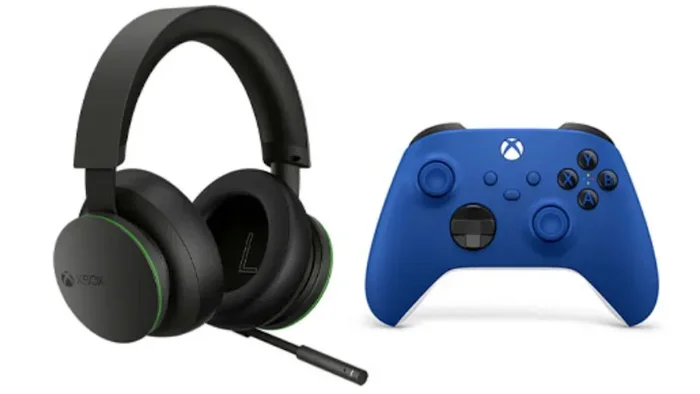
Some popular headsets that use this approach include the Xbox Wireless Headset by Microsoft, the SteelSeries Arctis Nova series, and the Turtle Beach Recon series. These headsets come with their own USB dongle and pair easily with the console.
Method 2: Use the 3.5mm Jack on Your Xbox Controller
If you already have a headset with a 3.5mm cable, you are in luck. Every Xbox One controller has a built-in 3.5mm audio jack. You simply plug your headset cable into the bottom of the controller, and you are good to go.
This method works with wired headsets, wired earpieces, and even some earbuds with a removable cable. You get both game audio and chat audio through the same connection. The setup takes about five seconds, and there is no latency at all because it is a direct wired connection.
The downside is that you are tethered to your controller. You cannot walk far away from your console. But for most living room setups, the cable length is more than enough. You can also use a longer extension cable if needed.
Method 3: Use a Bluetooth Transmitter Adapter
This is the method that actually lets you use a Bluetooth headset with Xbox One. A Bluetooth transmitter adapter plugs into your Xbox One via USB or optical audio output. It receives the audio signal from the console and transmits it to your Bluetooth headset.
You will find many Bluetooth transmitter adapters on Amazon and other retailers. Look for ones that support aptX Low Latency or aptX HD codecs. These reduce audio delay and give you a much better gaming experience. Some popular options include the 1Mii Bluetooth transmitter and the Avantree Oasis.
Here is how the setup usually works. You plug the transmitter into your Xbox One. Then you put your Bluetooth headset in pairing mode. You press the pairing button on the transmitter, and the two devices connect. It is simple and effective.
Comparison Table: Bluetooth Headset Connection Methods for Xbox One
| Method | Latency | Audio Quality | Ease of Setup | Cost | Best For |
|---|---|---|---|---|---|
| USB Wireless Adapter | Very Low | Excellent | Very Easy | Included with headset | Dedicated Xbox gaming |
| 3.5mm Controller Jack | Zero | Very Good | Extremely Easy | Free (uses existing cable) | Budget-friendly wired setups |
| Bluetooth Transmitter Adapter | Low to Medium | Good to Very Good | Easy | $20-$80 | Using existing Bluetooth headsets |
| Xbox Wireless Headset (Direct) | Very Low | Excellent | Very Easy | $100+ | Premium wireless experience |
As you can see from the table, each method has its place. The USB wireless adapter offers the best overall experience for Xbox gaming. The 3.5mm jack is the simplest and cheapest option. And the Bluetooth transmitter adapter is perfect if you already own a Bluetooth headset and do not want to buy a new one.
Best Bluetooth Headsets and Wireless Options for Xbox One
If you are shopping for a new headset, you have plenty of great options. Let us look at some of the best choices for Xbox One gaming.
Top Picks for Wireless Xbox Gaming
- Xbox Wireless Headset (Microsoft): This is the official headset from Microsoft. It connects directly using Xbox Wireless technology. You get excellent surround sound, comfortable fit, and seamless integration with the console.
- SteelSeries Arctis Nova 7X: This headset uses a multi-platform wireless system. It includes an Xbox-specific wireless dongle and also works with PlayStation, PC, and Nintendo Switch.
- Turtle Beach Recon 500: A budget-friendly option that comes with its own USB wireless adapter. Great sound quality for the price.
- HyperX Cloud III Wireless: Offers excellent comfort and battery life. The USB wireless adapter makes setup a breeze.
- Corsair HS80 RGB Wireless TKH: Features Dolby Atmos support and a dedicated Xbox Wireless USB dongle.
Using Your Existing Bluetooth Headset
If you already have a Bluetooth headset, do not throw it away just yet. You can still use it with Xbox One through the Bluetooth transmitter method. Just keep in mind that audio quality and latency may vary depending on your headset and the transmitter you choose.
Headsets with aptX Low Latency support will give you the best results. Standard Bluetooth codecs like SBC may introduce noticeable delay. If you are playing competitive games, latency matters a lot. For casual gaming or watching movies, standard Bluetooth is perfectly fine.
Common Problems and How To Fix Them
Even with the right setup, you might run into some issues. Here are the most common problems people face when using wireless headsets with Xbox One and how to fix them.
Audio Delay or Latency
If you hear a delay between the action on screen and the audio in your headset, you are not alone. This is one of the most common issues with wireless audio on Xbox One. The delay usually happens when using Bluetooth or low-quality wireless adapters.
To fix this, try switching to a USB wireless adapter instead of Bluetooth. If you must use Bluetooth, look for a transmitter that supports aptX Low Latency. You can also check your Xbox One audio settings and make sure the output format is set correctly.
No Sound Through the Headset
If your headset connects but you hear no sound, the first thing to check is your Xbox One audio settings. Go to Settings, then General, then Volume & Audio Output. Make sure the headset audio output is set to the correct source.
For USB adapters, try unplugging and replugging the adapter into a different USB port. Sometimes the console needs a moment to recognize the new audio device. Restarting the Xbox One can also help in many cases.
Poor Audio Quality or Static Noise
Static or poor audio quality usually happens because of interference. Other wireless devices in your home, like Wi-Fi routers or microwaves, can cause interference with your headset signal.
Move your Xbox One closer to your headset or adapter. Try using a wired connection temporarily to see if the problem goes away. If you are using a Bluetooth transmitter, make sure it is within range of your headset. Keeping the distance under 30 feet usually helps a lot.
Chat Audio Not Working
Sometimes you can hear game audio but your friends cannot hear you during chat. This usually happens when the headset cable is not properly connected or the chat mix is set incorrectly.
Check your Xbox One settings under Volume & Audio Output. Look for the chat mixer option and adjust it so both game audio and chat audio are balanced. If you are using a USB adapter, make sure it supports chat audio through the same connection.
Expert Tips for the Best Xbox One Audio Experience
Getting your headset connected is only half the battle. Here are some expert tips to help you get the most out of your gaming audio on Xbox One.
Optimize Your Xbox One Audio Settings
Your Xbox One has several built-in audio settings that can make a big difference. Go to Settings and explore the audio options. You can enable Dolby Atmos for Headphones, which makes in-game audio sound much more immersive and spatial.
You can also adjust the chat mixer to balance game audio and voice chat exactly how you like it. Some players prefer louder game audio and quieter chat, while others want the opposite. Experiment with these settings until you find your perfect mix.
Keep Your Firmware Updated
Headset manufacturers regularly release firmware updates that improve performance and fix bugs. Check the manufacturer’s app or website to see if updates are available for your headset. Keeping your firmware up to date can solve many audio issues you might encounter.
Invest in a Good USB Hub If Needed
If you have many USB devices connected to your Xbox One, you might run out of ports. A powered USB hub can help. Just make sure it is a high-quality hub that provides stable power. Cheap USB hubs can cause connection drops and audio glitches.
Consider Room Acoustics
This might sound surprising, but your room setup affects how your headset sounds. Hard surfaces like walls and floors reflect sound and can make audio sound harsh. Adding soft furnishings like rugs, curtains, or foam panels can improve your listening experience significantly.
Can A Bluetooth Headset Work With Xbox One: Final Verdict
So, can a Bluetooth headset work with Xbox One? Yes, but not directly. Xbox One does not have built-in Bluetooth audio support. However, you have several excellent workarounds that make wireless gaming audio totally possible.
The best method depends on your situation. If you are buying a new headset, go with one that includes a USB wireless adapter. It gives you the best performance and the easiest setup. If you already own a Bluetooth headset, a Bluetooth transmitter adapter is a great way to breathe new life into it.
For the simplest and cheapest option, the 3.5mm jack on your Xbox controller works perfectly with any wired headset. You cannot beat the zero latency and plug-and-play simplicity.
Whatever method you choose, the goal is the same. You want to hear every footstep, every explosion, and every teammate callout clearly. With the right setup, your Xbox One gaming audio will be top-notch. You will wonder how you ever played without it.
Now that you have all the information you need, it is time to pick the method that works best for you. Grab your headset, follow the steps in this guide, and get back to gaming. Your ears will thank you.
Frequently Asked Questions
Can I connect any Bluetooth headset directly to Xbox One without any extra equipment?
No, Xbox One does not support direct Bluetooth audio connections. You will need either a USB wireless adapter, a Bluetooth transmitter, or a wired connection through the 3.5mm controller jack to get audio from your headset to the console.
What is the best way to use a Bluetooth headset with Xbox One?
The best way is to use a Bluetooth transmitter adapter that plugs into your Xbox One via USB or optical output. This sends audio wirelessly to your Bluetooth headset. Look for transmitters that support aptX Low Latency for the best gaming experience with minimal delay.
Why does my Bluetooth headset keep disconnecting from Xbox One?
Disconnections usually happen because of interference from other wireless devices, distance from the transmitter, or a low-quality Bluetooth adapter. Try moving closer to your Xbox One, reducing wireless interference, or upgrading to a Bluetooth transmitter with aptX Low Latency support for a more stable connection.
Can I use a wireless Xbox headset without the USB adapter?
No, Xbox Wireless Headsets and other USB-dongle headsets need their specific adapter to connect to Xbox One. The adapter uses Xbox’s proprietary wireless protocol, which is different from standard Bluetooth. Without the adapter, the headset will not connect to the console.
Is there any latency when using a Bluetooth headset with Xbox One?
Yes, some latency is common with Bluetooth connections. Standard Bluetooth codecs can introduce a delay of 100 to 200 milliseconds. Using a Bluetooth transmitter with aptX Low Latency can reduce this to around 40 milliseconds, which is much better for gaming but may still be noticeable in competitive shooters.
Can I use AirPods or other true wireless earbuds with Xbox One?
Not directly, since Xbox One does not support Bluetooth audio. However, you can use AirPods with a Bluetooth transmitter adapter connected to your Xbox One. Alternatively, some gamers use the 3.5mm jack with a Lightning-to-3.5mm adapter for Apple earbuds, though this requires a wired connection to the controller.
=== CONCLUSION ===
Connecting a Bluetooth headset to Xbox One is absolutely possible, even though the console does not support Bluetooth natively. You have three solid options: a USB wireless adapter for the best performance, a 3.5mm controller jack for the simplest setup, and a Bluetooth transmitter adapter for using your existing Bluetooth headset. Each method has its strengths, and the right choice depends on your budget, your headset, and your gaming style.
Remember that investing in a headset designed for Xbox wireless connectivity will always give you the smoothest experience. But if you want to save money or use a headset you already own, the workarounds in this guide will get the job done. Do not let compatibility concerns stop you from enjoying immersive gaming audio. Pick your method, follow the steps, and start gaming wirelessly today.