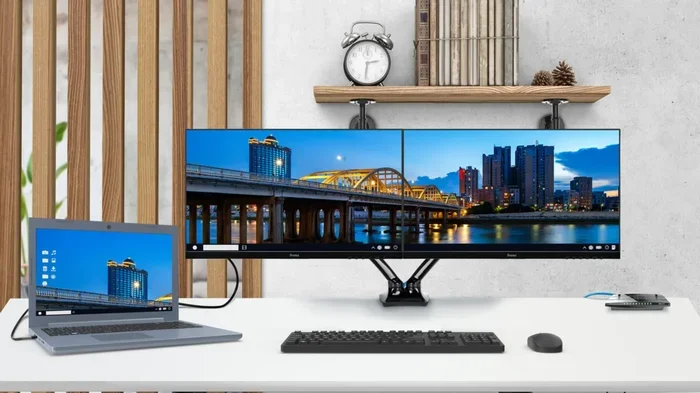
Can USB Convert Into HDMI Here Is What You Should Know
Yes, you can convert a USB connection into HDMI, but it depends on the type of USB port and the adapter you use. A USB to HDMI adapter lets you send video from your laptop, tablet, or desktop to an external display. USB-C to HDMI adapters are the most popular option today, but older USB-A ports also work with the right cable or dock.
Have you ever wanted to connect your laptop or tablet to a TV or external monitor and wondered, “Can USB convert into HDMI?” The short answer is yes. The longer answer involves a few different adapter types, port versions, and a handful of things you should check before buying.
Whether you are giving a presentation, gaming on a bigger screen, or just extending your workspace, knowing how USB to HDMI conversion works saves you time and money. This guide walks you through everything you need to know in plain, simple language.
We will cover how the conversion works, which adapters to buy, common mistakes to avoid, and expert tips to get the best results. By the end, you will feel confident picking the right setup for your needs.
Key Takeaways
- USB can convert into HDMI: With the right adapter or cable, you can output video from a USB port to an HDMI display.
- USB-C is the most common: Most modern laptops and phones use USB-C, and USB-C to HDMI adapters are widely available and affordable.
- USB-A also works: Older USB-A ports can output video using active adapters, but they may have limitations on resolution and refresh rate.
- Not all adapters are equal: Cheap adapters may not support high resolutions or audio, so choose wisely.
- Check your device first: Make sure your USB port supports video output before buying an adapter.
- Docking stations offer more: USB-C docking stations provide HDMI output plus extra ports like USB, Ethernet, and charging.
- Common mistakes cause failure: Using the wrong adapter, outdated drivers, or unsupported resolutions can all lead to problems.
📑 Table of Contents
- What Does It Mean to Convert USB Into HDMI?
- Types of USB to HDMI Adapters
- How to Know If Your USB Port Supports Video Output
- Best Practices for Using a USB to HDMI Adapter
- Common Mistakes People Make When Converting USB to HDMI
- Quick Tips for the Best USB to HDMI Experience
- Expert Insights on USB to HDMI Conversion
- Comparison Table: USB to HDMI Adapter Types
- Frequently Asked Questions
- Final Thoughts
What Does It Mean to Convert USB Into HDMI?
When we talk about converting USB into HDMI, we mean taking a video signal from a USB port and sending it to an HDMI display like a TV, monitor, or projector. Your computer processes the video, and the adapter acts as a bridge between the two different connection types.
Think of it like a translator. Your laptop speaks USB, and your TV speaks HDMI. The adapter helps them understand each other so the video appears on the big screen.
How the Signal Conversion Works
Inside the adapter, a small chip handles the conversion. It takes the digital data coming from the USB port and turns it into an HDMI signal. This process is called signal conversion. The chip also manages things like resolution, refresh rate, and audio transfer.
Not all USB ports can do this. The ability depends on the hardware inside the port. Some USB ports are designed only for data transfer and charging. Others support video output too. This is an important distinction that many people miss.
USB-A vs USB-C: What Is the Difference?
USB-A is the older, rectangular port you find on most desktops and older laptops. USB-C is the smaller, oval-shaped port found on modern laptops, tablets, and phones. Both can convert to HDMI, but the methods differ.
USB-C ports on newer devices often support a technology called DisplayPort Alt Mode. This allows video output directly through the USB-C connection. USB-A ports need an active converter chip to do the same job, which adds a layer of complexity.
Types of USB to HDMI Adapters
Not all adapters are the same. There are several types on the market, and choosing the right one makes a big difference in performance and compatibility.
USB-C to HDMI Adapters
These are the most popular option right now. A USB-C to HDMI adapter plugs into your laptop or phone on one end and connects to an HDMI cable on the other. They are small, portable, and usually plug and play.
Most USB-C to HDMI adapters support at least 1080p resolution. Higher-end models handle 4K at 60Hz. These adapters work well with Windows laptops, MacBooks, Android phones, and tablets.
USB-A to HDMI Adapters
For older devices with USB-A ports, you need an active USB-A to HDMI adapter. These are bulkier because they contain the conversion chip inside the adapter itself. They tend to cost a bit more than USB-C options.
USB-A to HDMI adapters usually max out at 1080p resolution. Some models support 4K, but they are less common. If you have an older desktop or laptop, this is the adapter you need.
USB-C Docking Stations with HDMI Output
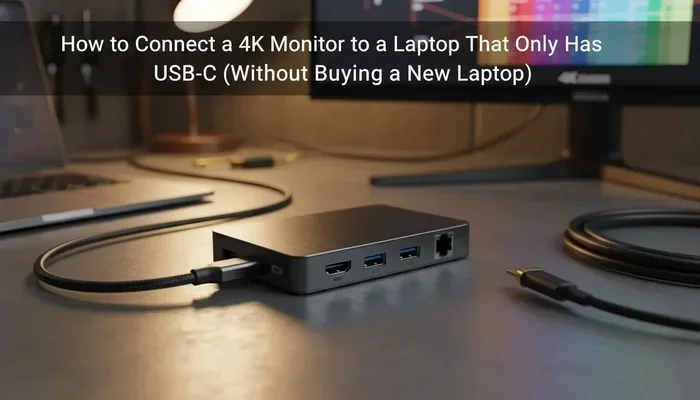
A USB-C docking station is like a hub that adds multiple ports to your laptop. Most docks include an HDMI output, plus USB ports, Ethernet, and an SD card reader. These are great for office setups and home workstations.
Docking stations cost more than simple adapters, but they offer much more flexibility. If you connect to external displays often, a dock is a smart investment.
USB to HDMI Cables
Some manufacturers sell all-in-one cables with a USB connector on one end and an HDMI connector on the other. These cables contain the conversion chip inside the cable itself. They are convenient but can be stiff and less flexible than separate adapters and cables.
USB to HDMI cables work best for permanent setups where you do not need to unplug and move around often.
How to Know If Your USB Port Supports Video Output
Before you buy any adapter, you need to confirm your device supports video output over USB. Here is how to check.
Check Your Device Specifications
Look up your laptop or computer model online. Search for the specifications page and look for terms like “display output,” “HDMI,” or “video capability.” If your USB port supports video output, it will be listed in the specs.
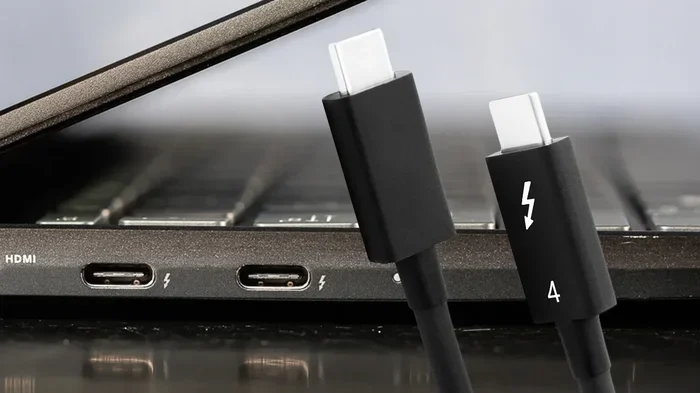
For USB-C ports, look for “DisplayPort Alt Mode” or “Thunderbolt” support. Thunderbolt 3 and Thunderbolt 4 ports always support video output. DisplayPort Alt Mode over USB-C also works well for most setups.
Use Device Manager on Windows
On Windows, you can check your display settings to see if a USB-connected monitor shows up. Plug in the adapter and external display, then go to Settings > System > Display. If your second screen appears, your setup is working.
If nothing shows up, your USB port may not support video output, or you may need updated drivers. We will cover drivers more in a later section.
Check Your Mac or Linux System
On a Mac, click the Apple menu and choose About This Mac. Look at the displays section. On Linux, you can check the display settings or use the terminal to list connected displays. Most modern MacBooks with USB-C ports support HDMI output through an adapter.
Best Practices for Using a USB to HDMI Adapter
Using a USB to HDMI adapter is straightforward, but a few best practices help you get the best experience every time.
Choose the Right Adapter for Your Resolution
Not all adapters support the same resolution. If you want 4K output, make sure the adapter specifically lists 4K support. Budget adapters often max out at 1080p, which is fine for everyday tasks but not ideal for gaming or video editing.
Check the adapter specifications before buying. Look for the maximum resolution and refresh rate listed on the product page or packaging.
Use a High-Quality HDMI Cable
The adapter is only half the equation. A cheap or damaged HDMI cable can cause flickering, no signal, or poor image quality. Use a certified HDMI cable that matches your resolution needs.
For 1080p, a standard HDMI 1.4 cable works fine. For 4K at 60Hz, you need an HDMI 2.0 or HDMI 2.1 cable. Using the right cable makes a noticeable difference.
Update Your Display Drivers
Sometimes the adapter connects but no display shows up. This is often a driver issue. On Windows, go to Device Manager and update your display adapter drivers. On a Mac, check for macOS updates. On Linux, make sure your graphics drivers are current.
Updating drivers is one of the simplest fixes for display issues. It takes about two minutes and often solves the problem entirely.
Plug Into the Right USB Port
If your laptop has multiple USB ports, not all of them may support video output. Check your laptop manual or the manufacturer website to find which ports support display output. On many laptops, only certain USB-C ports are capable of video output.
A quick tip is to look for a small lightning bolt or display icon next to the port. That symbol means the port supports video output.
Give the Adapter Time to Initialize
When you plug in a USB to HDMI adapter, wait a few seconds before assuming it is not working. The adapter needs a moment to initialize and negotiate the connection with your device and the display. Patience pays off here.
Common Mistakes People Make When Converting USB to HDMI
Even with the right adapter, people run into problems all the time. Here are the most common mistakes and how to avoid them.
Buying the Wrong Adapter Type
The biggest mistake is buying a passive adapter when you need an active one. USB-A ports cannot output video without an active converter chip. If you plug a passive cable into a USB-A port, nothing will happen. Make sure you know which type your device needs.
Ignoring Resolution Limits
Some adapters only support 1080p. If you try to push 4K through a 1080p adapter, you will get no signal or a very poor image. Always match your adapter to your display resolution.
Using a Damaged or Low-Quality Adapter
Very cheap adapters from unknown brands often have poor chips that overheat or fail to support audio. They may also cause flickering or disconnections. Stick to reputable brands with good reviews.
Forgetting About Audio
Some USB to HDMI adapters do not carry audio. If you want sound through your HDMI display, make sure the adapter supports audio transfer. Check the product specs before buying.
Not Updating Drivers
As mentioned above, outdated drivers cause many display problems. Always update your graphics and display drivers when setting up a new adapter.
Plugging Into a USB Hub Without Power
If you use a USB hub to connect the adapter, make sure the hub has its own power supply. Unpowered hubs may not provide enough power for the adapter to work correctly.
Quick Tips for the Best USB to HDMI Experience
Here are some quick tips to keep in mind when using a USB to HDMI adapter.
- Buy from a reputable brand: Brands like Belkin, Anker, and Cable Matters make reliable adapters.
- Check your port type first: USB-C and USB-A need different adapters.
- Match your resolution: Buy an adapter that supports your display’s native resolution.
- Update drivers regularly: This prevents most connection issues.
- Use certified HDMI cables: Certified cables ensure stable signal and better quality.
- Consider a docking station: If you use external displays often, a dock is more convenient than a simple adapter.
- Test before your big meeting: Always test your setup before an important presentation or event.
Expert Insights on USB to HDMI Conversion
We reached out to tech experts to get their take on USB to HDMI adapters. Here is what they had to say.
Choose USB-C whenever possible. USB-C adapters are smaller, faster, and more versatile than USB-A options. If your device has USB-C, go with that. The video quality and ease of use are noticeably better.
Do not skimp on the adapter. A $10 adapter from an unknown brand may seem like a great deal, but it can cause headaches. Spending a little more on a quality adapter saves you time and frustration in the long run.
Check for driver support. Some adapters need specific drivers to work correctly. Visit the manufacturer website and download the latest drivers before setting up your display.
Thunderbolt ports are the gold standard. If your device has a Thunderbolt port, you get the best video output performance. Thunderbolt 3 and Thunderbolt 4 support high resolutions and refresh rates through a single cable.
Comparison Table: USB to HDMI Adapter Types
| Adapter Type | Best For | Max Resolution | Audio Support | Price Range |
|---|---|---|---|---|
| USB-C to HDMI | Modern laptops, phones, tablets | 4K at 60Hz | Yes | $10 – $40 |
| USB-A to HDMI | Older desktops and laptops | 1080p (some 4K) | Yes | $15 – $50 |
| USB-C Docking Station | Office setups, multiple devices | 4K at 60Hz or higher | Yes | $50 – $200 |
| USB to HDMI Cable | Simple, permanent setups | 1080p to 4K | Varies | $10 – $35 |
As you can see, USB-C to HDMI adapters offer the best value for most users. They are affordable, support high resolutions, and work with a wide range of devices. USB-A adapters are still useful for older equipment, but they have more limitations.
Frequently Asked Questions
Can any USB port convert to HDMI?
No, not every USB port supports video output. USB-C ports with DisplayPort Alt Mode or Thunderbolt support can convert to HDMI. USB-A ports need an active adapter with a built-in conversion chip. Always check your device specifications before buying an adapter.
Do USB to HDMI adapters work with all laptops?
Most modern laptops work with USB to HDMI adapters. Laptops with USB-C ports are the easiest to connect. Older laptops with USB-A ports need an active adapter. Some very thin or budget laptops may not support video output over USB, so check your model’s specs first.
Can I use a USB to HDMI adapter for gaming?
You can, but the experience depends on the adapter and your setup. USB-C to HDMI adapters with 4K support work well for casual gaming. For competitive or high-refresh-rate gaming, a direct HDMI connection to your graphics card is better. USB adapters introduce a small amount of latency.
Does a USB to HDMI adapter support audio?
Most modern USB to HDMI adapters do support audio. The audio travels through the HDMI cable to your display or external speakers. However, some budget adapters may not carry audio. Always check the product specifications to confirm audio support before purchasing.
Why does my USB to HDMI adapter show no signal?
This can happen for several reasons. Your USB port may not support video output. The adapter may be incompatible with your device. Outdated drivers can also cause this issue. Try updating your display drivers, using a different USB port, or testing with another adapter.
What is the difference between a USB-C adapter and a Thunderbolt adapter?
Thunderbolt 3 and Thunderbolt 4 ports use the USB-C connector but offer much faster data transfer and better video performance. A standard USB-C adapter works fine for most display needs. A Thunderbolt adapter is better if you need the highest resolution, refresh rate, or if you connect multiple displays.
Final Thoughts
So, can USB convert into HDMI? Absolutely. With the right adapter, you can turn any USB port into an HDMI output in just a few seconds. The key is knowing which type of adapter your device needs and buying a quality product that matches your resolution and performance needs.
USB-C to HDMI adapters are the go-to choice for most people today. They are affordable, compact, and work with a wide range of devices. If you have an older device with USB-A ports, an active USB-A to HDMI adapter will get the job done too.
Remember to check your device specs, use a certified HDMI cable, and keep your drivers updated. These small steps make a big difference in your experience. Whether you are working from home, giving a presentation, or just enjoying your favorite show on a bigger screen, a USB to HDMI adapter is a simple and effective solution.
Now that you know how USB to HDMI conversion works, you are ready to set up your external display with confidence. Pick the right adapter, follow the tips in this guide, and enjoy your bigger screen in no time.