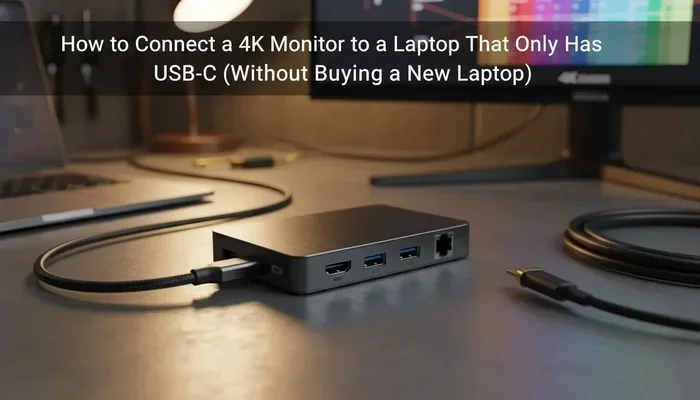
Can I Use Usb C To Output To My External 4K Monitor
Yes, you can use USB C to output to your external 4K monitor. Many modern laptops, tablets, and phones support USB C video output through DisplayPort Alt Mode or Thunderbolt. With the right cable or adapter, you can enjoy a stunning 4K display from a single port.
Have you ever stared at your laptop screen and wished you could plug it into a bigger display? Maybe you work from home and need a second screen. Or perhaps you just want to watch movies on a proper 4K monitor instead of a tiny laptop display.
The good news is that USB C to output to monitor setups are now mainstream. Almost every modern laptop, tablet, and even some smartphones come with a USB C port. But can you actually use that port to connect an external 4K monitor? The short answer is yes. The longer answer involves a few important details you should know before you buy a cable or adapter.
In this guide, I will walk you through everything you need to know. We will cover how USB C video output works, what hardware you need, common problems, and the best accessories for the job. By the end, you will feel confident setting up your own USB C monitor connection without any guesswork.
Key Takeaways
- USB C Can Drive 4K Monitors: Most modern USB C ports support video output up to 4K resolution with the right setup.
- Check Your Port Type: Not all USB C ports are equal. Thunderbolt 3, Thunderbolt 4, and DisplayPort Alt Mode all handle video differently.
- You Need The Right Cable Or Adapter: A standard USB C cable may not carry video. Look for cables rated for video transmission.
- Docking Stations Simplify Everything: A USB C dock lets you connect your monitor, charge your laptop, and access peripherals through one cable.
- Common Issues Are Easy To Fix: Most problems stem from cable quality, port selection, or missing drivers.
- Compatibility Matters: Always check your device specifications before buying accessories.
📑 Table of Contents
What Is USB C And Why Does It Matter For Monitors?
Understanding The USB C Connector
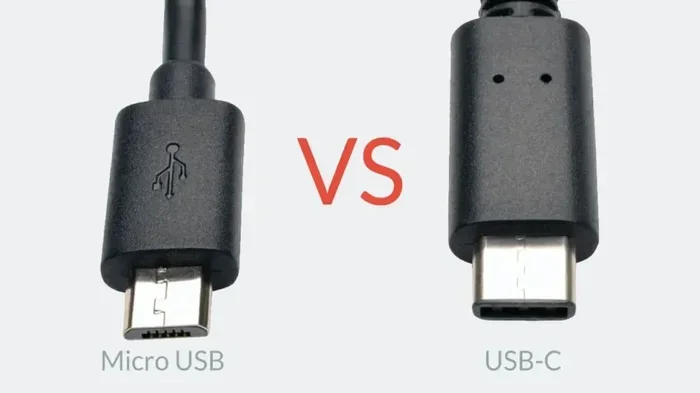
USB C is a type of connector, not a technology. Think of it like a wall outlet. The shape is reversible, which means you can plug it in either way. That alone makes it more convenient than older USB types. But the real power of USB C lies in what it can carry.
A single USB C cable can transfer data, deliver power, and send video signals all at the same time. This is called a single cable solution. It is a huge upgrade from the days when you needed separate cables for charging, data, and video output.
Why USB C Changed The Game For External Displays
Before USB C, connecting a monitor usually meant using VGA, DVI, or HDMI cables. Each one was bulky and carried only video. You still needed a separate USB cable for data and a power adapter for charging.
USB C changed all of that. Now one port can do it all. This is especially useful for people who travel. Instead of carrying three or four cables, you only need one USB C cable to connect your laptop to a monitor, charge your battery, and transfer files.
But here is the catch. Not every USB C port supports video output. This is where things get confusing for many users. Let me break it down clearly.
How Does USB C Output Work With Your 4K Monitor?
DisplayPort Alt Mode Explained
When a device supports video output over USB C, it usually uses something called DisplayPort Alt Mode. This is a protocol that lets the USB C port carry a DisplayPort signal. Your monitor receives this signal and displays your content.
DisplayPort Alt Mode is very common. Most laptops from Apple, Dell, HP, Lenovo, and Samsung support it. If your device has a USB C port and can output video, there is a good chance it uses DisplayPort Alt Mode under the hood.
The Role Of Thunderbolt 3 And Thunderbolt 4
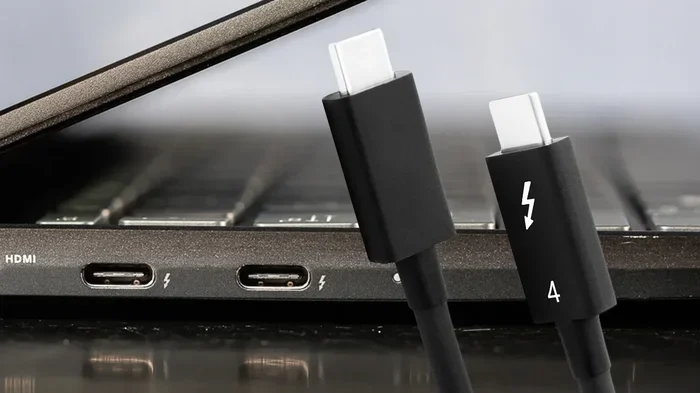
Thunderbolt 3 and Thunderbolt 4 are even more powerful. These protocols use the USB C connector but offer much higher bandwidth. Thunderbolt 3 supports up to 40 Gbps of data transfer and can drive two 4K displays at once. Thunderbolt 4 raises the bar even further with stricter certification requirements.
If your laptop has a Thunderbolt port, you have maximum flexibility. You can connect a single 4K monitor or even multiple displays without any hassle. The bandwidth is more than enough for high-resolution content.
Bandwidth And Resolution: What You Need To Know
Not all USB C connections are created equal when it comes to bandwidth. Bandwidth determines how much data can flow through the cable per second. Higher bandwidth means higher resolution and refresh rates.
Here is a simple breakdown of what different USB C configurations can handle:
- USB 3.1 Gen 1 (5 Gbps): Can support 4K at 30Hz. Fine for office work but not ideal for video editing.
- USB 3.1 Gen 2 (10 Gbps): Supports 4K at 60Hz. This is the sweet spot for most users.
- Thunderbolt 3 (40 Gbps): Handles 4K at 60Hz or even two 4K displays.
- Thunderbolt 4 (40 Gbps): Same bandwidth as Thunderbolt 3 but with better reliability and certification.
If you want a smooth 4K experience at 60Hz, aim for at least 10 Gbps bandwidth. Anything less and you may see a choppy or stuttering display.
What You Need To Connect USB C To A Monitor
Choosing The Right USB C Cable
Not every USB C cable can carry a video signal. Some cables are designed only for charging and data transfer. If you try to use one of those cables for your monitor, you will get no picture.
Look for cables that explicitly state they support video output. Check the packaging for terms like DisplayPort Alt Mode or Thunderbolt. A good USB C to USB C cable rated for 10 Gbps or higher will usually work for 4K output.
Here are some quick tips for choosing the right cable:
- Check the cable specifications before buying. Look for bandwidth ratings.
- Buy from reputable brands like Cable Matters, Anker, or Belkin.
- Avoid cheap, unbranded cables. They often fail to carry video signals reliably.
- If you need longer runs, go for active cables rather than passive ones.
Using An Adapter Or Docking Station
Sometimes your monitor only has HDMI or DisplayPort inputs. In that case, you need an adapter. A USB C to HDMI adapter or a USB C to DisplayPort adapter will bridge the gap between your laptop and the monitor.
A USB C docking station is an even better option for regular use. A good dock connects to your laptop with one cable and provides multiple outputs. You can plug in your monitor, keyboard, mouse, and external hard drive all at once. The dock also charges your laptop through USB Power Delivery.
When choosing a dock, make sure it supports the resolution and refresh rate you need. Not all docks are created equal. Some budget docks only support 1080p or 4K at 30Hz. Read the specifications carefully.
Direct Connection Vs. Adapter Connection
A direct connection is always better than going through an adapter. If both your laptop and monitor have USB C ports, use a direct USB C cable. This gives you the best signal quality and the fewest points of failure.
An adapter adds an extra step, which can sometimes cause issues. You might experience signal loss, HDCP errors, or compatibility problems. That said, adapters are perfectly fine for most everyday use. Just buy quality ones from trusted brands.
Common Problems And How To Fix Them
No Signal On Your Monitor
This is the most common issue when setting up a USB C external display. If your monitor shows no signal, do not panic. Try these steps first:
- Unplug the cable and plug it back in firmly.
- Try a different USB C port on your laptop.
- Check if the cable supports video output.
- Restart both your laptop and the monitor.
- Make sure the monitor is set to the correct input source.
In many cases, the issue is simply a loose connection or the wrong input selected on the monitor. A quick restart often solves the problem too.
Low Resolution Or Flickering Display
If your picture looks blurry or flickers, your connection might not have enough bandwidth. This often happens when using a low-quality cable or an older USB 3.0 port.
Try upgrading to a higher-quality USB C cable rated for 10 Gbps or more. You should also check your display settings on your laptop. Make sure the resolution is set to 3840 x 2160 for true 4K and the refresh rate is set to 60Hz.
Laptop Not Charging While Connected To Monitor
Some USB C cables only carry data and video but not power. This means your laptop might drain its battery even while connected to a monitor.
Look for cables and docks that support USB Power Delivery (USB PD). A USB PD cable can deliver up to 100 watts of power. This means you can charge your laptop and output video through the same cable. Always check the power delivery rating before purchasing.
Audio Not Working Through USB C
Some users expect audio to come through the monitor speakers automatically. This does not always happen. You may need to go into your sound settings and select the USB C display as the audio output device.
On Windows, right-click the speaker icon in your taskbar and choose the correct output. On Mac, go to System Settings and select the USB C display under Sound Output.
Best Docks And Adapters For USB C Monitor Setup
Top USB C Docks Worth Considering
A great USB C dock can transform your workspace. Instead of fumbling with multiple cables, you get one clean connection. Here are some popular options that work well with 4K monitors:
- CalDigit TS4: A premium Thunderbolt 4 dock with multiple ports and reliable 4K support.
- Anker 777 Thunderbolt Dock: Offers great value with dual 4K support at an affordable price.
- Belkin Thunderbolt 3 Dock: A solid all-around dock from a trusted brand.
- Satechi USB C Multiport Adapter: Compact and portable, perfect for travelers.
Top USB C Cables For Video Output
If you prefer a simple cable setup, here are some reliable options:
- Cable Matters USB C to USB C Cable: Supports 10 Gbps data and 4K video output.
- Anker PowerLine+ USB C Cable: Durable build with solid video and charging support.
- Belkin Thunderbolt 3 Cable: Ideal for Thunderbolt users who need maximum bandwidth.
Top USB C Adapters
For a quick and affordable solution, consider these adapters:
- Cable Matters USB C to HDMI Adapter: Plug and play with most 4K monitors.
- Apple USB C Digital AV Multiport Adapter: Great for MacBook users who need HDMI plus USB ports.
- Ugreen USB C to DisplayPort Adapter: Reliable and affordable for DisplayPort monitors.
Expert Insights On USB C Monitor Connectivity
What Tech Professionals Recommend
Industry experts consistently advise checking your device specifications before buying any accessory. The USB C logo on your laptop does not guarantee video output. Look for the Thunderbolt logo or check your device manual for DisplayPort Alt Mode support.
Professionals also recommend investing in a docking station if you use an external monitor daily. A dock provides a cleaner setup, better cable management, and more reliable connectivity than running cables directly between devices.
The Future Of USB C In Display Technology
USB C is becoming the universal standard for display connections. Newer monitors are starting to include USB C inputs directly. This means you can connect your laptop with a single cable and get video, data, and power all through one connection.
As Thunderbolt 5 and newer standards emerge, bandwidth will increase even further. This will enable higher resolutions, faster refresh rates, and more displays from a single port. If you are buying new equipment now, USB C is definitely the way to go.
Key Takeaways
- USB C Can Drive 4K Monitors: Most modern USB C ports support video output up to 4K resolution with the right setup.
- Check Your Port Type: Not all USB C ports are equal. Thunderbolt 3, Thunderbolt 4, and DisplayPort Alt Mode all handle video differently.
- You Need The Right Cable Or Adapter: A standard USB C cable may not carry video. Look for cables rated for video transmission.
- Docking Stations Simplify Everything: A USB C dock lets you connect your monitor, charge your laptop, and access peripherals through one cable.
- Common Issues Are Easy To Fix: Most problems stem from cable quality, port selection, or missing drivers.
- Compatibility Matters: Always check your device specifications before buying accessories.
Conclusion
So, can you use USB C to output to your external 4K monitor? Absolutely. With the right cable, adapter, or dock, you can enjoy a beautiful 4K display from your laptop, tablet, or desktop computer. The key is understanding your device capabilities and choosing compatible accessories.
Start by checking your USB C port specifications. Determine whether it supports DisplayPort Alt Mode or Thunderbolt. Then choose a cable or dock that matches your needs. If you are unsure, a USB C docking station is the safest bet. It gives you flexibility, reliability, and a clean workspace.
Do not let confusion stop you from upgrading your setup. A bigger, sharper monitor makes a real difference in productivity and entertainment. With the USB C monitor connection guide above, you have everything you need to get started. Plug in, power up, and enjoy your expanded display.
Frequently Asked Questions
Can Any USB C Cable Be Used To Connect To A 4K Monitor?
No, not every USB C cable supports video output. You need a cable specifically rated for video transmission. Look for cables that mention DisplayPort Alt Mode or Thunderbolt support. Standard charging cables usually cannot carry a video signal.
Will My USB C Dock Support 4K At 60Hz?
It depends on the dock and your laptop. Make sure your dock supports at least 10 Gbps bandwidth and explicitly lists 4K at 60Hz in its specifications. Thunderbolt docks almost always support this resolution and refresh rate.
Do I Need Special Drivers For USB C Monitor Output?
Most of the time, no. Modern operating systems like Windows 11 and macOS handle USB C video output automatically. However, if you experience issues, updating your display drivers or Thunderbolt firmware can help resolve compatibility problems.
Can I Connect Two Monitors Through One USB C Port?
Yes, but only if your port supports Thunderbolt 3 or Thunderbolt 4. These protocols can drive two 4K displays simultaneously. Check your laptop specifications to confirm multi-display support before attempting this setup.
Why Does My Monitor Show No Signal When Connected Via USB C?
This usually happens because the cable does not support video or the wrong input is selected on the monitor. Try a different cable, check the input source on your monitor, and restart both devices. Also make sure your laptop port supports video output.
Is Thunderbolt Better Than Standard USB C For Monitor Output?
Yes, Thunderbolt offers significantly more bandwidth than standard USB C. It supports higher resolutions, faster refresh rates, and multiple displays. If you frequently connect external monitors, a Thunderbolt setup provides a much smoother and more reliable experience.