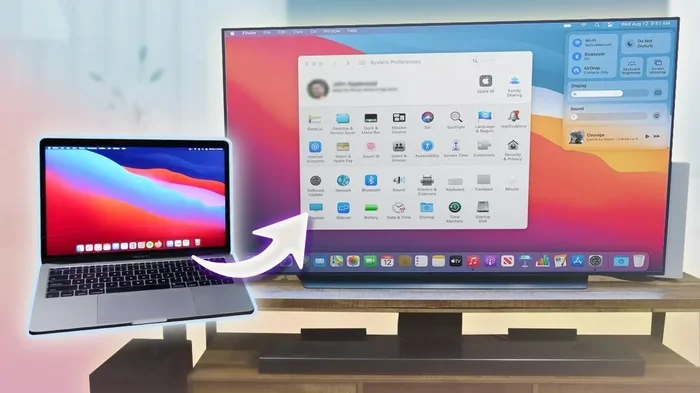
Can I Use My Mac As An Hdmi Output For A TV Display
Yes, you can use your Mac as an HDMI output to connect to a TV or external display. Most Macs need an adapter or cable to convert their video output to HDMI. This guide walks you through every step, from picking the right adapter to fixing common connection issues.
So you want to know can I use my Mac as an HDMI output for a TV display? The short answer is yes. But the full answer depends on your Mac model, the ports it has, and the right adapter you need.
Whether you want to watch movies on a bigger screen, mirror your MacBook for presentations, or extend your desktop to a TV, connecting your Mac to an HDMI display is totally doable. It just takes a few simple steps and the right gear.
In this guide, we will walk you through everything you need to know. We will cover which Mac models support HDMI, what adapters you need, how to set up the connection, and how to fix common problems. By the end, you will be confident about hooking your Mac up to any TV or monitor with an HDMI input.
Key Takeaways
- Macs can output HDMI: You just need the right adapter or cable depending on your Mac model.
- Adapter choice matters: USB-C to HDMI and Thunderbolt to HDMI are the most common options.
- Setup is simple: Plug in the adapter, connect an HDMI cable, and adjust display settings.
- Not all Macs have HDMI ports: Newer Macs rely on USB-C or Thunderbolt ports instead.
- Troubleshooting is straightforward: Most issues stem from wrong adapters, loose cables, or display settings.
- You can mirror or extend: Choose between duplicating your screen or using the TV as a second monitor.
📑 Table of Contents
- Understanding Mac HDMI Output Basics
- Choosing the Right HDMI Adapter for Your Mac
- Step-by-Step Setup: How to Connect Your Mac to a TV
- Mac Screen Mirroring vs. Extended Display
- Common Problems and How to Fix Them
- Best Practices for Using Your Mac as an HDMI Output
- Quick Tips for a Smooth Setup
- Conclusion
Understanding Mac HDMI Output Basics
Before you grab any cables, it helps to understand how Mac video output works. Apple has changed its port designs over the years. Some Macs have a built-in HDMI port. Others rely on USB-C or Thunderbolt ports that need an adapter to output HDMI signals.
Which Mac Models Have Built-In HDMI?
Some Mac desktops still include a standard HDMI port right out of the box. Here is a quick look:
- Mac Studio: Comes with HDMI 2.1 support out of the box.
- Mac Pro (2019 and newer): Includes built-in HDMI ports.
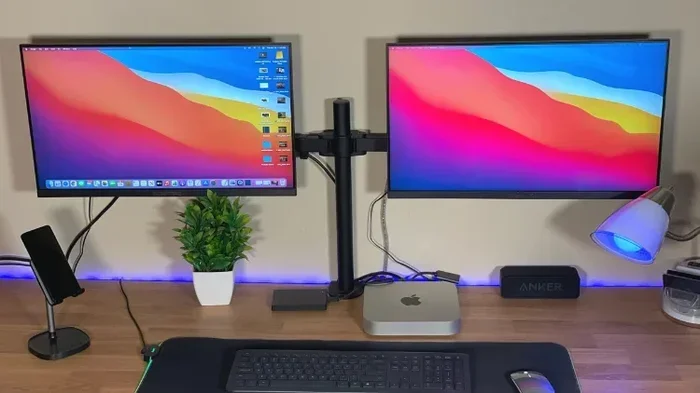
- Mac Mini (2018 and newer): Features one HDMI port for direct connection.
- iMac (2019 and newer): Has HDMI built into the back panel.
If your Mac falls into one of these categories, you can plug an HDMI cable straight from your Mac to your TV. No adapter needed. This makes Mac HDMI output incredibly simple for desktop models.
Which Macs Need an Adapter?
Most modern laptops and older Macs do not have a built-in HDMI port. Here is what you need to know:
- MacBook Air (2018 and newer): Uses USB-C or Thunderbolt 3 ports. You need a USB-C to HDMI adapter.
- MacBook Pro (2016 and newer): Also relies on USB-C or Thunderbolt ports. An adapter is required.
- MacBook (2015 and older): Uses a Thunderbolt 2 port. You will need a Thunderbolt to HDMI adapter or a USB-C adapter.
- MacBook Pro with MagSafe 1 (2006-2012): Uses Mini DisplayPort. You need a Mini DisplayPort to HDMI adapter.
The key takeaway here is that connecting Mac to TV via HDMI is possible for every model. You just need to match the right adapter to your Mac’s port type.
Choosing the Right HDMI Adapter for Your Mac
Picking the correct Mac HDMI adapter is the most important step. Using the wrong adapter can lead to no signal, poor quality, or even damage. Let us break down your options.
USB-C to HDMI Adapters
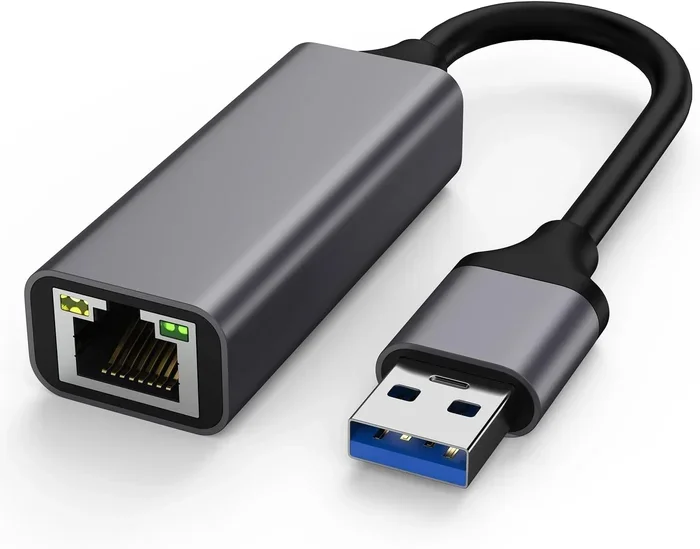
This is the most common adapter type today. If your Mac has USB-C or Thunderbolt 3/4 ports, a USB-C to HDMI cable or adapter will work perfectly. These adapters are small, affordable, and widely available.
Look for adapters that support 4K resolution at 60Hz if you want sharp picture quality on your TV. Many budget adapters only support 4K at 30Hz, which can look a bit choppy during fast motion. For the best experience, choose a certified adapter from a reputable brand.
Thunderbolt to HDMI Adapters
Thunderbolt adapters offer the same functionality but with extra bandwidth. They are ideal if you use a Thunderbolt dock or hub and want to connect multiple displays. A Thunderbolt to HDMI adapter gives you a reliable and stable connection for your Mac display on TV setup.
HDMI Switches and Splitters
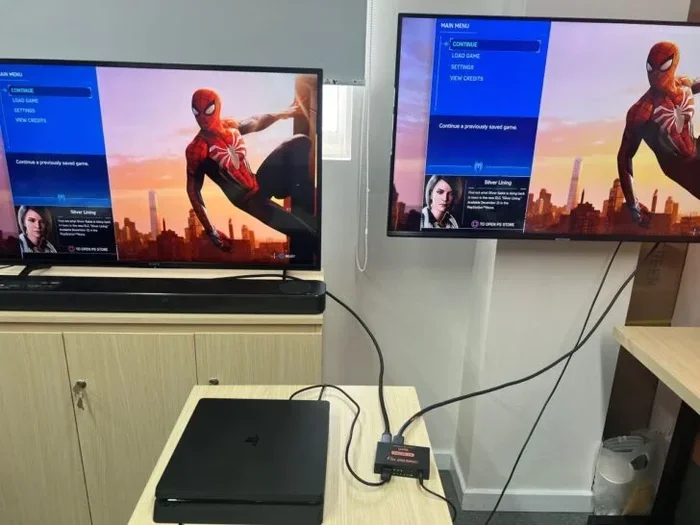
If you have multiple HDMI devices and want to switch between them, an HDMI switch for Mac can be very handy. These devices let you plug in your Mac, a gaming console, and a streaming stick, then switch between them with the push of a button.
Wireless Options: AirPlay to TV
Not ready for cables? You can also use AirPlay to TV if you have an Apple TV or a smart TV that supports AirPlay 2. This is a great wireless alternative to HDMI cable Mac connections. The picture quality may not be as sharp, but the convenience is hard to beat.
Step-by-Step Setup: How to Connect Your Mac to a TV
Now that you have the right adapter, let us walk through the setup process. This is easier than most people think.
Step 1: Gather Your Equipment
You will need three things:
- The correct Mac HDMI adapter for your Mac model.
- An HDMI cable (standard or high-speed, depending on your needs).
- A TV or monitor with an available HDMI input.
Quick tip: Use a high-quality HDMI cable rated for 4K if you want the best picture. Cheap cables can cause flickering or signal loss.
Step 2: Connect the Adapter and Cable
Plug the adapter into your Mac. Then connect one end of the HDMI cable to the adapter and the other end to an available HDMI port on your TV. Make sure both connections are snug and secure.
Step 3: Select the Correct HDMI Input on Your TV
Turn on your TV and use the remote to switch to the right HDMI input. Most TVs label their HDMI ports as HDMI 1, HDMI 2, and so on. Select the port where you plugged in the cable.
Step 4: Configure Display Settings on Your Mac
Once connected, your Mac should recognize the TV automatically. Here is how to adjust the settings:
- Open System Settings (or System Preferences on older macOS).
- Click on Displays.
- You will see two displays listed: your Mac screen and the TV.
- Choose to mirror your display or extend it as a second screen.
- Adjust the resolution and arrangement to suit your needs.
If the TV shows no signal, double-check your cable connections and make sure the TV is on the correct input. Sometimes simply unplugging and replugging the HDMI cable fixes the issue.
Mac Screen Mirroring vs. Extended Display
When you connect your Mac to a TV, you have two main options. Understanding the difference helps you get the most out of your setup.
Mirroring Your Mac Screen
Mac screen mirroring means your TV shows the exact same image as your Mac. This is great for watching movies, giving presentations, or sharing photos with a group. Everything you do on your Mac appears in real time on the TV.
Using the TV as an Extended Display
Extended display mode turns your TV into a second monitor. You can drag windows, apps, and files from your Mac screen to the TV screen. This is perfect for multitasking, coding, or using your Mac as a workstation while the TV displays reference material.
To switch between these modes, go to System Settings > Displays and select either Mirror Display or use the arrangement options to extend your desktop.
Common Problems and How to Fix Them
Even with the right gear, you might run into issues. Here are the most common problems and their solutions.
No Signal on the TV
This is the most frequent complaint. Try these fixes:
- Check that the HDMI cable is firmly connected at both ends.
- Make sure the TV is set to the correct HDMI input.
- Try a different HDMI cable to rule out a faulty cable.
- Restart your Mac and reconnect the adapter.
- Update your macOS to the latest version.
Poor Image Quality or Flickering
If the picture looks blurry, flickers, or has color issues, try these steps:
- Replace a cheap or damaged HDMI cable with a high-quality one.
- Lower the resolution in Display Settings to see if the problem improves.
- Try a different HDMI adapter for Mac from a trusted brand.
- Make sure your adapter supports the resolution you are trying to use.
Audio Not Working Through HDMI
Sometimes the video works but there is no sound. This happens because macOS does not always default to HDMI audio output. Here is how to fix it:
- Go to System Settings > Sound.
- Select your TV or HDMI display as the output device.
- Adjust the volume and test again.
Mac Does Not Recognize the External Display
If your Mac does not detect the TV at all, try these steps:
- Unplug the adapter and cable, then plug them back in.
- Restart your Mac.
- Check for macOS updates.
- Try a different USB-C or Thunderbolt port on your Mac.
- Reset the NVRAM by restarting and holding Option + Command + P + R for 20 seconds.
Best Practices for Using Your Mac as an HDMI Output
Follow these tips to get the best experience every time you use your Mac as an HDMI output for a TV display.
Use Certified Adapters and Cables
Always buy adapters and cables from trusted brands or Apple-certified accessories. Cheap knockoffs can cause connection issues, poor video quality, or even harm your Mac. Look for products that mention compatibility with your specific Mac model.
Keep Your macOS Updated
Apple regularly releases updates that improve display compatibility and fix bugs. Keeping your Mac updated ensures the smoothest Mac to HDMI connection experience.
Manage Cable Length and Placement
Keep your HDMI cable as short as possible for the best signal quality. If you need a longer run, use a high-quality active HDMI cable. Avoid bending or pinching the cable, as this can damage the internal wiring.
Use a Docking Station for Frequent Use
If you connect your Mac to a TV or external display often, consider a USB-C docking station with HDMI output. These hubs provide a clean, permanent setup and often include extra ports for charging, USB devices, and Ethernet.
Quick Tips for a Smooth Setup
- Always test your setup before an important presentation or movie night.
- Label your adapter and cables so you can find them easily next time.
- Keep a spare USB-C to HDMI adapter in your bag for travel.
- Use an HDMI cable rated for 4K 60Hz to get the sharpest picture.
- If your TV supports HDMI-CEC, enable it so you can control volume with your TV remote.
Conclusion
Can I use my Mac as an HDMI output for a TV display? Absolutely. Whether you have a desktop Mac with a built-in HDMI port or a modern laptop that needs an adapter, connecting your Mac to a TV is simple and reliable. The right Mac HDMI adapter, a good quality cable, and a few minutes of setup are all you need.
Remember to match your adapter to your Mac’s port type, configure your display settings correctly, and troubleshoot any issues with the steps we covered. Once you set it up, you will wonder how you ever watched anything on a small screen.
Now you have everything you need to turn any TV into a second Mac display. Go ahead, grab your adapter, and give it a try. Your big-screen experience starts today.
Frequently Asked Questions
Can I connect any Mac to any TV using HDMI?
Yes, you can connect any Mac to any TV with an HDMI input. You just need the right adapter based on your Mac’s port type. USB-C, Thunderbolt, and Mini DisplayPort Macs all require a specific adapter to convert their output to HDMI.
Do I need a special HDMI cable for my Mac?
You do not need a special cable. A standard high-speed HDMI cable works fine for most setups. If you want 4K resolution at 60Hz, make sure the cable is rated for that speed. Most modern HDMI cables will handle full HD and 4K without any issues.
Why is there no sound when I connect my Mac to a TV via HDMI?
This is a common issue. macOS does not always default to HDMI audio. Go to System Settings, then Sound, and select your TV or HDMI display as the output device. This will route audio through the HDMI connection.
Can I use my Mac as an HDMI output while it is charging?
Yes, you can use your Mac as an HDMI output while it is charging. Just make sure your charger and adapter do not interfere with each other. Using a powered USB-C hub or docking station can help keep everything stable during use.
What is the difference between mirroring and extending my Mac display?
Mirroring shows the exact same image on both your Mac screen and the TV. Extending turns the TV into a second monitor where you can drag windows and apps between screens. You can switch between these modes in System Settings under Displays.
Can I use an HDMI adapter with a MacBook Air?
Yes, you can use an HDMI adapter with a MacBook Air. Most MacBook Air models from 2018 onward use USB-C or Thunderbolt ports. A USB-C to HDMI adapter or cable will work perfectly for connecting your MacBook Air to a TV or external display.