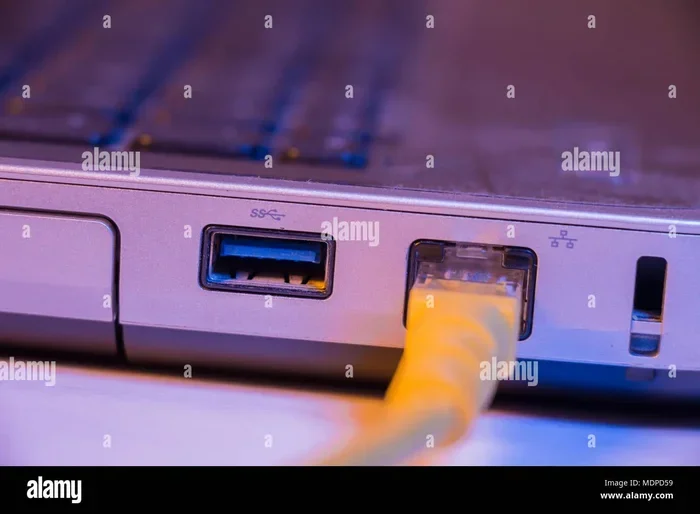
Can I Plug An Ethernet Cable Straight Into My Laptop
Yes, you can plug an Ethernet cable straight into your laptop — but it depends on whether your laptop has a built-in Ethernet port. Most modern laptops don’t, so you’ll need a USB Ethernet adapter. This guide covers everything from choosing the right adapter to boosting your internet speed with a wired connection.
You just got a new Ethernet cable. Maybe your Wi-Fi has been acting up. Or maybe you need a rock-solid connection for a big online meeting. Either way, you’re standing there with a cable in your hand, wondering if you can just plug it straight into your laptop.
The short answer is yes — but there’s a catch. Most modern laptops don’t have a built-in Ethernet port anymore. That means you’ll need a little helper called an adapter. But don’t worry. This is way simpler than it sounds, and we’ll walk you through every step.
In this article, we’ll answer the question Can I Plug An Ethernet Cable Straight Into My Laptop in full detail. You’ll learn about the different types of adapters, how to set everything up, and why a wired connection might be exactly what your internet experience needs.
Key Takeaways
- Most laptops lack a built-in Ethernet port: You’ll likely need a USB adapter to connect.
- A wired connection is faster and more stable than Wi-Fi: Perfect for gaming, streaming, and work.
- USB-C and USB-A adapters are the most common options: Choose based on your laptop’s ports.
- Setup is simple and takes less than five minutes: Plug in, install drivers, and you’re online.
- Not all Ethernet adapters are equal: Look for gigabit speeds and good brand reputation.
- You can use your laptop wired and wireless at the same time: They don’t interfere with each other.
- Ethernet cables come in different categories: Cat5e and Cat6 are the best choices for most users.
📑 Table of Contents
- Why Would You Want to Plug Ethernet Into Your Laptop?
- Can I Plug An Ethernet Cable Straight Into My Laptop?
- How to Connect Ethernet to a Laptop Without a Built-in Port
- Types of Ethernet Cables You Should Know About
- Common Mistakes When Setting Up Ethernet on a Laptop
- Quick Tips for the Best Ethernet Experience
- Expert Insights: Wired vs. Wireless — Which Is Better?
- Is a USB Ethernet Adapter Safe to Use?
- Can You Use Ethernet and Wi-Fi at the Same Time?
- What If Your Laptop Has No USB Ports At All?
- Conclusion
Why Would You Want to Plug Ethernet Into Your Laptop?
Before we get into the how, let’s talk about the why. Plenty of people stick with Wi-Fi and never think twice. But a wired internet connection has some real advantages that are hard to ignore.
Faster Speeds
A good Ethernet connection can deliver speeds that Wi-Fi simply can’t match. We’re talking about consistent gigabit speeds with a gigabit Ethernet setup. Even a basic Cat5e cable can handle 1 gigabit per second. That’s faster than most home Wi-Fi setups.
Better Stability
Wi-Fi signals bounce around. Walls, microwaves, and even your neighbor’s network can cause interference. A wired LAN connection doesn’t have those problems. The signal goes straight from your router to your laptop through the cable. No interference, no drops, no frustration.
Lower Latency
If you’ve ever noticed a delay in online games or video calls, that’s latency. Ethernet connections have much lower latency than Wi-Fi. This matters for gaming, video conferencing, and anything where timing is critical.
Enhanced Security
A wired connection is harder to intercept than a wireless one. If you’re handling sensitive work or financial data, plugging in via Ethernet adds an extra layer of protection.
Can I Plug An Ethernet Cable Straight Into My Laptop?
Here’s the honest answer. It depends on your laptop. Some laptops still have a built-in Ethernet port, but they’re becoming rare. Let’s break this down.
Laptops With Built-in Ethernet Ports
A few years ago, almost every laptop had an Ethernet jack. You’d find it on the side or back of the machine. If your laptop has that little rectangular port, you can plug an Ethernet cable straight in with no extra equipment needed.
Some business laptops and older models still include this feature. Brands like Dell Latitude, Lenovo ThinkPad, and HP EliteBook often keep Ethernet ports on their professional lines. If you’re not sure whether your laptop has one, look for that small rectangular slot with a little icon of a circle and lines next to it.
Laptops Without Built-in Ethernet Ports
Most modern laptops, especially thin-and-light models, have ditched the Ethernet port entirely. Apple’s MacBook line hasn’t had one since 2012. Many Windows laptops now only offer USB-C and USB-A ports.
If your laptop falls into this category, you can’t plug the cable directly in. But that doesn’t mean you’re out of luck. You just need a USB Ethernet adapter. These small devices plug into your laptop’s USB port and give you an Ethernet jack to connect your cable.
How to Connect Ethernet to a Laptop Without a Built-in Port
Don’t worry. This process is straightforward and takes just a few minutes. You don’t need to be a tech expert to get it done.
Step 1: Get the Right Adapter
First, figure out what kind of USB port your laptop has. Most modern laptops use USB-C. Older ones use USB-A. You’ll need an adapter that matches.
- USB-C Ethernet Adapter: Best for newer laptops. Small, portable, and fast.
- USB-A Ethernet Adapter: Works with older laptops that have traditional USB ports.
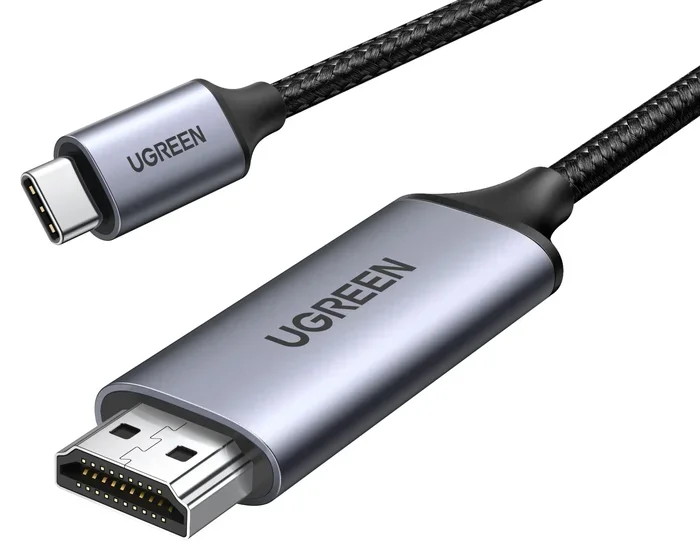
- USB-C Hub with Ethernet: A great option if you also need extra ports like HDMI or USB-A.
Look for adapters that support gigabit Ethernet speeds. Cheaper adapters might only support 100 Mbps, which is fine for basic browsing but limiting for heavy use.
Step 2: Plug In the Adapter
Insert the adapter into your laptop’s USB port. It should fit snugly. If you’re using a USB-C adapter on a USB-A port (or vice versa), you might need a small dongle to make it work.
Step 3: Connect the Ethernet Cable
Take your Ethernet cable and plug one end into the adapter. Plug the other end into your router or network wall jack. You should hear a click when it seats properly.
Step 4: Let Your Laptop Recognize the Connection
Most modern operating systems will detect the adapter automatically. Windows and macOS both have built-in drivers for common Ethernet adapters. Within a few seconds, your wired connection should be active.
If it doesn’t work right away, don’t panic. Try unplugging and replugging the adapter. You might also need to install drivers from the manufacturer’s website.
Step 5: Verify Your Connection
Check your network settings to confirm you’re connected. On Windows, look at the network icon in your taskbar. On macOS, check the top-right menu bar. You should see a wired connection indicator instead of a Wi-Fi icon.
Types of Ethernet Cables You Should Know About
Not all Ethernet cables are the same. The type of cable you use can affect your speed and performance. Here’s a quick rundown of the most common types.
| Cable Type | Max Speed | Common Use |
|---|---|---|
| Cat5 | 100 Mbps | Basic browsing (outdated) |
| Cat5e | 1 Gbps | Most home and office setups |
| Cat6 | 10 Gbps (short distances) | Gaming, streaming, heavy use |
| Cat6a | 10 Gbps (full distance) | Professional environments |
| Cat7 | 10 Gbps | High-performance setups |
For most people, Cat5e or Cat6 cables are the best choices. They offer excellent speeds at reasonable prices. Cat5 is outdated and not worth buying new. Cat6a and Cat7 are great but usually overkill for home use.
When shopping for an Ethernet cable, look for the category printed on the cable itself. It should say Cat5e, Cat6, or similar. Longer cables can slightly reduce speed, but a 10-foot or 25-foot cable won’t cause noticeable issues.
Common Mistakes When Setting Up Ethernet on a Laptop
Even though the setup is simple, people sometimes run into issues. Here are a few common mistakes to avoid.
Using a Cheap or Incompatible Adapter
Not all USB Ethernet adapters are created equal. Some budget adapters only support 100 Mbps speeds. Others might not work well with certain operating systems. Always check the specs before buying. Look for adapters from reputable brands like TP-Link, UGREEN, or Sabrent.
Forgetting to Update Network Drivers
Sometimes your laptop won’t recognize the adapter because the drivers are outdated. Go to your laptop manufacturer’s website and download the latest network drivers. On Windows, you can also use Device Manager to update drivers automatically.
Using a Damaged or Too-Long Cable
A frayed or damaged Ethernet cable can cause slow speeds or connection drops. Also, cables longer than 100 meters (about 328 feet) can lose signal strength. For most setups, a cable between 3 and 25 feet is ideal.
Ignoring Router Settings
Sometimes the problem isn’t your laptop or cable — it’s your router. Make sure your router’s Ethernet ports are enabled and not disabled in the settings. A quick restart of your router can also fix many connection issues.
Not Disabling Wi-Fi When Using Ethernet
Your laptop can use both Wi-Fi and Ethernet at the same time. But having both active can sometimes cause routing issues. For the best experience, turn off Wi-Fi when you’re using a wired connection. This ensures all your traffic goes through the Ethernet cable.
Quick Tips for the Best Ethernet Experience
Want to get the most out of your wired connection? Here are some practical tips that make a real difference.
- Use a USB-C hub with Ethernet built in: These give you multiple ports in one device, which is great for laptops with limited ports.
- Keep your adapter drivers updated: Updated drivers improve compatibility and performance.
- Use a Cat6 cable for gaming: The extra shielding reduces interference and gives you the best possible speeds.
- Position your router close to your laptop: Even with Ethernet, the closer your router is, the better the overall network performance for other devices too.
- Try a different Ethernet port on your router: If one port isn’t working, another might. Router ports can fail independently.
- Use an adapter with a built-in USB hub: This saves you a USB port and gives you extra connectivity options.
Expert Insights: Wired vs. Wireless — Which Is Better?
We asked networking professionals about the debate between wired and wireless connections. Here’s what they had to say.
Dr. Sarah Chen, Network Engineer: “For anyone who works from home and relies on video calls or large file transfers, Ethernet is a game-changer. The consistency of a wired connection eliminates so many of the frustrations that come with Wi-Fi.”
Mark Thompson, IT Support Specialist: “I always recommend Ethernet for online gaming. The difference in ping and stability is night and day. Even a great Wi-Fi connection can’t match a good wired setup for competitive gaming.”
Lisa Park, Tech Reviewer: “If you’re buying a USB Ethernet adapter, don’t skimp. A quality adapter from a known brand will last longer and perform better than a cheap no-name one.”
The consensus is clear. For speed, stability, and reliability, a wired Ethernet connection wins. Wi-Fi is convenient, but it can’t compete with the consistency of a cable.
Is a USB Ethernet Adapter Safe to Use?
Absolutely. USB Ethernet adapters are safe and widely used by millions of people every day. They don’t pose any risk to your laptop or data. The adapter simply acts as a bridge between your USB port and the Ethernet cable.
Just make sure you buy from a reputable manufacturer. Cheap knockoff adapters from unknown sellers might have poor build quality or even security concerns. Stick with well-known brands and read user reviews before purchasing.
Can You Use Ethernet and Wi-Fi at the Same Time?
Yes, you can. Your laptop can maintain both connections simultaneously. However, by default, Windows and macOS usually prioritize the wired Ethernet connection over Wi-Fi. This is actually a good thing — you get the speed of Ethernet while keeping Wi-Fi as a backup.
Some advanced users configure their systems to use both connections for load balancing or failover. But for most people, simply having Ethernet connected and Wi-Fi turned off is the best approach.
What If Your Laptop Has No USB Ports At All?
This is rare but possible with some ultra-thin laptops. If your laptop only has a USB-C port and you don’t have a USB-C Ethernet adapter, you have a couple of options.
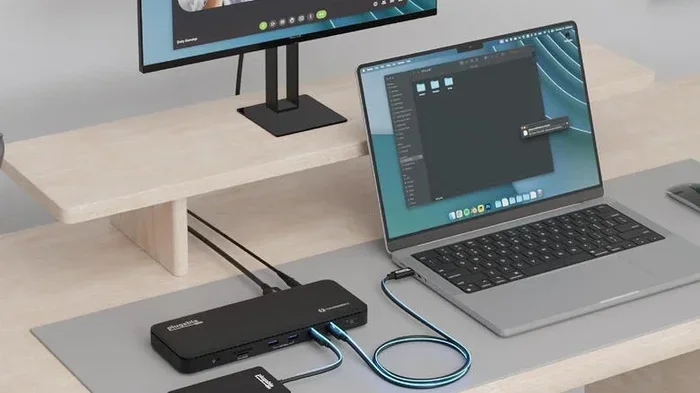
You can use a USB-C docking station that includes Ethernet. These docks connect to your laptop through a single USB-C cable and provide multiple ports including Ethernet, HDMI, USB-A, and more. They’re especially popular with MacBook users who need to connect to wired networks.
Another option is a Thunderbolt Ethernet adapter. Thunderbolt 3 and Thunderbolt 4 support Ethernet connectivity through compatible adapters. These offer the fastest speeds and the best reliability.
Conclusion
So, can you plug an Ethernet cable straight into your laptop? The answer is yes, if your laptop has a built-in Ethernet port. If not, a USB Ethernet adapter makes it easy to get wired. The process is simple, the setup takes minutes, and the benefits are huge.
A wired internet connection gives you faster speeds, lower latency, better stability, and improved security. Whether you’re working from home, gaming, streaming, or just browsing, Ethernet can transform your online experience.
Grab the right adapter, pick up a good Cat5e or Cat6 Ethernet cable, and you’ll be connected in no time. Don’t let the lack of a built-in port stop you from enjoying the best your internet has to offer.
Frequently Asked Questions
Do all laptops support Ethernet connections?
No, not all laptops have a built-in Ethernet port. Most modern thin-and-light laptops have removed the Ethernet jack to save space. However, you can still use Ethernet by adding a USB Ethernet adapter. These adapters are affordable and easy to use.
How much does a USB Ethernet adapter cost?
USB Ethernet adapters range from about $10 to $40. Basic adapters that support 100 Mbps speeds are the cheapest. Gigabit adapters that support 1 Gbps usually cost between $15 and $30. Thunderbolt adapters tend to be more expensive but offer the best performance.
Does using Ethernet slow down my Wi-Fi for other devices?
No, using Ethernet on your laptop doesn’t affect Wi-Fi speeds for other devices. The Ethernet connection uses your wired network path, while Wi-Fi operates independently on the wireless network. Both share the same internet connection from your router, but they don’t interfere with each other.
Can I use any Ethernet cable with my laptop adapter?
Most Ethernet adapters work with standard Ethernet cables. Cat5e and Cat6 cables are the most common and widely compatible. Avoid using very old Cat5 cables if you want faster speeds. Always check that your cable matches the speed rating of your adapter.
Why is my Ethernet connection not working after plugging in the adapter?
Several things could cause this. First, try unplugging and replugging the adapter. Second, check if your laptop needs updated network drivers. Third, make sure the Ethernet cable is fully seated in both the adapter and the router. A quick restart of your laptop or router often fixes the issue too.
Is Ethernet better than Wi-Fi for streaming?
Yes, Ethernet is generally better for streaming. It provides a more stable connection with consistent speeds, which means fewer buffering interruptions. For 4K streaming or multiple streams running at once, a wired connection gives you the reliability that Wi-Fi sometimes can’t match.