Can I Connect Thunderbolt Dock To Usb C Without Issues
Yes, you can connect a Thunderbolt dock to a USB-C port in most cases, but there are important differences to understand. Thunderbolt docks offer faster speeds and more features than standard USB-C docks, while USB-C docks work with Thunderbolt ports thanks to backward compatibility. This guide covers everything you need to know about making the right connection without any headaches.
You have a Thunderbolt dock sitting on your desk. You also have a laptop with a USB-C port. The question is simple but important: can I connect Thunderbolt dock to USB C? The short answer is yes. But the full answer has some important details you need to know.
Whether you are a freelancer working from a coffee shop or a professional managing multiple monitors at home, connecting the right dock matters. A wrong connection can mean slow data transfer, no video output, or a laptop that won’t charge. This guide walks you through everything step by step.
We will cover compatibility, speed differences, what works and what does not, and how to get the best experience from your setup. By the end, you will feel confident about your docking station choices.
Key Takeaways
- Thunderbolt docks work with USB-C ports: Thunderbolt is backward compatible with USB-C, so you can connect them together.
- You may lose some features: When using a Thunderbolt dock on a USB-C port, Thunderbolt-specific features like chaining may not work.
- Speed depends on the port: A USB-C port limits the dock to USB-C speeds, not full Thunderbolt speeds.
- Check your cable and dock: Not all USB-C cables support Thunderbolt. Use the right one for best results.
- Power delivery varies: Some docks may not charge your laptop fully when connected to a USB-C port.
- Video output is usually fine: Most Thunderbolt docks work great for external monitors even on USB-C ports.
- Know your devices: Always check what your laptop and dock support before buying or connecting.
📑 Table of Contents
- What Is the Difference Between Thunderbolt and USB-C?
- Can I Connect Thunderbolt Dock To Usb C Without Problems?
- Speed Differences You Will Notice
- Power Delivery and Charging Considerations
- Video Output and Monitor Support
- Common Mistakes People Make When Connecting Thunderbolt Docks
- When Should You Choose a Thunderbolt Dock Over a USB-C Dock?
- How to Set Up Your Thunderbolt Dock with a USB-C Laptop
- Key Takeaways
- Conclusion
What Is the Difference Between Thunderbolt and USB-C?
Before we answer the main question, let us clear up a common confusion. Many people use Thunderbolt and USB-C as if they are the same thing. They are not, even though they share the same connector shape.
USB-C is a connector type. It is a small, reversible plug that you can use for charging, data transfer, and video output. Thunderbolt is a technology that uses the USB-C connector but adds much faster speeds and more capabilities.
Think of it this way. USB-C is like a standard road. Thunderbolt is like a highway built on top of that same road. They use the same path, but Thunderbolt moves much faster and carries more traffic.
Thunderbolt 3 vs Thunderbolt 4 vs USB-C
There are three main versions you should know about. Thunderbolt 3 offers 40 Gbps data transfer speeds. Thunderbolt 4 builds on that with stricter requirements for video and data performance. Standard USB-C without Thunderbolt usually maxes out at 10 Gbps or 20 Gbps depending on the version.
This difference matters a lot when you are deciding whether to buy a Thunderbolt dock or a regular USB-C dock. If your laptop has a Thunderbolt port, you get the best of both worlds. You can use Thunderbolt docks and regular USB-C docks.
Can I Connect Thunderbolt Dock To Usb C Without Problems?
Here is the good news. Thunderbolt is backward compatible with USB-C. This means a Thunderbolt dock will physically plug into a USB-C port on your laptop or computer. The connection will work in most cases.
But backward compatibility does not mean you get all the Thunderbolt features. When you plug a Thunderbolt dock into a USB-C port, the dock falls back to USB-C speeds and capabilities. You still get a working connection, but some advanced features may not be available.
What Works When You Connect Thunderbolt Dock to USB-C
Most basic functions work perfectly fine. You can connect external monitors. You can plug in keyboards, mice, and webcams. You can transfer files to external hard drives. You can even charge your laptop in many cases.
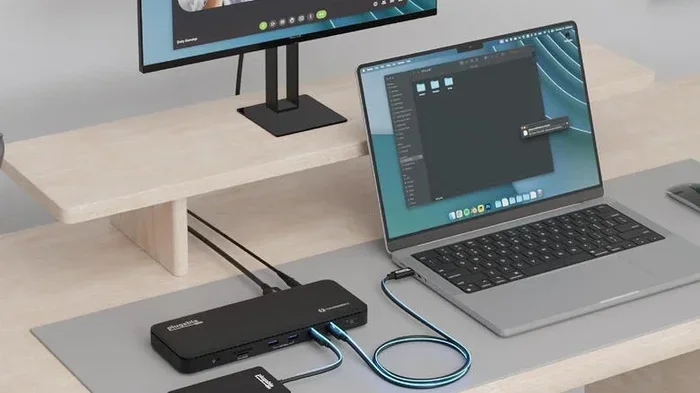
The docking station will still act as a hub for your peripherals. You get the convenience of a single cable connection from your laptop to the dock. All the regular USB ports on the dock will function normally.
What Might Not Work
Some features are exclusive to Thunderbolt ports. Daisy chaining is one of them. This means connecting multiple Thunderbolt devices in a chain from one port. If your laptop only has USB-C, you cannot daisy chain Thunderbolt devices through the dock.
Thunderbolt networking and some advanced security features may also be unavailable. External GPUs that rely on Thunderbolt bandwidth might not perform at their best. The dock will still work, but it will not unlock its full potential.
Quick Tips for Connecting Thunderbolt Docks to USB-C
- Always use a high-quality USB-C cable that supports the speeds you need.
- Check if your laptop USB-C port supports USB-C Power Delivery for charging.
- Update your laptop drivers and dock firmware before connecting.
- Test one peripheral at a time if something does not work right away.
- Read the dock manual for specific compatibility notes.
Speed Differences You Will Notice
Speed is one of the biggest reasons people choose Thunderbolt docks. When you connect a Thunderbolt dock to a USB-C port, the speed drops to USB-C levels. This is an important consideration for power users.
A standard USB-C connection supports up to 10 Gbps data transfer. Thunderbolt 3 and Thunderbolt 4 support up to 40 Gbps. That is a four times difference. For everyday tasks like browsing, emailing, and streaming, you probably will not notice the difference.
But if you work with large video files, run backups to external drives, or use multiple high-resolution monitors, the speed gap matters. Transferring a 100 GB file over USB-C might take a bit longer than over Thunderbolt.
Real-World Speed Comparison
In practical terms, a Thunderbolt dock on a USB-C port still feels fast. USB-C 3.1 Gen 2 offers 10 Gbps, which is plenty for most people. You can smoothly run two or three external monitors. You can transfer hundreds of photos in seconds. You can plug in a USB-C external SSD and edit videos without major delays.
Only professionals who need the absolute fastest speeds for heavy workloads will feel the limitation. For the average user and most creatives, USB-C speeds from a Thunderbolt dock are more than enough.
Power Delivery and Charging Considerations
One of the biggest concerns people have is charging. Can your Thunderbolt dock charge your laptop when connected to a USB-C port? The answer depends on the dock and the port.
Many Thunderbolt docks support USB-C Power Delivery, also called PD. This means they can send power back to your laptop through the same cable. However, the wattage might be limited when the dock is connected to a USB-C port instead of a Thunderbolt port.
Some Thunderbolt docks offer up to 100 watts of power delivery. This is enough to charge most laptops while you work. But check the specs carefully. A dock that delivers 100W over Thunderbolt might only deliver 60W or less over a standard USB-C connection.
How to Check If Your Dock Charges Your Laptop
Look for the Power Delivery specification on the dock box or product page. Find out how many watts your laptop needs to charge. If the dock delivers equal or more watts, you should be fine.
Also check if your laptop USB-C port supports charging. Some laptops only use their USB-C ports for data and video, not for power input. This is rare but worth checking before you buy.
Expert Insight
Tech reviewers often say that charging over USB-C from a Thunderbolt dock works well 90 percent of the time. The remaining 10 percent involves laptops with specific power requirements or docks with limited PD profiles. Always double-check the wattage numbers.
Video Output and Monitor Support
Using external monitors is one of the main reasons people buy docking stations. The great news is that Thunderbolt docks connected to USB-C ports still support video output in most cases.
Thunderbolt docks typically support DisplayPort over USB-C. This means you can connect one or more external monitors without any extra adapters. The number of monitors you can support depends on your laptop and the dock specifications.
Single Monitor Setup
A single monitor setup works almost everywhere. Plug one end of a DisplayPort or HDMI cable into the dock and the other into your monitor. The image should appear immediately in most cases. You may need to adjust the resolution in your display settings.
Dual or Triple Monitor Setups
Running multiple monitors is where things get more specific. Thunderbolt 3 and Thunderbolt 4 docks can support dual monitors easily. When connected to a USB-C port, the dock still supports dual monitors in most cases, but check the dock specifications to be sure.
Some docks use DisplayPort Alt Mode over USB-C to drive multiple displays. Others use built-in DisplayPort connectors. Both approaches work with USB-C ports on your laptop.
Common Mistakes People Make When Connecting Thunderbolt Docks
Even though the connection is straightforward, many people run into issues. Most of these problems come from simple mistakes that are easy to avoid.
Using the Wrong Cable
This is the number one mistake. Not all USB-C cables are created equal. Some cables only support charging and data at basic speeds. They cannot carry Thunderbolt signals or support the full bandwidth needed for multiple monitors.
Always use a USB-C cable that is rated for Thunderbolt or at least for USB 3.1 Gen 2 speeds. A cheap, unmarked cable might work for charging but fail at data transfer or video output.
Ignoring Driver Updates
Your laptop needs the right drivers to communicate with the dock properly. Outdated drivers can cause display flickering, disconnections, or slow transfer speeds. Before connecting your dock, visit your laptop manufacturer website and download the latest USB and Thunderbolt drivers.
Assuming All USB-C Ports Are the Same
Not every USB-C port on a laptop supports the same features. Some ports only support charging. Some support data and video. Only Thunderbolt ports support the full Thunderbolt feature set. Check your laptop manual or look for the Thunderbolt symbol next to the port.
Overloading the Dock
Plugging in too many power-hungry devices at once can cause problems. If you connect a powered external hard drive, a webcam, a USB hub, and a monitor all at the same time, the dock might not have enough power to run everything smoothly. Prioritize your devices and add them one at a time if needed.
When Should You Choose a Thunderbolt Dock Over a USB-C Dock?
Now that you know a Thunderbolt dock works with a USB-C port, the next question is whether you should buy one. The answer depends on your needs and your laptop.
If your laptop has Thunderbolt ports, buying a Thunderbolt dock makes sense. You get the full feature set and future-proof your setup. If your laptop only has USB-C ports, a Thunderbolt dock still works, but you are paying for features you cannot fully use.
A standard USB-C dock might be the better choice in that case. It costs less and gives you exactly what a USB-C port supports. No wasted features, no confusion.
Quick Decision Guide
- Choose a Thunderbolt dock if your laptop has Thunderbolt ports and you need maximum speed.
- Choose a Thunderbolt dock if you plan to buy a Thunderbolt laptop in the future.
- Choose a USB-C dock if your laptop only has USB-C ports and you want to save money.
- Choose a Thunderbolt dock if you need daisy chaining or external GPU support.
- Choose a USB-C dock for basic office work, monitoring, and peripheral connections.
How to Set Up Your Thunderbolt Dock with a USB-C Laptop
Setting up your dock is simple once you know what to expect. Follow these steps for a smooth experience.
- Plug the Thunderbolt dock into your laptop USB-C port using a compatible cable.
- Wait for your laptop to recognize the dock. This usually takes a few seconds.
- Connect your external monitor to the dock using the appropriate cable.
- Plug in your keyboard, mouse, and other peripherals to the dock USB ports.
- Check if your laptop is charging through the dock connection.
- Open display settings and arrange your monitors as needed.
- Test file transfers to an external drive connected to the dock.
If everything works, you are done. If something does not work, try unplugging and replugging the cable. Update your drivers. Check the dock firmware on the manufacturer website. Most issues resolve with these simple steps.
Key Takeaways
- Thunderbolt docks work with USB-C ports: The connection is backward compatible and functional in most cases.
- You lose some Thunderbolt features: Daisy chaining and maximum speeds require a Thunderbolt port on the laptop side.
- Speed is limited to USB-C levels: Expect up to 10 Gbps instead of 40 Gbps when using a Thunderbolt dock on a USB-C port.
- Charging may be limited: Check power delivery wattage to ensure your laptop charges properly.
- Video output still works: You can connect external monitors without issues in most setups.
- Use the right cable: A quality USB-C or Thunderbolt cable makes all the difference in performance.
- Know your needs: Choose a Thunderbolt dock for full features or a USB-C dock for budget-friendly simplicity.
Conclusion
So, can I connect Thunderbolt dock to USB C? Absolutely yes. The connection works, and you get a functional docking station setup for your laptop. You can connect monitors, peripherals, and external drives without any major issues.
The key is understanding what you gain and what you might miss. Thunderbolt docks offer incredible features, but some of those features need a Thunderbolt port to shine. When connected to a USB-C port, the dock still delivers excellent performance for everyday use.
Take the time to check your laptop specs, choose the right cable, and update your drivers. With these simple steps, your Thunderbolt dock and USB-C laptop will work together beautifully. You will wonder how you ever managed without a docking station.
Invest in the right setup for your workflow, and you will enjoy a cleaner desk, faster connectivity, and a more productive workday. The answer to your main question is a confident yes, and now you have all the details to make it work perfectly.
Frequently Asked Questions
Can I use a Thunderbolt dock with a non-Thunderbolt USB-C laptop?
Yes, you can. Thunderbolt docks are backward compatible with standard USB-C ports. You will get a working connection for data transfer, video output, and peripherals. Some advanced Thunderbolt features like daisy chaining may not work, but the core docking functions remain fully operational.
Will my Thunderbolt dock charge my laptop over a USB-C port?
It depends on the dock and your laptop. Many Thunderbolt docks support USB-C Power Delivery, which allows charging through the dock connection. Check the dock specifications for wattage output and compare it to your laptop charging requirements to be sure.
What is the difference between a Thunderbolt dock and a USB-C dock?
A Thunderbolt dock uses the Thunderbolt protocol for faster speeds up to 40 Gbps and supports features like daisy chaining. A USB-C dock uses the standard USB protocol with speeds up to 10 or 20 Gbps. Both use the same connector shape, but Thunderbolt docks offer more capabilities.
Do I need a special cable to connect a Thunderbolt dock to a USB-C port?
You need a USB-C cable that supports data transfer and power delivery. A basic charging-only cable will not work for docking. For best results, use a cable rated for USB 3.1 Gen 2 or Thunderbolt speeds to ensure full functionality.
Can I connect multiple monitors using a Thunderbolt dock on a USB-C port?
Yes, in most cases. Thunderbolt docks support video output over USB-C even when connected to a standard USB-C port. The number of monitors you can run depends on the dock model and your laptop graphics capabilities. Check the dock specifications for supported display configurations.
What happens if my Thunderbolt dock does not work with my USB-C laptop?
First, try a different USB-C cable. Then update your laptop drivers and the dock firmware. If the issue persists, the dock may not be fully compatible with your laptop model. Contact the dock manufacturer for support or consider a USB-C dock instead of a Thunderbolt dock.