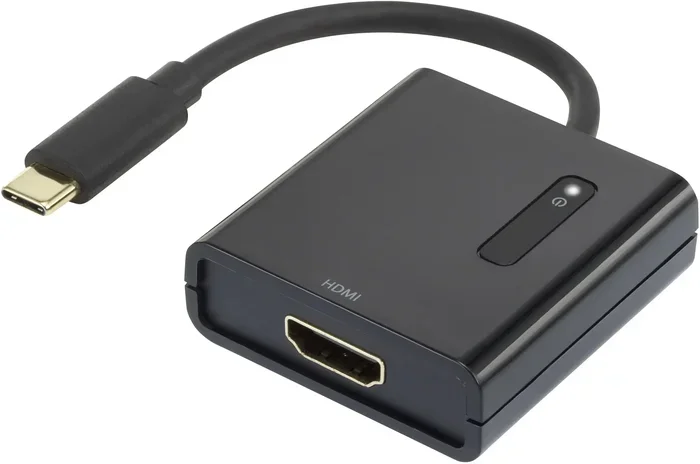
Can I Convert A USB Port To HDMI With These Simple Steps
Can I Convert A USB Port To HDMI with the right adapter? Yes! This guide shows you how to connect USB ports to HDMI displays using simple steps. You’ll learn about USB-C to HDMI adapters, active vs passive converters, and troubleshooting tips.
Have you ever wondered, Can I Convert A USB Port To HDMI? The short answer is yes, and it’s easier than you think. You can turn a standard USB port into a video output that connects to any HDMI monitor, TV, or projector. All you need is the right adapter or cable. In this guide, I’ll walk you through every step. You’ll learn how to choose the best USB to HDMI adapter, set up your display, and fix common problems. By the end, you’ll feel confident connecting any USB device to an HDMI screen.
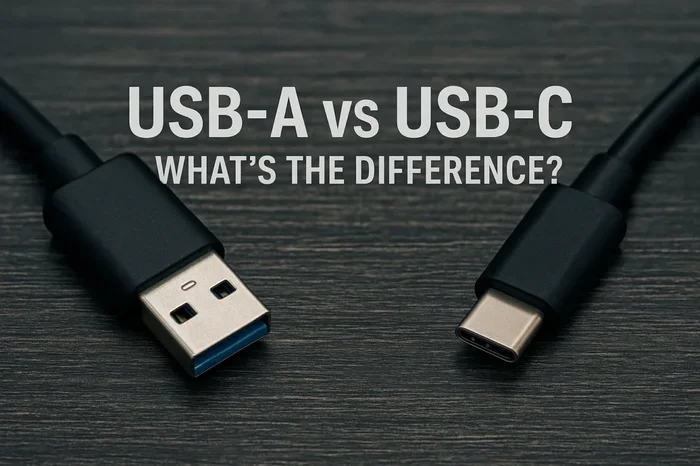
Whether you want to mirror your laptop to a big TV for movie night or extend your desktop for extra workspace, this guide has you covered. I’ll explain the differences between USB-A and USB-C, active and passive adapters, and how to get the best picture quality. No jargon, no fluff—just clear, practical advice. Let’s dive in and explore how you can turn a simple USB port into an HDMI output.
The idea of converting a USB port to HDMI might sound technical, but it’s surprisingly simple. Most modern computers and laptops come with USB-C ports that support video output. Even older machines with USB-A ports can work with the right active adapter. All you need is the correct cable or dongle. I’ll show you exactly what to look for and how to set it up in minutes. So, if you’ve ever asked yourself, “Can I Convert A USB Port To HDMI?”—the answer is right here.
Key Takeaways
- USB ports can output HDMI signals with the correct adapter or cable.
- USB-C to HDMI adapters are the most common and easy-to-use solution.
- Active adapters are needed for video output, while passive ones only carry data.
- Check your device’s port type before buying an adapter to ensure compatibility.
- 4K resolution is possible with high-quality USB-C to HDMI cables and docks.
- Troubleshooting steps like restarting devices and updating drivers often fix connection issues.
- USB hubs with HDMI add extra ports while mirroring your screen.
📑 Table of Contents
What Is a USB to HDMI Conversion?
Before you buy any gear, it helps to understand what’s actually happening. A USB to HDMI conversion means taking the data signal from a USB port and turning it into a video and audio signal that an HDMI display can read. This process requires a small electronic device called an adapter or converter. The adapter receives the USB data, processes it, and sends it out through an HDMI cable to your TV, monitor, or projector.
Not all USB ports can do this. USB 2.0 and USB 3.0 ports on older computers often cannot carry video signals on their own. They only transfer data and power. To get video out, you need an active USB to HDMI adapter. This adapter has a built-in chip that converts the USB data into an HDMI signal. Without that chip, you’ll just get a black screen or no signal at all. So, the key is knowing whether your USB port supports display output.
How USB and HDMI Differ
USB and HDMI are two completely different technologies. USB stands for Universal Serial Bus. It was designed to connect peripherals like keyboards, mice, and external hard drives. HDMI stands for High-Definition Multimedia Interface. It was built specifically for carrying uncompressed video and audio. A USB cable carries digital data and power, but it doesn’t natively understand video signals. HDMI cables do. So, to bridge the gap, you need an adapter that speaks both languages.
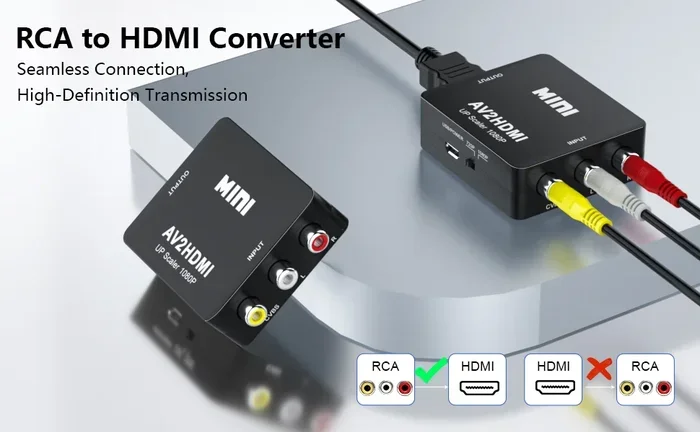
Think of it like a translator. Your computer speaks USB, and your TV speaks HDMI. The adapter translates the USB data into HDMI video and audio in real time. This translation happens inside the adapter’s small processor. The better the processor, the smoother the video and the higher the resolution you can achieve. That’s why cheap, no-name adapters often struggle with 4K content or drop frames.
Why You Might Need This Conversion
There are many reasons you might want to convert a USB port to HDMI. Maybe your laptop only has USB-A ports and you want to connect it to a modern HDMI monitor. Or you’re using a tablet with a USB-C port and need to mirror the screen to a TV for a presentation. Some streaming devices or mini PCs also use USB ports for display output when they lack a dedicated HDMI port. Whatever your reason, the right adapter makes it possible.
- Presenting from a laptop: Plug a USB-C to HDMI adapter into your laptop and connect it to a conference room TV. It’s quick and wire-free.
- Gaming on a big screen: Some laptops lack HDMI outputs. A USB to HDMI adapter lets you game on a 4K TV.
- Extending your desktop: Use an external monitor connected via USB to HDMI to add more screen space for multitasking.
- Screen mirroring for streaming: Connect a USB-C device to an HDMI display for a better viewing experience.
Can I Convert A USB Port To HDMI?
The direct answer is yes—but with important conditions. The type of USB port you have determines what kind of adapter you need. A standard USB-A port on an older computer requires an active adapter with its own processing chip. A modern USB-C port may support DisplayPort Alternate Mode, which can carry video natively with a simple passive USB-C to HDMI cable. Let’s break this down.
The Role of USB Type-C
USB-C is the small, reversible connector found on most modern laptops, tablets, and smartphones. Many USB-C ports support video output through a feature called DisplayPort Alternate Mode. This means the USB-C port can directly send a video signal to an HDMI display without needing a complex active adapter. You just plug in a USB-C to HDMI cable or a passive adapter, and it works. This is the easiest and most reliable way to convert USB to HDMI today.
However, not all USB-C ports support video output. Some USB-C ports on budget devices are designed only for data transfer and charging. They lack the video capability. To check, look for a DisplayPort or Thunderbolt logo next to the USB-C port. If you see that logo, your port can output video. If not, you’ll need an active USB-C to HDMI adapter that does the conversion internally.
USB-A to HDMI Adapters
If your computer has only traditional USB-A ports (the rectangular ones), you can still get HDMI output. You’ll need an active USB-A to HDMI adapter. These adapters have a small processor inside that converts USB data into an HDMI signal. They draw power from the USB port and usually come with a driver or software that you install on your computer. Once installed, they act like a virtual display adapter.
These adapters work with almost any computer that has a USB-A port. They’re great for older desktops, laptops, and even some single-board computers like Raspberry Pi. The downside is that they can be bulkier and sometimes have lower performance than native HDMI ports. But for basic tasks like presentations or desktop extension, they work well. Just make sure the adapter supports the resolution you need, like 1080p or 4K.
Types of USB to HDMI Adapters
Not all adapters are the same. Understanding the different types helps you pick the right one for your setup. Here’s a quick look at the most common options.
Active vs. Passive Adapters
Active adapters have built-in electronics to convert the signal. They require power, usually from the USB port itself, and often need a driver. Passive adapters do not have processing chips. They simply pass through a signal that the port already supports. For example, a passive USB-C to HDMI cable works only if your USB-C port supports DisplayPort Alternate Mode. An active USB-A to HDMI adapter works with any USB-A port because it does the conversion itself.
When shopping, look for the word “active” if you need to convert a standard USB-A port. If you have a USB-C port with video support, a passive cable is simpler and cheaper. Always check the product description to confirm whether it’s active or passive.
USB-C to HDMI Cables and Docks
USB-C to HDMI cables combine the cable and adapter into one sleek unit. One end plugs into your device’s USB-C port, and the other end is a standard HDMI connector. These cables are great for a clean, minimal setup. They’re perfect for travel because you only carry one cable. Many support 4K resolution at 60Hz, which is ideal for streaming and gaming.
USB-C docks or hubs go a step further. They add multiple ports like USB-A, SD card slots, and Ethernet alongside an HDMI output. If you need to connect several peripherals while also mirroring your screen, a dock is a smart choice. Look for docks that support Power Delivery so you can charge your laptop while using the HDMI output.
USB Hub with HDMI Output
A USB hub with HDMI output is another popular option. These hubs connect to your computer via USB and provide extra USB ports plus an HDMI port. They’re especially useful for office setups where you need to connect a keyboard, mouse, external drive, and a monitor all at once. Most of these hubs use an active adapter inside to convert the USB signal to HDMI.
When choosing a hub, check the HDMI version. HDMI 2.0 supports 4K at 60Hz, while HDMI 1.4 is limited to 4K at 30Hz. If you want smooth 4K video, make sure the hub has HDMI 2.0 or later. Also, consider the build quality and whether the hub requires an external power adapter for stable performance.
Step-by-Step Guide to Connect USB to HDMI
Setting up a USB to HDMI connection is straightforward. Follow these steps to get your external display working in no time.
Step 1: Check Your Ports
Look at your computer or laptop and identify the available ports. Do you have a USB-C port? Is it marked with a DisplayPort or Thunderbolt symbol? Or do you only have USB-A ports? Knowing your port type is the first step because it determines which adapter you need.
If you have a USB-C port with video support, you can use a USB-C to HDMI cable. If you only have USB-A ports, you’ll need an active USB-A to HDMI adapter. Take a photo of the back of your computer if you’re unsure, and check the manufacturer’s specs online.
Step 2: Choose the Right Adapter
Once you know your port type, pick the right adapter. For USB-C, a passive USB-C to HDMI cable is often enough. For USB-A, choose an active adapter that supports your desired resolution. Look for adapters that explicitly state they support 1080p or 4K. Brands like Anker, Cable Matters, and Sabrent are reliable choices.
Also, consider the operating system. Most adapters work with Windows, macOS, and Chrome OS, but some may require specific drivers. Check the product page for compatibility. If you’re using a Linux system, verify that the adapter has Linux support.
Step 3: Connect and Configure
Plug the adapter into your computer’s USB port. Then connect an HDMI cable from the adapter to your TV or monitor. Make sure the HDMI cable is fully seated. Turn on your display and switch it to the correct HDMI input source.
On your computer, go to the display settings. On Windows, press Windows + P to open the projection menu. Choose “Duplicate,” “Extend,” or “Second screen only.” On macOS, go to System Settings > Displays and arrange your screens. Your USB to HDMI connection should now show up as a second display. If the screen is black, try unplugging and replugging the adapter, or restart your computer.
Step 4: Adjust Resolution and Audio
Once the external display is detected, you can adjust the resolution for the best picture. In Windows display settings, select the display and choose the recommended resolution. For audio, right-click the speaker icon in the taskbar and select the HDMI output as your default audio device. On macOS, go to System Settings > Sound and choose the HDMI display under Output.
If you’re using a USB hub with HDMI, make sure the hub is powered if required. Some hubs need their own power supply to deliver stable video. Without enough power, you might experience flickering or no signal.
Common Uses for USB to HDMI Conversion
The USB to HDMI setup is incredibly versatile. Here are some of the most popular ways people use it in everyday life.
Laptop to TV Streaming
One of the most common uses is connecting a laptop to a TV. Maybe you want to watch a movie on the big screen or share photos with family. A USB-C to HDMI adapter lets you mirror your laptop screen to the TV instantly. You don’t need Wi-Fi or streaming apps—just a direct cable connection. The video quality is often better than wireless casting because it’s a wired connection.
For the best experience, use a high-speed HDMI cable that supports 4K if your laptop and TV both support it. This gives you crisp, detailed images. You can also use this setup for video calls on a large screen, making it easier for everyone in the room to see.
Extending Your Desktop for Productivity
If you work from home, an external monitor connected via USB to HDMI can boost your productivity. You can extend your desktop across two screens. Keep your main work on the laptop and use the external monitor for reference documents, chat windows, or video calls. This setup is especially helpful for multitasking.
Some USB to HDMI adapters support multi-display setups. You can daisy-chain multiple adapters if your computer has enough USB ports. Just make sure your computer’s graphics card can handle multiple displays. Most modern integrated graphics can drive two or even three external monitors without issues.
Presentations and Meetings
In business settings, USB to HDMI adapters are lifesavers. You can plug into any HDMI-equipped projector or TV without worrying about proprietary cables. The adapter acts as a universal bridge. This is perfect for conference rooms, classrooms, or trade shows where the display equipment varies. Keep a USB-C to HDMI adapter in your bag, and you’ll always be ready to connect.
For presentations, choose an adapter that supports the highest resolution your projector can handle. Most modern projectors are 1080p or 4K. A good adapter will deliver sharp text and vibrant colors, making your slides look professional.
Troubleshooting and Pro Tips
Even with the right adapter, you might run into hiccups. Here’s how to handle the most common issues and get the best performance.
No Signal or Black Screen
If your external display shows no signal, don’t panic. First, check that the HDMI cable is firmly plugged into both the adapter and the TV or monitor. Try a different HDMI cable to rule out a faulty cable. Next, try a different USB port on your computer. Some USB ports only provide power and not data. A USB 3.0 port (usually blue inside) is more likely to support video output than a USB 2.0 port.
If you’re using an active adapter, make sure you’ve installed any required drivers. Visit the adapter manufacturer’s website and download the latest driver. Restart your computer after installation. On some systems, you may need to go to Device Manager and update the display adapter driver manually.
Audio and Video Sync Issues
Sometimes you get video but no audio, or the audio lags behind the video. To fix no audio, go to your computer’s sound settings and set the HDMI output as the default playback device. On Windows, right-click the speaker icon, select “Open Sound settings,” and choose the HDMI display under Output. On macOS, go to System Settings > Sound and select the HDMI display.
For audio lag, try lowering the resolution or refresh rate of the external display. A 4K display at 60Hz can sometimes cause sync issues with older adapters. Dropping to 1080p at 60Hz often resolves the problem. Also, ensure your HDMI cable is high-speed and supports the bandwidth you need.
Resolution and Refresh Rate Problems
If your external display looks blurry or the image isn’t sharp, check the resolution settings. In Windows, go to Settings > System > Display and select the recommended resolution for the external monitor. If the option is grayed out, your adapter or cable might not support that resolution. Try a different adapter that explicitly supports 4K or the resolution you want.
For refresh rate, right-click the desktop, choose Display Settings, click on the display, and look for the refresh rate dropdown. Select the highest available rate. If you only see 30Hz or 60Hz, your adapter or HDMI version may be limiting it. Upgrading to an HDMI 2.0 or 2.1 adapter can unlock 120Hz or higher refresh rates for smoother motion.
Can You Charge and Display at the Same Time?
Yes, many USB-C to HDMI adapters and docks support Power Delivery. This means you can charge your laptop while using the HDMI output. Look for adapters that mention “PD” or “Power Delivery” in the specs. The power is delivered through the same USB-C port, so you only need one cable for charging and one for video. This is perfect for desk setups where you want a clean, clutter-free workspace.
Keep in mind that the total power available depends on your laptop’s USB-C port. Some ports only provide 60W, while others can deliver up to 100W. If you’re using a power-hungry laptop, make sure the dock or adapter can pass through enough wattage to keep your battery topped up while you work.
Expert Insights
According to display technology experts, the best USB to HDMI adapters use dedicated conversion chips from companies like DisplayLink or FTDI. These chips handle the video conversion efficiently and support a wide range of resolutions. When buying an adapter, look for these brand names on the product description. Avoid the cheapest no-name adapters, as they often have poor color accuracy and lag.
Another tip from pros is to always keep your adapter drivers up to date. DisplayLink adapters, for example, receive regular firmware updates that improve compatibility with new operating systems. Visit the manufacturer’s support page periodically to check for updates. A well-maintained adapter can last for years and deliver excellent performance.
Conclusion
Converting a USB port to HDMI is easier than most people think. With the right adapter, you can connect any laptop, desktop, or tablet to an HDMI display in seconds. Whether you’re using a USB-C to HDMI cable for a simple setup or an active USB-A adapter for an older machine, the process is straightforward. You’ve learned how to choose the right adapter, set up your display, and troubleshoot common issues.
The key takeaway is that Can I Convert A USB Port To HDMI has a clear answer: yes, you can. Just match your USB port type with the correct adapter, and you’ll be streaming to your TV or using an external monitor in no time. Keep a spare USB-C to HDMI adapter in your bag, and you’ll always be ready for any presentation or movie night. Now that you know the steps, give it a try and enjoy the bigger screen experience.
Frequently Asked Questions
Do I need a special adapter to convert USB to HDMI?
Yes, you need a USB to HDMI adapter that matches your port type. For USB-C ports with video support, a passive USB-C to HDMI cable works. For USB-A ports or USB-C ports without video support, you need an active adapter with a built-in conversion chip.
Can I get 4K resolution through a USB to HDMI adapter?
Yes, many USB-C to HDMI adapters and cables support 4K resolution at 60Hz. Look for adapters that explicitly mention 4K support and use an HDMI 2.0 or later cable. Cheap adapters may only support 1080p or 4K at 30Hz.
Why does my USB to HDMI adapter show no signal?
No signal usually means the adapter isn’t receiving video output from the USB port. Check if your USB port supports video. Try a different USB port, especially a USB 3.0 port. Also, make sure you’ve installed any required drivers for active adapters.
Is a USB hub with HDMI better than a simple adapter?
A USB hub with HDMI is better if you need extra ports for peripherals like keyboards, mice, and external drives. It gives you a single connection point for your display and other devices. However, a simple adapter is lighter and more portable for travel.
Can I use a USB to HDMI adapter with a Mac?
Yes, most USB to HDMI adapters work with macOS. Apple’s MacBooks with USB-C ports support video output natively. For older Macs with USB-A ports, you’ll need an active USB-A to HDMI adapter. Always check the adapter’s macOS compatibility on the product page.
Do USB to HDMI adapters need drivers?
Passive USB-C to HDMI cables don’t need drivers. Active adapters, especially those using DisplayLink technology, usually require a driver. The driver is often available for automatic download when you plug in the adapter, or you can get it from the manufacturer’s website.