Can I Use My Stadia Controller On Steam For Gaming
Yes, you can use your Stadia controller on Steam for gaming with the right setup. The Stadia controller connects via Bluetooth or USB and works with Steam Input for most PC games. This guide walks you through every step to get your controller paired and configured on Steam quickly.
Key Takeaways
- Full Compatibility: The Stadia controller works on Steam for the vast majority of PC games through Steam Input support.
- Multiple Connection Methods: You can connect via Bluetooth wirelessly or through a USB cable for a more stable connection.
- Steam Input is Key: Steam Input lets you remap buttons, adjust sensitivity, and create custom profiles for your Stadia controller.
- Quick Setup Process: Pairing the controller takes just a few minutes and does not require technical expertise.
- Some Games May Need Extra Config: A small number of games might need manual button mapping or additional software tweaks.
- Firmware Matters: Keeping your Stadia controller updated ensures the best performance on Steam.
- No Extra Hardware Needed: You do not need any dongles or adapters to use the Stadia controller on a PC.
📑 Table of Contents
- Can I Use My Stadia Controller On Steam For Gaming?
- How to Connect Your Stadia Controller to Steam
- Understanding Steam Input and Controller Support
- Controller Compatibility With Steam Games
- Setting Up Controller Profiles in Steam
- Troubleshooting Common Issues
- Comparing Stadia Controller With Other Controllers on Steam
- Quick Tips for the Best Experience
- Common Mistakes to Avoid
- Expert Insights on Controller Setup for PC Gaming
- Final Thoughts
Can I Use My Stadia Controller On Steam For Gaming?
If you have been using a Google Stadia controller and recently switched to PC gaming on Steam, you might be wondering about compatibility. The good news is that yes, you can use your Stadia controller on Steam for gaming. It works surprisingly well, and the setup process is straightforward. You do not need to buy a new controller just because you left Stadia behind.
The Stadia controller was designed to work seamlessly with Google’s cloud gaming platform. But it also functions as a standard Bluetooth gamepad. This means it can pair with your PC and work through Steam Input. Steam Input is a powerful feature that allows you to configure any controller for use with PC games. Whether you are playing indie titles or big AAA releases, your Stadia controller can handle the job.
Many PC gamers already own a Stadia controller from the days when Google Stadia was still active. Instead of letting it collect dust, you can put it to good use on Steam. This saves you money and gives you a comfortable, familiar controller for your gaming sessions. Let us dive into everything you need to know about making this work.
Why Use a Stadia Controller on Steam?
There are several reasons why using your Stadia controller on Steam makes sense. First, it is a high-quality controller with a comfortable grip and responsive buttons. The built-in Google Assistant button and the share button add extra functionality. Second, you already own it, so there is no additional cost. Third, the Stadia controller supports both Bluetooth and USB connections, giving you flexibility.
The controller also features a 3.5mm headphone jack, adjustable trigger tension, and a rechargeable battery. These features make it a solid choice for PC gaming. Many budget controllers simply do not offer this level of quality. So if you already have one, it makes sense to get the most out of it.
How to Connect Your Stadia Controller to Steam
Connecting your Stadia controller to Steam is a simple process. You have two main options: Bluetooth wireless connection or a USB cable connection. Both methods work well, but each has its own advantages. Let us walk through both options step by step.
Method 1: Connecting via Bluetooth
Bluetooth connection gives you the freedom to play without cables. Here is how you can pair your Stadia controller with your PC wirelessly.
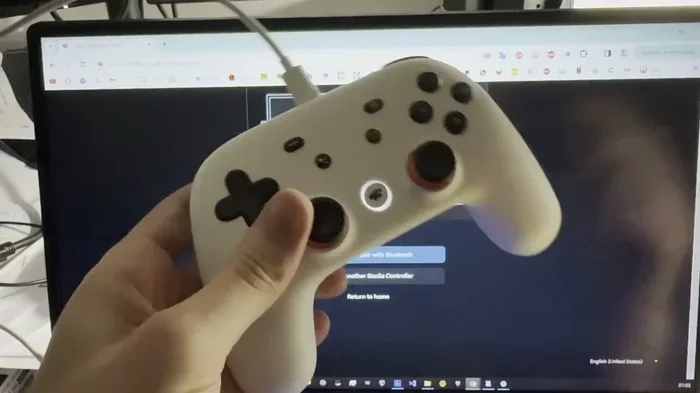
- Put your controller in pairing mode. Press and hold the Stadia button and the Capture button at the same time. The light bar on the controller will start flashing, indicating it is ready to pair.
- Open your PC Bluetooth settings. Go to Settings, then Devices, and click on Add Bluetooth or other device.
- Select Bluetooth. Your PC will search for nearby devices.
- Find your Stadia controller. It should appear as “Stadia Controller” or something similar. Click on it to pair.
- Open Steam. Once paired, launch Steam and go to the Big Picture mode. Your controller should now be recognized.
Bluetooth works well for most games. However, if you experience any lag or input delay, you may want to try the USB method instead. Bluetooth range is typically around 30 feet, so keep your PC within that distance for the best experience.
Method 2: Connecting via USB Cable
Using a USB cable provides a more stable and responsive connection. This is the preferred method for competitive gaming or when you experience wireless issues.
- Grab a USB-C cable. The Stadia controller uses USB-C charging, so any USB-C cable will work.
- Plug the cable into your controller. Connect one end to the controller and the other to your PC.
- Open Steam. Steam should automatically detect the controller.
- Check Steam Input settings. Go to Steam Settings, then Controller, and make sure Steam Input is enabled.
The USB connection eliminates any wireless interference issues. It also means you do not need to worry about battery life during long gaming sessions. You can keep your controller plugged in and charging while you play.
Understanding Steam Input and Controller Support
Steam Input is the technology that makes your Stadia controller work with Steam games. It is a built-in Steam feature that allows you to customize how any controller behaves in games. Without Steam Input, many controllers would not work properly with PC games. But with it, your Stadia controller becomes a fully configurable gamepad.
What Can You Do With Steam Input?
Steam Input gives you a lot of control over how your Stadia controller works in games. Here are some of the things you can do:
- Remap buttons: You can change which button does what in each game. This is helpful if a certain button layout feels more comfortable.
- Adjust trigger sensitivity: You can make the triggers more or less sensitive depending on the game.
- Create controller profiles: You can save different configurations for different games.
- Set up gyro controls: The Stadia controller has a built-in gyroscope. You can use it for aiming in supported games.
- Adjust dead zones: You can fine-tune the analog stick dead zones to prevent drifting inputs.
Enabling Steam Input
To make sure Steam Input is active, open Steam and go to Settings. Click on the Controller tab and ensure that “Enable Steam Input” is turned on. This setting applies to all games by default. However, individual games may have their own controller settings that override the global configuration.
When you launch a game, press the Steam button on your Stadia controller. A small overlay should appear showing your controller inputs. This confirms that Steam Input is working correctly with your controller.
Controller Compatibility With Steam Games
The Stadia controller works with the vast majority of Steam games. Steam supports a wide range of gamepad inputs, and the Stadia controller is recognized as a standard gamepad. However, there are a few things to keep in mind when it comes to compatibility.
Games That Work Great
Most Steam games support standard gamepad inputs out of the box. Here are some categories of games that work particularly well with the Stadia controller:
- Platformers: Games like Hollow Knight, Celeste, and Super Meat Boy are perfect for gamepad play.
- Action games: Titles such as God of War, Batman Arkham series, and Sekiro work great with the Stadia controller.
- Racing games: Many racing games support gamepad input and offer a great experience with the Stadia controller.
- Indie games: Smaller indie titles often have excellent gamepad support built in.
- RPGs: Games like Divinity: Original Sin 2 and The Witcher 3 work well with a gamepad on Steam.
Games That May Need Extra Configuration
While most games work right away, some may require additional setup. Games that use mouse and keyboard as the primary input sometimes have limited controller support. In these cases, you can use Steam Input to create a custom profile. You may need to map specific actions to the Stadia controller buttons manually.
Some older games or very niche titles may not support gamepad input at all. This is not a problem with your Stadia controller. It is simply a limitation of the game itself. Always check the game’s system requirements or Steam store page to confirm controller support before purchasing.
Setting Up Controller Profiles in Steam
One of the best features of Steam Input is the ability to create custom controller profiles. A profile lets you save a specific button layout, sensitivity setting, or configuration for a particular game. This means you can switch between different setups depending on what you are playing.
How to Create a Custom Profile
Creating a custom profile for your Stadia controller is easy. Follow these steps:
- Open Steam and go to Settings. Click on the Controller section.
- Select “Controller Configuration.” This opens the Steam Input configuration tool.
- Choose your Stadia controller from the device list.
- Select a game from your library. You can create a profile for any game you own.
- Customize the layout. You can remap buttons, adjust triggers, and fine-tune stick sensitivity.
- Save the profile. Give it a name so you can easily find it later.
Once you have created a profile, it will automatically load when you launch that specific game. This saves you time and ensures the best experience every time you play. You can create as many profiles as you want for different games.
Sharing Profiles With Friends
Steam also allows you to share controller profiles with other Steam users. If you have created a great profile for a popular game, you can publish it so others can use it too. This is a great way to help the gaming community and discover new configurations for your favorite games.
Troubleshooting Common Issues
Even though the Stadia controller works well with Steam, you might run into occasional issues. Here are some common problems and their solutions.
Controller Not Detected by Steam
If Steam does not recognize your Stadia controller, try these steps:
- Check your Bluetooth connection: Make sure the controller is properly paired with your PC. Go to Bluetooth settings and remove the device, then re-pair it.
- Try a USB cable: A wired connection is more reliable. Plug in the controller and see if Steam detects it.
- Restart Steam: Sometimes simply restarting the Steam application fixes detection issues.
- Update your controller firmware: Make sure your Stadia controller has the latest firmware. You can check this through the Stadia app or by connecting it to a phone.
Button Mapping Issues
If your buttons are not working correctly in a game, you may need to remap them. Go to Steam Settings, then Controller, and select your Stadia controller. From there, you can adjust the button layout for each game individually. Steam Input makes this process very intuitive.
Input Lag or Delay
If you notice a delay between pressing a button and seeing the action on screen, try switching from Bluetooth to USB. USB connections are more stable and have lower latency. Also, make sure your controller firmware is up to date, as updates often improve responsiveness.
Battery Drain Issues
The Stadia controller battery can drain faster when connected via Bluetooth. If you notice the battery running low quickly, consider using a USB cable for extended gaming sessions. Alternatively, keep a USB cable nearby so you can charge while playing.
Comparing Stadia Controller With Other Controllers on Steam
When it comes to PC gaming, there are many controller options available. Let us compare the Stadia controller with some popular alternatives so you can see how it stacks up.
| Feature | Stadia Controller | Xbox Controller | PlayStation DualShock |
|---|---|---|---|
| Steam Compatibility | Full support via Steam Input | Full support, native | Full support via Steam Input |
| Connection | Bluetooth + USB-C | Bluetooth + USB | Bluetooth + USB |
| Button Layout | Stadia layout | Xbox layout | PlayStation layout |
| Build Quality | Excellent | Excellent | Very Good |
| Price | Budget-friendly | Mid-range | Mid-range |
| Customization | High via Steam Input | High via Steam Input | High via Steam Input |
| Battery Life | Good | Excellent | Good |
As you can see, the Stadia controller holds its own against more popular options. It offers full Steam compatibility and excellent build quality at a lower price point. The main difference is the button layout, which takes a little getting used to if you are used to Xbox or PlayStation controllers. But once you adjust, the Stadia controller feels great in your hands.
Quick Tips for the Best Experience
Here are some quick tips to help you get the most out of your Stadia controller on Steam:
- Keep your firmware updated. Regular updates improve performance and fix bugs. Check for updates whenever you get a new controller or notice issues.
- Use Steam Big Picture mode. This mode is optimized for controller use and makes navigating Steam much easier.
- Create profiles for your favorite games. Save time by setting up custom configurations for the games you play most often.
- Use a USB cable for competitive gaming. Wired connections are more responsive and eliminate any potential wireless interference.
- Explore gyro controls. The Stadia controller has a gyroscope. Some games support gyro aiming, which can give you a precision advantage.
- Adjust trigger tension. The Stadia controller lets you adjust how much pressure is needed to press the triggers. Experiment with different settings to find what works best for you.
Common Mistakes to Avoid
Here are some common mistakes PC gamers make when setting up their Stadia controller on Steam:
- Skipping firmware updates: Outdated firmware can cause compatibility issues and input delays. Always update before setting up a new controller.
- Ignoring Steam Input settings: Many people do not explore Steam Input, which means they miss out on customization options. Take a few minutes to configure your controller properly.
- Not checking game compatibility: Some games do not support gamepad input. Always check the Steam store page before buying.
- Using an old USB cable: A damaged or low-quality USB-C cable can cause connection problems. Use a reliable, high-quality cable for the best results.
- Forgetting to turn off Bluetooth on other devices: If you have multiple Bluetooth devices nearby, they can interfere with your controller connection. Turn off unused devices to reduce interference.
Expert Insights on Controller Setup for PC Gaming
Setting up a controller on Steam is something many gamers overlook. They buy a controller, plug it in, and expect everything to work perfectly. But taking a few extra minutes to configure your setup can make a huge difference in your gaming experience.
One pro tip is to use Steam’s built-in controller testing tool. Go to Steam Settings, then Controller, and click on “Controller Configuration.” From there, you can test each button and stick to make sure everything is working correctly. This is especially helpful if you are experiencing any input issues.
Another tip is to explore community-created profiles. The Steam community shares controller configurations for popular games. You can download these profiles and use them directly. This saves you time and often provides optimized settings that even experienced gamers might not think of.
Finally, do not be afraid to experiment. The Stadia controller is a versatile device. Try different settings, explore Steam Input features, and find what works best for your playstyle. PC gaming is all about customization, and your controller setup is no exception.
Final Thoughts
Using your Stadia controller on Steam is absolutely possible and works great for most games. Whether you connect via Bluetooth or USB, the controller integrates smoothly with Steam Input. You get access to powerful customization options, including button remapping, sensitivity adjustments, and custom profiles. This makes the Stadia controller a versatile and cost-effective choice for PC gaming.
The Stadia controller may have originally been designed for Google Stadia, but it has found a second life on Steam. Instead of letting it sit unused, put it to work in your PC gaming setup. With the steps outlined in this guide, you should be up and running in no time. Enjoy your favorite Steam games with a controller that feels great and performs reliably.
Remember to keep your firmware updated, explore Steam Input features, and create custom profiles for the best experience. Happy gaming!
Frequently Asked Questions
Is the Stadia controller fully compatible with Steam?
Yes, the Stadia controller is fully compatible with Steam through Steam Input. It works with the vast majority of Steam games right out of the box. You may need to configure button mappings for a small number of games that have limited controller support.
Do I need any extra hardware to use the Stadia controller on Steam?
No, you do not need any extra hardware. The Stadia controller connects to your PC via Bluetooth or a USB-C cable. Both methods are built into most modern computers. No additional adapters or dongles are required.
Can I use the Stadia controller wirelessly on Steam?
Yes, you can use the Stadia controller wirelessly on Steam via Bluetooth. Simply put the controller in pairing mode and connect it through your PC Bluetooth settings. The wireless connection works well for most games and offers freedom of movement.
Does the Stadia controller work with Steam Big Picture mode?
Yes, the Stadia controller works perfectly with Steam Big Picture mode. Big Picture is designed for controller navigation, and the Stadia controller is recognized as a standard gamepad. You can browse your library, launch games, and navigate menus with ease.
Can I remap the buttons on my Stadia controller for Steam games?
Absolutely. Steam Input allows you to remap any button on your Stadia controller for any Steam game. You can also adjust stick sensitivity, trigger response, and create multiple profiles for different games. This level of customization ensures the best experience for every title you play.
Why is my Stadia controller not showing up in Steam?
If your Stadia controller is not showing up in Steam, try switching to a USB connection first. If that works, the issue is likely with Bluetooth pairing. Make sure your controller firmware is updated, restart Steam, and re-pair the controller through your PC Bluetooth settings. These steps resolve most detection issues.
=== CONCLUSION ===
Using your Stadia controller on Steam for gaming is a great way to get more value out of your existing hardware. The process is simple, the setup takes just minutes, and the controller works with most Steam games through Steam Input. Whether you prefer Bluetooth for wireless freedom or USB for a stable wired connection, the Stadia controller delivers a solid PC gaming experience.
Take advantage of Steam Input to customize your controller settings, create profiles for your favorite games, and explore features like gyro controls and button remapping. With a little configuration, your Stadia controller becomes a powerful and versatile tool for your PC gaming setup. Start exploring your Steam library with your Stadia controller today and enjoy a comfortable, familiar gaming experience on your computer.