Does A Roku Work With A Projector For Home Theater Setup
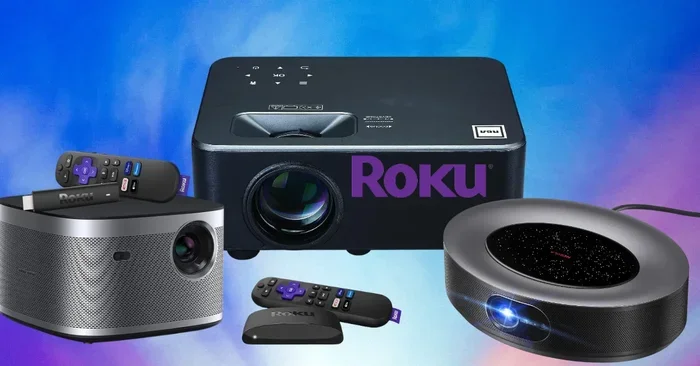
Yes, a Roku works with a projector to create an amazing home theater setup. You can connect a Roku streaming device to a projector using an HDMI cable or wireless screen mirroring. This setup gives you access to thousands of channels, movies, and shows on a big screen. Whether you own a Roku Express, Roku Streaming Stick, or Roku Ultra, the process is simple and affordable. Keep reading to learn the best ways to set up your Roku with a projector for the ultimate viewing experience.
Have you ever wondered if you can use a Roku with a projector? The short answer is yes. A Roku device works great with a projector to turn any blank wall or screen into a massive entertainment display. Whether you are building a home theater or upgrading your movie nights, combining a Roku with a projector is one of the best moves you can make.
Many people already own a projector and want to add streaming capabilities. A Roku device fills that gap perfectly. It gives you access to Netflix, Hulu, Disney+, and hundreds of other channels. You do not need a smart TV anymore when you have this combo. In this guide, we will walk you through everything you need to know about connecting a Roku to a projector.
Key Takeaways
- Roku devices are compatible with most projectors: Any projector with an HDMI input can work with a Roku streaming device.
- Multiple connection options exist: You can use HDMI cables, wireless screen mirroring, or audio extraction depending on your setup.
- Roku Ultra offers the best projector experience: It supports 4K HDR and has a removable headphone jack for private listening.
- Setup is simple and beginner-friendly: You do not need technical skills to connect a Roku to a projector.
- Audio solutions matter: Projectors often have weak or no speakers, so external speakers improve sound quality significantly.
- Wireless options add convenience: Screen mirroring lets you cast content without extra cables.
📑 Table of Contents
- Does A Roku Work With A Projector?
- How To Connect A Roku To A Projector
- Audio Setup For Your Roku Projector System
- Wireless Options: Screen Mirroring With Roku
- Roku Projector Compatibility And Display Settings
- Common Mistakes To Avoid When Using Roku With A Projector
- Benefits Of Using A Roku With A Projector
- Expert Insights And Pro Tips
- Final Thoughts On Using A Roku With A Projector
Does A Roku Work With A Projector?
The simple answer is absolutely yes. A Roku streaming device works with almost any projector that has an HDMI port. This includes budget projectors, portable projectors, and high-end home theater projectors. The Roku acts as a streaming hub, sending video and audio through the HDMI cable to the projector.
You might be surprised at how easy this setup is. Most people can connect the two devices in under ten minutes. You do not need any special tools or technical knowledge. Whether you have a Roku Express, Roku Streaming Stick, Roku Streaming Stick+, or Roku Ultra, they all work with projectors.
The key thing to check is the input options on your projector. Nearly all modern projectors come with at least one HDMI port. If your projector is older and only has VGA or composite inputs, you may need an adapter. But for the vast majority of projectors made in the last decade, a Roku will work without any issues.
Types of Roku Devices That Work With Projectors
Roku makes several different streaming devices. Each one has its own strengths when paired with a projector. Let us look at the main options.
- Roku Express: This is the most affordable option. It delivers solid 1080p HD streaming. It works perfectly with standard projectors and is a great entry-level choice.
- Roku Streaming Stick: This is a small stick that plugs directly into the HDMI port. It is portable and easy to hide behind your projector screen. It supports 1080p and some models support 4K.
- Roku Streaming Stick+: This version offers enhanced wireless range and 4K HDR support. It is ideal for projectors with 4K resolution.
- Roku Ultra: This is the top-tier option. It supports 4K HDR, has a remote with a headphone jack, and includes ethernet for a stable connection.
All four of these devices will work with your projector. The difference lies in picture quality, features, and price. Choose based on your projector’s capabilities and your budget.
How To Connect A Roku To A Projector
Setting up a Roku with a projector is straightforward. Follow these steps and you will be watching your favorite shows in no time. The process works for most Roku models and most projector brands.
Step-by-Step Connection Guide
- Check your projector’s HDMI port: Locate the HDMI input on your projector. Most projectors have at least one HDMI port on the back or side.
- Connect the Roku to the HDMI port: Plug the Roku device into the HDMI port. If you are using a Roku Streaming Stick, insert it directly into the port. For the Roku Express or Ultra, use the included HDMI cable.
- Connect to power: Plug the Roku into a power outlet using the USB cable and power adapter. Some projectors have a USB port that can power the Roku, but a wall outlet is more reliable.
- Switch the projector to the correct input: Use the projector’s remote or buttons to select the HDMI input where the Roku is connected.
- Set up the Roku: Follow the on-screen instructions to connect to Wi-Fi, sign in to your accounts, and update the software.
- Start streaming: Once setup is complete, you can browse and launch any channel on your Roku.
That is it. Six simple steps and you are done. The entire process takes less than fifteen minutes for most users.
Tips for a Clean and Hidden Setup
One common challenge with projector setups is cable management. Here are some tips to keep things tidy.
- Use a short HDMI cable to reduce clutter behind your projector.
- Run cables through the wall or ceiling for a clean look.
- Use a Roku Streaming Stick to avoid extra cables altogether.
- Label your cables so you can troubleshoot easily later.
- Use a power strip with surge protection to keep everything safe.
A clean setup looks better and also reduces the risk of cables getting pulled or damaged during movie nights.
Audio Setup For Your Roku Projector System
Projectors are known for one thing: terrible built-in speakers. Most projectors have small, weak speakers that produce flat, tinny sound. This is where you need to think about audio solutions for your home theater setup.
Why Projector Speakers Fall Short
The speakers in most projectors are tiny and mounted inside the housing. They are not designed to deliver rich, immersive sound. When you are watching an action movie or listening to dialogue in a drama, poor audio ruins the experience. You need external speakers or a sound system to get the full effect.
Best Audio Options For a Roku Projector Setup
- Soundbar: A soundbar connects to the Roku or the projector’s audio output. It dramatically improves dialogue clarity and overall sound quality.
- Bluetooth speakers: Some Roku devices support Bluetooth audio output. You can pair wireless speakers with your Roku for a cable-free setup.
- Home theater receiver: For the ultimate experience, connect your Roku to a receiver and surround sound speakers. This creates a true cinema feel.
- Headphones: The Roku Ultra has a headphone jack on the remote. This is perfect for late-night watching without disturbing anyone.
- Projector audio output: Some projectors have a 3.5mm audio out or optical output. You can use this to connect external speakers directly.
Do not skip the audio step. Sound quality makes or breaks a home theater experience. Even a budget soundbar will make a huge difference compared to the projector’s built-in speakers.
Wireless Options: Screen Mirroring With Roku
Not everyone wants to deal with cables. Roku offers a wireless screen mirroring feature that lets you cast content from your phone or tablet to the projector. This is a great option if your projector is mounted on the ceiling or hard to reach.
How Screen Mirroring Works
Roku’s screen mirroring feature allows you to send content from your smartphone or computer to the projector. You need a Roku device that supports this feature, which includes most models except the Roku Express. Here is how it works.
- Make sure your phone and Roku are on the same Wi-Fi network.
- Open the Roku app on your phone.
- Tap the screen mirroring icon and select your Roku device.
- Your phone screen now displays on the projector.
This feature is handy for sharing photos, presentations, or streaming content from apps that do not have a Roku channel. It is not as smooth as a direct HDMI connection, but it works well for most everyday uses.
Limitations of Wireless Streaming
While wireless mirroring is convenient, it has some drawbacks. The video quality may not be as sharp as a direct HDMI connection. There can be a slight delay or lag, especially during fast-moving scenes. For the best picture quality and the lowest input lag, a wired HDMI connection is always the better choice.
Roku Projector Compatibility And Display Settings
Not all projectors are created equal. The resolution and capabilities of your projector will determine the best Roku settings for your setup. Understanding these settings helps you get the best picture possible.
Matching Roku Settings To Your Projector
Go to the Roku’s display settings and match the output resolution to your projector’s native resolution. If your projector is 1080p, set the Roku to 1080p. If your projector is 4K, set the Roku to 4K. Mismatched settings can cause blurry or stretched images.
Here are some common projector resolutions and the Roku models that support them.
- 720p projectors: Roku Express and Roku Streaming Stick work well.
- 1080p projectors: All Roku models support 1080p output.
- 4K projectors: Roku Streaming Stick+ and Roku Ultra support 4K HDR.
Display Modes And Picture Quality
Roku offers several display settings that can improve your projector experience. The Roku automatically detects the projector’s resolution, but you can fine-tune the picture in the settings menu. Look for options like HDR enhancement, refresh rate matching, and bit depth settings. These small adjustments can make a noticeable difference in image sharpness and color accuracy.
Common Mistakes To Avoid When Using Roku With A Projector
Even though the setup is simple, there are a few common mistakes that people make. Avoiding these will save you time and frustration.
- Using a low-quality HDMI cable: Cheap cables can cause signal drops or poor image quality. Invest in a certified high-speed HDMI cable for the best results.
- Forgetting to update the Roku software: Outdated software can cause compatibility issues. Always keep your Roku updated to the latest version.
- Ignoring audio setup: Watching a movie on a big screen with terrible sound is a bad experience. Always set up external audio before your first movie night.
- Placing the Roku in a closed cabinet: Roku devices need airflow to stay cool. Do not hide them in an enclosed space without ventilation.
- Not checking the projector’s input lag: If you plan to use the Roku for gaming, check the projector’s input lag. High input lag causes delays between your button press and the action on screen.
These mistakes are easy to avoid with a little planning. Taking a few extra minutes during setup will save you headaches later.
Benefits Of Using A Roku With A Projector
Combining a Roku with a projector offers several advantages that make it a popular choice for home entertainment.
- Big screen streaming: Watch Netflix, YouTube, and other streaming services on a screen that can be 100 inches or larger.
- Affordable entertainment: A Roku device costs much less than a large smart TV. Pair it with an affordable projector and you get a big-screen experience for a fraction of the price.
- Portability: Portable projectors and Roku Streaming Sticks are easy to move. You can set up an outdoor movie night in minutes.
- Access to thousands of channels: Roku has over 500,000 movies and TV episodes available through its channels.
- Easy to use: The Roku interface is simple and intuitive. Anyone in the family can navigate it without help.
- Regular updates: Roku keeps adding new features and channels through software updates.
These benefits make the Roku-and-projector combo one of the best value moves in home entertainment. You get a cinematic experience without the cinematic price tag.
Expert Insights And Pro Tips
We asked home theater enthusiasts and AV experts for their top tips on using a Roku with a projector. Here is what they recommend.
Calibrate your projector’s settings: Most projectors come with preset picture modes. Switch to a cinema or movie mode for the most accurate colors. This small change makes a big difference in picture quality.
Use a dedicated streaming input: If your projector has multiple HDMI ports, dedicate one to the Roku. This prevents accidental input switching during movies.
Consider ambient light: Projectors work best in dim or dark rooms. If your room has lots of natural light, consider a projector screen with a high gain rating. This helps maintain bright, vivid images even in well-lit spaces.
Invest in a universal remote: Most Roku remotes only control the Roku. A universal remote lets you control both the Roku and the projector with one device. This simplifies your setup and makes movie nights more convenient.
Test your setup before the big event: Always do a test run before a movie night or party. Make sure the audio is working, the picture is clear, and the Wi-Fi connection is stable. There is nothing worse than troubleshooting tech problems with guests waiting.
Final Thoughts On Using A Roku With A Projector
So, does a Roku work with a projector? The answer is a resounding yes. A Roku device transforms any projector into a smart, streaming powerhouse. You get access to all your favorite apps, movies, and shows on a big, bright screen. The setup is easy, the devices are affordable, and the results are fantastic.
Whether you are a casual viewer or a dedicated home theater fan, this combination delivers. You get the convenience of Roku’s streaming platform and the immersive experience of a projector. It is the perfect match for movie nights, game days, and everything in between.
Take the time to set up your audio properly, manage your cables, and adjust your display settings. These small efforts pay off with a much better viewing experience. Now that you know how easy it is to make a Roku work with a projector, there is no reason not to try it.
Grab your Roku, plug it into your projector, and start streaming. Your big-screen home theater is just a few minutes away.
Frequently Asked Questions
Can I connect any Roku device to any projector?
Most Roku devices work with any projector that has an HDMI port. This includes the Roku Express, Streaming Stick, Streaming Stick+, and Roku Ultra. If your projector only has older inputs like VGA, you will need an HDMI-to-VGA adapter to make the connection work.
Do I need a special HDMI cable for a Roku projector setup?
You do not need a fancy or expensive HDMI cable. A standard high-speed HDMI cable works perfectly for most setups. If you are using 4K resolution, make sure the cable is rated for 4K and HDMI 2.0 or higher to get the best picture quality.
Can I use screen mirroring to connect my Roku to a projector wirelessly?
Yes, Roku supports screen mirroring for most of its devices. You can cast content from your phone or tablet to the projector using the Roku app. However, a wired HDMI connection will always give you better picture quality and less lag than wireless mirroring.
Why is there no sound when I connect my Roku to my projector?
Most projectors have very small built-in speakers, and some do not have speakers at all. Check your projector’s audio settings and make sure the volume is turned up. If your projector has an audio output, connect external speakers or a soundbar for better sound quality.
Can I use a Roku with a portable projector?
Yes, Roku works with portable projectors as long as they have an HDMI input. Many portable projectors now include HDMI ports, making them a great match for a Roku Streaming Stick or Roku Express. This combo is perfect for outdoor movie nights or travel.
Does a Roku work with a short-throw projector?
Absolutely. A Roku works with short-throw projectors just like any other projector. The connection method is the same, using an HDMI cable or wireless screen mirroring. Short-throw projectors are especially popular for small rooms and living rooms where space is limited.
=== CONCLUSION ===
A Roku device works seamlessly with a projector to create a fantastic home theater experience. The setup is simple, affordable, and delivers impressive results. Whether you choose a Roku Express or a Roku Ultra, you get access to thousands of streaming channels on a big screen. Focus on matching your Roku settings to your projector’s resolution, set up quality audio, and avoid common setup mistakes. With the right combination of a Roku and a projector, you can enjoy a cinematic experience right in your own home. Start your setup today and enjoy the magic of big-screen streaming.