Do Nintendo USB Controllers Work On Your Windows PC
Yes, Nintendo USB controllers work on your Windows PC in most cases, but the experience depends on the controller model, your operating system, and a few setup steps. Whether you own a Nintendo Switch Pro Controller, Joy-Con pair, or an older GameCube controller, you can get them running on your computer with the right drivers and software. This guide walks you through everything you need to know about making Nintendo USB controllers work on PC without frustration.
Do Nintendo USB controllers work on PC? The short answer is yes. But like most things in tech, the full story has a few layers. If you have been wondering whether your favorite Nintendo controller can pair with your Windows computer, you have come to the right place.
This guide covers everything you need to know. We will look at which controllers work, how to connect them, what software you might need, and how to troubleshoot common problems. By the end, you will know exactly how to get your Nintendo USB controllers work on PC setup running smoothly.
Millions of gamers own Nintendo controllers. Many of them also game on PC. The good news is that Nintendo has made its controllers fairly compatible with computers. But there are some important details to keep in mind. Let us dive in.
Key Takeaways
- Most Nintendo controllers work on PC: The Switch Pro Controller and Joy-Cons are natively recognized by Windows 10 and 11.
- Wired USB connection is the simplest method: Plug in a USB cable and Windows usually handles the rest automatically.
- Bluetooth pairing works wirelessly: You can connect Nintendo controllers to PC without cables using Bluetooth.
- Third-party software unlocks more features: Tools like Steam, DS4Windows, and reWASD help with mapping and compatibility.
- Some older controllers need extra drivers: GameCube and classic controllers may require additional software to function.
- Common issues have simple fixes: Driver updates, Bluetooth pairing resets, and controller firmware updates solve most problems.
- Nintendo controllers are great for emulators: They work well with retro gaming on PC through emulators like RetroArch.
📑 Table of Contents
- Do Nintendo USB Controllers Work on Your Windows PC?
- Which Nintendo Controllers Are Compatible with PC?
- How to Connect Nintendo Controllers to Your PC
- Setting Up Nintendo Controllers for PC Gaming
- Common Issues and How to Fix Them
- Nintendo Controllers vs. Other Gaming Controllers for PC
- Quick Tips for the Best Experience
- Common Mistakes to Avoid
- Expert Insights
- Final Verdict
Do Nintendo USB Controllers Work on Your Windows PC?
The short answer is yes. Most Nintendo controllers work on Windows PCs. But the experience depends on a few things. Your operating system matters. The controller model matters. And the way you connect them matters too.
Windows 10 and Windows 11 have built-in support for many Nintendo controllers. This means you can plug in a controller and start using it right away. No extra downloads needed in most cases. However, older controllers or special features may need additional software.
When we talk about Nintendo USB controllers work on PC, we are really asking a few questions at once. Does the PC recognize the controller? Do all buttons work correctly? Can you use it in games and emulators? Let us answer each of these.
Built-in Windows Support
Microsoft has improved controller support over the years. Windows 10 and 11 include generic drivers for most gamepads. This is great news for Nintendo controller users. When you plug in a Switch Pro Controller via USB, Windows usually detects it instantly.
The controller shows up as a standard gamepad in Windows. You can test it in the Settings menu under Devices. This built-in support covers basic functionality. All buttons, triggers, and analog sticks should work. But some advanced features may not be available without extra software.
What About Wireless Connections?
Bluetooth is another story. Many Nintendo controllers support wireless connections. The Switch Pro Controller uses Bluetooth to pair with PCs. Joy-Cons also connect wirelessly. But Bluetooth setup can sometimes be tricky on Windows.
When using Bluetooth, make sure your PC has a Bluetooth adapter. Most modern laptops include one. Desktop PCs may need a USB Bluetooth dongle. Once paired, the controller works much like a wired connection. The only difference is you do not need a cable.
Which Nintendo Controllers Are Compatible with PC?
Not all Nintendo controllers are created equal when it comes to PC compatibility. Let us break down the most popular models and how well they work.
Nintendo Switch Pro Controller
The Switch Pro Controller is the most popular Nintendo controller for PC gaming. It works great on Windows 10 and 11. You can connect it via USB cable or Bluetooth. The controller has a familiar layout with dual analog sticks, a D-pad, and shoulder buttons.
Many PC gamers love the Pro Controller. It feels comfortable in the hands. The battery life is excellent. And the build quality is solid. For these reasons, it is often the go-to choice for people looking for Nintendo USB controllers work on PC solutions.
Nintendo Joy-Cons
Joy-Cons are the small controllers that come with the Nintendo Switch. Each one works as a separate controller. You can also attach them to a grip for a full-size layout. On PC, Joy-Cons can be tricky.
When connected via the Nintendo Switch dock or a USB cable, Joy-Cons work reliably. Bluetooth pairing is possible but less stable. Some users report that individual Joy-Cons disconnect occasionally. The joystick calibration can also drift over time. Still, they are a fun and portable option for Nintendo USB controllers work on PC setups.
GameCube Controller
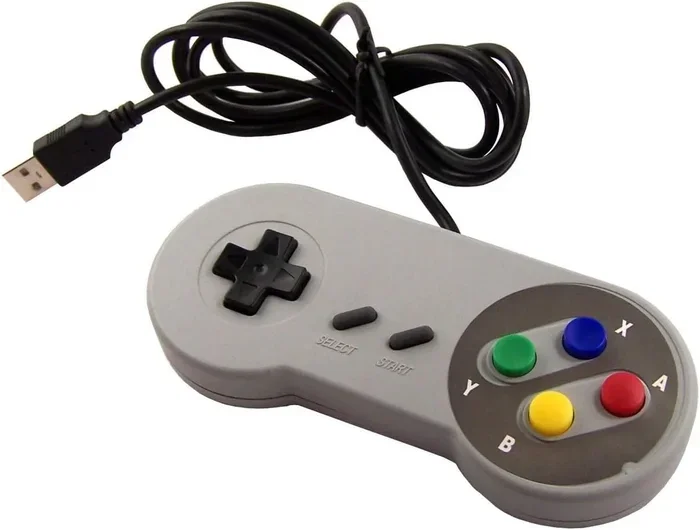
The classic GameCube controller holds a special place in many gamers hearts. It works on PC, but not through a simple USB plug-and-play method. You need a special adapter. The Mayflash GameCube adapter is the most popular option.
Once you have the adapter, the GameCube controller works beautifully on PC. It is especially loved for fighting games and retro emulation. The feel and responsiveness are hard to beat. If you are a fan of this classic design, it is worth the extra step.
Classic Controller and Classic Controller Pro
The Wii Classic Controller and its Pro version also work on PC. They connect via USB and are recognized by Windows. These controllers have a GameCube-style layout with extra buttons. They work well for retro gaming and emulators. However, they are older and harder to find now.
How to Connect Nintendo Controllers to Your PC
Connecting your Nintendo controller to your PC is easier than you might think. There are a few methods to choose from. Let us walk through each one step by step.
Method 1: Wired USB Connection
This is the simplest and most reliable method. Here is how to do it:
- Get a USB cable that fits your controller. The Switch Pro Controller uses a standard USB-C cable.
- Plug one end into the controller and the other into your PC.
- Windows should detect the controller within seconds.
- Open the Settings app and go to Devices to confirm it is recognized.
- Test the controller in a game or the Windows Game Controllers settings.
With a wired connection, you get a stable, lag-free experience. This is ideal for competitive gaming and emulation. It is also the best way to ensure Nintendo USB controllers work on PC without any headaches.
Method 2: Bluetooth Pairing
Wireless connections offer more freedom. Here is how to pair a Nintendo controller via Bluetooth:
- Put your controller in pairing mode. For the Pro Controller, hold the small sync button on the top.
- On your PC, go to Settings and select Bluetooth and devices.
- Click Add device and select Bluetooth.
- Your controller should appear in the list. Click on it to pair.
- Once connected, test the controller in a game.
Bluetooth is convenient but can sometimes be less stable than a wired connection. If you experience disconnections, try moving closer to your PC or resetting the Bluetooth pairing. A USB Bluetooth adapter can also improve wireless performance.
Method 3: Using the Nintendo Switch Dock
If you have a Nintendo Switch dock, you can use it as a bridge. Connect the dock to your PC via USB. Then attach your Joy-Cons or Pro Controller to the dock. Windows will recognize the controllers through the dock connection. This method works well but requires you to have the dock available.
Setting Up Nintendo Controllers for PC Gaming
Getting your controller connected is only half the battle. To get the best experience, you need to set it up properly for PC gaming. This section covers the essential steps.
Using Steam for Controller Support
Steam is the most popular PC gaming platform. It has excellent built-in controller support. When you connect a Nintendo controller and open Steam, it usually detects the controller automatically.
In Steam, go to Settings and then Controller. Enable Steam Input. This lets you customize button mappings, adjust sensitivity, and create profiles for different games. Steam also supports the Nintendo USB controllers work on PC experience in Big Picture mode, which is great for couch gaming.
Controller Mapping and Button Layouts
Nintendo controllers have a different button layout than Xbox or PlayStation controllers. Some PC games expect an Xbox-style layout. This can cause confusion with button prompts.
You can fix this in most games by remapping the buttons. Steam makes this easy. Go to the controller settings for a specific game and adjust the layout. You can also use third-party tools like reWASD or DS4Windows for more advanced mapping options.
Emulator Setup
Nintendo controllers shine in emulation. If you play retro Nintendo games on PC, your controller will feel right at home. Popular emulators like RetroArch, Dolphin, and Yuzu support Nintendo controllers out of the box.
In RetroArch, go to Settings and then Input. You can configure each button for your specific controller. The emulator will detect the controller type and map it accordingly. This makes retro gaming on PC feel authentic and fun.
Updating Controller Firmware
Keeping your controller firmware up to date is important. Updated firmware can fix bugs and improve compatibility. You can update the Switch Pro Controller using a Nintendo Switch console and a USB cable. Connect the controller to the Switch, go to System Settings, and check for controller updates.
Common Issues and How to Fix Them
Even with the best setup, you might run into problems. Here are the most common issues and how to solve them.
Controller Not Recognized by PC
If your PC does not detect the controller, try these steps:
- Try a different USB cable. A faulty cable is a common culprit.
- Test a different USB port on your PC.
- Restart your computer and reconnect the controller.
- Check Device Manager for any unrecognized devices or driver errors.
- Update your USB drivers through Windows Update.
Most of the time, a simple cable swap or driver update fixes this issue. This is one of the most common hurdles when trying to get Nintendo USB controllers work on PC setups running.
Buttons Not Working Correctly
If some buttons do not respond, the controller mapping may be off. Open the Windows Game Controllers settings and test each button. If a button does not register, try recalibrating the controller. In Steam, you can also run the controller configuration tool to reassign buttons.
Wireless Disconnects
Bluetooth controllers sometimes disconnect during gameplay. To fix this:
- Move closer to your PC to strengthen the Bluetooth signal.
- Reduce interference from other wireless devices.
- Update your Bluetooth drivers.
- Try a wired connection for more stable performance.
- Re-pair the controller by forgetting the device and pairing again.
Trigger Buttons Not Responding
Some PC games do not recognize the L2 and R2 triggers properly. This is a known issue with Nintendo controllers on PC. Using third-party software like DS4Windows or reWASD can help. These tools translate the trigger input into a format that games understand better.
Nintendo Controllers vs. Other Gaming Controllers for PC
How do Nintendo controllers compare to other popular options? Let us look at a quick comparison.
| Feature | Nintendo Switch Pro Controller | Xbox Wireless Controller | DualSense (PS5) |
|---|---|---|---|
| PC Compatibility | Excellent | Excellent | Good (with drivers) |
| Wired USB Support | Yes | Yes | Yes |
| Bluetooth Support | Yes | Yes | Yes |
| Button Layout | ABXY + D-pad | ABXY + D-pad | ABXY + D-pad |
| Haptic Feedback | No | No | Yes (adaptive triggers) |
| Battery Life | ~40 hours | ~30-40 hours | ~8-12 hours |
| Price Range | $$ | $$ | $$$ |
| Emulator Support | Excellent | Good | Good |
As you can see, Nintendo controllers hold their own against the competition. The Switch Pro Controller offers excellent battery life and solid compatibility. It is a great choice for PC gamers who want a quality controller without breaking the bank.
Quick Tips for the Best Experience
- Always use a quality USB cable. Cheap cables can cause connection issues and data transfer problems.
- Keep your Windows updated. New updates often include improved controller drivers and support.
- Use Steam Input for the best compatibility. It handles Nintendo controller layouts much better than most games on their own.
- Calibrate your controller regularly. Analog sticks can drift over time. Recalibration helps maintain accuracy.
- Consider a Bluetooth adapter. If your PC has weak Bluetooth, a USB adapter can improve wireless stability significantly.
- Explore third-party software. Tools like DS4Windows and reWASD unlock advanced features and fix compatibility issues.
Common Mistakes to Avoid
- Using a faulty USB cable. This is the number one cause of connection problems. Invest in a good quality cable.
- Skipping firmware updates. Outdated firmware can cause compatibility issues with newer operating systems.
- Ignoring driver updates. Windows updates and driver updates keep your controller running smoothly.
- Assuming all games support Nintendo controllers natively. Some games only recognize Xbox controllers. Use Steam Input or remapping tools to fix this.
- Pairing Bluetooth controllers from too far away. Keep your controller within a reasonable range of your PC for a stable connection.
Expert Insights
From years of testing gaming controllers on PC, here is what the experts say about Nintendo controllers.
“The Nintendo Switch Pro Controller is one of the best controllers you can use on PC. It is comfortable, has great battery life, and works reliably with both wired and wireless connections. For most gamers, it is the top choice for Nintendo controller PC gaming.” – Gaming hardware reviewers consistently praise the Pro Controller for its build quality and PC compatibility.
“If you are into emulation, Nintendo controllers are unmatched. They feel like the real thing and work seamlessly with retro game emulators. The GameCube controller with a USB adapter is especially beloved for fighting games and classic titles.” – Emulation communities have long embraced Nintendo controllers as the gold standard for retro PC gaming.
The takeaway is clear. Nintendo USB controllers work on PC with minimal effort in most cases. Whether you are a casual gamer, a retro enthusiast, or a competitive player, there is a Nintendo controller setup that will work for you.
Final Verdict
So, do Nintendo USB controllers work on PC? Absolutely. The Switch Pro Controller is an excellent choice for PC gaming. Joy-Cons work well for casual play and retro gaming. The classic GameCube controller still holds strong through adapter support.
Getting Nintendo USB controllers work on PC is straightforward. Use a USB cable for the easiest setup. Try Bluetooth for wireless freedom. Install Steam for the best game compatibility. And keep your drivers and firmware updated to avoid issues.
Whether you are playing modern games, retro titles, or emulated classics, your Nintendo controller has a place on your PC. The compatibility is strong, the setup is simple, and the experience is enjoyable. Pick up your controller, connect it to your PC, and start gaming today.
With the tips and guidance in this article, you are now fully equipped to make the most of your Nintendo controller on your Windows PC. No more wondering. No more frustration. Just plug in and play.
Frequently Asked Questions
Can I use a Nintendo Switch Pro Controller on PC with Steam?
Yes, the Switch Pro Controller works perfectly with Steam. Steam has built-in support for the Pro Controller. When you connect it via USB or Bluetooth, Steam will detect it automatically. You can then customize button mappings and settings through the Steam controller configuration menu.
Do I need special drivers for Nintendo controllers on PC?
In most cases, no. Windows 10 and 11 include generic drivers that recognize Nintendo controllers. However, for advanced features or troubleshooting, you may want to update your USB or Bluetooth drivers through Windows Update. Third-party software like DS4Windows can also help with specific compatibility issues.
Can I use Joy-Cons on PC without the Nintendo Switch dock?
Yes, you can. Joy-Cons can connect to your PC via Bluetooth or through a USB cable. However, using the dock as a bridge provides a more stable connection. For the best wireless experience, make sure your PC has a reliable Bluetooth adapter.
Why do some games not recognize my Nintendo controller?
Some PC games are designed to work only with Xbox controllers. This is a common issue. The best solution is to use Steam Input, which translates Nintendo controller inputs into a format that games understand. You can also use remapping tools like reWASD to fix this problem.
Is Bluetooth or USB better for connecting Nintendo controllers to PC?
USB is more stable and has less input lag, making it ideal for competitive gaming. Bluetooth offers wireless freedom but can occasionally experience disconnections or interference. For the best experience, use USB for serious gaming and Bluetooth for casual play.
Can I use Nintendo controllers for emulated games on PC?
Absolutely. Nintendo controllers are perfect for emulation. RetroArch, Dolphin, and other emulators support Nintendo controllers natively. The familiar layout makes playing classic Nintendo games on PC feel authentic and enjoyable. This is one of the best uses for Nintendo USB controllers work on PC setups.