Can You Monitor Lorex Cameras Remotely From Anywhere
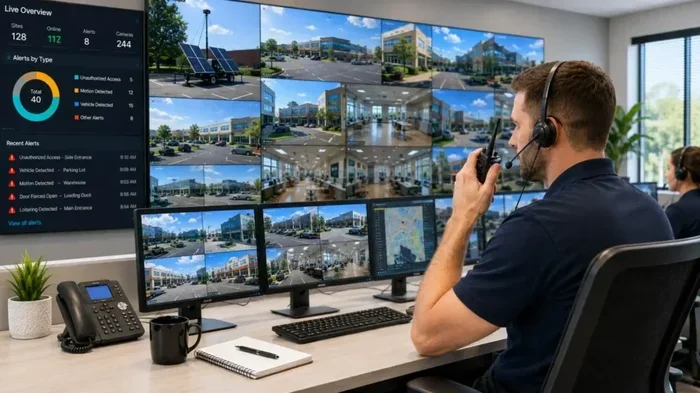
Yes, you can monitor Lorex cameras remotely from anywhere in the world. With the Lorex mobile app and cloud connectivity, you get live video feeds, real-time alerts, and two-way audio right on your phone. This guide walks you through setup, features, and pro tips for remote surveillance with Lorex security cameras.
Can you monitor Lorex cameras remotely? The short answer is a strong yes. Lorex cameras are built to give you remote surveillance power right from your phone, tablet, or laptop. Whether you are at work, on vacation, or simply in another room, you can keep an eye on your home or business with ease.
Lorex is a well-known name in the home security system world. Their cameras offer HD video, night vision, motion detection, and two-way audio. All of these features work through remote access, so you never miss a moment. In this guide, we will walk you through everything you need to know about monitoring Lorex cameras remotely. We will cover setup steps, key features, common problems, and expert tips that make a real difference.
Whether you own a Lorex IP camera or a wireless camera system, this article has you covered. Let us dive in and explore how remote monitoring works with Lorex devices.
Key Takeaways
- Remote monitoring is fully supported: Lorex cameras work with the mobile app and web portal for live viewing from anywhere.
- Setup is simple: You just need the camera, internet connection, and the Lorex app installed on your phone.
- Key features include live streaming, motion detection alerts, two-way audio, and cloud storage access.
- Both the app and web browser work: You can choose the method that suits your device and needs.
- Common issues like slow feeds or connection drops have easy fixes: Check Wi-Fi, update firmware, and adjust settings.
- Pro tips boost performance: Use strong Wi-Fi, enable notifications, and keep firmware updated for the best experience.
📑 Table of Contents
What Is Lorex Remote Monitoring?
Lorex remote monitoring means watching your camera feeds from a distance using a phone or computer. You do not need to be physically near your camera. As long as you have an internet connection, you can view live video feeds anytime. This is possible because Lorex cameras connect to your Wi-Fi network and send data to secure cloud servers or your local network.
The Lorex app is the main tool for remote surveillance. It is free to download and works on both iOS and Android devices. You can also access your cameras through a web browser on a computer. This flexibility makes Lorex remote monitoring one of the most convenient options for homeowners and business owners alike.
How Does Remote Monitoring Work?
Here is a simple way to understand how Lorex cameras work remotely. Your camera connects to your home Wi-Fi network. It sends video data to the Lorex cloud or a local Network Video Recorder (NVR). When you open the app or website, you connect to that same system. The video feed streams to your device in real time.
Think of it like watching a video on YouTube. The camera is the source. The app or website is the player. Your phone or computer is just the screen. As long as the connection is stable, you get smooth, live remote viewing.
How to Set Up Remote Monitoring on Lorex Cameras
Setting up remote access for your Lorex security cameras is straightforward. You do not need to be a tech expert. Follow these steps to get started.
Step 1: Install Your Camera and Connect to Wi-Fi
First, mount your Lorex camera in the desired location. Make sure it is within range of your Wi-Fi router. Use the Lorex app or the setup wizard on the camera to connect it to your wireless network. A strong Wi-Fi signal is essential for smooth remote monitoring.
Step 2: Create a Lorex Account
Download the Lorex Home app or Lorex Cloud app from the App Store or Google Play. Create an account using your email address. This account links your camera to your device and enables cloud connectivity. It also lets you access your cameras from any device, anywhere.
Step 3: Add Your Camera to the App
Open the app and tap “Add Device.” Scan the QR code on your camera or enter the serial number manually. The app will pair with your camera within seconds. Once added, you can see the live video feed right on your phone screen.
Step 4: Enable Remote Access
Go to the app settings and make sure remote access is turned on. If you use a Lorex NVR, you may need to enable port forwarding or DDNS (Dynamic Domain Name System) on your router. The app will guide you through this. Once enabled, you can view your cameras from any internet-connected device.
Quick Tips for a Smooth Setup
- Use a strong Wi-Fi password to keep your security camera system safe.
- Place your router close to the camera for the best signal strength.
- Update your camera firmware before setting up remote access.
- Test your connection by viewing the feed from both Wi-Fi and mobile data.
Features You Get When Monitoring Lorex Cameras Remotely
One of the best things about monitoring Lorex cameras remotely is the rich set of features. You are not just getting a basic video feed. You get a full surveillance toolkit right in your pocket.
Live Video Streaming
You can watch live HD video from any Lorex IP camera at any time. The stream is clear and smooth as long as your internet speed is decent. Most Lorex cameras support 1080p or 4K resolution, so you see every detail. This is incredibly useful for checking on pets, children, or your property while you are away.
Real-Time Motion Detection Alerts
Motion detection is a standout feature. When your wireless camera detects movement, it sends an instant alert to your phone. You can then open the app and watch the live video feed in real time. Some Lorex models even offer smart detection, which can distinguish between people, animals, and vehicles. This reduces false alerts and keeps you informed of what truly matters.
Two-Way Audio
Many Lorex cameras come with built-in microphones and speakers. This means you can speak through the camera and hear what is happening on the other end. It is like having a walkie-talkie built into your security camera system. You can talk to a delivery person, warn off a stranger, or check on a family member remotely.
Night Vision
Night vision works just as well remotely as it does on-site. Your Lorex camera switches to infrared mode when it gets dark. You can see clear black-and-white footage even in total darkness. This is essential for 24/7 remote surveillance because most break-ins happen at night.
Cloud Storage and Playback
Lorex Cloud lets you store your video recordings online. You can access this footage from anywhere using the app. No need to dig through SD cards or NVR hard drives. Just open the app, find the clip you need, and watch it. This is a huge advantage for remote monitoring because you always have your security camera footage at your fingertips.
Smart Home Integration
Lorex cameras work with popular smart home platforms like Amazon Alexa and Google Assistant. You can view camera feeds on smart displays or use voice commands to check your security cameras. This adds another layer of convenience to your remote surveillance setup.
Lorex Remote Monitoring: Mobile App vs Web Browser
When it comes to monitoring Lorex cameras remotely, you have two main options. You can use the Lorex mobile app or a web browser on your computer. Both methods offer remote access, but they have different strengths.
Lorex Mobile App
The Lorex app is the most popular way to monitor cameras remotely. It is designed for smartphones and tablets. The interface is clean and easy to navigate. You can view live feeds, receive motion alerts, talk through two-way audio, and review recorded clips all in one place.
The app also supports multi-camera viewing. If you have several Lorex cameras, you can see all of them on one screen. You can switch between cameras with a simple tap. This makes it easy to keep an eye on your entire property from anywhere in the world.
Web Browser Access
If you prefer a bigger screen, you can access your Lorex cameras through a web browser. Simply log in to your Lorex Cloud account from any computer. The web portal offers many of the same features as the app. You can view live streams, review recordings, and adjust camera settings.
Web browser access is especially useful for business owners. It allows you to monitor multiple security cameras across different locations from a single dashboard. It also works well for people who spend most of their day on a desktop computer.
Comparison Table: App vs Web Browser
| Feature | Lorex Mobile App | Web Browser |
|---|---|---|
| Platform | iOS and Android | Any device with a browser |
| Live Streaming | Yes | Yes |
| Motion Alerts | Yes | Yes |
| Two-Way Audio | Yes | Limited |
| Multi-Camera View | Yes | Yes |
| Cloud Playback | Yes | Yes |
| Ease of Use | Very Easy | Easy |
| Push Notifications | Yes | No |
Both options work well for remote surveillance. The app is best for on-the-go monitoring. The web browser is ideal for detailed review and multi-camera management. You can use both together for the best Lorex remote monitoring experience.
Common Issues and How to Fix Them
Even with a great security camera system, you may run into occasional hiccups when monitoring Lorex cameras remotely. Here are the most common problems and their solutions.
Slow or Lagging Video Feed
A slow video feed is the number one complaint with remote surveillance. This usually happens when your Wi-Fi signal is weak or your internet speed is low. To fix this, move closer to your router or use a Wi-Fi extender. You can also lower the video quality in the app settings. This reduces the data load and speeds up the stream.
Connection Drops
If your camera keeps disconnecting, check your internet connection first. A loose cable or a router restart often solves the problem. Also, make sure your camera firmware is up to date. Outdated firmware can cause connection drops and other issues. The Lorex app will notify you when updates are available.
Cannot Find the Camera in the App
If your camera does not appear in the app, make sure it is connected to the same Wi-Fi network as your phone. Restart both the camera and your router. If the problem persists, remove the camera from the app and add it again. This often fixes pairing issues.
No Motion Alerts
If you are not receiving real-time alerts, check your notification settings in the app. Make sure alerts are turned on and that your phone is not in Do Not Disturb mode. Also, verify that the motion detection sensitivity is set correctly. If it is too low, the camera may not trigger alerts for small movements.
Tips for Better Remote Monitoring with Lorex Cameras
Want to get the most out of monitoring Lorex cameras remotely? These expert tips will help you optimize your setup and enjoy a smoother surveillance experience.
Invest in a Strong Wi-Fi Network
A reliable Wi-Fi connection is the backbone of remote monitoring. Consider upgrading to a mesh Wi-Fi system if your home has dead zones. A strong signal means clearer video, faster alerts, and fewer disconnections. This is especially important if you have multiple Lorex cameras streaming at the same time.
Enable Push Notifications
Push notifications are your best friend for remote surveillance. They alert you the moment your camera detects motion or sound. You can respond quickly, whether that means checking the live feed, speaking through two-way audio, or calling the authorities. Keep notifications enabled at all times for maximum peace of mind.
Keep Firmware Updated
Lorex regularly releases firmware updates that improve performance and security. Outdated firmware can cause bugs, slow speeds, and vulnerabilities. Make it a habit to check for updates every few weeks. The app makes this easy with automatic update prompts.
Use Cloud Storage for Peace of Mind
Lorex Cloud ensures your video recordings are safe even if your camera or NVR is damaged or stolen. With cloud storage, you can access your footage from any device, anywhere. This is a crucial part of remote monitoring because it gives you a backup that you can rely on.
Position Your Cameras Strategically
Place your Lorex cameras in high-traffic areas like front doors, driveways, and backyards. Make sure they are not blocked by trees or walls that could interfere with the Wi-Fi signal. Good placement means better coverage and more reliable remote viewing.
Test Your Setup Regularly
Do not wait for an emergency to discover your remote monitoring is not working. Test your cameras regularly by viewing the live feed from your phone while connected to mobile data. This confirms that your system works even when you are away from your home Wi-Fi network. It is a simple habit that can save you a lot of stress.
Final Thoughts
Can you monitor Lorex cameras remotely? Absolutely. Lorex makes it easy to keep an eye on your home or business from anywhere in the world. With the Lorex app, cloud storage, and a reliable Wi-Fi connection, you get live video feeds, real-time alerts, and two-way audio right at your fingertips.
Monitoring Lorex cameras remotely is not just convenient. It gives you peace of mind. You can check on your family, watch for intruders, and review security camera footage whenever you want. The setup is simple, the features are powerful, and the experience is smooth.
If you have not yet tried remote monitoring with your Lorex cameras, now is the perfect time. Download the app, follow the setup steps, and enjoy the confidence that comes with knowing you are always connected to your security camera system. Remote surveillance has never been this easy or this reliable.
Frequently Asked Questions
Do I need a subscription to monitor Lorex cameras remotely?
Basic remote viewing is free with the Lorex app. However, a Lorex Cloud subscription gives you access to cloud storage, extended playback, and advanced features. You can monitor your cameras without a subscription, but a plan enhances your remote surveillance experience significantly.
Can I monitor multiple Lorex cameras from one phone?
Yes, the Lorex app supports multi-camera viewing. You can add all your Lorex cameras to one account and switch between them easily. You can also view multiple feeds on a single screen for comprehensive remote monitoring.
Do Lorex cameras work with both Wi-Fi and wired connections?
Lorex cameras come in both wireless and wired models. Wireless cameras connect to your Wi-Fi network for remote access. Wired cameras connect via Ethernet but still support remote monitoring through your network. Both types offer full remote surveillance capabilities.
Is remote monitoring with Lorex secure?
Yes, Lorex uses encrypted connections and secure cloud servers to protect your video feed. Your Lorex account is protected by your login credentials. For added security, use a strong password and enable two-factor authentication if available.
Can I view Lorex camera footage when I am not connected to Wi-Fi?
Yes, you can view your Lorex cameras using mobile data on your phone. As long as your camera is connected to the internet through your home Wi-Fi or wired connection, you can access the live feed from anywhere using your cellular data.
What internet speed do I need for smooth remote monitoring?
A minimum upload speed of 2-5 Mbps is recommended for smooth HD live streaming. For 4K video or multiple cameras, aim for 10 Mbps or higher. A stable connection ensures clear video feeds and fast motion alerts when you are monitoring Lorex cameras remotely.