Can I Set Up a New Apple TV Without Remote at Home
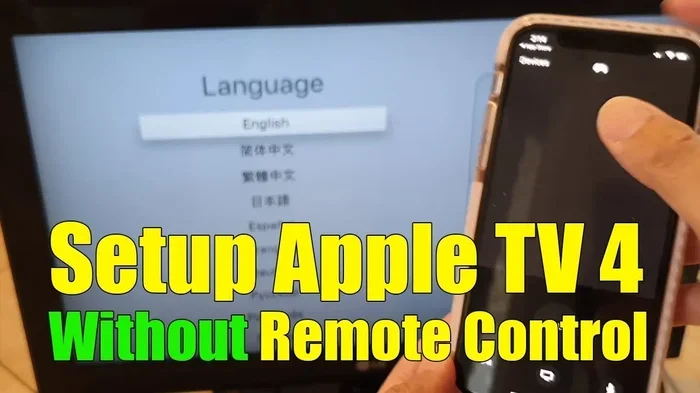
Yes, you can set up a new Apple TV without a remote. You can use your iPhone, a Bluetooth keyboard, or the Apple TV app on another device to complete the entire setup process. This guide walks you through every method so you can start streaming right away.
So you just got a shiny new Apple TV box, but the remote is nowhere to be found. Maybe it got lost in the couch cushions, or perhaps you ordered the device without one. Either way, you are probably wondering — can I set up a new Apple TV without remote? The short answer is yes. You absolutely can.
Setting up Apple TV without remote is simpler than most people think. Apple designed the device with several alternative methods so you are never completely stuck. Whether you use your iPhone, a Bluetooth keyboard, or even another Apple device, you can get your Apple TV setup running in minutes.
In this guide, we will walk you through every method step by step. You will learn how to set up Apple TV without the included Siri Remote, what tools you need, and how to troubleshoot if something goes wrong. By the end, you will be streaming your favorite shows without any hassle.
Key Takeaways
- iPhone as Remote: You can use the Control Center on your iPhone to control Apple TV during setup.
- Apple TV App: The Apple TV app on iOS or iPadOS lets you configure your device remotely.
- Bluetooth Keyboard: A compatible Bluetooth keyboard works for text entry during Apple TV setup.
- Siri Remote Alternative: Third-party universal remotes can also be used after initial setup.
- HDMI and Power Are Key: A working HDMI cable and power adapter are essential regardless of method.
- Wi-Fi Is Required: You need a stable Wi-Fi connection to complete the Apple TV configuration.
📑 Table of Contents
- Can You Actually Set Up Apple TV Without a Remote?
- What You Need Before Starting the Setup
- How to Set Up Apple TV Without Remote Using Your iPhone
- Alternative Methods to Control Apple TV Without a Remote
- Troubleshooting Common Setup Issues
- Tips for a Smooth Apple TV Setup Experience
- Common Mistakes to Avoid During Apple TV Setup
- Expert Insights on Apple TV Setup Without a Remote
- Key Takeaways
- Frequently Asked Questions
- Conclusion
Can You Actually Set Up Apple TV Without a Remote?
The good news is that Apple TV initial setup does not strictly require the physical Siri Remote. Apple built in several workarounds to make the Apple TV configuration process smooth even when you do not have the remote in hand.
Here are the main methods you can use for Apple TV remote alternative setup:
- iPhone or iPad as a remote — This is the easiest and most popular option.
- Bluetooth keyboard — Great for typing in Wi-Fi passwords quickly.
- Apple TV app on another device — Lets you control and configure from a phone or tablet.
- Universal third-party remote — Works after the initial setup is complete.
Each method has its own strengths. The iPhone approach is the most seamless because Apple designed it to work natively. A Bluetooth keyboard is helpful if you need to type long passwords or email addresses. And the Apple TV app gives you full control from a familiar interface.
Why Apple Allows Setup Without a Remote
Apple understands that remotes get lost. It happens all the time. That is why they made sure the Apple TV new device setup process is flexible. You can pair a Bluetooth device or use your phone to navigate the Apple TV home screen from the very beginning.
This design choice also makes Apple TV streaming setup more accessible. People with disabilities or those who prefer not to use the small remote can still enjoy the full experience. It is a thoughtful touch that shows Apple cares about usability.
What You Need Before Starting the Setup
Before you dive into the Apple TV setup process, make sure you have everything ready. Having the right tools saves time and prevents frustration.
Essential Items for Setup
- A new Apple TV unit — obviously, this is your starting point.
- A working HDMI cable — to connect Apple TV to your television.
- A power adapter and cable — to plug in and power on the device.
- A stable Wi-Fi network — you need internet access for the entire process.
- An iPhone or iPad — running iOS 13 or later for the best experience.
- A Bluetooth keyboard (optional) — makes text entry much faster.
Checking Your TV and HDMI Port
Make sure your television is turned on and set to the correct HDMI input. If your TV has multiple HDMI ports, note which one you are using. You will need to switch to that input after powering on the Apple TV.
Also, ensure your Wi-Fi network name and password are handy. You will need to enter them during the Apple TV Wi-Fi setup phase. If you forget your password, you can always check your router or contact your internet provider.
How to Set Up Apple TV Without Remote Using Your iPhone
This is by far the most popular method for Apple TV without Siri Remote configuration. Your iPhone becomes a virtual remote, letting you navigate menus, type text, and complete the entire setup.
Step-by-Step iPhone Setup Guide
Follow these steps carefully to set up Apple TV using your iPhone:
- Plug in your Apple TV. Connect the HDMI cable to your TV and the power adapter to the Apple TV unit. Turn on your television and switch to the correct HDMI input.
- Wait for the setup screen. Your Apple TV will display a language selection screen and a code on your TV.
- Unlock your iPhone. Make sure Bluetooth is turned on. Go to the Control Center by swiping down from the top-right corner of your screen.
- Tap the Apple TV icon. In the Control Center, you will see an Apple TV button. Tap it and select your device when it appears.
- Enter the pairing code. Type the code shown on your TV screen using your iPhone keyboard.
- Follow the on-screen prompts. Your iPhone now controls the Apple TV. Select your language, connect to Wi-Fi, and sign in with your Apple ID.
- Complete the setup. Choose your preferences, agree to terms, and let the device finish configuring. Your Apple TV home screen will appear once setup is done.
Tips for a Smooth iPhone Pairing
- Keep your iPhone close to the Apple TV during pairing. Bluetooth works best within about 10 feet.
- Make sure your iPhone is not in Low Power Mode, as this can interfere with Bluetooth connections.
- If the Control Center does not show the Apple TV icon, restart Bluetooth on your iPhone and try again.
Alternative Methods to Control Apple TV Without a Remote
The iPhone method is the most common, but it is not the only way. Let us explore other options for Apple TV remote alternative control and setup.
Using a Bluetooth Keyboard
A Bluetooth keyboard is incredibly helpful during Apple TV configuration. Typing passwords and email addresses with a remote is tedious. A keyboard makes this process much faster and more accurate.
To use a Bluetooth keyboard:
- Go to Settings on the Apple TV home screen once you have basic navigation working.
- Select Remotes and Devices, then choose Bluetooth.
- Put your keyboard in pairing mode.
- Select the keyboard from the list on your TV screen.
- Start typing! Your keyboard now works for all text input on Apple TV.
Using the Apple TV App
The Apple TV app on iOS and iPadOS can also serve as a remote. This is especially useful if you want to set up your device from across the room.
Here is how it works:
- Download the Apple TV app from the App Store if you have not already.
- Open the app and go to the Remote tab.
- Select your Apple TV from the list of available devices.
- Use the app interface to navigate and complete the setup process.
Universal Third-Party Remotes
After you complete the initial Apple TV new device setup, you can use a universal remote control. Most universal remotes support Apple TV through HDMI-CEC or infrared.
Some popular options include:
- Siri Remote replacements — Apple sells replacement remotes if you lost yours.
- Logitech Harmony remotes — These work well with Apple TV and offer extensive customization.
- Smart TV remotes — Many modern TVs can control Apple TV through HDMI-CEC.
Troubleshooting Common Setup Issues
Sometimes things do not go as planned. Here are the most common problems people face during Apple TV setup without a remote and how to fix them.
Apple TV Does Not Show Up in Control Center
If your iPhone does not detect the Apple TV, try these steps:
- Make sure both devices are on the same Wi-Fi network.
- Restart Bluetooth on your iPhone.
- Restart your Apple TV by unplugging it for 10 seconds and plugging it back in.
- Check that your iPhone is running a recent version of iOS.
Wi-Fi Connection Keeps Failing
Wi-Fi issues are common during Apple TV streaming setup. If your connection fails repeatedly:
- Double-check your Wi-Fi password. It is case-sensitive.
- Move your router closer to the Apple TV.
- Restart your router by unplugging it for 30 seconds.
- Try setting up with a Bluetooth keyboard to enter the password more accurately.
Apple TV Freezes on the Setup Screen
If your device gets stuck during Apple TV configuration, a force restart often helps:
- Unplug the power cable from the Apple TV.
- Wait 15 seconds.
- Plug it back in and wait for the setup screen to reappear.
Pairing Keeps Failing
Bluetooth pairing issues can be frustrating. To fix them:
- Turn off Bluetooth on your iPhone, wait a few seconds, and turn it back on.
- Make sure no other Bluetooth devices are interfering.
- Try using the Apple TV app method instead of Control Center.
Tips for a Smooth Apple TV Setup Experience
A little preparation goes a long way. Here are some expert tips to make your Apple TV setup as painless as possible.
Update Your iPhone Before Starting
Make sure your iPhone is running the latest version of iOS. Updates often include bug fixes for Apple TV pairing and Bluetooth connectivity. A simple software update can save you a lot of troubleshooting time.
Use a Strong Wi-Fi Signal
Place your Apple TV near your router if possible. A strong Wi-Fi signal ensures faster downloads and smoother streaming from day one. If you cannot move the router, consider using a Wi-Fi extender.
Have Your Apple ID Ready
You will need your Apple ID and password during setup. Have them written down or saved in your password manager. This prevents delays and keeps the process moving forward.
Set Up Family Sharing Early
If you plan to use Family Sharing on your Apple TV, set it up during the initial Apple TV configuration. It is much easier to do this now than to go back and configure it later.
Explore the Apple TV App Store
Once setup is complete, head to the Apple TV app store and download your favorite streaming apps. Netflix, Disney+, Hulu, and HBO Max are all available. You can also find fitness apps, games, and music services.
Common Mistakes to Avoid During Apple TV Setup
Even with a clear guide, people make mistakes. Here is what to watch out for during your Apple TV without remote setup.
- Skipping the firmware update. Always let your Apple TV install the latest software during setup. This ensures security and performance.
- Using an old HDMI cable. A damaged or outdated cable can cause display issues. Use a high-speed HDMI cable for the best picture quality.
- Forgetting to sign out of shared Apple IDs. If you are setting up a device for someone else, make sure to sign out of your Apple ID first.
- Ignoring privacy settings. Take a moment to review what data Apple TV can collect. You can adjust these in Settings after setup.
- Not testing all inputs. After setup, test different HDMI ports and audio outputs to make sure everything works correctly.
Expert Insights on Apple TV Setup Without a Remote
Many tech experts agree that Apple TV setup without the physical remote is a well-designed feature. Apple has refined this process over several generations of the device. The ability to use your iPhone as a remote is particularly praised for its simplicity and reliability.
According to Apple support documentation, the Control Center method is the recommended approach for most users. It requires no additional hardware and works seamlessly with Apple devices. The Bluetooth keyboard option is ideal for users who type frequently or have accessibility needs.
One thing experts emphasize is patience. The first-time Apple TV configuration can take 10 to 15 minutes, especially if you need to download updates. Do not rush through the prompts. Take your time, read each screen carefully, and you will have a fully functional device in no time.
Key Takeaways
- iPhone Remote Method: Using your iPhone through Control Center is the fastest way to set up Apple TV without remote.
- Bluetooth Keyboard: A wireless keyboard simplifies text entry during Apple TV configuration.
- Apple TV App: The free app on iOS and iPadOS gives you full remote control capabilities.
- Universal Remotes Work After Setup: Third-party remotes can take over once the initial setup is complete.
- Troubleshooting Is Simple: Most issues can be resolved by restarting Bluetooth, checking Wi-Fi, or power cycling the device.
- Preparation Is Key: Having your Wi-Fi password, Apple ID, and HDMI cable ready makes the process much smoother.
Frequently Asked Questions
Can I set up Apple TV with just my phone and no remote at all?
Yes, you can. Your iPhone can act as a full remote through the Control Center or the Apple TV app. You do not need the physical Siri Remote at all to complete the entire Apple TV setup process. Just make sure Bluetooth is enabled and both devices are on the same Wi-Fi network.
Do I need an iPhone to set up Apple TV without a remote?
Not necessarily. While an iPhone is the easiest option, you can also use an iPad or even a friend’s Apple device. The key requirement is a device that supports the Control Center Apple TV feature. A Bluetooth keyboard can supplement your setup if you need to type passwords.
Can I use a universal remote to set up Apple TV from scratch?
Most universal remotes cannot navigate the initial setup screen because they rely on infrared signals. The first-time Apple TV configuration requires Bluetooth pairing or the Apple TV app. However, once setup is complete, a universal remote can handle day-to-day use.
What if I lost my Apple TV remote and need to set up a new device?
You have several options. Use your iPhone as a remote, connect a Bluetooth keyboard, or download the Apple TV app on another iOS device. You can also purchase a replacement Siri Remote directly from Apple if needed. None of these options prevent you from completing the Apple TV setup.
Does setting up Apple TV without a remote limit any features?
Not at all. Once you complete the Apple TV configuration, all features are fully available. You can download apps from the Apple TV app store, use AirPlay, access Apple Fitness+, and enjoy 4K streaming. The remote is just a convenience, not a requirement.
How long does it take to set up Apple TV without a remote?
Most people complete the process in 10 to 15 minutes. If you need to download software updates or enter a lot of text, it might take a little longer. Using a Bluetooth keyboard can speed up the text entry portion significantly.
Conclusion
Can I set up a new Apple TV without remote? Absolutely. As you have seen, there are multiple reliable methods to complete your Apple TV setup without ever touching the physical Siri Remote. Whether you use your iPhone, a Bluetooth keyboard, or the Apple TV app, the process is straightforward and well-supported by Apple.
The key is preparation. Have your Wi-Fi password ready, keep your iPhone nearby, and follow the steps in this guide. If you run into any issues, the troubleshooting section covers the most common problems and their solutions.
Now that you know how easy it is to set up Apple TV without remote, go ahead and get started. Plug in your device, grab your iPhone, and you will be streaming in no time. Enjoy your new Apple TV and all the amazing content it brings to your living room.