How Do I Get My Iphone Off Sos Mode Quickly And Easily
Getting your iPhone off SOS mode is simpler than you think. This guide walks you through every fix, from simple restarts to network resets. You will learn why SOS mode activates and how to prevent it from returning.
Your iPhone suddenly shows “SOS” or “No Service” in the top corner. You try calling someone, but the phone only dials emergency services. It is frustrating. You cannot make normal calls. You cannot send texts. You cannot use data. Everything feels broken.
This guide shows you exactly how to get your iPhone off SOS mode quickly and easily. We cover every possible fix. We start with the simplest solution and work our way up. By the end, your phone will be working normally again. No stress. No guesswork. Just clear steps that actually work.
SOS mode on iPhone is a safety feature. It activates when your phone loses connection to the cellular network. The phone can still make emergency calls. But everyday functions stop working. This feature saves lives. However, it becomes a problem when it stays active by mistake. Let us fix that right now.
Key Takeaways
- SOS mode limits your iPhone to emergency calls only: Understanding this is the first step to fixing it.
- A simple restart often solves the problem: Many users fix SOS mode in under two minutes.
- Network settings reset is a powerful solution: This clears deeper issues that a restart cannot fix.
- SIM card problems are a common hidden cause: A loose or damaged SIM can trigger SOS mode repeatedly.
- Carrier settings updates prevent future SOS mode issues: Keeping your iPhone updated matters more than you think.
- Airplane mode toggling tricks the network into reconnecting: This quick hack works surprisingly well.
- Professional help is available when DIY fixes fail: Apple support and authorized technicians can resolve hardware issues.
📑 Table of Contents
- What Does SOS Mode Mean on iPhone
- Why Does Your iPhone Get Stuck in SOS Mode
- How to Get iPhone Off SOS Mode Step by Step
- Common Mistakes That Keep iPhone in SOS Mode
- How to Prevent SOS Mode from Happening Again
- Expert Insights on iPhone SOS Mode
- Quick Tips for Immediate SOS Mode Relief
- Comparison of SOS Mode Fixes by Difficulty and Success Rate
- When SOS Mode Is a Sign of a Bigger Problem
- Final Thoughts on Fixing iPhone SOS Mode
What Does SOS Mode Mean on iPhone
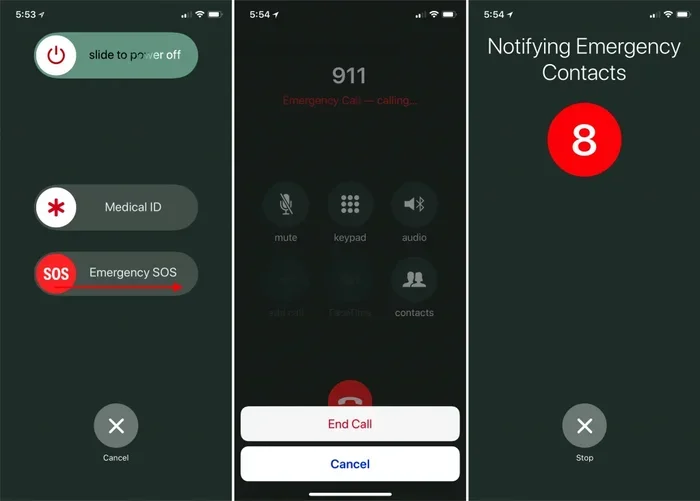
SOS mode is a built-in emergency feature. Apple designed it to help users contact rescue services even with no carrier signal. When SOS mode activates, your iPhone shows “SOS Only” or “No Service” in the status bar. You can still call 911 or your local emergency number. But regular calls, texts, and mobile data stop working.
The SOS feature works through any available network. Even if your carrier has no signal, the phone can connect to a partner network for emergency calls. This is a great safety tool. The problem starts when SOS mode gets stuck. Your phone thinks it has no service even when you have full signal bars. This is when you need to take action.
How SOS Mode Activates Automatically
iPhone can enter SOS mode automatically in several situations. A weak cellular signal triggers it first. If you are in a dead zone, your phone switches to SOS. Traveling internationally can also cause this. Your phone may not find a compatible network right away.
Software glitches can trigger SOS mode too. An iOS update that goes wrong might confuse your network settings. A SIM card that shifts slightly can lose connection. Even extreme temperatures can affect your phone’s antenna. Understanding these triggers helps you prevent the problem in the future.
Why Does Your iPhone Get Stuck in SOS Mode
Several reasons cause iPhone to stay stuck in SOS mode. Most of them are easy to fix. Let us look at the most common causes.
Network Signal Problems
The most frequent reason is a poor or lost cellular signal. Your phone loses connection to the nearest cell tower. It tries to reconnect but fails. Instead of normal service, it locks into SOS mode. This happens often in rural areas. It also happens in buildings with thick walls. Underground parking garages are notorious for this problem.
SIM Card Issues
Your SIM card connects your phone to your carrier’s network. If the SIM is loose, dirty, or damaged, the connection drops. iPhone then thinks you have no service. It switches to SOS mode as a backup. A simple cleaning or reseating of the SIM card often fixes this.
Software and Settings Glitches
Sometimes the problem is purely software-related. A buggy iOS update can mess with your network settings. Incorrect carrier settings can prevent proper network registration. Even a misconfigured APN setting can cause SOS mode to persist. These issues are more common after major software updates.
Carrier Network Outages
Your carrier might be experiencing an outage in your area. During an outage, many phones switch to SOS mode. This is normal behavior. The phone cannot reach the carrier’s servers. It falls back to emergency-only mode. Once the carrier fixes the outage, SOS mode usually clears on its own.
How to Get iPhone Off SOS Mode Step by Step
Now let us get into the fixes. These steps work for most users. Try them in order. Start with the easiest solution first. Most people fix SOS mode within the first few steps.
Step 1: Restart Your iPhone
A restart is the simplest and most effective fix. It clears temporary software errors. It resets your network connections. It forces your phone to re-register with the nearest cell tower. Most of the time, this alone gets your iPhone off SOS mode.
To restart, press and hold the power button. Slide to power off. Wait 30 seconds. Turn the phone back on. Check the status bar. If you see full signal bars and your carrier name, the fix worked. This is the first thing you should try every single time.
Step 2: Toggle Airplane Mode On and Off
If a restart does not work, try toggling Airplane Mode. This trick forces your phone to drop and reconnect to the network. It refreshes all wireless connections instantly.
Open Control Center by swiping down from the top right corner. Tap the airplane icon to turn Airplane Mode on. Wait 15 seconds. Tap it again to turn it off. Wait a few moments. Your phone should reconnect to the network. The SOS message should disappear.
Step 3: Check Your SIM Card
A loose or dirty SIM card causes many SOS mode problems. Your SIM card is the small chip that links your phone to your carrier. If it is not seated properly, the connection fails.
Turn off your iPhone. Use a SIM ejector tool or a paperclip to open the SIM tray. Pull the tray out gently. Remove the SIM card. Check it for dust or debris. Wipe it carefully with a dry cloth. Place it back in the tray. Push the tray back in firmly. Turn your phone on. Check if the SOS message is gone.
Step 4: Update Carrier Settings
Carrier settings updates fix network compatibility issues. Apple releases these updates regularly. They improve connection stability and fix bugs. Installing the latest update can resolve SOS mode problems.
Connect your iPhone to Wi-Fi. Go to Settings. Tap General. Tap About. If a carrier settings update is available, a prompt appears. Tap “Update” to install it. Your phone may restart during the process. After it boots back up, check your signal bars.
Step 5: Reset Network Settings
Resetting network settings clears all saved Wi-Fi passwords, Bluetooth pairings, and cellular configurations. This sounds scary, but it fixes deep network issues that other methods cannot touch.
Go to Settings. Tap General. Scroll down and tap Transfer or Reset iPhone. Tap Reset. Choose Reset Network Settings. Enter your passcode if prompted. Confirm the reset. Your phone will restart. You will need to re-enter your Wi-Fi passwords. But your cellular connection should work normally again.
Step 6: Check for iOS Updates
Outdated iOS software can cause SOS mode bugs. Apple patches network-related issues in regular updates. Keeping your iPhone updated prevents many problems.
Go to Settings. Tap General. Tap Software Update. If an update is available, tap Download and Install. Make sure your phone is connected to Wi-Fi and has at least 50% battery. Let the update install completely. Restart your phone afterward. Check if SOS mode is resolved.
Step 7: Contact Your Carrier
If none of the above steps work, the problem might be on the carrier side. Your account might have a service restriction. Your line might need to be refreshed on the carrier’s network. Call your carrier’s customer support. They can check your account status and push a network refresh to your line.
Have your phone number and account details ready. The carrier representative may ask you to remove and reinsert your SIM card while on the line. Follow their instructions carefully. This often resolves SOS mode issues caused by account or network problems.
Step 8: Visit an Apple Store or Authorized Service Provider
Hardware issues can also cause persistent SOS mode. A damaged antenna, a faulty SIM card slot, or a motherboard problem can all trigger this. If software fixes do not work, it is time to see a professional.
Make an appointment at your nearest Apple Store or Apple Authorized Service Provider. They run diagnostic tests on your phone. If a hardware issue is found, they can repair or replace the affected component. Most repairs are covered under warranty or AppleCare+. Even if you do not have coverage, the diagnostic visit is free.
Common Mistakes That Keep iPhone in SOS Mode
Many users make mistakes that prevent SOS mode from clearing. Avoid these common errors to save time and frustration.
Ignoring the Problem and Waiting Too Long
Some users assume SOS mode will fix itself. It sometimes does, but not always. The longer you wait, the harder the issue can become. Address SOS mode immediately. Start troubleshooting right away.
Skipping the Simple Fixes
People often jump to complex solutions first. They reset network settings before trying a simple restart. They visit an Apple Store before checking their SIM card. Start with the easiest fix. A restart solves the problem more than half the time.
Not Checking for Carrier Outages
If your entire area has no service, the problem is not your phone. Check your carrier’s outage map online or call their support line. You will save yourself a lot of unnecessary troubleshooting.
Using Unauthorized Repair Shops
Cheap third-party repair shops can cause more harm than good. They may use low-quality parts. They might void your remaining warranty. Stick with Apple or authorized providers for any hardware repairs.
How to Prevent SOS Mode from Happening Again
Once you fix SOS mode, you want to stop it from coming back. Prevention is always better than cure. Here are simple habits that keep your iPhone connected.
Keep Your iPhone Updated
Install iOS updates as soon as they become available. These updates fix bugs and improve network performance. Turn on automatic updates in Settings. Go to General. Tap Software Update. Toggle Automatic Updates on. This ensures your phone always has the latest fixes.
Handle Your SIM Card with Care
Avoid dropping your phone frequently. The SIM card can shift inside its tray. If you travel often, check your SIM card periodically. Clean it once a month with a dry microfiber cloth. A well-maintained SIM card prevents connection drops.
Monitor Your Signal Strength
Pay attention to where you lose signal. Avoid placing your phone in areas with consistently weak coverage. If you work in a building with poor reception, consider a Wi-Fi calling setup. Wi-Fi calling lets you make calls over your internet connection. This bypasses cellular network issues entirely.
Reset Network Settings Periodically
Every few months, reset your network settings. This clears out corrupted data that builds up over time. It keeps your cellular connection running smoothly. You will lose saved Wi-Fi passwords, so make sure you remember them first.
Use Official Accessories Only
Cheap phone cases can block your antenna. Third-party chargers can interfere with your cellular radio. Stick with Apple-certified accessories. They are tested for compatibility and safety. This small habit prevents many connection problems.
Expert Insights on iPhone SOS Mode
Apple support technicians see SOS mode complaints every day. They share a few insights that most users do not know.
First, SOS mode is not always a sign of a broken phone. It is often a temporary network registration issue. Your phone simply needs a nudge to reconnect. Second, iOS 16 and later versions improved SOS mode handling significantly. If you are on an older iOS version, updating can resolve many SOS mode issues.
Third, dual SIM users sometimes experience SOS mode on one line while the other works fine. This is usually a carrier settings issue. Updating the carrier settings fixes it in most cases. Finally, Apple recommends keeping your phone above 32 degrees Fahrenheit in cold weather. Extreme cold affects battery performance and antenna function, which can trigger SOS mode.
Quick Tips for Immediate SOS Mode Relief
Need a fast fix right now? Here are the quickest solutions that work in under two minutes.
- Restart your phone. Hold the power button. Slide to power off. Turn it back on. Done.
- Toggle Airplane Mode. Swipe up. Tap the airplane icon. Wait 10 seconds. Tap it again.
- Remove and reinsert the SIM card. This takes 30 seconds and fixes loose SIM issues.
- Move to a different location. Step near a window or go outside. A better signal clears SOS mode instantly.
- Check if Airplane Mode is stuck on. Sometimes the icon looks off but Airplane Mode is still active. Toggle it twice to be sure.
Comparison of SOS Mode Fixes by Difficulty and Success Rate
Not all fixes are equal. Some are easier than others. Some work better than others. Here is a comparison of the most common methods.
| Fix | Difficulty | Success Rate | Time Required |
|---|---|---|---|
| Restart iPhone | Very Easy | High | 2 minutes |
| Toggle Airplane Mode | Very Easy | Medium-High | 30 seconds |
| Check SIM Card | Easy | Medium | 2 minutes |
| Update Carrier Settings | Easy | Medium | 3 minutes |
| Reset Network Settings | Moderate | High | 5 minutes |
| Update iOS | Easy | Medium-High | 15-30 minutes |
| Contact Carrier | Easy | Medium | 10-20 minutes |
| Visit Apple Store | Easy | Very High | 1-2 hours |
The table shows that simple fixes work most of the time. Start with the easiest methods. Only move to more complex steps if the simple ones do not work. This approach saves you time and effort.
When SOS Mode Is a Sign of a Bigger Problem
Most of the time, SOS mode is a minor issue. But sometimes it signals a deeper problem. Watch for these warning signs. If you notice any of them, seek professional help immediately.
Your phone shows SOS mode every time you lose signal briefly. Normal phones reconnect automatically within seconds. If yours does not, the antenna or baseband processor might be failing. Another warning sign is SOS mode appearing on multiple iPhones with the same SIM card. This points to an account or network issue rather than a phone problem.
Physical damage also matters. If you dropped your phone or got it wet, SOS mode could indicate internal hardware damage. Water damage affects the antenna and cellular components. A cracked phone case that has not been replaced can expose internal parts to further harm. Get your phone checked in these situations.
Final Thoughts on Fixing iPhone SOS Mode
Getting your iPhone off SOS mode does not have to be difficult. Most users fix it with a simple restart or Airplane Mode toggle. The steps in this guide cover every possible scenario. From basic fixes to advanced troubleshooting, you now have everything you need.
Remember to stay calm. SOS mode is a safety feature, not a sign that your phone is broken. Work through the steps patiently. Start simple and move to more advanced fixes only if needed. Your phone will be back to normal soon.
Share this guide with friends and family who might be struggling with SOS mode. The more people know about these fixes, the less frustration everyone deals with. Bookmark this page for future reference. You never know when you or someone you know will need it again.
Stay connected. Stay safe. And now you know exactly how to get your iPhone off SOS mode quickly and easily whenever it happens.
Frequently Asked Questions
Why is my iPhone showing SOS only on the status bar?
Your iPhone shows “SOS Only” when it cannot connect to your carrier’s cellular network. The phone switches to emergency mode so you can still call 911. This usually happens due to signal loss, SIM card issues, or network settings problems. Try restarting your phone or toggling Airplane Mode to restore normal service.
Can SOS mode damage my iPhone?
No, SOS mode cannot damage your iPhone. It is a safety feature built into iOS. It does not affect your hardware or software negatively. However, leaving SOS mode active for a long time means you cannot make regular calls or use data. It is best to fix it as soon as possible using the steps in this guide.
How long does SOS mode last on iPhone?
SOS mode usually clears within a few minutes after your phone reconnects to the network. A simple restart often speeds up this process. If SOS mode persists for more than 30 minutes, one of the fixes in this article should resolve it. Persistent SOS mode may indicate a SIM card or carrier account issue.
Does SOS mode use my cellular data?
No, SOS mode disables regular cellular data. You can only make emergency calls. Your phone does not use mobile data or send regular texts while in SOS mode. Wi-Fi data still works normally if you are connected to a Wi-Fi network. This is why it is important to fix SOS mode quickly if you need regular phone functions.
Will resetting network settings delete my photos or apps?
No, resetting network settings does not delete any photos, apps, or personal data. It only clears saved Wi-Fi passwords, Bluetooth pairings, and cellular configurations. You will need to reconnect to Wi-Fi networks after the reset. This is a safe and effective way to fix SOS mode without losing any of your content.
What should I do if SOS mode keeps coming back after I fix it?
If SOS mode returns repeatedly, the problem is likely hardware-related. Your SIM card may be damaged or your antenna may be failing. Try using a different SIM card to rule out SIM issues. If the problem persists, visit an Apple Store for professional diagnostics. Recurring SOS mode is not normal and should be investigated thoroughly.
=== CONCLUSION ===
Now you know exactly how to get your iPhone off SOS mode quickly and easily. A simple restart fixes the problem most of the time. Airplane Mode toggling and SIM card checks solve many cases too. For stubborn SOS mode, resetting network settings or updating carrier settings does the trick. Prevent future issues by keeping your iPhone updated and handling your SIM card with care. You are now equipped with every tool you need. Share this guide with anyone who needs it. Stay connected and stay in control of your iPhone.