How Do I Connect My Phone To My Computer Directly
Want to know how do I connect my phone to my computer directly? This guide covers every method you need, from USB cables to wireless tools. You will learn step-by-step instructions for USB, Bluetooth, Wi-Fi Direct, and the best transfer apps. Whether you use Android or iPhone, these tips will help you sync phone and computer fast and easily.
Have you ever sat down at your desk and needed to move a photo, a document, or a video from your phone to your computer? It happens all the time. The good news is that connecting your phone to your computer directly is easier than most people think. You do not need to be a tech expert to get it done.
In this guide, we will walk you through every way to connect phone and computer. We will cover USB cable connection, Bluetooth pairing, Wi-Fi direct, and the best apps for wireless file transfer. By the end, you will know exactly which method fits your needs. Let us get started.
Key Takeaways
- USB cable is the fastest and most reliable way to connect phone and computer for data transfer and charging.
- Bluetooth pairing works well for small files and wireless file transfer without cables.
- Wi-Fi Direct and apps like AirDroid offer cable-free transfer with great speed and convenience.
- Cross-platform transfer is possible between Android, iPhone, Windows, and Mac.
- Avoid common mistakes like using old cables or ignoring driver updates to keep connections smooth.
- Expert tips like updating USB drivers and enabling developer options can solve most connection issues.
📑 Table of Contents
- Why You Need to Connect Your Phone to Your Computer Directly
- USB Cable Connection — The Most Reliable Method
- Wireless Ways to Connect Phone and Computer
- Best Apps for Direct Phone-to-Computer Transfer
- Comparison: USB vs Bluetooth vs Wi-Fi Direct vs Wireless Apps
- Common Mistakes When Connecting Phone to Computer
- Expert Tips for Seamless Device Connection
- Quick Tips for Every Connection Method
- Conclusion
Why You Need to Connect Your Phone to Your Computer Directly
Your phone holds so much important stuff. Photos, contacts, messages, work files, and notes. Sometimes you need to move that data to your computer. Maybe you want to free up space on your phone. Or perhaps you need to edit a document on a bigger screen. Whatever the reason, a direct connection makes it simple.
When you sync phone and computer, you get backup, speed, and control. You do not always need the internet or cloud storage. A direct link means faster data transfer between devices and more privacy. No one else sees your files when they travel straight from your phone to your PC.
There are many ways to do this. Some use a cable. Others go wirelessly. Each method has its own strengths. Let us look at them all so you can pick the best one for your situation.
USB Cable Connection — The Most Reliable Method
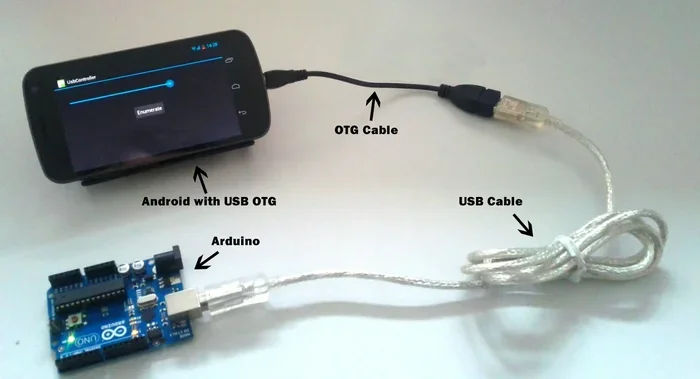
The USB cable connection is still the gold standard. It is fast, stable, and works with almost every device. If you want to transfer large files or back up your whole phone, this is the way to go.
Setting Up a USB Cable Connection
Here is how to get started with a USB cable connection in just a few steps:
- Grab a USB cable that fits your phone. Most modern phones use USB-C. Older Android devices may use micro-USB. iPhones use Lightning.
- Plug one end into your phone and the other into your computer.
- Unlock your phone and look for a notification that says “USB connected” or “Charging this device via USB.”
- Tap on the notification and select “File Transfer” or “MTP” mode.
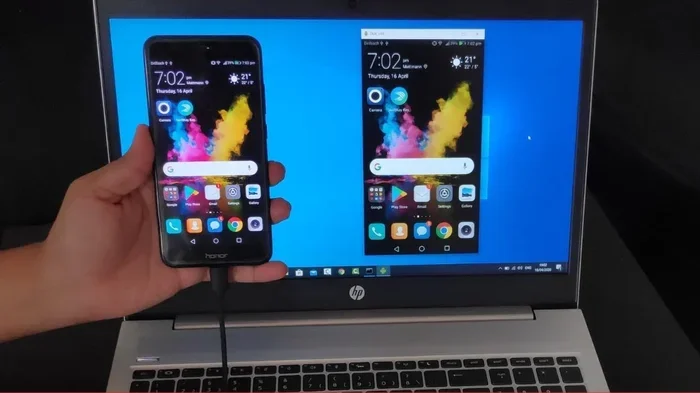
- Your computer should now recognize your phone. Open “This PC” on Windows or “Finder” on Mac to see your phone’s files.
That is it. You are now connected. You can drag and drop files between your phone and computer just like any other folder.
USB Tethering and Data Transfer
USB tethering is a handy feature. It lets you share your phone’s internet connection with your computer through the cable. This is great when you do not have Wi-Fi available. To use USB tethering, go to your phone’s Settings, then Network or Connections, and toggle on USB tethering.
One big benefit of USB cable connection is speed. You can transfer hundreds of gigabytes in minutes. No other wireless method comes close for large files. Just make sure you use a good-quality cable. Cheap cables can cause connection drops and slow transfer speeds.
Wireless Ways to Connect Phone and Computer
Not everyone wants to deal with cables. Wireless methods give you freedom and flexibility. They work great for everyday file sharing between phone and computer. Let us look at the main options.
Bluetooth Pairing Between Devices
Bluetooth pairing is one of the oldest wireless methods. It is built into almost every phone and computer. You can use it for phone to PC transfer of small files like documents, photos, and music.
Here is how to set up Bluetooth pairing:
- Turn on Bluetooth on both your phone and computer.
- On your computer, go to Bluetooth settings and click “Add a new device.”
- Select your phone from the list.
- Check the pairing code on both devices and confirm.
- Once paired, you can send files back and forth.
Bluetooth is easy and does not need any extra software. But it is slow compared to USB or Wi-Fi. It works best for small files. Do not try to move a 5GB video over Bluetooth. It will take forever.
Wi-Fi Direct for Faster Wireless Transfer
Wi-Fi direct is a big step up from Bluetooth. It creates a direct wireless connection between your phone and computer without needing a router. The speeds are much faster, and you can handle bigger files.
Many Android phones support Wi-Fi direct. To use it:
- Go to Settings and look for Wi-Fi Direct or Share via Wi-Fi.
- Turn it on and search for nearby devices.
- Select your computer from the list.
- Once connected, you can share files at high speed.
Wi-Fi direct is perfect for cable-free transfer. It gives you the speed of a wired connection without the cable. Some computers also support Wi-Fi Direct natively, especially newer Windows laptops.
Using NFC for Quick Device Pairing
NFC stands for Near Field Communication. It lets you pair devices by just tapping them together. Some Android phones have NFC built in. You can use it for quick NFC pairing with compatible computers or accessories.
To use NFC pairing, make sure NFC is turned on in your phone settings. Then simply tap your phone against the NFC tag or compatible device. The connection happens instantly. It is a cool feature, though not as common as Bluetooth or Wi-Fi direct.
Best Apps for Direct Phone-to-Computer Transfer
Apps make wireless file sharing between phone and computer even easier. They add features like phone mirroring, remote access, and cross-platform transfer. Here are the best options.
AirDroid
AirDroid is one of the most popular apps for Android to PC connection. It lets you see your phone screen on your computer, send files, read messages, and even manage apps — all wirelessly. You just install AirDroid on your phone and visit the web address on your computer. It works over your local Wi-Fi network.
AirDroid supports cross-platform transfer too. You can move files between Android and iPhone, or between any operating system. The free version has good features, and the paid plan adds even more.
Snapdrop
Snapdrop is a simple, browser-based tool. You do not need to install anything. Just open snapdrop.net on both your phone and computer while they are on the same Wi-Fi network. You will see each other’s devices on screen. Click on the other device and send files instantly.
Snapdrop is great for quick file sharing between phone and computer. It works on Android, iPhone, Windows, and Mac. It is free and does not require any sign-up.
KDE Connect
KDE Connect is an open-source tool that works on Linux, Windows, and Android. It offers seamless smartphone connectivity with features like file sharing, notification syncing, and media control. It is a great option if you want a free, ad-free experience. The setup is simple — just install the app on your phone and the software on your computer, and they will find each other automatically.
Windows Phone Link
If you use a Windows computer, the Phone Link app (formerly Your Phone) is built right in. It works with both Android and iPhone. You can see your phone’s photos, messages, and notifications right on your PC. It is a great way to keep your devices connected without installing extra software.
For iPhone users, Apple offers AirDrop for Mac users. It works instantly between iPhone and Mac over Wi-Fi and Bluetooth. Just make sure both devices are signed in with the same Apple ID.
Comparison: USB vs Bluetooth vs Wi-Fi Direct vs Wireless Apps
Not sure which method to choose? Here is a quick comparison to help you decide.
| Method | Speed | Cable Needed | Best For | Setup Difficulty |
|---|---|---|---|---|
| USB Cable Connection | Very Fast | Yes | Large files, backups | Easy |
| Bluetooth Pairing | Slow | No | Small files, quick shares | Very Easy |
| Wi-Fi Direct | Fast | No | Medium to large files | Easy |
| Wireless Apps (AirDroid, Snapdrop) | Medium to Fast | No | Ongoing sync, remote access | Easy |
As you can see, each method has its place. USB is best for big jobs. Bluetooth is fine for quick small transfers. Wi-Fi Direct and apps give you a nice balance of speed and convenience.
Common Mistakes When Connecting Phone to Computer
Even simple tasks can go wrong if you skip a step. Here are the most common mistakes people make when trying to connect phone and computer:
- Using a low-quality or damaged USB cable. This is the number one cause of connection problems. A bad cable will not transfer data properly, even if it charges your phone.
- Forgetting to select File Transfer mode. When you plug in your phone, it often defaults to charging mode. You need to manually switch it to MTP or File Transfer.
- Ignoring driver updates. Old or missing USB drivers on your computer can prevent your phone from being recognized. Keep your drivers up to date.
- Not updating your phone’s software. Outdated phone software can cause compatibility issues with your computer.
- Trying to transfer too many files at once. This can overwhelm the connection and cause errors. Transfer files in smaller batches for better results.
- Skipping security checks. Always make sure you trust the computer you are connecting to. Public computers can be a security risk.
Avoiding these simple mistakes will save you a lot of frustration. Most connection issues come down to cables, settings, or outdated software.
Expert Tips for Seamless Device Connection
Here are some expert insights to make your mobile device connection smoother than ever:
- Keep your USB drivers updated. On Windows, go to Device Manager and check for updates under “Portable Devices.” This fixes most recognition issues.
- Enable Developer Options on Android. Go to Settings, tap Build Number seven times, and you unlock advanced USB debugging and connection options.
- Use cloud sync as a backup method. Services like Google Drive, OneDrive, or iCloud can keep your files synced across devices automatically.
- Restart both devices before troubleshooting. A simple restart fixes more connection problems than any other trick.
- Try different USB ports. Some ports on your computer may not support data transfer. Use a rear port on a desktop for best results.
- Use wireless file transfer for convenience. If you transfer files often, set up a wireless method like AirDroid or Snapdrop so you never need to plug in.
These tips come from years of helping people solve smartphone connectivity issues. They work across all devices and operating systems.
Quick Tips for Every Connection Method
- USB: Always use the original cable or a certified replacement. Cheap cables cause 80% of USB connection problems.
- Bluetooth: Keep both devices within 30 feet of each other for the best signal.
- Wi-Fi Direct: Make sure both devices are on the same Wi-Fi network for the fastest speeds.
- Apps: Keep your transfer apps updated to get the latest features and security patches.
- General: Close unnecessary apps on both devices before starting a transfer. This frees up resources and speeds things up.
Conclusion
Now you know how do I connect my phone to my computer directly. You have USB cable options, Bluetooth pairing, Wi-Fi direct, and the best apps for wireless file transfer. Each method works well for different situations. Use USB for big jobs and speed. Use Bluetooth for quick small shares. Use Wi-Fi Direct or apps for ongoing, cable-free transfer.
The key is to pick the method that fits your needs. Do not let connection problems stop you. Most issues are easy to fix with a new cable, a driver update, or a simple restart. Keep your devices updated and your cables in good shape, and you will have smooth smartphone connectivity every time.
Start today. Pick one method and try it. Once you see how easy it is, you will wonder why you did not do it sooner. Your phone and computer working together makes life simpler, faster, and more organized.
Frequently Asked Questions
Can I connect my phone to my computer without a cable?
Yes, you can connect phone and computer wirelessly using Bluetooth, Wi-Fi Direct, or apps like AirDroid and Snapdrop. These methods let you do wireless file transfer without any cables. Bluetooth is the easiest to set up, while Wi-Fi Direct offers faster speeds for bigger files.
What is the fastest way to transfer files between phone and computer?
A USB cable connection is the fastest method for data transfer between devices. It can handle large files in seconds. If you want wireless, Wi-Fi Direct is the next best option. Apps like AirDroid also offer good speeds over your local Wi-Fi network.
Is it safe to connect my phone to a public computer?
It can be risky. Public computers may have malware or keyloggers. If you must connect, use a USB cable and select “Charge Only” mode instead of File Transfer. Avoid entering passwords or accessing sensitive accounts on public machines. Always use your own cable and lock your phone screen.
Can I connect an iPhone to a Windows PC?
Yes, you can connect iPhone to Windows PC using a USB cable. You may need to install iTunes or the Apple Devices app for full functionality. For wireless sync, you can use iCloud or third-party apps like AirDroid. Windows also supports iPhone connection through the Phone Link app for basic features.
Why won’t my phone show up on my computer?
This is usually caused by a faulty cable, wrong USB mode, or outdated drivers. Try a different cable first. Then make sure your phone is set to File Transfer or MTP mode. On Windows, check Device Manager for driver issues. Restarting both devices often fixes the problem too.
Do I need special software to connect my phone to my computer?
For USB connections, you usually do not need special software. Windows and Mac recognize phones automatically. For wireless methods, apps like AirDroid, Snapdrop, or KDE Connect make the process much easier. These tools are free and add features like phone mirroring, remote access, and cross-platform transfer.