Create Line Graph in Excel and Word With This Simple Guide
Creating a line graph in Excel and Word is simpler than most people think. This guide walks you through every step, from preparing your data to customizing the final chart. You will learn quick tips, avoid common mistakes, and build professional-looking graphs in minutes.
Have you ever stared at a blank spreadsheet and thought, “I need to show this data, but I have no idea how”? You are not alone. Many people feel intimidated when they need to create a line graph in Excel and Word. But here is the truth — it is way easier than it looks. Once you see how simple it is, you will wonder why you ever worried about it.
This guide will take you through the entire process. You will learn how to set up your data, insert a chart, and make it look professional. We will cover both Excel and Word so you can use these skills anywhere. By the end, you will be able to build a line graph in Excel Word without breaking a sweat.
Let us be real for a second. Charts and graphs can feel overwhelming. There are so many options, buttons, and settings. But the basics are really straightforward. You just need someone to walk you through it. That is exactly what this article does. We keep things simple, practical, and to the point. No fluff. No confusing jargon. Just clear steps that work.
Key Takeaways
- Step-by-step process: Follow our clear instructions to create line graph Excel Word charts with ease.
- Data preparation matters: Properly formatted data makes chart creation faster and more accurate.
- Customization options: Learn to change colors, styles, labels, and axis settings for polished results.
- Common mistakes to avoid: Skip the pitfalls that ruin otherwise great line graphs.
- Works in both Excel and Word: Use the same skills whether you are building charts in a spreadsheet or a document.
- Beginner-friendly: No advanced skills needed — anyone can follow this guide.
📑 Table of Contents
- What Is a Line Graph and Why Do You Need One?
- How to Create Line Graph in Excel
- How to Create Line Graph in Word
- Comparing Line Graph Options in Excel vs Word
- Quick Tips for Better Line Graphs
- Common Mistakes to Avoid When Creating Line Graphs
- Expert Insights on Data Visualization
- How to Create a Line Graph With Multiple Data Series
- Key Takeaways
What Is a Line Graph and Why Do You Need One?
A line graph is a chart that shows information as a series of data points connected by straight lines. It is one of the most popular ways to display data over time. Think about tracking sales, temperature changes, or website traffic. A line graph makes trends easy to spot at a glance.
Here is why line graphs are so useful:
- They show trends over time. You can see if numbers are going up, down, or staying flat.
- They are easy to read. Even people with no data background understand them quickly.
- They work in reports and presentations. Whether it is an Excel sheet or a Word document, line graphs fit right in.
- They support multiple data series. You can compare two or more sets of data on the same chart.
When you create a line graph in Excel Word, you are giving your data a visual voice. Numbers alone can be hard to interpret. But a well-designed chart tells a story instantly. That is the real power of a good line graph.
How to Create Line Graph in Excel
Excel is the go-to tool for building charts. It gives you full control over your data and your graph design. Let us walk through the process step by step.
Step 1: Prepare Your Data
Before you insert anything, organize your data properly. Good preparation is the secret to a smooth experience. Here is what to do:
- Open a new or existing Excel workbook.
- Put your labels in the first row. For example, use “Month” in cell A1 and “Sales” in cell B1.
- Enter your data in the rows below each label.
- Make sure there are no blank rows in the middle of your data.
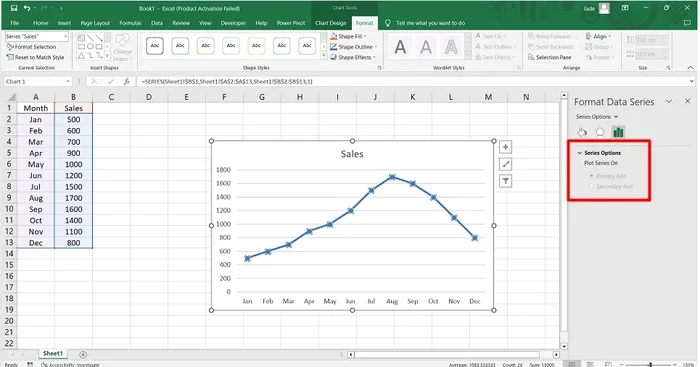
For example, if you are tracking monthly sales, your spreadsheet might look like this:
- Column A: January, February, March, April, May
- Column B: 1200, 1500, 1800, 1600, 2100
Clean data leads to clean charts. Take a few extra minutes to double-check your entries before moving on.
Step 2: Select Your Data
Click and drag to highlight all the data you want to include in your chart. Make sure you select the headers too. Excel uses these labels to build the legend and axis titles automatically. If you skip the headers, you will need to add labels manually later.
Step 3: Insert the Line Graph
Now for the fun part. Follow these steps:
- Go to the Insert tab on the Excel ribbon.
- Click on the Charts group.
- Select the Line Chart icon.
- Choose the line graph style you prefer. A simple 2-D line chart works great for most situations.
Excel will instantly generate your chart on the spreadsheet. You will see your data points connected by lines. It might look basic right now, but we will fix that in the next steps.
Step 4: Customize Your Chart
A default chart gets the job done, but a customized chart looks professional. Here is how to make yours stand out:
- Change the chart title: Click on the title text and type something descriptive.
- Adjust colors: Right-click on a line and pick “Format Data Series.” Choose colors that match your brand or report theme.
- Add data labels: Go to the “Chart Elements” button (the plus icon) and check “Data Labels.”
- Modify axis titles: Click the plus icon again and add axis titles for clarity.
- Change the line style: Make lines thicker or dashed for better visibility.
These small changes make a big difference. Your chart goes from looking like a default Excel output to looking like something you would present in a boardroom.
How to Create Line Graph in Word
Many people do not realize that Word has built-in chart tools. You do not need Excel open to build a graph. Word lets you create charts directly inside your document. Here is how to create a line graph in Word from scratch.
Step 1: Place Your Cursor
Open your Word document and click where you want the chart to appear. The chart will be inserted right at that spot in the text. You can move it later by dragging it to a new position.
Step 2: Insert a Chart
Follow these steps carefully:
- Go to the Insert tab on the Word ribbon.
- Click on Chart in the Illustrations group.
- A dialog box will appear showing different chart types.
- Select Line from the left sidebar.
- Pick a line chart style and click OK.
Word will insert the chart and open a small Excel window behind it. This is where you enter or paste your data. It works just like a regular Excel spreadsheet, but it is embedded inside your document.
Step 3: Enter Your Data
The Excel window that opens has a simple grid. Replace the sample data with your own values. Here are some quick tips:
- Keep it simple. Only enter the data you need for your graph.
- Use clear labels. Column A should contain your categories (like months or years), and Column B should hold the values.
- Close the Excel window when you are done. The chart in your Word document will update automatically.
Step 4: Format the Chart in Word
Once the chart is in your document, you can format it just like you would in Excel:
- Click on the chart to select it.
- Use the Chart Design and Format tabs that appear on the ribbon.
- Change the chart style using the “Change Colors” option.
- Add a trendline to show the overall direction of your data.
- Resize the chart by dragging the corners. Hold the Shift key to keep proportions even.
The beauty of creating charts in Word is that they stay connected to your document. You can update the data anytime, and the chart will reflect the changes instantly.
Comparing Line Graph Options in Excel vs Word
Both Excel and Word let you build line graphs, but they serve different purposes. Here is a quick comparison to help you decide which tool to use.
| Feature | Excel | Word |
|---|---|---|
| Data editing | Full spreadsheet access | Embedded mini-spreadsheet |
| Chart customization | Extensive options | Good, but more limited |
| Best for | Data analysis and large datasets | Reports and documents |
| Updating data | Easy, live updates | Easy, updates within document |
| Sharing | Share the Excel file | Share the Word document |
| Learning curve | Moderate | Very easy |
If your main goal is to analyze data, use Excel. If you need a graph inside a report or letter, use Word. Both tools produce great-looking line graphs when you know how to use them.
Quick Tips for Better Line Graphs
Want your charts to look polished and professional? These quick tips will help you every time you create a line graph in Excel Word:
- Keep it clean. Remove unnecessary gridlines and borders. Less clutter means easier reading.
- Use no more than 3-4 lines. Too many lines on one chart create confusion. If you have more data, consider using small multiples or separate charts.
- Choose contrasting colors. Each line should be clearly distinguishable from the others.
- Always label your axes. The X-axis and Y-axis should have clear titles so readers understand what they are looking at.
- Add a legend. If you have multiple data series, a legend helps people identify which line is which.
- Use consistent scaling. Do not start your Y-axis at a random number unless you have a specific reason. Starting at zero gives an honest picture of the data.
- Save as a template. If you create a chart style you love, save it as a template. You can reuse it for future projects.
These tips might seem small, but they add up to a huge difference in how professional your charts look. A clean, well-labeled graph builds trust and makes your data easier to understand.
Common Mistakes to Avoid When Creating Line Graphs
Even experienced users make mistakes with their charts. Here are the most common errors and how to avoid them:
Mistake 1: Messy Data
Entering data in the wrong format is the number one cause of chart problems. Make sure your categories are in one column and values are in the next. No blank rows, no mixed-up headers.
Mistake 2: Too Many Lines
Trying to cram ten data series into one chart creates a tangled mess. Keep it to three or four lines maximum. If you need to show more data, split it across multiple charts.
Mistake 3: Wrong Chart Type
Not every dataset needs a line graph. If you are comparing categories without a time element, a bar chart might work better. Use line graphs for data that changes over time or follows a sequence.
Mistake 4: Ignoring Axis Labels
Never leave your axes unlabeled. Readers should not have to guess what the numbers mean. Clear axis titles are non-negotiable for any professional chart.
Mistake 5: Skipping the Legend
If your chart has more than one line, always include a legend. Without it, your audience has no way of knowing which line represents which data set.
Avoiding these mistakes will save you from awkward moments when someone asks, “What does this line mean?” A well-built chart answers that question before anyone even asks it.
Expert Insights on Data Visualization
Good data visualization is about more than just making things look pretty. It is about communication. When you create a line graph in Excel Word, your goal is to help your audience understand the story behind the numbers.
Here are a few expert-level tips that separate good charts from great ones:
- Start with the story. Before you open Excel, ask yourself: “What point am I trying to make?” Your chart should answer that question clearly.
- Use annotations. Add text boxes or callouts to highlight key data points. This guides the viewer’s eye to the most important parts of the chart.
- Consider your audience. A chart for executives should look different than a chart for a technical team. Keep it simple for general audiences and more detailed for specialists.
- Test readability. Squint at your chart from across the room. Can you still tell what the lines are doing? If not, simplify.
- Use consistent formatting. If you are creating multiple charts for the same report, keep colors, fonts, and styles consistent throughout.
These insights come from years of working with spreadsheets and documents. They might seem like small details, but they transform your charts from basic to brilliant.
How to Create a Line Graph With Multiple Data Series
Sometimes one line is not enough. You might want to compare two or more sets of data on the same chart. Here is how to do it in Excel and Word.
In Excel, simply add another column of data next to your first set. When you select all the data and insert the chart, Excel automatically adds a second line. You can then customize each line with different colors and styles.
In Word, the process is the same. Add extra columns in the embedded Excel sheet, and the chart will update to show multiple lines. Just make sure each column has a clear header so the legend stays organized.
Multiple data series are incredibly useful for comparisons. For example, you might show your company’s sales alongside a competitor’s sales on the same chart. This side-by-side view makes trends and differences immediately obvious.
Key Takeaways
- Line graphs are powerful: They turn raw numbers into clear visual stories that anyone can understand.
- Both Excel and Word support line charts: Use Excel for data analysis and Word for document integration.
- Preparation is key: Clean, well-organized data makes chart creation fast and error-free.
- Customization matters: Adjust colors, labels, and styles to make your charts look professional.
- Avoid common mistakes: Keep charts simple, label everything, and use the right chart type for your data.
- Practice makes perfect: The more you build line graphs, the faster and better you will get.
Now you know how to create line graph Excel Word charts with confidence. Whether you are building a simple chart for a school project or a complex visualization for a business report, the steps are the same. Start with clean data, pick the right tool, and customize until it looks just right.
The best part is that these skills transfer across every version of Excel and Word. Whether you are using Microsoft 365, Excel 2019, or an older version, the process remains largely the same. Once you learn it, you will use it for years to come.
So go ahead and give it a try. Open up Excel or Word, enter some data, and build your first line graph today. You will be surprised how quickly it comes together. And once you see the final result, you will wonder why you ever put it off.
Remember, the goal of any chart is to make data easier to understand. A well-designed line graph does exactly that. It turns numbers into insights and insights into action. That is the real value of knowing how to create a line graph in Excel Word the right way.
Keep practicing, keep experimenting with styles, and keep sharing your data visually. The more you do it, the more natural it becomes. And your charts will keep getting better and better with every attempt.
Frequently Asked Questions
Can I create a line graph directly in Word without Excel?
Yes, you absolutely can. Word has a built-in chart tool that opens a mini spreadsheet when you insert a chart. You enter your data there, and Word generates the line graph automatically. You do not need a separate Excel file.
What is the best way to format a line graph for a presentation?
Keep it simple and bold. Use thick lines, high-contrast colors, and clear labels. Remove unnecessary gridlines and keep the title descriptive. The goal is for your audience to understand the chart in seconds, not minutes.
Can I add a trendline to my line graph in Excel?
Yes, you can. Right-click on any data line in your Excel chart, select “Add Trendline,” and choose the type of trendline you want. Excel offers linear, exponential, moving average, and several other options.
How do I show data labels on my line graph?
Click on your chart to select it. Then click the plus icon (Chart Elements) that appears next to the chart. Check the box next to “Data Labels.” Your values will now appear next to each data point on the line.
Can I create a line graph with dates on the X-axis?
Absolutely. Excel and Word both handle date values on the X-axis very well. Just make sure your dates are formatted as actual date values, not plain text. This ensures the axis spacing is correct and the chart displays properly.
What is the difference between a line graph and an XY scatter chart?
A line graph uses categories on the X-axis and spaces them evenly. An XY scatter chart uses actual numeric values on both axes. Use a line graph for time-based data and an XY scatter chart when you want to show the relationship between two numeric variables.
=== CONCLUSION ===
Creating a line graph in Excel and Word is a skill that pays off in every area of work and study. Whether you are tracking monthly sales, comparing project progress, or presenting research findings, a good line graph makes your data come alive. The process is straightforward, and the results are impressive.
Start with clean data. Use the step-by-step methods we covered. Avoid the common mistakes that trip up most beginners. And always take a moment to customize your chart so it looks polished and professional. These small efforts add up to charts that communicate clearly and look great.
Now that you have this guide, there is nothing stopping you. Open Excel or Word, enter your data, and create your first line graph today. You will be amazed at how simple and rewarding the process really is.