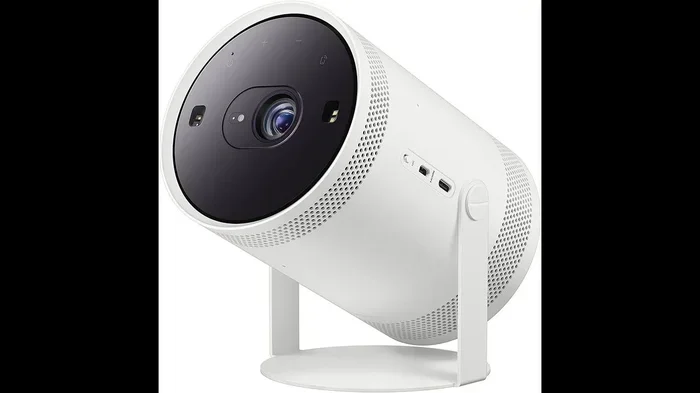
How Do I Cast My Phone To My Samsung Freestyle Projector
Casting your phone to the Samsung Freestyle projector is simple and opens up a world of entertainment. You can use Smart View for Android devices, AirPlay for iPhones, or the SmartThings app for a seamless connection. This guide walks you through every step, from initial setup to troubleshooting common issues, so you can start projecting your favorite content in minutes.
Key Takeaways
- Multiple Casting Methods: You can cast using Smart View, AirPlay, or the SmartThings app depending on your phone type.
- Quick Setup Required: Both devices need to be on the same Wi-Fi network for wireless casting to work properly.
- Troubleshooting Is Simple: Most casting issues can be fixed by restarting devices, updating software, or checking your Wi-Fi connection.
- Wired Options Exist: You can also use an HDMI adapter for a stable, lag-free connection if wireless casting fails.
- SmartThings App Adds Features: The app lets you control projection settings, adjust keystone, and manage inputs from your phone.
- Auto Keystone Helps: The Samsung Freestyle automatically adjusts the image, making setup fast and hassle-free.
📑 Table of Contents
- What Makes the Samsung Freestyle a Great Portable Projector
- How to Cast Your Phone to the Samsung Freestyle Projector
- Setting Up Your Freestyle for the Best Casting Experience
- Troubleshooting When Your Phone Won’t Cast
- Comparing Wireless and Wired Casting Methods
- Expert Tips for a Better Casting Experience
- Frequently Asked Questions About Casting to the Samsung Freestyle
- Conclusion
What Makes the Samsung Freestyle a Great Portable Projector
The Samsung Freestyle projector has won the hearts of many people who love watching big-screen content anywhere. It is compact, lightweight, and easy to carry around. Whether you are at home camping or hosting a backyard movie night, this little device delivers impressive picture quality. But one question comes up again and again: how do I cast my phone to my Samsung Freestyle projector?
The good news is that casting your phone screen to the Freestyle is straightforward. You do not need any fancy equipment or technical skills. This guide will show you every method available, including wireless options like Smart View and AirPlay, as well as the Samsung SmartThings app. By the end, you will know exactly how to get your phone screen on the big projection.
Before we dive into the steps, let us talk about why mobile casting matters so much. It lets you share photos, videos, and apps on a much larger screen. You can watch Netflix, browse social media, or even play mobile games with friends on a projected display. The experience feels immersive and fun, especially with the Freestyle’s built-in battery that lets you set up anywhere.
How to Cast Your Phone to the Samsung Freestyle Projector
There are three main ways to cast your phone screen to the Samsung Freestyle projector. The method you choose depends on what kind of phone you have. Android users typically use Smart View, while iPhone users rely on AirPlay. You can also use the SmartThings app for both platforms. Let us walk through each method step by step.
Method 1: Using Smart View (Android Devices)
Smart View is Samsung’s built-in screen mirroring tool. It works on most Android phones and tablets. Here is how to use it to cast your phone to the Freestyle:
- Turn on your Samsung Freestyle projector and make sure it is connected to your Wi-Fi network.
- On your Android phone, swipe down from the top of the screen to open the quick settings panel.
- Look for the Smart View icon. It looks like a rectangle with a wireless signal inside.
- Tap the icon and wait for your phone to search for available devices.
- Select your Samsung Freestyle from the list of devices that appears.
- Your phone screen should now appear on the projected image.
If you do not see the Smart View icon, you may need to edit your quick settings panel. Tap the pencil icon in the top right corner and add Smart View to your shortcuts. This is a common step that many people miss.
One thing to keep in mind is that wireless projection works best when both devices are on the same Wi-Fi network. If your phone is connected to mobile data and your Freestyle is on Wi-Fi, they may not find each other. Always double-check your Wi-Fi connection before troubleshooting.
Method 2: Using AirPlay (iPhone Devices)
iPhone users have a slightly different path but the result is the same. AirPlay is Apple’s built-in screen mirroring feature, and the Samsung Freestyle supports it. Here is how to cast your iPhone to the Freestyle:
- Power on your Samsung Freestyle projector and connect it to Wi-Fi.
- On your iPhone, open the Control Center by swiping down from the top right corner of the screen.
- Tap the Screen Mirroring button. It looks like two overlapping rectangles.
- A list of available devices will appear. Select your Samsung Freestyle.
- Enter the PIN if prompted. The PIN will appear on the projected screen.
- Your iPhone screen is now mirrored on the projector.
AirPlay is very reliable for iPhone projection to the Samsung Freestyle. The connection is smooth and the image quality is excellent. If you experience any lag, try moving closer to the projector or switching to a less crowded Wi-Fi channel.
Method 3: Using the Samsung SmartThings App
The Samsung SmartThings app is a powerful tool that lets you control your Samsung devices from one place. It also supports mobile casting to the Freestyle projector. Here is how to use it:
- Download the SmartThings app from the Google Play Store or Apple App Store.
- Open the app and sign in with your Samsung account.
- Make sure your Freestyle projector is turned on and connected to Wi-Fi.
- The app should automatically detect your Freestyle. Tap on it.
- Look for the Screen Mirroring or Cast option within the app.
- Follow the on-screen prompts to complete the connection.
The SmartThings app gives you extra control over your projection. You can adjust settings like auto keystone, brightness, and input sources right from your phone. This is especially helpful if you want to fine-tune your viewing experience without going to the projector itself.
Setting Up Your Freestyle for the Best Casting Experience
Getting the right setup makes a huge difference in how smoothly your phone to screen casting works. A few simple steps before you start can save you a lot of frustration later.
Connect Both Devices to the Same Wi-Fi Network
This is the most important step for wireless projection. Your phone and your Samsung Freestyle projector must be on the same Wi-Fi network. If your phone is on a 5GHz band and your Freestyle is on 2.4GHz, they may not communicate properly. Check your router settings and make sure both devices are on the same band if possible.
Update Your Software
Always keep both your phone and your Freestyle projector updated to the latest software version. Software updates often include fixes for Bluetooth pairing issues and Wi-Fi Direct connectivity problems. On your Freestyle, go to Settings and check for updates. On your phone, check your system update settings.
Position the Projector Correctly
The Samsung Freestyle has a built-in auto keystone feature that adjusts the image automatically. However, placing the projector on a stable, flat surface helps it work better. Avoid placing it at extreme angles, as this can cause the auto keystone to struggle. The ideal setup is placing the Freestyle on a table or shelf at a comfortable distance from your wall or screen.
Enable Screen Mirroring on Your Phone
Make sure screen mirroring is turned on in your phone settings. On Android, go to Settings > Connections > Samsung DeX or Smart View. On iPhone, go to Settings > General > AirPlay & Handoff and make sure AirPlay is enabled. These settings ensure that your phone is always ready to cast phone to projector when you need it.
Troubleshooting When Your Phone Won’t Cast
Sometimes things do not work the first time. That is completely normal. Casting troubleshooting is usually quick and easy. Here are the most common issues and how to fix them.
The Freestyle Does Not Appear in the Device List
This is the most common problem people face. If your phone cannot find the Freestyle, try these steps:
- Restart both your phone and the Freestyle projector.
- Make sure Wi-Fi is turned on for both devices.
- Check that both devices are on the same network.
- Turn off Bluetooth temporarily, as it can sometimes interfere with wireless projection.
- Move closer to the Freestyle to improve signal strength.
The Screen Mirroring Is Laggy or Delayed
If your cast connection is slow or choppy, your Wi-Fi network might be the culprit. Try these fixes:
- Reduce the number of devices connected to your Wi-Fi.
- Switch to a less crowded Wi-Fi channel in your router settings.
- Move the Freestyle closer to your router.
- Lower the resolution of the projected image if possible.
The Connection Keeps Dropping
A dropping connection can be annoying. Here is what you can do:
- Make sure your phone is not going to sleep mode. Disable auto-lock temporarily.
- Check for software updates on both devices.
- Forget the Wi-Fi network on both devices and reconnect.
- Reset network settings on your phone if the problem persists.
Quick Tips for Smooth Casting
Here are some quick tips that experienced users swear by:
- Always start with a fresh Wi-Fi connection before casting.
- Close unnecessary apps on your phone to free up processing power.
- Use a strong Wi-Fi signal. If your router is far away, consider using a Wi-Fi extender.
- Keep your phone charged or plugged in during long casting sessions.
- Restart the Freestyle projector at least once a week for optimal performance.
Common Mistakes to Avoid
Here are some common mistakes that can ruin your casting experience:
- Assuming Bluetooth alone will handle the connection. You need Wi-Fi for screen mirroring.
- Forgetting to turn on screen mirroring on your phone before searching for devices.
- Placing the Freestyle too far from the router, which weakens the signal.
- Ignoring software updates that often contain important connectivity fixes.
- Trying to cast while using a VPN, which can block device discovery.
Comparing Wireless and Wired Casting Methods
While wireless casting is the most popular way to connect your phone to the Samsung Freestyle projector, a wired option is also available. Here is a comparison of both approaches:
| Feature | Wireless Casting | Wired (HDMI Adapter) |
|---|---|---|
| Setup Speed | Fast, no cables needed | Requires adapter and cable |
| Image Quality | Good, slight compression | Excellent, no compression |
| Lag or Delay | Minimal on good Wi-Fi | None |
| Portability | Very portable | Less portable due to cables |
| Compatibility | Works with most phones | May need specific adapter |
| Best For | Everyday use and quick setup | Gaming and video presentations |
For most people, wireless casting through Smart View or AirPlay is the best choice. It is fast, easy, and does not require any extra accessories. However, if you are a gamer or someone who needs a perfect, lag-free connection, using an HDMI cable with a USB-C or Lightning adapter is the way to go. Just plug the adapter into your phone, connect the HDMI cable, and you are ready to project.
Expert Tips for a Better Casting Experience
Here are some expert insights that will take your casting game to the next level with the Samsung Freestyle projector:
Use the SmartThings app for advanced control. The app gives you access to settings that you cannot reach from your phone’s quick settings panel. You can adjust the projection angle, change the light mode, and even schedule your projector to turn on at specific times. This level of control is incredibly useful for creating the perfect viewing environment.
Take advantage of the Freestyle’s built-in battery. Since the projector has a rechargeable battery, you can cast your phone screen anywhere without needing a power outlet. This makes it perfect for outdoor gatherings, camping trips, or even moving between rooms during a party.
Adjust the auto keystone for angled projections. If you place the Freestyle on an elevated surface pointing downward, the auto keystone will correct the image shape automatically. This feature is one of the Freestyle’s standout advantages over many competing portable projectors.
Keep your content sources organized. Before you start casting, open the app or content you want to project on your phone. This saves time and ensures a smooth transition from your small screen to the big projection. It is a small step that makes a noticeable difference.
Consider ambient light when projecting. The Samsung Freestyle works best in dim or moderately lit rooms. If you are casting in a bright room, the image may appear washed out. Closing curtains or blinds can dramatically improve the picture quality and make your phone to screen experience much more enjoyable.
Frequently Asked Questions About Casting to the Samsung Freestyle
Can I cast my phone to the Samsung Freestyle without Wi-Fi?
Yes, you can use Wi-Fi Direct to connect your phone to the Freestyle without a traditional Wi-Fi network. Wi-Fi Direct creates a direct connection between your two devices. However, some features may be limited compared to a full Wi-Fi setup. The SmartThings app supports Wi-Fi Direct as a fallback option when a regular network is not available.
Why does my cast screen look blurry on the Samsung Freestyle?
A blurry projected image is usually caused by one of a few things. First, check that your phone’s screen resolution matches the projector’s native resolution. Second, make sure the Freestyle lens is clean and free of dust or fingerprints. Third, ensure the projector is at the correct distance from the wall. Too close or too far can affect image sharpness. Finally, check that auto keystone is properly aligned.
Can I cast from multiple phones to the Samsung Freestyle at the same time?
The Samsung Freestyle can only display one screen at a time. However, you can quickly switch between different phones by disconnecting one device and connecting another. This makes it easy to share content with a group, as each person can take turns projecting their screen. The switching process only takes a few seconds.
Does casting my phone drain the Samsung Freestyle battery quickly?
Casting does use more power than playing content from the projector’s built-in apps. The Freestyle’s battery is designed to last about 2.5 to 3 hours on a single charge during normal use. If you are actively casting from your phone, the battery may drain a bit faster. For longer sessions, it is a good idea to keep the Freestyle plugged into a power outlet.
What should I do if AirPlay or Smart View keeps disconnecting?
Frequent disconnections are usually caused by Wi-Fi interference or outdated software. Try moving your router closer to the Freestyle, switching to a less crowded Wi-Fi channel, or updating the software on both devices. You can also try resetting the network settings on your phone. If none of these steps work, restarting both the phone and the Freestyle often resolves the issue.
Is it possible to use the Samsung Freestyle as a second screen for my phone?
Yes, you can use the Freestyle as a second screen through screen mirroring. This is useful for multitasking, such as viewing a presentation while taking notes on your phone. The mirrored screen shows everything on your phone in real time. However, keep in mind that there may be a slight delay compared to your phone’s native display, which is normal for wireless projection.
Conclusion
Now you know exactly how do I cast my phone to my Samsung Freestyle projector. Whether you use Smart View on Android, AirPlay on iPhone, or the SmartThings app for extra control, the process is simple and rewarding. The Samsung Freestyle makes it easy to turn any wall into a big screen, and mobile casting is the key to unlocking that experience.
Remember to keep both devices updated, use the same Wi-Fi network, and follow the troubleshooting tips if anything goes wrong. With a little practice, casting will become second nature. You will wonder how you ever watched content on a small phone screen when you have such a convenient and immersive option available.
Start experimenting with different casting methods today. Try watching your favorite show, sharing photos with friends, or even playing a mobile game on the big projection. The Samsung Freestyle projector is designed to make these moments memorable, and casting your phone is the easiest way to get started. Enjoy your bigger, better screen experience right away.