How Can I Display My Phone Screen On My TV Right Now
Displaying your phone screen on your TV is easier than you think, and you can do it right now with just a few simple steps. Whether you use wireless screen mirroring or a direct cable connection, this guide covers every method for casting phone to TV. You will learn how to use AirPlay, Chromecast, smart TV apps, HDMI adapters, and more to get your phone content big on the screen.
Have you ever wanted to show something on your phone to a whole room? Maybe it is a funny video, vacation photos, or a presentation. Displaying your phone screen on your TV makes everything bigger and more fun. The good news is that you can do this right now without spending a lot of money.
There are a few different ways to cast phone to TV. Some methods use Wi-Fi and work wirelessly. Others need a simple cable. This guide walks you through every option step by step. By the end, you will know exactly which method works best for your setup.
Let us get started. You will be sharing your phone screen on the big TV in no time.
Key Takeaways
- Wireless mirroring is the easiest method: Most modern smart TVs support screen mirroring or casting without any extra hardware.
- HDMI adapters work for older TVs: A simple phone to TV cable or HDMI adapter lets you mirror any TV, even non-smart ones.
- AirPlay and Chromecast are the top wireless options: These media streaming tools offer smooth, reliable wireless display connections.
- Third-party apps fill the gaps: Apps like Samsung Smart View, Roku, and Miracast give you more flexibility for screen projection.
- Wired connections offer zero lag: If you need real-time screen sharing for gaming or presentations, a cable connection is the best bet.
- Troubleshooting is simple: Most display mirroring issues come from Wi-Fi problems or outdated software, both easy to fix.
📑 Table of Contents
- Why Display Your Phone Screen on Your TV?
- Method 1: Wireless Screen Mirroring with AirPlay
- Method 2: Use Chromecast for Android and iPhone
- Method 3: Smart TV Built-In Features
- Method 4: Wired Connections with HDMI Adapters
- Method 5: Third-Party Apps for Screen Mirroring
- Troubleshooting Common Screen Mirroring Problems
- Which Method Should You Choose?
- Final Thoughts on Displaying Your Phone Screen on TV
Why Display Your Phone Screen on Your TV?
There are so many reasons to mirror your phone screen on a TV. It is not just about watching videos. Here are some of the most common reasons people do this every day:
- Sharing photos and videos with family and friends on a larger screen.
- Streaming content from apps that do not have a native TV version.
- Presenting work or school projects in meetings or classrooms.
- Playing mobile games on a bigger display for a better experience.
- Using your TV as a second monitor for reading or multitasking.
- Showing navigation maps during road trips so everyone can see.
No matter your reason, wireless display technology has made this process incredibly simple. You do not need to be a tech expert. Most methods take less than five minutes to set up.
Method 1: Wireless Screen Mirroring with AirPlay
If you have an iPhone or iPad, AirPlay is your best friend for screen mirroring. Apple built this feature right into iOS, so you do not need to download anything extra.
How to Use AirPlay to Cast Your iPhone Screen
Here is how to get started with AirPlay screen sharing:
- Make sure your iPhone and your smart TV are on the same Wi-Fi network.
- Open the Control Center by swiping down from the top-right corner of your screen.
- Tap the Screen Mirroring button. It looks like two overlapping rectangles.
- Select your TV from the list of available devices.
- Enter the AirPlay code if your TV asks for one.
That is it. Your phone screen is now showing on your TV. Everything you tap and swipe on your phone will appear on the big screen in real time.
Tips for Better AirPlay Performance
- Use a 5GHz Wi-Fi band for faster and more stable connections.
- Keep your devices close to your router to reduce lag.
- Restart both devices if you experience any delays or freezing.
- Update your iPhone to the latest iOS version for the best compatibility.
AirPlay works great for photos, videos, and presentations. It is one of the easiest ways to do wireless casting if you are in the Apple ecosystem.
Method 2: Use Chromecast for Android and iPhone
Google Chromecast is a small device that plugs into your TV’s HDMI port. It lets you cast your phone screen to the TV over Wi-Fi. You can use it with both Android phones and iPhones.
Setting Up Chromecast for Screen Mirroring
Follow these steps to cast phone to TV using Chromecast:
- Plug your Chromecast device into your TV’s HDMI port.
- Download the Google Home app on your phone.
- Connect the Chromecast to your Wi-Fi network through the app.
- Open the app or browser you want to share on your phone.
- Tap the Cast icon (a small rectangle with Wi-Fi waves) and select your Chromecast.
Your phone screen will now appear on your TV. Chromecast is very reliable and works well for media streaming of all kinds.
Chromecast vs. AirPlay: Which Is Better?
Both Chromecast and AirPlay are excellent for wireless display. Here is a quick comparison:
- AirPlay works best for Apple users. It is built right into iOS.
- Chromecast works with both Android and iPhone. It also works with Chrome browsers on computers.
- AirPlay offers slightly smoother performance for video playback.
- Chromecast gives you more flexibility since it works across different platforms.
Either one will get the job done. Your choice depends on what devices you use.
Method 3: Smart TV Built-In Features
Most modern smart TVs come with built-in screen mirroring features. You do not always need a separate device like Chromecast or Apple TV. Your TV might already support what you need.
How to Find Your TV’s Mirroring Feature
Different TV brands call this feature different names. Here are the most common ones:
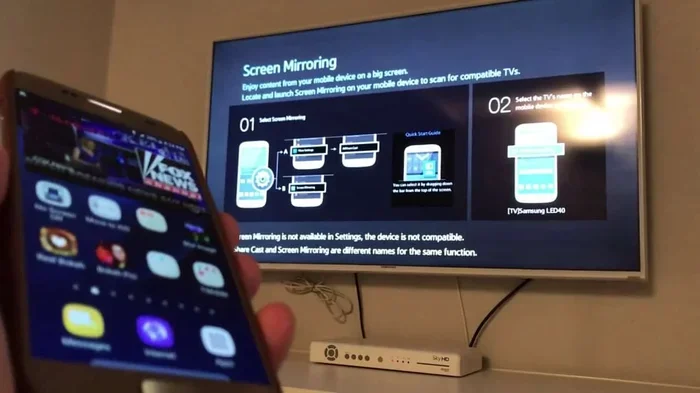
- Samsung Smart View — Samsung TVs use this for wireless casting from Android and some iPhones.
- LG Screen Share — LG TVs use DLNA and Miracast protocols for screen projection.
- Sony Xperia Tablet & Smartphone Control — Sony TVs support Miracast for Android devices.
- LG MagicRemote and Samsung SmartThings apps also enable phone to TV connection wirelessly.
To use these features, open your TV’s input menu and look for Screen Mirroring, Cast, or Smart View. Then follow the on-screen instructions to pair your phone.
Quick Tips for Smart TV Mirroring
- Check your TV’s settings to make sure screen mirroring is turned on.
- Update your TV’s firmware to the latest version for best performance.
- Use the TV manufacturer’s app on your phone for easier control.
- Restart your TV and phone if the connection does not appear right away.
Smart TV built-in features are convenient because you do not need any extra hardware. Just make sure your TV supports wireless display technology.
Method 4: Wired Connections with HDMI Adapters
Not all TVs are smart TVs. And sometimes wireless mirroring just does not work well. That is where HDMI adapters come in. A phone to TV cable gives you a direct, lag-free connection every time.
Types of HDMI Adapters You Need
The right adapter depends on your phone type:
- Lightning to HDMI adapter — For iPhones and older iPads. Apple makes an official one, and there are affordable third-party options too.
- USB-C to HDMI adapter — For newer Android phones, Samsung Galaxy devices, and Google Pixel phones.
- Micro-USB to HDMI adapter — For older Android phones that still use Micro-USB charging.
How to Set Up a Wired Connection
- Plug the HDMI adapter into your phone’s charging port.
- Connect an HDMI cable from the adapter to your TV’s HDMI port.
- Switch your TV to the correct HDMI input.
- Your phone screen should now display on the TV automatically.
Wired connections are the most reliable option for screen projection. There is no Wi-Fi dependency, no lag, and no interference. This makes them perfect for gaming, presentations, and screen sharing where you need every frame to match perfectly.
Pros and Cons of Wired vs. Wireless
Here is a quick look at both approaches:
- Wired: Zero lag, stable connection, works on any TV. But you need a cable and an adapter.
- Wireless: No cables needed, easy to set up, works from across the room. But it depends on Wi-Fi quality and can have slight delays.
For most casual uses like watching videos or sharing photos, wireless casting is perfectly fine. But if you need real-time screen sharing for gaming or professional use, go with a cable connection.
Method 5: Third-Party Apps for Screen Mirroring
If the built-in options do not work for you, there are plenty of third-party casting apps that can help. These apps use different screen mirroring protocols to connect your phone to your TV.
Best Apps for Casting Phone to TV
Here are some of the most popular and reliable casting apps:
- Samsung Smart View — Free app for Samsung phones and TVs. Works great for wireless display within the Samsung ecosystem.
- Roku App — Lets you cast your phone screen to any Roku-enabled TV. Works with both Android and iOS.
- Miracast — A wireless display standard built into many Android phones and TVs. Look for it in your TV’s settings.
- AllCast — A versatile app that supports media streaming to smart TVs, Chromecast, Roku, and more.
- LetsView — A free app that works for both Android and iPhone. Great for screen sharing without brand restrictions.
How to Use a Casting App
Most of these apps follow a similar process:
- Download the app from the App Store or Google Play.
- Make sure your phone and TV are on the same Wi-Fi network.
- Open the app and let it search for available devices.
- Select your TV from the list.
- Start screen mirroring or media streaming right away.
Third-party apps are a great backup option. They often work when built-in features fail, and they support a wider range of TV brands and phone models.
Troubleshooting Common Screen Mirroring Problems
Sometimes display mirroring does not work the way you expect. Do not worry. Most issues have simple fixes. Here are the most common problems and how to solve them.
Your Phone Does Not Find the TV
This is the most common issue. Try these steps:
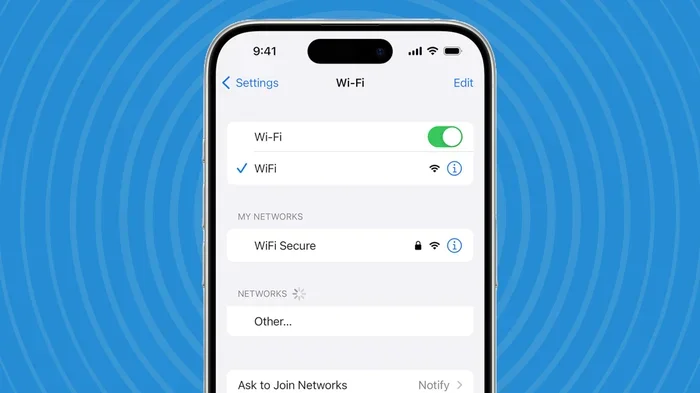
- Check that both devices are on the same Wi-Fi network. This is the number one reason for connection failures.
- Restart your router, phone, and TV. A simple reboot fixes most connectivity issues.
- Turn screen mirroring off and back on on both devices.
- Update your TV firmware and phone software to the latest versions.
The Screen Lags or Freezes
Lag during wireless casting usually happens because of a weak Wi-Fi signal. Try moving closer to your router or switching to a 5GHz network. Also, close any apps running in the background on your phone to free up memory.
The Audio Does Not Sync with the Video
Audio delay is annoying but common. Try reducing the streaming quality in your app settings. If you are using a cable connection, try a different HDMI cable to rule out a hardware issue.
Black Screen on TV
A black screen usually means the TV input is set wrong. Double-check that your TV is on the correct HDMI port. Also, make sure your phone’s screen brightness is not set too low, as some adapters struggle with dim screens.
Quick Tip: Keep a notebook with your TV’s HDMI port numbers and your Wi-Fi network details. This makes troubleshooting much faster the next time something goes wrong.
Which Method Should You Choose?
Now that you know all the options, here is a quick guide to help you pick the right one:
- iPhone user with an Apple TV or smart TV? Use AirPlay. It is the smoothest experience.
- Android user with a Chromecast or Roku TV? Use Chromecast or the Roku app.
- Older TV without smart features? Use an HDMI adapter for a wired connection.
- Samsung TV and Galaxy phone? Use Samsung Smart View for seamless screen projection.
- Need zero lag for gaming? Go with a wired HDMI cable and adapter.
- Just want a quick and easy option? Try a third-party casting app like LetsView or AllCast.
There is no single best method. The right choice depends on your phone, your TV, and what you want to do. The good news is that all of these options are affordable and easy to set up.
Final Thoughts on Displaying Your Phone Screen on TV
Displaying your phone screen on your TV is one of the most useful things you can do with modern technology. Whether you want to share memories with family, stream your favorite shows, or give a presentation, the methods in this guide will help you get it done.
Wireless screen mirroring through AirPlay, Chromecast, or smart TV features is the most convenient option for everyday use. A phone to TV cable or HDMI adapter gives you the most reliable and lag-free experience when you need it.
Do not let technology intimidate you. Every method in this guide is simple enough for anyone to try. Pick the one that fits your setup, follow the steps, and enjoy your phone content on the big screen. You will wonder how you ever lived without it.
So go ahead and cast phone to TV right now. Try one of these methods and see how easy it really is. Your TV is waiting.
Frequently Asked Questions
Can I display my phone screen on any TV?
Yes, you can display your phone screen on almost any TV. If your TV is a smart TV, it likely has built-in screen mirroring features. If it is an older TV, you can use an HDMI adapter to connect your phone directly. Both wired and wireless options work with most TV models.
Is screen mirroring free to use?
Most screen mirroring methods are completely free. Built-in features like AirPlay and Chromecast do not cost anything. Third-party casting apps are also free, though some may have premium features. The only cost might be an HDMI adapter if you choose a wired connection.
Why is my phone screen mirroring lagging on my TV?
Lag during wireless display usually happens because of a weak Wi-Fi connection. Make sure both your phone and TV are on the same 5GHz network. Also, close background apps on your phone and move closer to your router. If the lag continues, try restarting both devices.
Can I display my phone screen on a TV without Wi-Fi?
Yes, you can use a wired HDMI adapter to connect your phone to your TV without needing Wi-Fi. This method works for both Android and iPhone. Simply plug the adapter into your phone, connect an HDMI cable to your TV, and your screen will appear immediately with no lag.
What is the difference between screen mirroring and casting?
Screen mirroring shows your entire phone screen on the TV exactly as it appears. Casting sends specific content from an app to the TV while you can still use your phone for other things. Both are useful for media streaming, but casting gives you more flexibility.
Do I need an Apple TV to use AirPlay?
No, you do not need an Apple TV. Many modern smart TVs from Samsung, LG, Sony, and others support AirPlay directly. You just need to make sure your TV and iPhone are on the same Wi-Fi network. Look for AirPlay in your TV’s settings or use the Control Center on your iPhone.
=== CONCLUSION ===
Displaying your phone screen on your TV is easier than ever before. You have multiple options to choose from, whether you prefer wireless mirroring or a simple cable connection. AirPlay, Chromecast, smart TV features, HDMI adapters, and third-party apps all work great for getting your phone content on the big screen.
Pick the method that fits your devices and your needs. Follow the steps in this guide, and you will be sharing your phone screen on your TV in minutes. The technology is simple, affordable, and works reliably once you set it up.
Start displaying your phone screen on your TV right now. Try one of the methods above and enjoy the bigger, better viewing experience. You will be glad you did.