How Do I Manually Cast My Phone To My TV Wirelessly
Manually casting your phone to your TV wirelessly is easier than you think. This guide covers everything from Android and iPhone screen mirroring to troubleshooting tips and expert insights. You will learn the fastest methods to get your phone screen on your TV screen without any hassle.
Have you ever wanted to share something on your phone screen with everyone in the room but your TV screen is just sitting there? Maybe you want to watch a video, show photos, or play a game on a bigger display. Manual casting makes this possible without any fancy equipment.
Manually casting your phone to your TV wirelessly is one of the most useful mobile casting skills you can learn. It works whether you have a Smart TV, a Chromecast device, or just a regular TV with an HDMI port. The process is simpler than most people think, and this guide will walk you through every step.
In this article, we will cover how to cast to TV from both Android and iPhone. We will also explore different wireless display methods, common problems, and quick fixes. By the end, you will know exactly how to get your phone screen on your TV screen in minutes.
Let us get started. No jargon. No fluff. Just clear, practical steps you can follow right now.
Key Takeaways
- Manual casting works on both Android and iPhone devices using built-in features or third-party apps.
- Wi-Fi Direct and DLNA are reliable protocols for wireless casting to most Smart TVs.
- HDMI adapters offer a wired backup when wireless methods fail or lag.
- Chromecast and AirPlay are the most popular casting technologies for their simplicity.
- Common casting problems like lag, disconnections, and no signal can usually be fixed with simple steps.
- Third-party apps like LetsView and AirScreen expand your casting options significantly.
- Keeping your devices updated and on the same network prevents most issues.
📑 Table of Contents
What Is Manual Casting and Why Do It?
Manual casting means connecting your phone to your TV without using automatic pairing or built-in smart features. You choose when to connect, what to share, and how to control it. Think of it as taking charge of your screen mirroring experience.
There are many reasons why people use wireless casting. Some want a bigger screen for movie nights. Others need to present slides at work. Some just enjoy playing mobile games on a larger display. Whatever your reason, manual casting gives you full control.
The Difference Between Manual and Automatic Casting
Automatic casting happens when your phone finds a Smart TV on the same network and connects without your input. This works well most of the time. But it can be slow, unreliable, or just plain annoying when it does not work.
Manual casting puts you in the driver seat. You decide which device to connect to. You choose the casting protocol to use. You control the quality and stability of the connection. This is especially helpful when automatic methods fail.
Why Manual Casting Matters
Not every TV screen supports the same wireless display technology. Some older TVs do not have any smart features at all. Some Smart TVs only work with specific apps or brands. Manual casting bridges these gaps.
It also gives you flexibility. You can cast to a TV in a hotel room, a friend’s house, or a conference room. You do not need the TV to support your phone brand. You just need the right method.
How to Manually Cast from Android to TV
Android phones have several built-in options for wireless casting. The method you choose depends on your TV and the casting protocol it supports. Let us look at each option step by step.
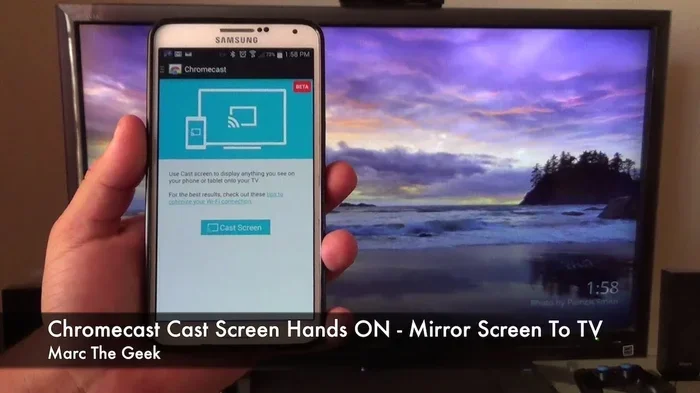
Using Google Cast (Chromecast Built-in)
Many modern Smart TVs have Chromecast built right in. If your TV supports this, you are in luck. Here is how to use it manually.
- Make sure your Android phone and TV screen are on the same Wi-Fi network.
- Open the app you want to cast from. This works best with YouTube, Netflix, Spotify, and Google Photos.
- Tap the cast button. It looks like a small rectangle with Wi-Fi waves in the corner.
- Select your TV from the list of available devices.
- Your content will now play on the TV screen while your phone acts as a remote control.
This method works great for media streaming. But it does not mirror your entire phone screen. It only sends the content from the specific app.
Using Screen Mirroring (Miracast)
If you want to mirror your entire phone screen, Miracast is the way to go. Many Android phones and Smart TVs support this wireless display standard.
- Open your phone Settings.
- Tap Connected Devices or Display, depending on your phone model.
- Look for Cast Screen or Wireless Display.
- Turn it on and wait for your TV to appear in the list.
- Tap your TV name to connect.
Once connected, everything on your phone screen will appear on your TV screen. This includes apps, games, photos, and even your home screen.
Quick Tip
If your TV does not show up, try restarting both devices. Also make sure Wi-Fi Direct is enabled on your phone. This helps the devices find each other faster.
Using a Third-Party App for Android
Sometimes the built-in options do not work. Maybe your TV does not support Miracast, or the connection keeps dropping. In these cases, a third-party app can save the day.
Apps like LetsView, AirScreen, and Screen Mirroring work with most TVs and streaming devices. They use the DLNA protocol or create their own casting protocol to connect your phone to your TV.
Here is how to use LetsView as an example:
- Download LetsView from the Google Play Store on your phone.
- Install the same app on your Smart TV if it supports Android TV.
- Open the app on both devices.
- Select your TV from the list on your phone.
- Choose Screen Mirroring and accept the connection on your TV.
This method works even if your TV does not have built-in casting support. It is one of the most reliable ways to cast to TV manually.
How to Manually Cast from iPhone to TV
iPhone users have a slightly different set of tools for wireless casting. Apple uses its own AirPlay technology, which works great with Apple TV and many Smart TVs.
Using AirPlay to Mirror Your iPhone Screen
AirPlay is Apple’s built-in screen mirroring technology. It lets you send everything on your phone screen to your TV screen wirelessly. Here is how to use it.
- Make sure your iPhone and TV are on the same Wi-Fi network.
- Open Control Center by swiping down from the top-right corner of your screen.
- Tap the Screen Mirroring icon. It looks like two overlapping rectangles.
- Select your TV from the list.
- Enter the code shown on your TV if prompted.
Your iPhone screen is now on your TV. You can open any app, scroll through photos, or play games and it will all appear on the big screen.
Using AirPlay with a Non-Apple TV
Not everyone has an Apple TV. The good news is many Smart TVs now support AirPlay natively. Brands like Samsung, LG, Sony, and Vizio have built AirPlay into their 2019 and newer models.
If your TV supports AirPlay, the steps are the same as above. Just make sure AirPlay is turned on in your TV settings first.
Using a Third-Party App for iPhone
If your TV does not support AirPlay, you can use a third-party app to cast to TV. Apps like LetsView, AirScreen, and AllCast work well with iPhones.
These apps use DLNA or Miracast to connect your iPhone to your TV. They are easy to set up and work without any extra hardware.
Expert Insight
According to tech experts at Wirecutter, AirPlay remains the most stable wireless display option for iPhones. When AirPlay is not available, LetsView is the top recommended third-party app for iPhone-to-TV casting.
Methods for Casting Without Built-in Support
What if your TV does not have any built-in screen mirroring or wireless display support? You are not out of options. There are several ways to cast to TV even on older or basic models.
Using an HDMI Adapter
An HDMI adapter is the most reliable way to connect your phone to a non-smart TV screen. It uses a cable instead of Wi-Fi, so there is no lag or disconnection issues.
For Android phones, you need a USB-C to HDMI adapter or a Micro-USB to HDMI adapter, depending on your phone model. For iPhones, you need a Lightning to HDMI adapter.
Here is how it works:
- Plug the adapter into your phone.
- Connect an HDMI cable from the adapter to your TV.
- Switch your TV to the correct HDMI input.
- Your phone screen will now appear on your TV screen.
This method works with any phone and any TV that has an HDMI port. It is not wireless, but it is incredibly stable.
Using a Streaming Device
A streaming device like Chromecast, Roku, Amazon Fire Stick, or Apple TV can add wireless casting to any TV with an HDMI port. These devices plug right into your TV and connect to your Wi-Fi network.
Chromecast is the most affordable option and works great with Android phones. Apple TV is the best choice for iPhone users. Roku and Fire Stick support both platforms and offer the most app options.
| Device | Best For | Price Range | Wireless Casting |
|---|---|---|---|
| Chromecast | Android users | $30-$50 | Google Cast |
| Apple TV | iPhone users | $130-$180 | AirPlay |
| Roku | All phone types | $30-$70 | Screen Mirroring |
| Fire Stick | Amazon ecosystem | $40-$60 | AirPlay & Firecast |
Using DLNA for Media Streaming
DLNA (Digital Living Network Alliance) is a protocol that lets devices share media over a local network. Many Smart TVs support DLNA natively. You can use it to stream photos, videos, and music from your phone to your TV.
Apps like BubbleUPnP for Android and 8player for iPhone make DLNA streaming easy. These apps find your TV on the network and let you send media files directly to it.
This method is best for media streaming specific files. It does not mirror your entire phone screen, but it works great for playing videos and photos on a bigger display.
Common Mistakes to Avoid
- Not checking if your TV supports the casting method you are trying to use.
- Forgetting to connect both devices to the same Wi-Fi network.
- Using outdated apps that do not support the latest casting protocol versions.
- Ignoring firewall or router settings that block device discovery.
- Trying to mirror high-resolution video on a slow Wi-Fi network.
Troubleshooting Common Casting Problems
Manual casting does not always work perfectly the first time. Here are the most common problems and how to fix them.
No Signal on TV
If your TV screen shows no signal after you try to cast to TV, the first thing to check is your Wi-Fi connection. Both devices must be on the same network. Try turning Wi-Fi off and back on on both devices.
If that does not work, restart your router, phone, and TV. This clears temporary connection issues and forces the devices to re-discover each other.
Lag or Stuttering During Casting
Lag is one of the most frustrating problems with wireless casting. It usually happens when your Wi-Fi network is slow or congested.
To fix this, move closer to your router. If possible, switch to a 5 GHz Wi-Fi band instead of 2.4 GHz. The 5 GHz band is faster and less crowded. You can also close other apps on your phone to free up resources.
Connection Keeps Dropping
If your screen mirroring connection keeps dropping, it could be a device pairing issue. Try unpairing and reconnecting the devices. Also check if other devices on the same network are using heavy bandwidth.
Another common cause is interference from other wireless display devices. If you have multiple casting devices in your home, they can interfere with each other. Turn off any devices you are not currently using.
Audio and Video Are Out of Sync
This problem is more common with media streaming over wireless display. It happens when your Wi-Fi network cannot handle the data transfer speed.
The fix is the same as for lag: use a faster Wi-Fi band, get closer to your router, or reduce the video quality. Some casting apps let you adjust the resolution to improve sync.
Tips for the Best Casting Experience
Want your wireless casting to work smoothly every time? Follow these practical tips.
Keep Your Devices Updated
Software updates often include fixes for casting protocol issues. Keep your phone and Smart TV updated to the latest versions. This alone fixes many common casting problems.
Use a Dedicated Wi-Fi Network
If your router supports it, set up a separate Wi-Fi network for your casting devices. This reduces congestion and improves stability. Many modern routers let you create a guest network that works perfectly for this purpose.
Close Unnecessary Apps
Background apps on your phone use memory and processing power. Close apps you are not using before you start screen mirroring. This gives your phone more resources to handle the wireless display connection smoothly.
Place Your Router Strategically
The closer your phone and TV are to your router, the better the Wi-Fi signal. If your TV is far from the router, consider using a Wi-Fi extender or mesh network system. This boosts the signal and reduces lag during mobile casting.
Quick Tip
For the best media streaming experience, use an Ethernet cable to connect your TV or streaming device to your router. This gives you a stable wired connection while your phone stays wireless.
Comparing Wireless Casting Methods
Not all wireless casting methods are the same. Here is a quick comparison to help you choose the best one for your setup.
| Method | Works With | Mirrors Full Screen | Requires Extra Hardware | Best For |
|---|---|---|---|---|
| Google Cast | Android, iOS | No (app only) | Chromecast (optional) | Streaming media |
| AirPlay | iPhone, iPad | Yes | Apple TV or AirPlay TV | iPhone users |
| Miracast | Android, Windows | Yes | No (built-in) | Full screen mirroring |
| DLNA | Android, iOS | No (media only) | No | Playing media files |
| Third-Party Apps | Android, iOS | Yes | No | Older or basic TVs |
| HDMI Adapter | All phones | Yes | Yes (adapter) | Non-smart TVs |
As you can see, each method has its strengths. Google Cast is great for streaming but does not mirror your full screen. AirPlay is the best for iPhone users who want full screen mirroring. Miracast works well for Android users who need a wireless connection without extra hardware.
For the most reliable manual casting experience, combine methods. Use Google Cast or AirPlay for streaming, and keep an HDMI adapter handy as a backup when wireless methods fail.
Conclusion
Manually casting your phone to your TV wirelessly is a skill that everyone should have. Whether you use an Android phone or an iPhone, there is a method that works for you. From built-in features like Chromecast and AirPlay to third-party apps and HDMI adapters, you have plenty of options.
The key is to understand your TV’s capabilities and choose the right casting protocol for your needs. Start with the simplest method and work your way up if needed. Most casting problems can be solved with a quick restart or a network adjustment.
Remember to keep your devices updated, use a strong Wi-Fi connection, and close unnecessary apps before casting. These small steps make a big difference in your screen mirroring experience.
Now that you know how to manually cast your phone to your TV, you can enjoy your favorite content on the big screen anytime. Share this guide with friends who struggle with wireless casting. Once you learn it, you will never go back to small screens again.
Frequently Asked Questions
Can I manually cast my phone to any TV?
Yes, you can cast to almost any TV. If your TV has built-in screen mirroring or Smart TV features, you can use wireless methods. If not, an HDMI adapter or a streaming device like Chromecast or Roku will work.
Do I need Wi-Fi to manually cast my phone to my TV?
Most wireless casting methods require both devices to be on the same Wi-Fi network. However, some Wi-Fi Direct and Miracast methods can work without a router. An HDMI adapter does not need Wi-Fi at all.
Why is my phone not finding my TV for casting?
This usually happens when the devices are on different networks. Make sure both your phone and TV are connected to the same Wi-Fi. Also check if your TV’s casting feature is turned on in its settings.
Is manual casting the same as screen mirroring?
They are similar but not the same. Screen mirroring shows your entire phone screen on the TV screen. Manual casting can include mirroring or just sending specific content from one app. It depends on the casting protocol you use.
Can I cast my phone to a TV without any extra apps?
Yes, if your phone and TV support the same built-in wireless display technology. Android phones can use Google Cast or Miracast, and iPhones can use AirPlay. No extra apps are needed for these methods.
Does manual casting affect my phone’s battery?
Yes, wireless casting uses more battery because your phone is constantly sending data to the TV screen. To save battery, cast only when needed and keep your phone plugged in during long casting sessions.
=== META TITLE ===
Manually Cast Phone to TV Wirelessly | Step-by-Step Guide
=== URL SLUG ===
/how-do-i-manually-cast-my-phone-to-my-tv-wirelessly
=== SEO TITLE ===
How Do I Manually Cast My Phone To My TV Wirelessly
=== OPENING SUMMARY ===
Manually casting your phone to your TV wirelessly is one of the simplest and most useful tech skills you can learn today. Whether you have an Android phone or an iPhone, this guide will show you exactly how to get your phone screen on your TV screen without any fancy equipment or technical knowledge. You will learn step-by-step methods for screen mirroring, media streaming, and wireless display connections that work with almost any TV. We also cover troubleshooting tips, common mistakes, and expert advice to make your casting experience smooth and reliable. Keep reading to master manual casting in just a few minutes.