How Do I Get A Chromebook Without A Password Right Now
Learning how to get a Chromebook without a password is easier than most people think. Whether your device is locked, you forgot your credentials, or you bought a used Chromebook, there are several proven methods to regain access. This guide covers every option from guest mode and powerwashing to developer mode and IT recovery — so you can get back online fast and safely.
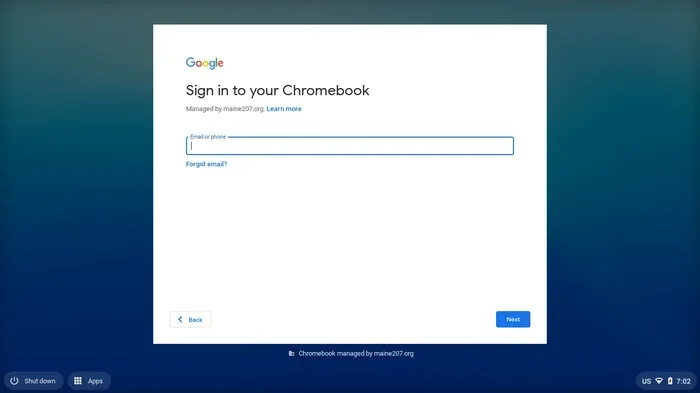
So you are staring at a Chromebook login screen and you have no idea what the password is. Maybe you forgot it. Maybe you bought a secondhand device. Maybe someone set it up and walked away without telling you. Whatever the reason, the feeling is frustrating. The good news is that getting a Chromebook without a password is something you can do right now, and you do not need to be a tech expert to pull it off.
Chromebooks are designed to be simple and secure. That is great for everyday use, but it can feel like a brick when you are locked out. This guide walks you through every legitimate method to access your device, remove the password, or start fresh. We will cover guest mode tricks, the powerwash process, developer mode, and what to do if your Chromebook school device or work laptop has an enterprise lock in place.
By the time you finish reading, you will know exactly which method fits your situation. You will also learn how to avoid common mistakes that make lockouts worse. Let us get into it.
Key Takeaways
- Guest mode lets you use a locked Chromebook without needing any password at all.
- Powerwashing resets your device to factory settings and removes the password completely.
- Developer mode bypasses the login screen but comes with important security trade-offs.
- School and managed Chromebooks require admin help — you cannot bypass them alone.
- Setting up recovery options early saves you from future lockout headaches.
- Always back up your data before attempting any password removal method.
- Using a PIN or password manager helps prevent future lockouts on your Chromebook.
📑 Table of Contents
- What Happens When Your Chromebook Is Locked
- How Do I Get A Chromebook Without A Password
- Powerwashing Your Chromebook
- Developer Mode as a Password Bypass
- Recovering a School or Managed Chromebook
- Preventing Future Lockouts
- Comparing Password Removal Methods
- Final Thoughts on Getting a Chromebook Without A Password
What Happens When Your Chromebook Is Locked
Why Chromebooks Require a Password
When you first set up a Chromebook, the system asks you to create a password or PIN code. This is part of Google’s security design. Every time you turn on the device or wake it from sleep, the Chromebook login screen asks for that credential. It protects your personal data, saved passwords, and browser history from anyone who picks up the device.
The Chromebook owner account is tied directly to your Google account. This means your files, extensions, bookmarks, and settings all live in the cloud. The password is the key to unlocking that personal space. Without it, the device feels useless — but it really is not.
Common Reasons You Get Locked Out
There are several reasons you might find yourself locked out of a Chromebook. Understanding the cause helps you pick the right fix.
- You forgot the password. This is the most common reason. People change passwords and then forget the new one.
- You bought a used Chromebook. The previous owner did not sign out or wipe the device.
- A child or family member set a password. Kids love creating PIN codes that no adult can guess.
- Your Chromebook is managed by a school or employer. These devices have an enterprise lock that requires admin approval.
- Too many wrong attempts. After several failed tries, the device may temporarily block you.
Each of these scenarios has a different solution. The next sections break them all down.
How Do I Get A Chromebook Without A Password
Using Guest Mode to Access Your Device
The fastest way to use a Chromebook without a password is through Chromebook guest mode. This built-in feature lets anyone browse the web without signing in. It does not unlock your personal files, but it does let you use the internet, check email, and watch videos.
Here is how to access guest mode:
- Click the time in the bottom-right corner of the screen.
- Click the user icon or the lock icon.
- Look for the Guest option on the login screen.
- Click Continue as Guest.
- A new browser window opens with no password required.
Guest mode is perfect when you just need quick access to the web. It does not save any data between sessions, so everything disappears when you shut down. This is also a great way to test whether the Chromebook hardware is working properly before you attempt a deeper reset.
Signing In With Your Google Account
If you have a Google account linked to the Chromebook, you might be able to sign in from another device and reset your password. Google makes this process straightforward.
Follow these steps:
- Go to the Google Account recovery page on any browser.
- Enter the email address associated with your Chromebook owner account.
- Follow the prompts to verify your identity.
- Create a new password.
- Use the new password to sign in on your Chromebook.
This method works best when you still have access to your recovery email or phone number. Google will send a verification code to help you prove you are the real owner. Make sure you have backup options set up before you ever get locked out.
Using the Built-in Password Reset Options
On the Chromebook login screen, there is a hidden link that can help you reset your password. Look for the text that says something like “Forgot password?” or “I forgot my password.” Clicking this link starts the recovery process.
The exact wording varies depending on your Chromebook model and Chrome OS version. But the general flow is the same:
- You enter your Google email address.
- Google sends a verification code to your recovery phone or email.
- You enter the code on the Chromebook.
- You create a new password or PIN code.
This is the safest and most recommended approach. It does not erase any of your data, and it keeps your Chromebook sign-in options intact.
Powerwashing Your Chromebook
What Powerwashing Does to Your Device
Powerwashing is the official term for performing a Chromebook factory reset. It wipes everything from the device — your files, apps, settings, and yes, your password. After a powerwash, the Chromebook boots up as if it just came out of the box.
This is one of the most effective ways to reset a Chromebook without a password. But there is a catch: you lose all local data. Anything stored in your Google Drive or the cloud stays safe, but anything saved directly to the device is gone.
Step-by-Step Powerwash Guide
If you can still access the Chromebook in some way — even through guest mode — here is how to powerwash it:
- Click the time in the bottom-right corner.
- Select the gear icon to open Settings.
- Scroll down and click Advanced.
- Go to the Reset settings section.
- Click Powerwash.
- Follow the on-screen prompts to confirm.
- The Chromebook will restart and walk you through the setup process again.
Quick Tip: Make sure your Chromebook is plugged into power before you start a powerwash. A shutdown during the reset process can cause problems.
When Powerwash Won’t Solve the Problem
Sometimes the Chromebook login screen will not let you access Settings at all. If you are completely locked out and cannot even reach the guest mode login, you need a different approach. That is where recovery mode and developer mode come in.
Also, if your Chromebook school device or work laptop has an enterprise lock, a simple powerwash will not remove the management profile. The device will re-enroll in the organization’s system after the reset. More on that below.
Developer Mode as a Password Bypass
Understanding Developer Mode on Chromebooks
Chromebook developer mode is a powerful feature that gives you deep access to the system. When enabled, it bypasses many of the standard security checks, including the password requirement on startup. This is one of the most reliable ways to bypass a Chromebook password permanently.
Developer mode is designed for people who want to customize their Chromebook, install Linux apps, or troubleshoot system issues. It changes the way the device boots and gives you access to the command line.
How to Enable Developer Mode Safely
Enabling developer mode requires a specific key combination during startup. Here is the general process:
- Turn off the Chromebook completely.
- Press and hold the Esc and Refresh keys together.
- While holding those keys, press the Power button.
- Release all keys when a warning screen appears.
- Press Ctrl + D to confirm you want to enable developer mode.
- Wait for the Chromebook to reboot. This may take several minutes.
When developer mode is active, you will see a warning screen every time you start the device. You can press Ctrl + D to skip this screen and boot directly into the desktop. At that point, you have full access — no password needed.
Risks and Things to Consider
Developer mode is not without risks. Here is what you need to know before you proceed:
- All local data is wiped when you enable developer mode for the first time.
- Security warnings appear every time you boot. These can be annoying.
- Some enterprise-managed devices will not let you enable developer mode.
- You lose some built-in security features that protect your data.
- Reverting to normal mode also wipes your data, so be sure of your decision.
Use developer mode only if you understand the consequences. It is a powerful tool, but it is not something you should leave enabled on a device you use for sensitive work.
Recovering a School or Managed Chromebook
Why School and Work Chromebooks Are Different
If your Chromebook school device or work laptop has an enterprise lock, the rules change completely. These devices are managed by an organization, and the Chromebook admin password is controlled by the IT department. You cannot simply powerwash or enable developer mode to remove the management profile.
The enterprise lock is designed to protect sensitive data and enforce security policies. It ensures that only authorized users can access the device and that the organization maintains control over the software and settings.
Contacting Your IT Administrator
The best path forward with a managed device is to contact the IT administrator directly. Here is what to do:
- Reach out to your school’s tech support office or your employer’s IT helpdesk.
- Explain that you need to reset the Chromebook password or remove the device from your account.
- Provide your identity and any credentials the IT team requires to verify you.
- Follow their instructions carefully. They may remote-wipe the device or reassign it to you.
Most schools and companies have a process for this. It might take a day or two, but it is the safest and most legitimate way to regain access.
What to Do If You Are the Administrator
If you are the Chromebook admin and you forgot your own credentials, the process is different. You can use the Google Admin Console to reset passwords for managed devices. You will need access to the admin account credentials or recovery options to do this. If you have lost access to the admin account entirely, Google support can help verify your ownership and guide you through recovery.
Preventing Future Lockouts
Setting Up Recovery Options
The best way to avoid getting locked out of a Chromebook again is to set up recovery options before you need them. Google gives you several tools to do this:
- Add a recovery email address. This gives you a backup way to verify your identity.
- Link a recovery phone number. Google can send a verification code to your phone.
- Set up a PIN code. A PIN is often easier to remember than a full password.
- Enable two-step verification. This adds an extra layer of security and makes recovery easier.
Take five minutes right now to check your recovery settings. It could save you hours of frustration later.
Tips to Keep Your Password Safe
Once you regain access, make it a habit to protect your credentials. Use a password manager to store your login details securely. Choose a strong password that includes a mix of letters, numbers, and symbols. And if you share the device with family members, make sure everyone knows the correct sign-in process.
For shared family Chromebooks, consider setting up supervised user accounts for children. This lets you manage access without needing a master password that everyone forgets.
Comparing Password Removal Methods
| Method | Data Loss | Difficulty | Best For |
|---|---|---|---|
| Guest Mode | None | Easy | Quick web access without signing in |
| Google Account Recovery | None | Easy to Medium | Forgot password with recovery options set up |
| Powerwash | All local data | Medium | Complete password removal and fresh start |
| Developer Mode | All local data | Medium to Hard | Bypassing password on personal devices |
| IT Admin Recovery | None | Easy (if admin helps) | School and work managed devices |
Each method has trade-offs. Guest mode is the easiest and safest but gives limited access. Powerwashing gives you a clean slate but erases everything local. Developer mode bypasses the password permanently but reduces security. Choose the method that matches your situation and comfort level.
Final Thoughts on Getting a Chromebook Without A Password
Dealing with a locked Chromebook is stressful, but it is almost always fixable. Whether you use guest mode for quick access, powerwash the device for a fresh start, or enable developer mode for permanent bypass, there is a solution that works for you.
If your device is managed by a school or employer, reach out to the IT team. They have the tools and authority to help you regain access safely. And once you are back in, take the time to set up recovery options so you never face this problem again.
The key takeaway is simple: you are never truly stuck. There is always a path forward. The methods in this guide give you the knowledge to take control of your device and get back to work, school, or play without delay.
Frequently Asked Questions
Can I get into a Chromebook without knowing the password?
Yes, you can. The easiest way is to use guest mode, which lets you browse the web without any password. You can also powerwash the device or enable developer mode to bypass the login screen entirely. Each method has different trade-offs, so pick the one that fits your situation.
Will powerwashing erase all my files on the Chromebook?
Yes, powerwashing removes all local data from the device. However, any files you have saved to Google Drive or other cloud storage will remain safe and accessible after you sign back in. Always make sure your important files are backed up to the cloud before you powerwash.
Is developer mode safe to use on a Chromebook?
Developer mode is safe if you understand what it does. It bypasses security checks and gives you full system access, which is great for troubleshooting. However, it also reduces your device’s built-in protections and shows a warning screen every time you boot. It is best for personal devices, not for school or work laptops.
What should I do if my school Chromebook is locked?
School Chromebooks are managed by your school’s IT department. You cannot bypass the lock yourself. Contact your school’s tech support team, explain the situation, and they will guide you through the recovery process. Most schools have a standard procedure for this.
Can I remove a previous owner’s account from a used Chromebook?
Yes. The best way is to powerwash the device, which removes all user accounts and data. If the device has an enterprise lock from a previous organization, you may need to contact that organization’s IT team to have them remove the management profile before you can use the device.
How do I set up a password recovery option on my Chromebook?
Go to your Google Account settings on any device and add a recovery email and phone number. You can also set up a PIN code for easier sign-in on your Chromebook. These recovery options make it much easier to regain access if you ever forget your password.