How Do I Change My Wi Fi Password On My Computer Fast
Changing your Wi-Fi password is quick and easy once you know the steps. This guide shows you exactly how do I change my Wi Fi password on my computer, whether you use Windows or Mac. You’ll learn to access your router, update the wireless security key, and keep your network safe.
If you’ve ever wondered how do I change my Wi Fi password on my computer, you’re in the right place. Whether you need to update your wireless network password for security or you forgot it, this guide walks you through every step. We’ll cover Windows, Mac, and router login details so you can get back online fast. How Do I Change My Wi Fi Password On My Computer becomes simple once you know where to look. You’ll be up and running in just a few minutes.
Your Wi-Fi password is the key to your internet connection. Changing it regularly keeps your network safe from strangers. It also stops neighbors from using your bandwidth. In this article, we’ll show you the exact steps for both Windows and Mac computers. We’ll also explain what to do if you can’t log into your router. By the end, you’ll feel confident securing your home network.
Key Takeaways
- You can change your Wi-Fi password in minutes: No technical skills needed, just a browser and router login.
- Both Windows and Mac users can follow simple steps: We cover each operating system in detail.
- Knowing your router’s IP address is key: 192.168.1.1 or 192.168.0.1 are the most common gateways.
- Always write down your new password: Store it in a secure password manager to avoid lockouts.
- Use WPA3 or WPA2 encryption: This keeps your wireless network safe from intruders.
- Reboot your router after changes: This ensures all devices connect with the new password.
- Reset the router as a last resort: If you forget the admin login, a factory reset can help.
📑 Table of Contents
Why Changing Your Wi-Fi Password Matters
Changing your Wi-Fi password is one of the easiest ways to boost network security. Over time, passwords can leak. Friends might share them. Old devices may have stored them in unsafe places. A fresh password fixes all of that. It also lets you kick off any unknown devices. Here’s why you should make it a habit.
- It stops unauthorized access: Only people you trust can connect to your wireless network.
- It improves internet speed: Fewer unknown devices mean more bandwidth for you and your family.
- It protects your personal data: Hackers can’t easily sneak onto your network and steal files.
- It’s a quick security check: Takes just a few minutes every few months.
Think of your Wi-Fi password like the key to your front door. You wouldn’t give that key to everyone. Changing it regularly means you always know who has access. It’s a simple step that makes a big difference. Many people never change their default password, which is a huge security risk. A quick update can prevent a lot of trouble later.
How Do I Change My Wi Fi Password On My Computer
This section gives you the full picture. We’ll break it down by operating system and router type. First, you need to log into your router. That’s the control center for your Wi-Fi network. Once inside, you can change the wireless password easily. The process is similar for both Windows and Mac, but the way you find the router IP differs. Below is a quick comparison table to guide you.
| Step | Windows PC | Mac |
|---|---|---|
| 1. Open a web browser | Use Chrome, Edge, or Firefox | Use Safari or Chrome |
| 2. Find the router IP address | Open Command Prompt and type ipconfig |
Go to System Preferences > Network > Wi-Fi > Advanced > TCP/IP |
| 3. Log in to the router | Enter admin username and password on the login page | Same router login page, use the same credentials |
| 4. Navigate to wireless settings | Look for Wireless, Wi-Fi, or WLAN section | Find Wireless Settings or Wi-Fi Setup |
| 5. Update the password | Change the Password, Network Key, or Security Key field | Change the Password or Passphrase field |
| 6. Save and reboot | Click Apply or Save, then wait for the router to restart | Click Apply or Save, then reconnect your Mac |
Once you save the new password, all your devices will need to reconnect. Don’t worry if your phone or tablet drops off temporarily. That’s normal. Just enter the new password on each device. The whole process takes less than 10 minutes once you’re logged into the router. You don’t need to be a tech expert. Just follow the steps carefully and you’ll succeed.
Changing Wi-Fi Password on Windows 10/11
Open the Start menu and type “cmd”. Right-click Command Prompt and choose Run as administrator. Type ipconfig and press Enter. Look for the line that says Default Gateway. That number is your router’s IP address. It’s usually 192.168.1.1 or 192.168.0.1. Open your web browser and type that IP into the address bar. Press Enter. A login page will appear. Enter your admin username and password. If you never changed them, check the sticker on the back of your router. Common defaults are admin/admin or admin/password. Once logged in, find the Wireless Settings or Wi-Fi section. Look for Wireless Password, Network Key, or Security Key. Delete the old password and type your new one. Choose WPA2 or WPA3 encryption if available. Click Save or Apply. Your router may restart. Reconnect your computer with the new password.
Quick Tips for Windows Users
- Use the Network and Sharing Center: You can also find your router IP in the Control Panel under Network and Sharing Center. Click your Wi-Fi connection and then Details. The Default Gateway is listed there.
- Don’t forget to save: Always click Apply before closing the page. Some routers have a Apply button that’s easy to miss.
- Update saved passwords: Windows will ask you to reconnect. Enter the new password to save it in your network profile.
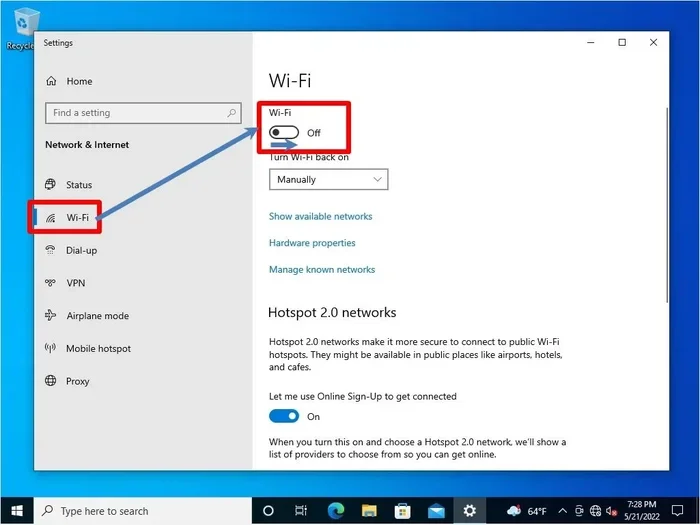
- Check your Wi-Fi adapter: If you have a laptop with a physical Wi-Fi switch, make sure it’s turned on before you start.
Common Mistakes to Avoid
- Using the wrong IP address: 192.168.1.1 and 192.168.0.1 are common, but yours might be different. Always check via ipconfig to be sure.
- Leaving the encryption type on WEP: WEP is outdated and easy to hack. Always use WPA2 or WPA3 for strong wireless security.
- Forgetting to reboot: Some routers need a restart to apply changes fully. Unplug it for 10 seconds if things don’t work right away.
- Typing the password wrong: Passwords are case-sensitive. Turn off Caps Lock and double-check each character.
Changing Wi-Fi Password on macOS
Click the Apple menu and choose System Preferences. Then go to Network. Click Wi-Fi on the left and then Advanced. Go to the TCP/IP tab. Look for Router: the number next to it is your default gateway. Copy that IP. Open Safari or another browser and enter the IP in the address bar. Log in with your admin credentials. Navigate to the Wireless or Wi-Fi settings. Find the Password or Passphrase field. Replace it with your new strong password. Select WPA2 or WPA3 security. Click Apply or Save. Your Mac will disconnect and reconnect automatically. Enter the new password when prompted.
Quick Tips for Mac Users
- Use Keychain Access: If you saved the old password in Keychain, you can update it after changing. Open Keychain Access, search for your network name, and delete the old entry. The next time you connect, Keychain will ask to save the new one.
- Check your router’s manual: Some routers use a different login path like 10.0.0.1 or a custom domain like routerlogin.net. The sticker on your router has all the details.
- Use the Option key trick: Hold the Option key and click the Wi-Fi icon in the menu bar. It shows the router IP directly.
- Use System Preferences for Wi-Fi: You can also go to Apple menu > System Preferences > Network > Wi-Fi > Advanced > TCP/IP to find the router IP quickly.
Common Mistakes to Avoid on Mac
- Not restarting the router: Even if you click save, a reboot helps all devices recognize the change. Unplug the router for 10 seconds.
- Using a weak password: Avoid 123456 or your name. Use a mix of letters, numbers, and symbols to keep your network safe.
- Ignoring the security type: Make sure you select WPA2 or WPA3 in the dropdown menu. Don’t leave it on the default if it’s WEP.
What If You Can’t Log Into Your Router?
Sometimes you don’t know the admin login or the IP address. Don’t worry. There are several ways to find this information. We’ll walk you through them step by step. Even if you’ve never touched your router settings before, you can figure this out.
Find Your Router’s Default IP Address
Every router has a default gateway. For most brands, it’s 192.168.1.1 or 192.168.0.1. You can also check the sticker on the back of your router. Look for a small label that says IP Address, Gateway, or Default Route. If you have the router manual, check there. On Windows, open Command Prompt and type ipconfig. The Default Gateway line shows the IP. On Mac, go to System Preferences > Network > Wi-Fi > Advanced > TCP/IP. The Router field shows the IP. You can also open a web browser and type “what is my router IP” into Google. It will show the answer right at the top of the search results.
Common Default IP Addresses by Router Brand
Different brands use different default IPs. Here’s a quick reference table to save you time.
| Router Brand | Default IP Address | Default Admin Username | Default Admin Password |
|---|---|---|---|
| Netgear | 192.168.1.1 or 192.168.0.1 | admin | password or admin |
| TP-Link | 192.168.0.1 or 192.168.1.1 | admin | admin |
| Linksys | 192.168.1.1 | admin | admin |
| ASUS | 192.168.1.1 | admin | admin |
| D-Link | 192.168.0.1 or 192.168.1.1 | admin | admin or blank |
| Ubiquiti | 192.168.1.1 | ubnt | ubnt |
If none of these work, check the router’s manual or the manufacturer’s website. The label on the router is your best friend. Write down the default login details and keep them in a safe place. That way you’ll never be locked out again.
Default Admin Username and Password
Most routers use a simple default login. Common combinations are admin/admin, admin/password, or admin/1234. Check the router label or manual. If you changed it before and forgot, you can reset the router. Press and hold the reset button for 10 seconds. This restores factory settings, including the default admin login. Be careful: this also erases any custom settings like port forwarding or QoS. Only do this as a last resort. Make sure you have your ISP account details handy if you need to reconfigure everything.
Use the Router Manufacturer’s App
Many modern routers come with a mobile app. Brands like Netgear, TP-Link, and Linksys have free apps. Download the app on your phone. It can guide you through changing the Wi-Fi password without typing IP addresses. The app connects directly to your router and walks you through each step. This is one of the easiest ways to change your wireless network password. You can also manage guest networks, update firmware, and check connected devices through the app. It’s a great option if you prefer using your phone over a computer.
Expert Insights
According to cybersecurity experts, changing your Wi-Fi password every three to six months is a best practice. It limits the damage if a password ever leaks. They also recommend using a password manager to store the new key safely. This way, you never have to remember it or write it on a sticky note. A strong password combined with WPA3 encryption gives you top-tier protection. They also suggest enabling network encryption and disabling WPS to close any remaining security gaps.
How to Make Your Wi-Fi Password Stronger and More Secure
A strong password is your first line of defense. A weak one can be cracked in seconds. Follow these tips to create a password that’s hard to guess. Your wireless network security depends on it.
What Makes a Strong Wi-Fi Password?
- Length matters: Aim for at least 12 characters. Longer is even better.
- Mix it up: Use uppercase, lowercase, numbers, and symbols like ! or $.
- Avoid personal info: Don’t use your name, birthday, or address. Hackers can guess those easily.
- Use a passphrase: A short sentence like “BlueSky$Coffee42!” is easy to remember and hard to crack.
- Don’t reuse old passwords: Each new password should be unique. This prevents a leaked password from being used again.
Choose the Right Encryption Type
When you’re in the router settings, you’ll see options like WEP, WPA, WPA2, and WPA3. Always choose WPA3 if your router supports it. If not, WPA2 is the minimum. WEP and WPA are outdated and should be avoided. They leave your network open to attacks. Upgrading your encryption is part of how you secure your wireless network. If your router doesn’t support WPA3, consider upgrading the firmware or the router itself. Newer routers often have a one-click WPA3 toggle that makes this easy.
Use a Wi-Fi Password Manager
Once you set a new password, save it in a password manager. Tools like Bitwarden, 1Password, or the built-in browser password saver can help. They auto-fill the password on all your devices. You’ll never need to type it again. This also means you can share the password safely with family members without writing it down. A password manager keeps your wireless network credentials organized and secure. You can also use it to store your router admin login, so you’ll always have it handy.
Common Mistakes When Creating a Password
- Using the same password for years: Set a reminder to change it every few months.
- Choosing WPS instead of a strong password: WPS is convenient but has known vulnerabilities. Disable it and use a strong Wi-Fi password instead.
- Sharing the password in plain text: Don’t send it via email or text. Use a secure method like a password manager’s sharing feature.
- Writing it on a sticky note: That’s one of the first things a stranger would look for. Use a digital manager instead.
Troubleshooting After You Change Your Wi-Fi Password
Even after you follow all the steps, things can go wrong. Devices might not connect, or you might forget the new password. Here’s how to fix common issues quickly and get everyone back online.
Devices Won’t Connect After the Change
If a device refuses to connect, double-check the password. Passwords are case-sensitive. Make sure Caps Lock is off. If you still can’t connect, forget the network on that device and reconnect. On Windows, go to Settings > Network & Internet > Wi-Fi > Manage Known Networks. Click the network and choose Forget. On Mac, go to System Preferences > Network > Wi-Fi > Advanced. Select the network and click the minus button. Then reconnect with the new password. This clears the old saved credentials and forces a fresh connection. Also, make sure you’re entering the password for the wireless network, not the router admin login.
You Forgot the New Wi-Fi Password
If you didn’t save the new password, you can find it on a connected device. On Windows, go to Control Panel > Network and Sharing Center > Click your Wi-Fi connection > Wireless Properties > Security tab. Check “Show characters” to reveal the password. On Mac, open Keychain Access. Search for your network name. Check “Show password” and enter your Mac login password. If nothing is connected, log back into the router and check the wireless password field. The router always stores the current password you set. You can also look at a device that is currently connected to the network and check its saved Wi-Fi password in the settings.
The Router Forgot the New Password After a Reboot
This is rare but can happen if the router firmware has a bug. Make sure you saved the settings properly. If the router keeps reverting, update its firmware. Log into the router admin panel, find Administration or Firmware Update, and install the latest version. This often fixes settings not sticking. After updating, change the password again and make sure to save. A reboot after the firmware update is also a good idea. Some routers have an auto-update feature you can enable to avoid this problem in the future.
Conclusion
Changing your Wi-Fi password doesn’t have to be scary. With this guide, you now know exactly how do I change my Wi Fi password on my computer. Whether you use Windows or Mac, the process is straightforward. Remember to use a strong password, update your encryption to WPA2 or WPA3, and save the new key in a password manager. A secure network keeps your data safe and your internet fast. Take a few minutes today to update your wireless network password. Your future self will thank you for taking this simple security step.
Frequently Asked Questions
Can I change my Wi-Fi password directly from my computer without logging into the router?
No, you must log into your router’s admin panel to change the actual Wi-Fi password. Your computer can only change the password it stores for the network, not the router’s settings. The router is the control center for your wireless network password.
What is the default IP address for most routers?
The most common default IP addresses are 192.168.1.1 and 192.168.0.1. You can also find the correct IP on the sticker at the back of your router or by running the ipconfig command in Windows Command Prompt.
How often should I change my Wi-Fi password?
Cybersecurity experts recommend changing your Wi-Fi password every three to six months. You should also change it immediately if you suspect someone unauthorized has access to your network or if a device that knew the password is lost or stolen.
What should I do if my devices won’t connect after changing the password?
First, double-check that you typed the new password correctly, paying attention to uppercase and lowercase letters. If it’s still not working, forget the network on each device and reconnect with the new password. Restarting your router can also help all devices recognize the change.
Is WPA3 better than WPA2 for my Wi-Fi password security?
Yes, WPA3 is the latest and most secure encryption standard. It offers stronger protection against brute-force attacks. If your router supports WPA3, choose it. If not, WPA2 is still a solid and widely compatible option. Avoid using WEP or WPA as they are outdated and insecure.
Can I use a password manager to store my new Wi-Fi password?
Absolutely. Using a password manager like Bitwarden, 1Password, or your browser’s built-in password saver is a great way to keep your new Wi-Fi password secure and easily accessible. It prevents you from forgetting the password and avoids the need to write it down on paper.