How to Bypass Previously Synced Google Accounts After Reset
Bypassing previously synced Google accounts after a reset is a common need for anyone who has bought a secondhand device or forgotten their login details. Factory Reset Protection can lock you out, but several reliable methods exist to regain access. This guide covers every practical approach with clear, easy-to-follow steps.
There is nothing more frustrating than powering on a phone after a reset and seeing the Google sign-in screen staring back at you. Factory Reset Protection is a security feature designed to keep your data safe. But when you are the rightful owner, it can feel like a brick wall. This article walks you through every practical method to bypass previously synced Google accounts after a reset. You will learn why this lock happens, what tools and tricks work best, and how to avoid common mistakes along the way.
Whether you bought a used phone, forgot your credentials, or simply want a clean start, the steps here apply to most Android devices. We keep things simple and straightforward. No jargon. No fluff. Just real solutions that actually work in 2024 and beyond.
Key Takeaways
- FRP Lock Explained: Understand what Factory Reset Protection is and why Google triggers it after a reset.
- Multiple Bypass Methods: Learn several proven techniques to remove previously synced Google accounts.
- Device-Specific Steps: Get tailored guidance for Samsung, Pixel, and other Android brands.
- Common Mistakes: Avoid pitfalls that can worsen the lock or void your warranty.
- Preventive Tips: Know how to remove accounts properly before resetting in the future.
- Safety First: Always ensure you own the device before attempting any bypass.
📑 Table of Contents
- What Is Google FRP and Why Does It Happen
- Why People Need to Bypass Synced Google Accounts
- Methods to Bypass Previously Synced Google Accounts
- Step-by-Step Guide for a Successful Bypass
- Common Mistakes to Avoid During Bypass
- Expert Insights for a Smooth Experience
- How to Prevent FRP Lock Issues in the Future
- Frequently Asked Questions
- Conclusion
What Is Google FRP and Why Does It Happen
Understanding Factory Reset Protection
Factory Reset Protection, or FRP, is a security layer built into Android devices. Google introduced it to fight phone theft. When someone steals a phone and resets it, the device still remembers the previously synced Google account. Without those login details, the phone becomes useless to the thief.
This is a great feature for security. But it creates a headache when you are the legitimate owner. Maybe you forgot your password. Maybe you bought a secondhand device. Or maybe you simply did a factory reset without realizing the consequences.
How the Google Sign-In Screen Triggers After Reset
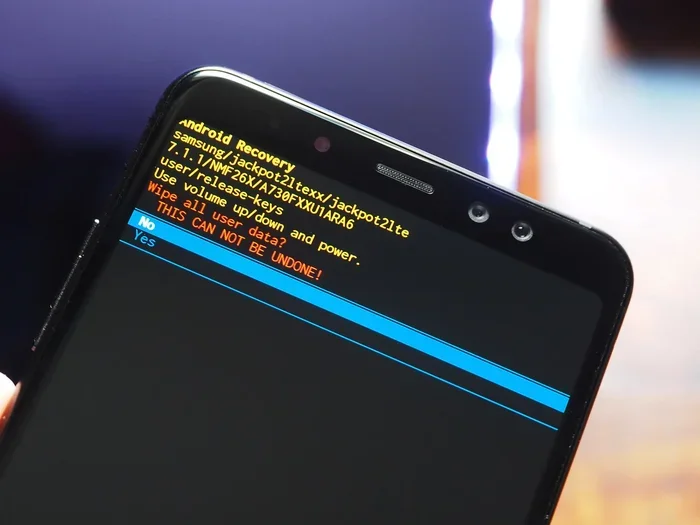
Here is what happens behind the scenes. When you reset an Android device, the system checks for any Google accounts that were synced before the wipe. If it finds one, it locks the device to that account. The Google verification screen appears during setup. You must enter the exact email and password that were active on the device before the reset.
This is not a bug. It is a deliberate security measure. Android uses your account credentials as a digital fingerprint. The device essentially says, “Prove you own this account before we let you in.”
Different brands handle this slightly differently. Samsung devices have their own version called Samsung Google lock. Pixel phones follow stock Android behavior closely. Other brands like Xiaomi, OnePlus, and Huawei add their own twists. But the core mechanism remains the same across all Android devices.
Why People Need to Bypass Synced Google Accounts
Buying a Secondhand Device
The most common reason is purchasing a used phone. Sellers sometimes forget to remove their Google account before wiping the device. The new owner then faces the Google account removal challenge. Without the previous owner’s credentials, the phone stays locked.
Forgotten Password or Email Access
People forget things. It happens all the time. You might have changed your email password months ago and no longer remember it. Or perhaps the email account itself is old and no longer accessible. In these cases, you need a way to remove the Google account from the device without logging in.
Inheritance or Gifted Devices
Sometimes a family member passes down a phone. Or a friend gifts you their old device. If they did not properly de-sync their Google sync settings, you end up stuck at the setup wizard. This situation is more common than most people think.
Repair or Service Center Scenarios
Technicians sometimes need to reset devices during repairs. After a software flash or motherboard replacement, the device activation lock can kick in. Service centers need reliable bypass methods to return phones to customers quickly.
Methods to Bypass Previously Synced Google Accounts
Method 1: The SIM Card Trick
This is one of the oldest and most widely used methods. It works on many Android versions up to Android 13. Here is how it goes.
- Insert a SIM card into the device when the Google verification screen appears.
- Dial a specific emergency number or code depending on your device model.
- Access the clock or dialer app from the error screen.
- Navigate to the browser or settings through available shortcuts.
- Download a setup file or app that skips the Google account step.
The SIM card method exploits how Android handles emergency calls and app access during the setup wizard. It is not foolproof on newer devices, but it still works on many older models.
Method 2: Using the Skip Button Workaround
During the initial setup, Android sometimes offers a Skip button. You can tap it multiple times in different locations on the screen. This trick opens hidden menus or settings paths that let you bypass the account verification step.
Here is a step-by-step approach.
- Go through the setup wizard until you reach the Google sign-in screen.
- Tap the Skip button if one appears at the bottom.
- If no Skip button shows, tap on the terms and conditions text several times.
- Look for a Next or Continue option that appears in an unexpected location.
- Some devices allow you to tap the back button repeatedly to reach a home screen shortcut.
This method is not guaranteed on every device. But it is worth trying because it requires no extra tools or downloads.
Method 3: Google Account Manager App
Another popular approach involves downloading the Google Account Manager APK file. This method requires access to a browser during the setup process.
- On the Google verification screen, tap the text field for the email address.
- A keyboard should appear. Look for a settings icon on the keyboard.
- Tap the settings icon to open a language or input menu.
- Navigate to the browser or help option from there.
- Download the Google Account Manager APK from a trusted source.
- Install it and use it to add or remove the Google account.
This method works best on devices running Android 9 through Android 12. Newer versions have patched many of the entry points this trick relies on.
Method 4: Using Samsung-specific Tools
Samsung devices have their own quirks. The Samsung Google lock behaves slightly differently from stock Android. Samsung users can try the following.
- On the Google verification screen, tap the email field to bring up the keyboard.
- Long-press the comma or settings key on the keyboard.
- This should open the language settings or a hidden menu.
- From there, navigate to the browser and search for a setup APK.
- Samsung devices running One UI 4 and 5 have additional security layers, so this may not always work.
Some Samsung users also report success using the My Knox workspace feature. This is a Samsung-specific container that can sometimes bypass the FRP lock during setup.
Method 5: Google Find My Device Remote Removal
If you still have access to another device logged into the same Google account, you can try removing the account remotely.
- Go to google.com/android/find on a computer or another phone.
- Sign in with the Google account that is locked on the reset device.
- Select the locked device from the list.
- Choose the Erase Device option.
- This remotely wipes the device, which may clear the FRP lock.
This method only works if you still have access to the original Google account credentials. It is the cleanest and safest approach when it is available.
Method 6: Using Google Verification Bypass APKs
Several third-party apps claim to help with Google verification bypass. These apps are not official Google tools. They work by exploiting specific Android vulnerabilities or loopholes.
Some well-known options include apps like Samsung FRP Bypass tools and various APK files available on trusted tech forums. Always download from reputable sources to avoid malware.
- Research any APK before downloading it.
- Check reviews and user feedback from reliable tech communities.
- Never enter personal information into apps that claim to bypass FRP.
- Use an antivirus scanner on any downloaded file before installing it.
Step-by-Step Guide for a Successful Bypass
Preparing Your Device
Before you start any bypass method, take a few preparatory steps. These small actions can save you a lot of trouble.
- Charge your device to at least 50 percent. A dead battery mid-process can cause complications.
- Insert a working SIM card if your method requires one.
- Connect to Wi-Fi if possible. Most bypass methods need an internet connection.
- Back up any existing data if the device is partially accessible.
Executing the Bypass
Once you have chosen your method, follow the steps carefully. Do not rush. Each tap matters. If one method does not work on your first try, do not panic. Move to the next method in this guide. Different device models respond to different approaches.
Quick Tips
- Take screenshots of each screen so you can reference them later.
- Write down every step you take in case you need to repeat the process.
- If a method asks you to download a file, make sure your browser allows installations from unknown sources.
- Stay patient. Some methods take several minutes to complete.
Verifying the Bypass Was Successful
After completing a bypass method, check that the Google account has been removed or skipped. You should be able to proceed through the setup wizard without being prompted for the previous owner’s credentials. Create a new Google account or skip the sign-in step entirely.
Test the device thoroughly. Make sure apps, Wi-Fi, and settings all work normally. A successful bypass should feel like using a brand new phone.
Common Mistakes to Avoid During Bypass
Skipping Research for Your Specific Model
Not all methods work on all devices. A trick that works on a Samsung Galaxy S20 might fail on a Pixel 6. Always research your specific device model and Android version before attempting a bypass. Using the wrong method can cause software issues or even brick the device.
Downloading Unverified APK Files
This is a big one. The internet is full of shady websites offering FRP bypass tools that are actually malware in disguise. Only download from trusted sources. Check file sizes, read user reviews, and scan everything with antivirus software before installing.
Ignoring Software Updates
Google and device manufacturers patch FRP vulnerabilities regularly. A method that worked on Android 10 might not work on Android 14. Always check the latest information for your specific Android version before trying any bypass technique.
Attempting Bypass on Stolen Devices
This is both unethical and illegal. FRP exists to protect device owners. If you did not purchase the device directly from the owner or an authorized retailer, you should not attempt a bypass. Respect the privacy protection features that Google built into Android.
Forgetting to Remove the Account Before Resetting
The best way to avoid FRP issues is prevention. Always remove your Google account from the device before performing a factory reset. Go to Settings, then Accounts, select Google, and remove the account. Then proceed with the reset. This simple step saves hours of trouble later.
Expert Insights for a Smooth Experience
Why Professional Help Sometimes Makes Sense
If you have tried multiple methods and none work, consider seeking professional help. Authorized service centers have official tools and deep knowledge of device-specific quirks. They can often resolve FRP locks without risking damage to your device.
However, be cautious. Some unauthorized repair shops use questionable methods that can compromise your device security. Always ask what approach they will take and why.
Staying Updated on New Bypass Methods
The Android ecosystem changes constantly. New versions bring new security features, and clever developers find new workarounds. Follow reputable tech blogs and forums to stay informed about the latest Google account removal techniques. Communities like XDA Developers are excellent resources for up-to-date bypass guides.
Understanding the Ethics of FRP Bypass
It is important to understand the purpose of Factory Reset Protection. It exists to deter phone theft and protect personal data. When you bypass FRP on your own device, that is one thing. But bypassing it on a stolen phone undermines a security feature that protects millions of people every day. Always use these methods responsibly and ethically.
How to Prevent FRP Lock Issues in the Future
Prevention is always better than cure. Here are simple habits that keep FRP issues away.
- Always remove your Google account before performing a factory reset.
- Sign out of all accounts including Samsung, Xiaomi, or manufacturer-specific accounts.
- Check the Accounts section in Settings to confirm no accounts remain active.
- Keep your credentials safe in a password manager so you never lose access.
- Wipe the device from within Settings rather than using hardware reset methods when possible.
These small steps take less than a minute and can save you from days of frustration. Think of them as a quick checklist before every reset.
Frequently Asked Questions
What is Factory Reset Protection on Android?
Factory Reset Protection is a security feature that locks your Android device after a factory reset if a Google account was previously synced. It prevents unauthorized access to your data if your phone is stolen or lost. You need the original account credentials to unlock the device after a reset.
Can I bypass FRP without losing data?
In most cases, a factory reset has already wiped your data before the FRP lock appears. The bypass methods described here focus on removing the account lock so you can set up the device fresh. Always back up any accessible data before attempting any bypass procedure.
Is it legal to bypass FRP on my own device?
Yes, bypassing FRP on a device you own is legal in most countries. The key factor is ownership. If you purchased the device legitimately and simply cannot access it due to forgotten credentials, you have every right to regain access. Bypassing FRP on a stolen device is illegal and unethical.
Do these methods work on the latest Android versions?
Some methods work on the latest versions, but Google continuously patches vulnerabilities. Newer Android versions like Android 14 and 15 have stronger FRP security. The SIM card trick and Skip button method still work on many devices, but results vary. Always check for version-specific guidance before trying.
What should I do if none of these methods work?
If all the methods in this guide fail, contact Google Support or visit an authorized service center. They have official tools to verify ownership and remove the FRP lock. You may need to provide proof of purchase or original account details to verify you are the legitimate owner.
Will bypassing FRP void my device warranty?
Using official methods and Google’s own removal tools generally does not void your warranty. However, downloading unofficial APKs or using unauthorized bypass tools might trigger warranty restrictions. Always check your device manufacturer’s warranty policy before attempting any third-party bypass method.
Conclusion
Bypassing previously synced Google accounts after a reset is entirely doable with the right approach and a bit of patience. Whether you choose the SIM card trick, the Skip button method, or a Google Account Manager workaround, the steps in this guide cover the most reliable paths to success. Factory Reset Protection is a valuable security feature, but it should not trap you out of your own device.
Remember to always remove your Google account before resetting in the future. This simple habit prevents FRP headaches entirely. If you do get locked out, work through the methods in this article one by one. Most users find a solution within the first two or three attempts.
Stay safe, stay ethical, and enjoy full control of your device again. The Google account removal process does not have to be complicated. With the right knowledge, you can power through any FRP lock and get back to using your phone the way you intended.