Does The Iphone Support Dlna And How To Stream To TV
Does The iPhone Support DLNA? The answer is yes, but not directly. While iOS does not include built-in DLNA support, you can easily stream media to your TV using third-party apps and compatible devices. This guide covers everything you need to know about iPhone DLNA streaming, including the best apps, setup steps, and troubleshooting tips.
Have you ever wanted to watch a movie or show your photos on a bigger screen? Maybe you are sitting on your couch and wish your iPhone screen could appear on your TV. The question does The iPhone Support DLNA comes up a lot. Many people want to stream content wirelessly without dealing with cables. The good news is that you can absolutely do this. But the path to getting there is not always obvious.
iPhone users often run into a wall when they try to use DLNA. Apple does not build native DLNA support into iOS. This surprises a lot of people. They assume that because their phone can do so much, streaming to a TV should be easy. And it is, but you need the right tools. In this article, we will walk you through everything. You will learn what DLNA is, why Apple handles it differently, and exactly how to stream from your iPhone to your TV. We will also cover the best apps, common problems, and simple fixes.
By the time you finish reading, you will have a clear plan. You will know exactly what to do to get your iPhone content on your big screen. No guesswork. No confusion. Just straightforward steps that work. Let us dive in.
Key Takeaways
- iPhone Does Not Have Native DLNA: iOS lacks built-in DLNA support, but simple workarounds exist.
- Third-Party Apps Are Essential: Apps like Plex, Infuse, and 8player make iPhone DLNA streaming easy and reliable.
- DLNA Works Over Your Home Network: You need a stable Wi-Fi connection and a DLNA-compatible TV or media renderer.
- Streaming Is Simple Once Set Up: After installing the right app, casting media from your iPhone takes just a few taps.
- AirPlay Is Apple’s Built-In Alternative: If your TV supports AirPlay, you may not need DLNA at all.
- Troubleshooting Is Usually Straightforward: Most iPhone DLNA issues relate to network settings or app configuration.
📑 Table of Contents
- What Is DLNA and How Does It Work?
- Does The iPhone Support DLNA Natively?
- How To Set Up DLNA Streaming From Your iPhone
- Best Apps For iPhone DLNA Streaming
- DLNA vs AirPlay: Comparing iPhone Streaming Options
- Troubleshooting Common iPhone DLNA Issues
- Expert Tips For Better iPhone DLNA Streaming
- Final Thoughts
What Is DLNA and How Does It Work?
Before we answer does The iPhone Support DLNA, let us understand what DLNA actually is. DLNA stands for Digital Living Network Alliance. It is a set of guidelines that lets devices share media over a home network. Think of it as a universal language for your gadgets. When devices speak this language, they can find each other and share content without extra fuss.
Here is how it works in simple terms. You have a media file on your phone or computer. You also have a TV or media player on the same Wi-Fi network. DLNA lets those devices communicate. Your phone acts as a DLNA server. Your TV acts as a DLNA renderer. The server sends the video or music file to the renderer. The renderer plays it on the big screen. All of this happens wirelessly. You do not need cables. You do not need to transfer files manually.
What Devices Support DLNA?
A huge range of devices support DLNA. Most smart TVs from brands like Samsung, LG, and Sony have it built in. Many streaming sticks and boxes also work. Roku devices, certain Amazon Fire TV models, and some Blu-ray players support DLNA. Even some game consoles can act as DLNA renderers. If your device was made in the last decade and connects to your TV, there is a good chance it supports DLNA. You can usually find this in the settings menu under network or media sharing options.
How Is DLNA Different From Other Streaming Methods?
DLNA is not the only way to stream media. AirPlay is Apple’s own streaming protocol. It works seamlessly between Apple devices. Chromecast uses Google’s casting technology. Miracast handles wireless screen mirroring. Each method has its strengths. DLNA is great for playing specific media files. AirPlay is better for screen mirroring and Apple ecosystem users. Chromecast offers a simple casting experience. The key difference is that DLNA focuses on media file sharing, while other methods may focus on screen mirroring or app-based streaming.
Does The iPhone Support DLNA Natively?
Now for the big question. Does The iPhone Support DLNA out of the box? The short answer is no. Apple does not include DLNA functionality in iOS. This is a deliberate choice. Apple prefers you to use AirPlay, which keeps you inside their ecosystem. They want you to buy Apple TV, AirPlay-compatible speakers, and other Apple products. It is a smart business strategy, but it can be frustrating for users who want more flexibility.
When you look at an iPhone, you will not find a DLNA option in the settings. There is no built-in DLNA server or renderer. You cannot simply tap a share button and select your TV. This is different from Android phones, which often have native or easy access to DLNA features. iPhone users need to rely on third-party applications to fill this gap. The good news is that many excellent apps make this process smooth and painless.
Why Apple Chooses Not to Support DLNA
Apple has always favored a closed ecosystem. They control the hardware, the software, and the streaming experience. AirPlay gives them complete control over how content flows between devices. It also encourages users to stay within Apple’s world. If you want the best AirPlay experience, you buy an Apple TV. This creates revenue for Apple. DLNA, on the other hand, is an open standard. It works across brands and platforms. Apple has little incentive to support an open standard that does not benefit their bottom line.
What This Means for iPhone Users
Not having native DLNA support does not mean you are stuck. It just means you need to use an app. The app ecosystem on iOS is rich and mature. Many developers have created excellent DLNA solutions for iPhone users. You will find apps that let you browse your media library, connect to your TV, and stream content effortlessly. The experience is often just as good as native support, sometimes even better. You get more features, more control, and more flexibility.
How To Set Up DLNA Streaming From Your iPhone
Setting up iPhone DLNA streaming is easier than you might think. You do not need to be a tech expert. With the right app and a few simple steps, you can be casting to your TV in minutes. Let us walk through the process step by step.
Step 1: Make Sure Your Devices Are on the Same Network
This is the most important step. Your iPhone and your TV or media renderer must be on the same Wi-Fi network. If they are on different networks, they cannot find each other. Check your Wi-Fi settings on both devices. Make sure you are connected to the same network name and password. If you have a mesh network or multiple routers, this is especially important to verify. Sometimes devices connect to a guest network by accident, which breaks the connection.
Step 2: Install a DLNA App on Your iPhone
Open the App Store on your iPhone and search for a DLNA app. There are many options available. Some are free, and some require a one-time purchase or subscription. We will cover the best options in the next section. Once you download and install the app, open it and grant any permissions it requests. Most apps need access to your photos, videos, and music library to stream content.
Step 3: Connect to Your TV or Renderer
Inside the DLNA app, look for a search or connect button. The app will scan your local network for DLNA-compatible devices. Your TV should appear in the list. Tap on it to connect. Once connected, you can browse your media library within the app. Select a video, photo, or music file. Hit play. The content should start streaming to your TV. It really is that simple.
Step 4: Enjoy Your Content on the Big Screen
Once the connection is established, you can control playback from your iPhone. Use your phone as a remote. Pause, skip, adjust volume, or select a different file. The TV does all the heavy lifting for decoding and displaying the content. This means your iPhone battery stays healthier since it is not doing the rendering work.
Best Apps For iPhone DLNA Streaming
Not all DLNA apps are created equal. Some are clunky and outdated. Others are polished and full of features. Choosing the right app makes a huge difference in your streaming experience. Here are the best options available for iPhone users right now.
Plex
Plex is one of the most popular media apps in the world. It started as a DLNA server but has grown into a full media management platform. Plex lets you organize your movies, TV shows, music, and photos. You can stream your personal media library to your iPhone and then cast it to your TV. Plex also offers free streaming channels and a premium subscription for additional features. It is not a pure DLNA app, but it supports DLNA rendering and works beautifully with most smart TVs.
Infuse
Infuse is a fantastic video player for iPhone and iPad. It supports a wide range of video formats, which is a big plus. Infuse can connect to DLNA servers on your network. It also supports AirPlay, so you have flexibility. The app has a clean, modern interface that is easy to navigate. It handles subtitles well and offers smooth playback even for large video files. Infuse is a great choice if you want a dedicated media player that doubles as a DLNA client.
8player
8player is a solid DLNA-focused app for iOS. It is designed specifically for streaming media from DLNA servers to your TV. The app is straightforward and does not have a lot of unnecessary features. It does one thing well: connecting your iPhone to your TV via DLNA. If you want a simple, no-frills solution, 8player is worth trying. It is especially good for users who already have a DLNA server set up on their computer or NAS device.
Other Notable Options
- PlayerXtreme: A versatile media player that supports DLNA and many file formats.
- VLC for Mobile: The popular open-source player also has DLNA capabilities.
- MediaCloud: A good option for accessing and streaming media over your home network.
- Connectify: Useful for creating a hotspot and sharing media across devices.
How To Choose the Right App
When picking a DLNA app, consider what you need most. Do you want a full media manager like Plex? Or do you just need a simple player like 8player? Think about the file formats you use. Some apps handle more formats than others. Check if the app supports subtitles and external audio tracks. Read user reviews to see if there are any known issues with your TV model. Most of these apps offer free versions, so you can test a few and see which one works best for you.
DLNA vs AirPlay: Comparing iPhone Streaming Options
If you own an iPhone, you have probably used AirPlay before. It is Apple’s built-in wireless streaming technology. But how does it compare to DLNA? Understanding the differences helps you choose the right method for your needs.
When To Use AirPlay
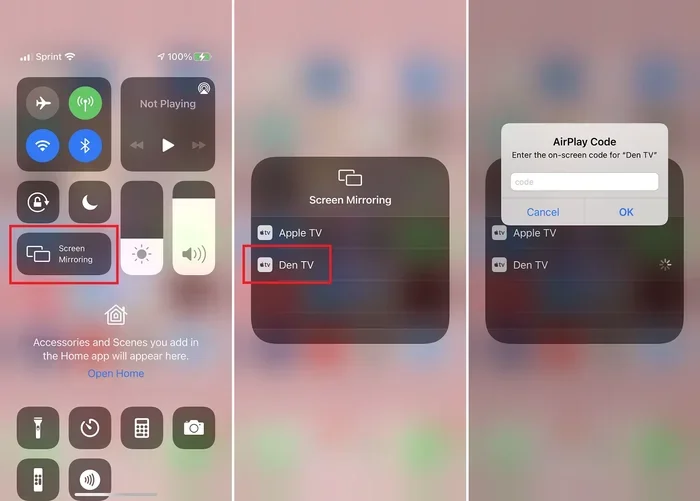
AirPlay is the best choice if you have an Apple TV or an AirPlay-compatible smart TV. It works seamlessly with iOS devices. You can mirror your entire screen or stream content from specific apps. AirPlay handles video, music, photos, and even screen mirroring. The setup is effortless. You just swipe up or go to Control Center and tap the AirPlay icon. If your TV supports AirPlay 2, you are good to go. No extra apps are needed.
When To Use DLNA Instead
DLNA shines when you want to play specific media files from your library. If you have a movie file stored on your computer or NAS drive, DLNA is the way to go. AirPlay works best with content from apps and the web. DLNA gives you direct access to your personal media files. It is also a better option if your TV does not support AirPlay but has DLNA built in. Many older smart TVs and streaming devices only support DLNA, not AirPlay.
Head-to-Head Comparison
| Feature | AirPlay | DLNA |
|---|---|---|
| Built into iPhone | Yes | No |
| Screen Mirroring | Yes | No |
| File Streaming | Limited | Yes |
| Works with Apple TV | Yes | No |
| Works with Most Smart TVs | Only AirPlay 2 models | Yes, most models |
| Requires Extra App | No | Yes |
| Ecosystem Lock-In | Apple only | Cross-platform |
As you can see, both technologies have their place. AirPlay is more convenient for Apple users. DLNA offers more flexibility for playing personal media files. Many power users actually use both depending on the situation.
Troubleshooting Common iPhone DLNA Issues
Even with the right app, you might run into problems. iPhone DLNA streaming does not always work perfectly the first time. Network issues, app settings, and device compatibility can all cause hiccups. Here are the most common problems and how to fix them.
Your iPhone Cannot Find Your TV
This is the most common issue. If your iPhone does not detect your TV as a DLNA renderer, check your network first. Make sure both devices are on the same Wi-Fi network. Restart your router if needed. Some routers have settings that block device discovery. Look for options like AP isolation or guest mode and disable them. Also, try restarting both your iPhone and your TV. A simple reboot often solves the problem.
Streaming Stutters or Buffers
Buffering usually means your Wi-Fi connection is weak or slow. Move closer to your router if possible. If you have a large home, consider a mesh Wi-Fi system. Also, check if other devices are using heavy bandwidth. Someone streaming a 4K movie on another device can slow everything down. Lower the video quality in your DLNA app settings if needed. Streaming at 1080p instead of 4K requires less bandwidth and plays more smoothly.
Audio and Video Are Out of Sync
This can happen with large video files or high-bitrate content. Your TV or renderer may struggle to decode the file in real time. Try playing a different file to see if the issue is specific to one video. Update your DLNA app to the latest version. Check if your TV has a firmware update available. Sometimes the problem is with the file itself, not your setup.
The App Crashes or Freezes
If your DLNA app crashes, force close it and reopen. Make sure your iPhone is running the latest version of iOS. Delete and reinstall the app if problems persist. Check the app store for any recent updates that might fix bugs. If you are using a free version of the app, consider upgrading to the paid version. Free versions sometimes have limitations that cause instability.
Your TV Shows a Black Screen
A black screen usually means the connection was made but the TV cannot decode the content. Check if your video format is supported by your TV. Some TVs struggle with certain codecs like H.265 or HEVC. Try converting the file to a more compatible format or use an app that handles the decoding on the iPhone side instead of the TV side.
Expert Tips For Better iPhone DLNA Streaming
A few small changes can make a big difference in your streaming experience. Here are some expert tips that regular users often overlook.
- Use a 5 GHz Wi-Fi band: It is faster and less congested than the 2.4 GHz band. This alone can fix most buffering issues.
- Keep your media files organized: Name your files clearly and store them in folders. This makes browsing much easier inside DLNA apps.
- Update your router firmware: Old firmware can cause compatibility issues with newer devices. Check for updates regularly.
- Use a wired connection for your server: If your media is on a computer, connect it to your router with an Ethernet cable. This provides a more stable stream.
- Close background apps on your iPhone: This frees up memory and processing power for smoother streaming.
- Test with different file formats: Not all files work equally well. MP4 files with H.264 encoding tend to work most reliably across devices.
Final Thoughts
So, does The iPhone Support DLNA? Not natively, but that should not stop you. With the right app and a basic understanding of how DLNA works, you can stream virtually any media from your iPhone to your TV. The process is straightforward once you set it up. You just need a compatible app, a Wi-Fi connection, and a DLNA-capable display device.
Whether you choose Plex, Infuse, 8player, or another app, you have plenty of great options. Each app offers something different. Some focus on media management, while others prioritize simplicity. Try a few and see which one fits your workflow best. The beauty of the iOS ecosystem is that you have choices, even when Apple does not provide a built-in solution.
Streaming from your iPhone to your TV opens up a world of possibilities. Watch your personal video collection on the big screen. Share vacation photos with the whole family. Listen to your music library through your TV speakers. Once you set it up, you will wonder how you ever lived without it. Take some time today to explore your options. You will be glad you did.
The key is to start simple. Install one app, connect to your TV, and test it with a single video. Once you see it working, you will feel confident to explore more features. Do not let the lack of native support discourage you. The workaround is easy, effective, and gives you more control than you might expect. iPhone DLNA streaming is a practical skill that enhances how you enjoy your media every day.
Frequently Asked Questions
Can I use DLNA to stream from my iPhone to any TV?
You can stream to any TV or device that supports DLNA. Most smart TVs made in the last ten years have DLNA built in. If your TV does not support it natively, you can use a DLNA-compatible streaming stick or box. Check your TV’s settings or manual to confirm DLNA support.
Is DLNA streaming free to use?
The DLNA protocol itself is free and open. However, many DLNA apps for iPhone charge a fee or offer premium features through subscriptions. Some apps are completely free with ads. You can find a free option that works well for basic streaming needs.
Does DLNA work without Wi-Fi?
No, DLNA requires a Wi-Fi network. Both your iPhone and your TV must be connected to the same local network. DLNA cannot work over cellular data or through Bluetooth. A stable Wi-Fi connection is essential for smooth streaming.
Can I use DLNA to mirror my iPhone screen?
No, DLNA is designed for playing media files, not screen mirroring. If you want to mirror your entire iPhone screen to your TV, use AirPlay instead. DLNA lets you play specific videos, photos, and music files on your TV, but it does not replicate your screen in real time.
What is the difference between DLNA and casting?
Casting usually refers to technologies like Google Cast or Chromecast. DLNA is a broader standard for sharing media files over a network. Casting often involves sending a link to a service, while DLNA streams the actual file from your device. Both achieve similar results but work differently under the hood.
Why is my iPhone DLNA stream lagging or choppy?
Lag usually comes from a weak Wi-Fi signal or network congestion. Make sure both devices are close to your router and on the same 5 GHz band if possible. Also check if other devices are using heavy bandwidth. Lowering the video quality in your app settings can also help reduce lag.
=== CONCLUSION ===
Does The iPhone Support DLNA? Yes, through third-party apps and a little setup. Apple may not build native DLNA into iOS, but the workaround is simple and effective. You can stream your favorite videos, photos, and music from your iPhone to any DLNA-compatible TV or device. The key is choosing the right app, ensuring both devices are on the same network, and following the setup steps outlined in this guide.
Whether you prefer the simplicity of AirPlay or the flexibility of DLNA, you have options. iPhone users today have access to powerful streaming tools that make the most of their devices. Take the time to explore what works best for your setup. You will enjoy a bigger, better viewing experience every single day. Start with one app today and transform how you watch and share your media.