Do I Need A Bluetooth Dongle If My Pc Has Bluetooth
Do I Need A Bluetooth Dongle If My Pc Has Bluetooth? Usually, the answer is no. Your built-in Bluetooth handles basic tasks like connecting a mouse or headphones just fine. However, a Bluetooth dongle becomes essential if you face range limits, slow speeds, or frequent connectivity issues with wireless peripherals.
You might be sitting at your desk, looking at your computer, and wondering if you really need to buy extra gear. The short answer is usually no. If your computer already has Bluetooth, you can connect wireless devices without any extra hardware. But sometimes, that built-in connection just is not enough. Let us talk about when you actually need a Bluetooth dongle and when you do not.
Many modern laptops and desktops come with wireless capabilities right out of the box. You can pair your keyboard, mouse, or headphones easily. This works great for simple tasks around the house or office. However, what happens when your wireless signal drops or your audio lags? That is where an external adapter comes in handy. Understanding the difference between your internal system and an add-on dongle helps you make the right choice.
Not everyone has the same computer setup. Some people use big desktop towers with metal cases. Others use slim laptops with tightly packed components. These differences affect how well your Bluetooth works. If you are tired of your mouse disconnecting or your music cutting out, keep reading. We will walk you through everything you need to know about Bluetooth dongles and your built-in wireless features.
Key Takeaways
- Built-in Bluetooth is enough for basic use: If you just want to connect a mouse or headphones, your PC is likely fine.
- A dongle improves range and speed: Upgrading to a Bluetooth 5.0 dongle gives you a stronger wireless signal over longer distances.
- Check your Bluetooth version first: Older Bluetooth versions on your PC limit your wireless experience.
- Drivers matter: Keeping your driver updated prevents pairing problems.
- Dongles solve interference: A dedicated wireless adapter bypasses internal antenna weaknesses.
📑 Table of Contents
- Understanding Your PCs Built-In Bluetooth
- When You Actually Need A Bluetooth Dongle
- Dongle Vs Built-In Bluetooth: A Head To Head Comparison
- How To Choose The Right Bluetooth Dongle
- What Is A Bluetooth Dongle And How Does It Work
- Common Mistakes People Make With Bluetooth Dongles
- Quick Tips For First Time Dongle Users
- Expert Tips For Better Bluetooth Performance
- Conclusion
Understanding Your PCs Built-In Bluetooth
How Built-In Bluetooth Works
Your PC uses a small chip inside the motherboard to send and receive Bluetooth signals. This chip connects to tiny antennas hidden inside your computer case. When you turn on Bluetooth, this internal system searches for nearby devices. It uses your computers power and internal antenna to create a wireless connection.
Most modern computers support Bluetooth 4.0 or 5.0 natively. The version you have depends on your computers age and hardware. Older machines might only support Bluetooth 3.0 or lower. This older tech works fine for basic file transfers and audio streaming. But it might struggle with high-quality audio or fast data moves.
The internal chip is designed to be small and efficient. It shares resources with your other computer parts. This means it does not always get the full power it needs for heavy tasks. If you are just browsing the web, this is fine. But if you want to connect multiple devices at once, you might hit a wall. The internal antenna is also stuck inside the case, which can block the signal. Metal cases are especially bad at blocking these signals. You might find your connection drops when you lean your body against the desk. This is because your body absorbs the wireless signal.
Let us talk about Bluetooth versions for a moment. Bluetooth 4.0 was the standard for many years. It could handle basic audio and file transfers without any problems. But it was slow when you wanted to send large files quickly. Bluetooth 5.0 changed the game completely. It doubled the speed and quadrupled the range. If your PC only has Bluetooth 4.0, you might notice the lag during heavy use. A dongle with Bluetooth 5.0 is like upgrading from a slow highway to a wide, open freeway.
When Built-In Bluetooth Is Enough
You do not need any extra gear if your daily tasks are simple. A dongle is unnecessary if you just want to use a wireless mouse or keyboard nearby. Built-in Bluetooth handles standard audio streaming to your speakers or headphones perfectly. If you are just browsing the web and listening to music, your internal system will serve you well.
Think about your daily routine. Do you stay within a few feet of your computer? If yes, your built-in Bluetooth is probably all you need. You also do not need a dongle if you only connect one or two devices at a time. The internal chip can manage these low-demand tasks without any trouble.
Another time built-in Bluetooth is fine is when you are at your desk all day. You are not moving around much. The short range of the internal antenna does not bother you. You plug in your wireless headphones, and they stay connected. You use your wireless mouse, and it never drops the connection. For these everyday tasks, you are completely fine without a Bluetooth dongle.
Gaming is another area where built-in Bluetooth often falls short. If you play competitive games, you need a fast and stable connection. Built-in Bluetooth can introduce latency, which is a slight delay. This delay might not matter for watching videos. But it can make a huge difference in fast-paced games. If you are a casual gamer, you might not notice it. But a pro gamer will definitely feel the lag.
Think about how you use your computer. Do you game? Do you work from home? Do you just browse the internet? If you only do light browsing, your current setup is perfect. You do not need to spend money on an adapter. Many people buy dongles they do not need. They plug it in, forget about it, and never use it. Avoiding this mistake saves you money and a USB port.
When You Actually Need A Bluetooth Dongle
Upgrading To Bluetooth 5.0 For Better Range
Sometimes, your internal Bluetooth just cannot reach where you need it to go. Maybe your desk is far from your router or your stereo. A dongle can fix this by offering a stronger wireless signal. If you want to move around your room freely, an external adapter helps.
A Bluetooth 5.0 dongle offers much better range than older internal chips. You can get up to 30 feet of stable connection. This means you can sit on your couch and still control your PC. The improved range also reduces dropouts when you walk around the house. You are not stuck sitting right next to your desk anymore.
The range boost is huge for people who like to multi-task. You can cook in the kitchen and still control your media PC in the living room. You can walk to the kitchen and answer a call from your wireless headset. This kind of freedom is hard to get with an internal chip alone. The external antenna on a dongle picks up the signal much better. It does not have to push through a thick metal computer case to reach your devices.
Also, consider the future. Technology keeps getting better. Bluetooth 5.0 and 5.1 are becoming the new standard. If you buy a dongle now, it will last you for years. You will not need to replace it as fast as you would with an older model. Investing in a good dongle today saves you money tomorrow.
Solving Connectivity Issues With A Dongle
Do you experience lag when using your wireless headphones? Does your mouse disconnect randomly? These are common connectivity issues. They happen when your internal antenna is weak or blocked by your computer case. A dongle plugs directly into a USB port, giving it a clear path to the air.
Interference from other electronic devices can hurt your pairing stability. Microwaves, Wi-Fi routers, and even USB 3.0 ports can cause problems. A dedicated wireless adapter often has better shielding against this interference. It focuses purely on the Bluetooth connection, leaving other wireless signals alone.
If you live in an apartment or a busy office, interference is a real problem. Many networks and devices are competing for space on the airwaves. A good dongle can filter out this noise better than your computers internal chip. It keeps your devices connected even in crowded wireless environments. This is a huge advantage for people who work in shared spaces. You will notice fewer moments where your devices just stop working for no reason.
Dongle Vs Built-In Bluetooth: A Head To Head Comparison
To help you decide, let us look at the real differences. The table below compares built-in Bluetooth with a dongle setup. This will show you where each option shines.
| Feature | Built-In Bluetooth | Bluetooth Dongle |
|---|---|---|
| Range | Short (10-15 feet) | Long (up to 30 feet with BT 5.0) |
| Speed | Standard (depends on version) | Faster (BT 5.0 offers higher bandwidth) |
| Installation | None needed | Plug and play or driver install |
| Interference | High (blocked by PC case) | Low (external placement) |
| Cost | Free (already included) | Low cost ($10 to $30) |
As you can see, a dongle gives you better range and less interference. But it costs a little money and uses a USB port. Built-in Bluetooth wins on convenience and price. Choose based on your specific needs. If you just want basic connectivity, stick with what you have. If you want performance and reliability, buy an adapter.
How To Choose The Right Bluetooth Dongle
Checking Your USB Port And Version
Before you buy, look at your computers USB ports. A USB 3.0 port is best for a dongle. It provides more stable power and better data transfer. If you plug a dongle into an older USB 2.0 port, you might not get the best speeds.
You also want to check the physical size of the dongle. Some are tiny and stay out of the way. Others are bulky and might block nearby ports. A small nano dongle is perfect if you leave it plugged in all the time. You do not want a bulky adapter blocking your USB flash drive slot.
Consider the build quality too. Cheap plastic dongles break easily. They might stop working after a few months of daily use. Spending a little extra money on a well-built dongle is worth it. Look for dongles from trusted brands. They often come with better customer support and longer warranties.
Considering Driver And Software Support
Most dongles work instantly on Windows and Mac computers. But some need a quick driver download to work properly. Check the manufacturers website for the latest driver. Keeping your driver updated prevents latency and keeps your devices connected.
Good software support means you can update your Bluetooth version firmware. This is rare with built-in chips, but common with external adapters. Updating your firmware can fix bugs and improve your wireless experience. It is like giving your dongle a performance boost over time.
What Is A Bluetooth Dongle And How Does It Work
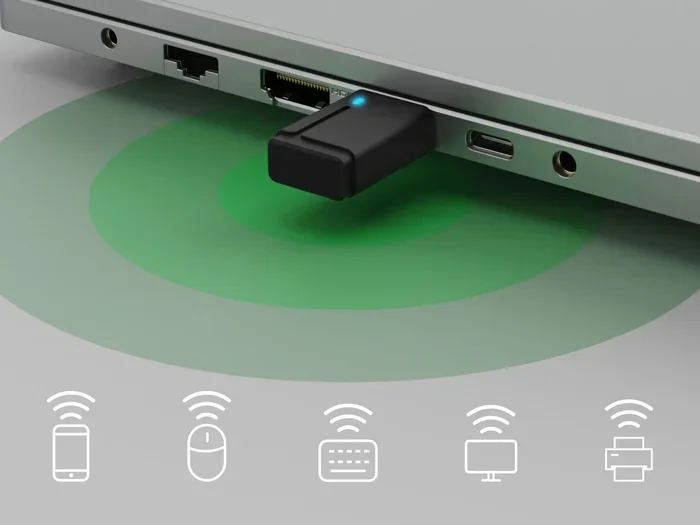
A Bluetooth dongle is a small USB device that adds Bluetooth capability to your computer. Think of it as a tiny radio transmitter. It sends and receives signals to and from your wireless devices. When you plug it in, your computer gains a new way to connect to peripherals.
The dongle acts as a bridge between your PC and your devices. It takes the data from your computer and turns it into a radio wave. This wave travels through the air to your headphones or mouse. The device receives the wave and turns it back into data. This whole process happens in milliseconds, making it feel instant.
Dongles are very easy to use. You simply plug them into a USB port. Most modern dongles are plug and play, meaning no setup is required. They are also very affordable. You can get a reliable one for under thirty dollars. This makes them a great option for anyone who needs a quick fix. They are also great for people who have desktop computers without Bluetooth at all.
Common Mistakes People Make With Bluetooth Dongles
Ignoring Driver Updates
One big mistake is plugging in a dongle and forgetting about it. Over time, driver updates come out. These updates fix bugs and improve wireless signal strength. If you ignore them, you might face random disconnects.
Always check your device manager for updates. A simple update can solve many connectivity issues. It takes just a few minutes and keeps your wireless peripheral running smoothly. Do not let a simple driver fix turn into a big headache.
Placing The Dongle In The Wrong USB Port
Another mistake is hiding the dongle behind your monitor or PC case. If the dongle is buried, the signal gets weak. You want it to be in an open area with a clear line of sight. This reduces interference from other electronics.
Try plugging your dongle into a front-facing USB port. This keeps it away from metal cases and power cables. Better placement means a stronger wireless adapter connection. Think of it like putting your router in the center of your home. The more open space it has, the better the signal.
Quick Tips For First Time Dongle Users
If you are new to using a dongle, here are a few tips to get started. First, always plug the dongle directly into the computer. Do not use a USB hub unless it has its own power supply. A powered hub works, but a simple unpowered hub can weaken the signal.
Second, keep your dongle away from water and heat. Electronics do not like moisture or high temperatures. Third, restart your computer after plugging in a new dongle. This forces your PC to recognize the new hardware and load the correct drivers. These small steps can save you a lot of troubleshooting later.
Expert Tips For Better Bluetooth Performance
If you want the best experience, follow these simple tips. First, always keep your Bluetooth dongle away from thick walls. Walls block the wireless signal and reduce your range. Second, restart your Bluetooth device if it stops connecting. This clears the cache and forces a fresh pairing.
Third, limit the number of devices connected at once. Too many devices at once can slow down your audio streaming and file transfer speeds. Keep only the active devices connected. Finally, update your operating system. OS updates often include better support for Bluetooth hardware. A quick system update can make a big difference.
Conclusion
So, do you need a Bluetooth dongle if your PC already has Bluetooth? For basic tasks, you probably do not. Your built-in Bluetooth handles everyday jobs like connecting a mouse or headphones. But if you want better range, faster speeds, or fewer dropouts, a dongle is a great investment. A Bluetooth dongle solves many connectivity issues and gives you a much better wireless experience. Think about your setup, check your Bluetooth version, and make the choice that fits your needs. Your wireless peripherals will thank you for it!
Frequently Asked Questions
Can I use a Bluetooth dongle if my PC already has Bluetooth?
Yes, you can. Plugging in a dongle will not break your built-in Bluetooth. However, you might need to disable the internal Bluetooth in your settings to avoid interference between the two devices.
Does a Bluetooth dongle improve audio quality?
It can. A newer dongle with Bluetooth 5.0 supports better audio codecs. This means less compression and higher quality sound compared to older Bluetooth versions.
Are Bluetooth dongles safe to use?
Yes, they are very safe. They use low-energy radio waves that are completely harmless to humans. They are just like the Bluetooth inside your phone or laptop.
Why does my Bluetooth keep disconnecting?
This is often caused by interference or outdated drivers. Moving your dongle to a front USB port or updating your driver usually fixes the problem quickly.
How far can a Bluetooth dongle reach?
A Bluetooth 5.0 dongle can reach up to 30 feet in open space. Walls and furniture will reduce this distance, but it is still much further than built-in Bluetooth.
Do I need to install drivers for a Bluetooth dongle?
Most modern dongles are plug and play and do not need drivers. However, some advanced models might require a quick driver download for the best performance.