Do Hdmi Switches Switch Automatically Without Any Hassle
Do HDMI switches switch automatically? Yes, many modern automatic HDMI switchers detect active signals and change inputs without you lifting a finger. This guide explains how seamless switching works, the different types of HDMI switchers, and what to look for when buying one. You’ll learn the pros and cons, common issues, and quick tips to get flawless auto-switching for your home theater or gaming setup.
Do you have multiple devices like a gaming console, a streaming stick, and a cable box, but only one HDMI port on your TV? You’re not alone. Many people run into this problem and wonder if there’s a simple solution. The good news is that an HDMI switch can help. But the real question is: do HDMI switches switch automatically? The answer is yes, and it’s simpler than you think.
An automatic HDMI switcher saves you from constantly unplugging and replugging cables. It detects which device is turned on and changes the input for you. This means you can jump from playing a game to watching a movie without any hassle. In this article, I’ll break down exactly how automatic switching works, the different types available, and how to pick the right one for your setup.
By the end, you’ll know everything you need about Do HDMI Switches Switch Automatically. You’ll understand the technology, the benefits, and the common pitfalls. Let’s dive in.
Key Takeaways
- Automatic HDMI switches exist and work well: They detect which device is active and switch inputs instantly, so you don’t need a remote.
- EDID-based switching is the most reliable: It reads the signal from your TV or receiver to know which device is sending video.
- Not all auto switches are equal: Cheap models may lag or fail with 4K signals, while premium ones handle high resolutions smoothly.
- Common problems are fixable: Issues like signal loss or delay often come from bad cables, HDCP errors, or incorrect settings.
- Choose based on your needs: Consider the number of inputs, resolution support, and whether you need audio return channel (ARC) or HDMI eARC.
- Setup is simple: Plug in your devices, connect the output to your TV, and let the switch handle the rest.
📑 Table of Contents
What Is an HDMI Switch and Why Do You Need One?
An HDMI switch is a device that lets you connect multiple HDMI sources to a single display. Think of it as a traffic director for your video signals. Instead of buying a new TV with more ports, you use a switch to share one input.
You might need one if you have a home theater setup with a Blu-ray player, a soundbar, and a game console. Or maybe you use a PC, a streaming stick, and a cable box. Without a switch, you’d have to change cables every time you want to use a different device. That’s annoying and time-consuming.
A good switch solves this problem. It keeps everything connected and ready. You just pick the source you want, and the switch handles the rest. Some switches do this manually, while others do it automatically. We’ll focus on the automatic kind in this guide.
How a Basic HDMI Switch Works
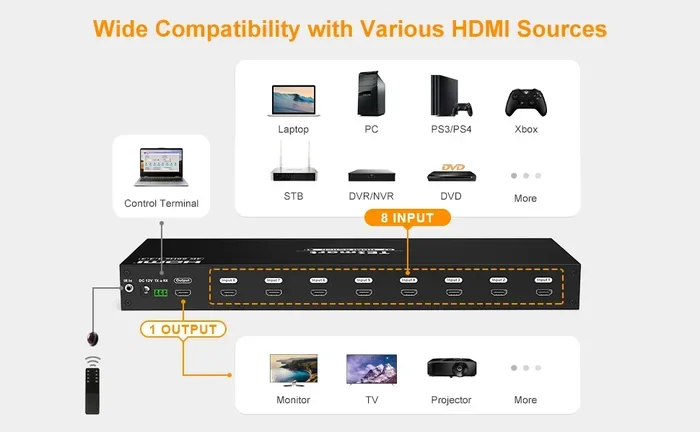
At its core, an HDMI switch has multiple input ports and one output port. The output goes to your TV or monitor. Each input connects to a different device. The switch passes the video and audio signal from the selected input to the output.
Manual switches use a button or a remote control. You press a button to choose which input is active. Automatic switches use electronics to detect which device is sending a signal. When you turn on your game console, the switch senses it and switches to that input. This process is called auto-switching or seamless switching.
When You Need an HDMI Switch
You need an HDMI switch when your TV or receiver doesn’t have enough ports. Most modern TVs have three or four HDMI inputs. That’s enough for many people. But if you have a home theater receiver, a streaming box, a gaming console, a Blu-ray player, and a PC, you’ll quickly run out.
An HDMI switch gives you extra ports without buying a new TV. It’s a simple and affordable solution. You can also use a switch to connect devices that are hidden in a cabinet. The switch sits close to the TV and uses a single short cable to the display. This keeps your setup clean and tidy.
Do HDMI Switches Switch Automatically? Here’s How It Works
The short answer to Do HDMI Switches Switch Automatically is yes. But how does it actually work? Automatic switching relies on a technology called EDID, which stands for Extended Display Identification Data. This is a small set of data that your TV sends to connected devices. It tells the device what resolutions and formats the TV supports.
When you turn on a device, it sends a signal through the HDMI cable. The automatic switch reads this signal and checks if it’s active. If it is, the switch routes that signal to the output. This happens in milliseconds. You won’t see a black screen or hear a pause. It feels instant.
The Role of EDID in Auto-Switching
EDID is the secret sauce behind most auto-switching. The switch constantly monitors the EDID data from the TV. When a new device sends a valid EDID response, the switch knows that device is on. It then switches to that input. This is why you need to make sure your TV and switch support the same HDMI standards.
Some cheap switches don’t read EDID properly. They might switch randomly or not switch at all. That’s why it’s important to buy a quality automatic HDMI switch from a reputable brand. Look for switches that explicitly mention EDID-based switching in their description.
How Signal Detection Works
Signal detection goes a step further. The switch doesn’t just look at EDID; it also checks for an actual video signal. When you power on your gaming console, it starts sending a picture. The switch sees this signal and locks onto it. If you turn the console off, the signal stops. The switch then looks for the next active device.
This is very useful in a multi-device setup. You can have your TV, soundbar, and streaming box all connected. When you turn on the streaming box, the switch automatically selects that input. You don’t have to touch the remote. It just works.
Latency and Switching Speed
One concern people have is lag. Will auto-switching cause a delay? In most cases, no. Good switches have a switching time of under one second. You might notice a brief blank screen, but it’s usually less than a second. For gaming, this is important. You want a switch that doesn’t add input lag.
If you’re using a 4K HDMI switch, make sure it supports 4K at 60Hz or 120Hz. A slow switch might not handle high-resolution signals well. Look for switches with a switching speed of 0.5 to 1 second for the best experience.
Common Mistakes with Automatic Switching
Many users make a few common mistakes. One is plugging the switch into a TV that doesn’t support the same HDMI version. If your TV is HDMI 2.0 and the switch is HDMI 1.4, you’ll lose 4K support. Another mistake is using long, low-quality cables. These can cause signal loss and make the switch fail to detect the active device. Always use high-quality, short HDMI cables for the best results.
Types of Automatic HDMI Switches
Not all automatic switches are the same. There are a few different types, each with its own way of detecting which device to use. Let’s look at the main categories.
EDID-Based Automatic Switches
These switches rely entirely on EDID data. They monitor the TV’s EDID and switch when a new device responds. This is the most common type. It works well with most setups. You just plug in your devices and turn them on. The switch does the rest.
EDID-based switches are usually affordable. They come in 2-input, 3-input, and 5-input models. They’re great for simple setups. If you have a TV, a soundbar, and a game console, an EDID-based switch will work perfectly. They’re also very reliable because they don’t depend on a remote control.
Infrared Remote-Controlled Auto Switches
Some automatic switches still include a remote control. The remote lets you manually switch inputs if needed. But the switch can also auto-switch based on signal detection. This gives you the best of both worlds. You get automatic convenience, but you also have a backup remote.
These switches are slightly more expensive. They often have better build quality and more features. Look for a model with a learning remote or a simple button layout. The remote is handy when you have guests who want to use a different device. It’s also useful if you have a closed cabinet and can’t see the switch’s buttons.
HDMI Matrix Switchers with Smart Detection
For advanced setups, you might need an HDMI matrix switcher. A matrix switcher can route any input to any output. It’s like a switch on steroids. Some matrix switchers have smart detection. They can auto-switch based on which device is active.
Matrix switchers are more expensive. They’re used in professional home theaters or conference rooms. But for enthusiasts who want full control, they’re worth it. They support multiple TVs and can switch audio and video independently. If you have a complex home theater setup with a projector and multiple zones, a matrix switcher is the way to go.
| Feature | Automatic HDMI Switch | Manual HDMI Switch |
|---|---|---|
| Input Selection | Detects active device and switches automatically | You press a button or use a remote |
| Convenience | Very high – no user input needed | Low – requires manual action each time |
| Price | Slightly higher | Usually cheaper |
| EDID Handling | Advanced – reads TV capabilities | Basic – passes signal through |
| Best For | Multi-device setups, home theaters | Simple setups with few changes |
Benefits of Using an Automatic HDMI Switch
Why should you choose an automatic switch over a manual one? There are several clear benefits.
Convenience is the biggest advantage. You never have to touch the switch. You turn on your TV, and the switch automatically selects the right input. This is perfect for a living room where multiple people use different devices. Kids, guests, and spouses all benefit from this hands-free approach.
It reduces cable clutter. You don’t need extra remotes or cables to change inputs. Everything is managed by the switch. This makes your entertainment center look clean and organized. A tidy setup also helps with airflow and prevents accidental cable pulls.
It saves time. You don’t have to get up and press buttons. You just start using your device. This is especially helpful if your TV is mounted high on a wall. Reaching the TV to change inputs is a pain. With auto-switching, the TV just shows what you want.
It improves the user experience. Guests can use your setup without asking for instructions. They turn on their device and the TV shows it. No confusion. No fumbling with buttons. This makes your home theater feel polished and professional.
It supports modern features. Many auto switches support HDMI ARC (Audio Return Channel) and eARC. This means your soundbar can send audio back to the TV through the same HDMI cable. The switch passes this signal through, so you get full surround sound without extra wires.
Quick Tips for Using an Automatic HDMI Switch
- Always use high-quality HDMI cables. Cheap cables can cause signal loss and switching errors. Look for cables rated for 4K and 18Gbps bandwidth.
- Keep your firmware updated. Some smart switches have firmware updates that improve auto-switching and fix bugs.
- Place the switch close to your TV. Long cables can weaken the signal and cause delays. Keep the switch within a few feet of the display.
- Test switching with all your devices. Make sure each device triggers the switch correctly. Turn on each source and watch the TV to confirm the switch changes inputs.
Common Problems and How to Fix Them
Automatic switching isn’t perfect. Sometimes things go wrong. Here are the most common issues and how to solve them.
EDID Handshake Issues
An EDID handshake is the process where the switch and TV exchange information. If this fails, the switch might not know which device is active. You might see a black screen or no signal.
Fix: Try power cycling your devices. Turn off the TV, the switch, and all connected devices. Wait 30 seconds. Turn on the TV first, then the switch, then your devices. This often resets the EDID handshake. Also, make sure your HDMI cables are fully seated. A loose connection can break the handshake.
Lag and Delay in Switching
Some switches have a noticeable delay. When you turn on a device, the TV might stay on the previous input for a second. This can be frustrating during gaming.
Fix: Check the switch’s switching speed specs. Buy a switch with a switching time under one second. Also, ensure your HDMI cable supports the full bandwidth of your resolution. A 4K cable is necessary for 4K auto-switching. Avoid cables longer than 6 feet for best performance.
HDCP Errors and Resolution Mismatches
HDCP (High-bandwidth Digital Content Protection) is a copy protection system. Sometimes the switch doesn’t pass HDCP correctly. This causes a black screen or an error message when you try to watch Netflix or Blu-ray content.
Fix: Make sure all your HDMI cables and devices are HDCP 2.2 or higher compliant. If you have an older switch, it might not support 4K HDCP. Upgrade to a switch that explicitly states it supports HDCP 2.2 for 4K content. Also, check that your TV and source device are both HDCP 2.2 compliant.
Expert Insights
According to AV experts, the biggest mistake people make is buying a cheap unbranded switch. These often have poor EDID handling and cause endless headaches. Spend a little more on a reputable brand like UGREEN, Belkin, or Kinivo. They offer reliable auto-switching and good customer support.
Another tip: don’t daisy-chain switches. Connecting one switch to another can cause EDID conflicts. If you need more ports, buy a single switch with enough inputs rather than stacking switches. This keeps the signal path clean and avoids handshake problems.
How to Choose the Right Automatic HDMI Switch
With so many options, how do you pick the right one? Here are the key factors to consider.
Key Features to Look For
- Number of inputs: Count your devices. Most people need 3 or 5 inputs. You can always leave an empty port for future use.
- Resolution support: Make sure the switch supports 4K at 60Hz or higher. If you have a gaming console like PlayStation 5 or Xbox Series X, you need 4K 120Hz support.
- HDR and Dolby Vision: If you watch HDR content, choose a switch that supports HDR10, Dolby Vision, and HDR10+. This ensures you get the best picture quality.
- Audio support: Look for HDMI ARC and eARC support. This allows your soundbar to work properly with the switch. You’ll get uncompressed audio and Dolby Atmos if your gear supports it.
- Switching speed: Aim for under 1 second. Faster is better for gaming. Look for switches with a switching time of 0.5 seconds or less.
- Build quality: Metal enclosures dissipate heat better. Plastic switches can overheat in enclosed cabinets. A metal case also feels more durable.
Quick Tips for Setup
Setting up an automatic HDMI switch is easy. Follow these steps for a smooth experience.
- Place the switch near your TV or AV receiver.
- Connect your HDMI sources (console, streaming box, PC) to the input ports.
- Use a short, high-quality HDMI cable from the switch output to your TV.
- If your switch has an HDMI ARC port, connect that to the TV’s ARC port.
- Power on the switch and your TV.
- Turn on each device one by one. The switch should auto-detect and switch to the active device.
If the switch doesn’t auto-switch, check the EDID settings. Some switches have a button to force a reset. Consult the manual for instructions. A quick reset often solves 90% of auto-switching problems.
Common Mistakes to Avoid
- Using long, low-quality cables: This causes signal loss and switching failures. Keep cables short and certified.
- Ignoring HDCP requirements: You’ll get black screens when watching protected content. Always check HDCP version compatibility.
- Overloading the switch with too many devices: If you have 5 inputs and 6 devices, the switch can’t handle it. Choose a switch with enough ports.
- Placing the switch in a closed cabinet without ventilation: Heat builds up and can damage the switch or cause intermittent issues. Leave space for airflow.
Conclusion
So, do HDMI switches switch automatically? Absolutely. An automatic HDMI switcher is a game-changer for anyone with multiple devices and limited TV ports. It eliminates the hassle of manual input changes and makes your home theater or gaming setup seamless.
By understanding how EDID-based switching works, you can choose the right switch for your needs. Remember to look for features like 4K support, ARC compatibility, and fast switching speeds. Avoid common pitfalls like cheap cables and HDCP errors, and your setup will run smoothly.
With the right automatic HDMI switch, you’ll never think about inputs again. Just turn on your device and enjoy. That’s the beauty of seamless switching. Take the hassle out of your entertainment center today.
Frequently Asked Questions
Do all HDMI switches switch automatically?
No, not all HDMI switches are automatic. Many switches require you to press a button or use a remote to change inputs. Automatic switches use EDID or signal detection to switch on their own. Always check the product description to confirm it has auto-switching before you buy.
Why does my automatic HDMI switch not change inputs?
This usually happens because of an EDID handshake issue or a faulty cable. Try power cycling all devices. Make sure the HDMI cables are fully inserted and support the resolution you’re using. If the problem persists, the switch might be incompatible with one of your devices.
Can an automatic HDMI switch handle 4K and HDR?
Yes, but only if the switch is designed for it. Look for a switch that explicitly supports 4K at 60Hz or 120Hz and HDR formats like Dolby Vision. Cheap switches might only support 1080p or 4K at 30Hz, which can cause problems with modern devices.
Does an automatic HDMI switch add lag to gaming?
A good automatic switch adds virtually no lag. Switching time is typically under one second. However, very cheap switches might introduce input delay. If you’re a competitive gamer, choose a switch with a fast switching speed and high bandwidth support for the best experience.
How many devices can I connect to an automatic HDMI switch?
Most automatic switches come with 3 to 5 inputs. Some models have 7 or even 16 inputs for larger setups. Count your devices and buy a switch with at least one extra port for future use. Avoid daisy-chaining switches, as it can cause EDID conflicts and signal degradation.
Is an automatic HDMI switch better than a soundbar with HDMI inputs?
It depends on your setup. If your soundbar has multiple HDMI inputs, you might not need a switch. But if your soundbar only has one HDMI ARC input, a switch with ARC support lets you connect multiple devices and switch audio seamlessly to the soundbar. It’s a great solution for simplified cable management.