Can You Pair Bluetooth Headphones To Ps4 With Ease
Yes, you can pair Bluetooth headphones to PS4, but it requires a few extra steps since the console does not support Bluetooth audio natively. You can use a USB Bluetooth adapter, connect through your DualShock 4 controller, or rely on a 3.5mm audio cable for the best experience. This guide walks you through every method so you can enjoy wireless gaming audio without any hassle.
You just got home after a long day. You want to dive into your favorite game on the PS4. But you also want to enjoy your Bluetooth headphones without disturbing anyone in the house. So you ask yourself a simple question: can you pair Bluetooth headphones to PS4?
The short answer is yes. The slightly longer answer is that it takes a little extra effort. PlayStation 4 does not let you connect Bluetooth headphones the same way your phone does. But do not worry. We have got you covered. This guide shows you exactly how to do it step by step.
By the end of this article, you will know every method that works. You will also learn about common mistakes, the best adapters to buy, and how to fix problems when they pop up. Let us get started.
Key Takeaways
- PS4 lacks native Bluetooth audio support: You need a USB Bluetooth adapter or a workaround to connect wireless headphones.
- Multiple methods work: You can use a Bluetooth USB dongle, the DualShock 4 controller, or a simple 3.5mm cable.
- A Bluetooth adapter is the best option: It gives you true wireless freedom and low-latency audio for gaming.
- Not all Bluetooth headphones work: Check for PS4 compatibility and avoid headphones that use proprietary USB wireless receivers.
- Audio settings matter: You must adjust your PS4 audio output settings to route sound to Bluetooth headphones correctly.
- Troubleshooting is simple: Most connection issues can be fixed by resetting your Bluetooth adapter or re-pairing your headphones.
📑 Table of Contents
- Why Does PS4 Not Support Bluetooth Headphones Directly?
- Method 1: Using a USB Bluetooth Adapter
- Method 2: Connecting Through the DualShock 4 Controller
- Method 3: Using a 3.5mm Audio Cable (Wired Option)
- How to Adjust PS4 Audio Settings for Bluetooth Headphones
- Common Problems and How to Fix Them
- Can You Use Any Bluetooth Headphones with PS4?
- Expert Insights: What Gamers Should Know About Wireless Audio on PS4
- Key Takeaways
- Conclusion
Why Does PS4 Not Support Bluetooth Headphones Directly?
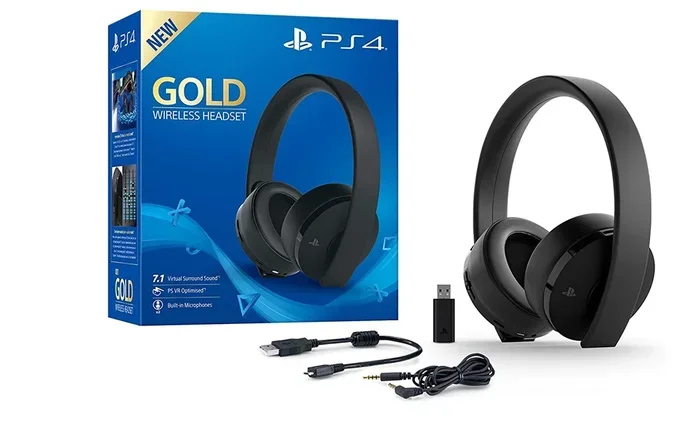
Many gamers feel frustrated by this limitation. You might wonder why Sony made things so complicated. The truth is that the PS4 uses a proprietary wireless protocol for its official PlayStation Wireless Headsets. This means the console speaks a different wireless language than standard Bluetooth.
Sony designed the PS4 to work best with its own accessories. The DualShock 4 controller and the official PlayStation headsets use a custom wireless connection. This gives Sony more control over audio quality and latency. But for regular users, it means you cannot just flip on Bluetooth and connect your favorite headphones.
However, this does not mean you are stuck. There are reliable workarounds. Some are simple. Some require a small purchase. But all of them get you to the same place: wireless audio on your PS4.
The Role of Bluetooth Protocols
Bluetooth comes in different versions and profiles. Your phone uses the A2DP profile for streaming music. The PS4 does not support this profile for audio output. Instead, it limits Bluetooth to controller connections only. So your wireless headphones PS4 connection needs a bridge. That bridge is usually a USB Bluetooth adapter that handles the translation between the console and your headphones.
Method 1: Using a USB Bluetooth Adapter
This is the most popular and effective method. A USB Bluetooth adapter plugs directly into your PS4. It adds Bluetooth capability that the console does not have built in. Think of it as a tiny translator that helps your PS4 and headphones talk to each other.
Here is how you do it step by step:
- Buy a compatible USB Bluetooth adapter. Look for one that supports Bluetooth 4.0 or higher. Adapters with low-latency chips work best for gaming.
- Plug the adapter into your PS4 USB port. The PS4 has USB ports on the front and back of the console.
- Put your Bluetooth headphones in pairing mode. Usually, you hold down the power button or a dedicated Bluetooth button until a light flashes.
- Go to PS4 Settings. Select “Devices” and then “Bluetooth Devices.”
- Find your headphones on the list. Select them and wait for the connection to complete.
- Adjust your audio settings. Go to Settings, then “Devices,” then “Audio Devices.” Set the output to your Bluetooth headphones.
That is really all there is to it. Once paired, your PS4 Bluetooth pairing stays active. You do not need to repeat the process every time you turn on the console.
Best USB Bluetooth Adapters for PS4
Not all adapters are created equal. Some have better range. Some offer lower latency. Here are a few things to look for when shopping:
- Bluetooth version 4.0 or higher. Bluetooth 5.0 is even better if you can find it.
- Low-latency support. This reduces the delay between in-game sounds and what you hear.
- Compact size. You do not want a bulky adapter blocking other USB ports.
- Good range. At least 30 feet of reliable wireless coverage.
Popular options include adapters from brands like TP-Link, ASUS, and 1Mii. These adapters are affordable and work well with Bluetooth headphones gaming setups on the PS4.
Method 2: Connecting Through the DualShock 4 Controller
Another way to get wireless audio is by routing sound through your DualShock 4 controller. The controller has a built-in 3.5mm headphone jack. You can connect Bluetooth headphones to the controller indirectly using a small cable or adapter.
Here is how this method works:
- Connect a 3.5mm audio cable from the DualShock 4 to your Bluetooth transmitter. The transmitter plugs into the controller’s headphone jack.
- Put the Bluetooth transmitter in pairing mode. Most transmitters have a simple one-button pairing process.
- Pair your Bluetooth headphones with the transmitter.
- Set the PS4 audio output to the controller. Go to Settings, then “Devices,” then “Audio Devices.” Choose “Headset Connected to Controller” for both input and output.
This method works well. It keeps your setup clean. And it does not require opening up your PS4 console. The only downside is that you need to keep the controller charged. If the controller battery dies, your wireless audio gaming stops too.
Pros and Cons of the Controller Method
- Pros: No extra USB ports used. Works with any Bluetooth headphones. Easy to set up.
- Cons: Adds a small delay compared to a direct USB adapter. Requires a charged controller. The transmitter adds an extra device to manage.
Method 3: Using a 3.5mm Audio Cable (Wired Option)
If you do not want to deal with Bluetooth at all, a simple 3.5mm cable works perfectly. You plug one end into the DualShock 4 controller and the other end into your wired headphones. This gives you instant, zero-latency audio.
Many gamers actually prefer this method. It is reliable. It never drops connection. And it costs almost nothing. If you already have a good gaming headset with a 3.5mm cable, this is the easiest path.
However, if your goal is specifically pair Bluetooth headphones to PS4 without wires, this method does not help. But it is worth mentioning because some people search for Bluetooth solutions when a simple cable would do the job just fine.
How to Adjust PS4 Audio Settings for Bluetooth Headphones
Once you connect your headphones, you need to make sure the PS4 sends audio to them. This is a step many people skip, and it causes confusion. If you hear nothing through your headphones, the audio settings are the first place to check.
Here is the exact path to follow:
- Go to Settings on your PS4 home screen.
- Select Devices.
- Choose Audio Devices.
- Under “Output Device,” select your Bluetooth headphones or the Bluetooth adapter.
- Set “Volume Control (Headphones)” to your preferred level.
- Under “Input Device,” you can choose the DualShock 4 controller if you want to use its microphone.
You should also check the “Primary Output Port” setting. If it is set to “HDMI,” the PS4 sends audio through your TV or monitor. You may need to change this to “USB” if your Bluetooth adapter is connected via USB. This ensures the console routes audio to the right place.
Take a moment to test your PS4 audio settings after making changes. Play a game or a movie and check if the sound comes through clearly. Adjust the volume levels until everything sounds right.
Common Problems and How to Fix Them
Even with the right setup, you might run into issues. This is normal with any wireless connection. Here are the most common problems and their solutions.
Headphones Won’t Pair with PS4
If your headphones do not show up in the Bluetooth device list, try these steps:
- Make sure your headphones are in pairing mode. The flashing light usually indicates this.
- Restart your PS4 completely. Turn it off, unplug it for 30 seconds, and turn it back on.
- Remove old Bluetooth pairings from both your headphones and the PS4. Start fresh.
- Check that your Bluetooth adapter is properly seated in the USB port.
Audio Keeps Cutting Out
Interference can cause audio dropouts. Other wireless devices, walls, and distance all play a role. Try moving closer to your PS4. Keep your Bluetooth adapter away from other USB devices that might cause interference. If you use a USB hub, plug the adapter directly into the console instead.
Audio Has a Delay or Lag
Latency is a common concern with Bluetooth audio. If you notice a delay between what happens on screen and what you hear, your Bluetooth adapter might be the issue. Upgrade to a low-latency adapter. Also, make sure your headphones support a codec that minimizes delay. Bluetooth 5.0 adapters handle this much better than older versions.
Microphone Does Not Work Through Bluetooth Headphones
Most Bluetooth headphones on PS4 only handle audio output. The microphone usually does not work over Bluetooth. If you need chat functionality, use the DualShock 4 controller’s built-in microphone or plug in a separate headset for voice chat.
Can You Use Any Bluetooth Headphones with PS4?
Most standard Bluetooth headphones will work. This includes brands like Sony, Bose, JBL, and Apple (with some limitations). However, there are a few things to keep in mind.
Headphones that come with their own USB wireless dongle will not work with PS4. These use a proprietary connection, not standard Bluetooth. For example, some gaming headsets from brands like SteelSeries or HyperX use a USB wireless receiver. That receiver will not plug into a PS4.
On the other hand, standard wireless headphones PS4 users love include models from Sony (WH-1000XM series), Bose (QuietComfort series), and many others. These work great once you add a Bluetooth adapter.
If you are shopping for new headphones specifically for PS4 use, look for models with strong Bluetooth range and good battery life. Comfort also matters since you might wear them for hours during gaming sessions.
Quick Tips for the Best Experience
- Keep your headphones charged. Nothing kills the mood faster than dying batteries mid-game.
- Update your PS4 system software. Sony occasionally improves Bluetooth compatibility through firmware updates.
- Place your PS4 close to your gaming spot. This reduces wireless interference and improves connection stability.
- Use a dedicated Bluetooth adapter. Avoid cheap no-name adapters. They often have poor range and high latency.
- Restart both devices regularly. A fresh start fixes most minor connection glitches.
Expert Insights: What Gamers Should Know About Wireless Audio on PS4
Experienced gamers and tech reviewers agree on a few key points about Bluetooth headphones gaming on the PS4. First, the USB Bluetooth adapter method is the gold standard. It gives you the most stable connection and the lowest latency. Second, do not expect the same audio quality as a wired connection. Bluetooth compresses audio slightly. For most games, this difference is negligible. But for audiophiles who want every detail, a wired headset remains the best choice.
Another important insight is about latency in competitive games. In fast-paced shooters, even a small delay can affect your reaction time. If you play competitive titles like Call of Duty or Fortnite, consider using a wired headset for ranked matches. Save your Bluetooth headphones for casual gaming sessions where a tiny delay does not matter.
Finally, always check your headphone’s battery level before a long gaming session. Nothing ruins an immersive experience faster than headphones that die in the middle of an intense boss fight.
Key Takeaways
- PS4 does not support Bluetooth audio natively: You need a USB Bluetooth adapter or a workaround to connect wireless headphones.
- The USB Bluetooth adapter method is the best option: It offers stable connections, low latency, and true wireless freedom.
- The DualShock 4 controller method works too: It routes audio through the controller using a Bluetooth transmitter.
- Not all Bluetooth headphones work: Stick to standard Bluetooth headphones and avoid proprietary USB wireless headsets.
- Audio settings must be configured correctly: Check your output device settings after connecting your headphones.
- Common issues are easy to fix: Most problems involve resetting the connection, updating firmware, or adjusting placement.
- Wired headsets still have an edge for competitive gaming: Use Bluetooth headphones for casual play and wired options for competitive matches.
Conclusion
So, can you pair Bluetooth headphones to PS4 with ease? Absolutely. Yes, the PS4 does not make it as simple as tapping and connecting. But with the right adapter or a quick workaround, you are listening to your games wirelessly in no time.
The USB Bluetooth adapter method is the most reliable. It gives you a clean, stable connection with minimal setup. The DualShock 4 controller method is a solid backup. And the 3.5mm cable option never goes out of style. Pick the method that fits your setup and budget best.
Remember to check your audio settings after connecting. Keep your devices charged and updated. And do not be afraid to troubleshoot if something goes wrong. Most issues have simple fixes.
Now that you know how to get wireless audio on your PS4, you can enjoy your games without cables holding you back. Put on your favorite Bluetooth headphones, grab your controller, and dive into your next adventure. Happy gaming.
Frequently Asked Questions
Can I connect any Bluetooth headphones to my PS4?
Most standard Bluetooth headphones work with PS4 when you use a USB Bluetooth adapter. However, headphones that come with their own USB wireless dongle will not work. Stick to headphones that use standard Bluetooth connectivity for the best results.
Why does my PS4 not show my Bluetooth headphones in the device list?
This usually happens because the headphones are not in pairing mode. Make sure the LED light on your headphones is flashing. Also, restart your PS4 and remove any old pairings before trying again. A fresh start often solves this problem.
Is there any lag when using Bluetooth headphones with PS4?
Some latency is normal with Bluetooth connections. However, a good USB Bluetooth adapter with low-latency support keeps the delay barely noticeable. For competitive gaming, a wired headset remains the best choice to eliminate any lag completely.
Can I use my Bluetooth headphones’ microphone on PS4?
Most Bluetooth headphones only support audio output on PS4. The microphone feature usually does not work over Bluetooth. If you need voice chat, use the DualShock 4 controller’s built-in microphone or connect a wired headset for calls.
What is the best Bluetooth adapter for PS4?
Look for adapters that support Bluetooth 4.0 or higher with low-latency chips. Brands like TP-Link, ASUS, and 1Mii offer reliable options. A compact design that fits flush into the USB port is ideal for a clean setup.
Do I need to re-pair my Bluetooth headphones every time I turn on the PS4?
No. Once you pair your headphones successfully, the connection stays saved. Your PS4 will automatically reconnect to your Bluetooth headphones when both devices are powered on. You only need to re-pair if you remove the device from the Bluetooth list.