Can You Kick Someone Off Bluetooth And How To Do It
Yes, you can kick someone off Bluetooth and regain control of your wireless connection. This guide covers how to remove Bluetooth devices from phones, laptops, and speakers in just a few simple steps. You will also learn how to secure your Bluetooth pairing and prevent unwanted connections in the future.
Have you ever been listening to music on your Bluetooth speaker and suddenly someone else jumps in and starts playing their own stuff? Or maybe you shared headphones with a friend and now your phone keeps trying to connect to their device instead of yours. It is frustrating, right? The good news is that you can kick someone off Bluetooth and take back control of your wireless connection.
Bluetooth technology has become a part of our daily lives. We use it for Bluetooth audio, file sharing, hands-free calls, and connecting everything from Bluetooth headphones to smartwatches. But with all that convenience comes a real concern: Bluetooth security. When your device is Bluetooth enabled and discoverable, other devices can find it. Sometimes that means someone you did not invite connects to your gadget. Whether it is a stranger in a coffee shop or a friend who paired their phone with your speaker by accident, knowing how to remove them is essential.
This guide walks you through everything you need to know. We will cover exactly how to remove Bluetooth devices, why you might need to do it, and what steps to follow on different gadgets. You will also learn tips to secure your Bluetooth pairing so this does not keep happening. Let us dive in.
Key Takeaways
- Bluetooth removal is simple: You can unpair and kick someone off Bluetooth from any device in just a few taps.
- Security matters: Removing unauthorized devices protects your Bluetooth privacy and personal data.
- Works on all devices: The process is similar on phones, laptops, tablets, and Bluetooth speakers.
- Prevent future issues: You can set your device to non-discoverable mode to stop unwanted pairing attempts.
- Troubleshooting helps: Knowing common Bluetooth problems saves time and frustration.
- Multiple methods exist: You can remove devices through settings, reset Bluetooth, or power cycle your gadgets.
📑 Table of Contents
- What Does It Mean to Kick Someone Off Bluetooth?
- Why You Might Need to Remove a Bluetooth Device
- How to Kick Someone Off Bluetooth on Different Devices
- Step-by-Step Guide to Unpairing a Bluetooth Device
- How to Prevent Unwanted Bluetooth Connections
- Common Bluetooth Connection Problems and How to Fix Them
- Frequently Asked Questions
- Conclusion
What Does It Mean to Kick Someone Off Bluetooth?
When we talk about kicking someone off Bluetooth, we mean removing an unauthorized or unwanted Bluetooth connection from your device. Think of it like closing a door that someone opened without your permission. Once you unpair a Bluetooth device, that device can no longer communicate with yours unless you pair it again.
Here is what happens when you remove a Bluetooth device:
- The paired device gets deleted from your Bluetooth settings list.
- The Bluetooth connection is severed immediately.
- The other device will no longer have automatic access to yours.
- You regain full Bluetooth device management control.
It is important to understand that Bluetooth pairing is a two-way process. When two devices connect, they exchange information like names, profiles, and sometimes small bits of data. Removing one side of that connection does not always delete the record from the other device. So you may need to unpair from both ends if you want a clean break.
How Bluetooth Pairing Works
When two devices connect via Bluetooth wireless technology, they go through a process called pairing mode. One device becomes discoverable, and the other finds it. They exchange Bluetooth profiles, which are like agreements about what kind of data they can share. For example, a Bluetooth headset uses the Hands-Free Profile for calls, while Bluetooth speakers use the Advanced Audio Distribution Profile for music.
Once paired, the devices remember each other. This is great for convenience. You do not have to reconnect every time. But it also means that if someone unwanted paired with your device, they will keep trying to connect unless you remove them. That is where unpairing Bluetooth comes in.
Why You Might Need to Remove a Bluetooth Device
There are many reasons why you would want to kick someone off Bluetooth. Some are simple and everyday. Others are more serious and relate to Bluetooth privacy and safety. Let us look at the most common ones.
Unauthorized Connections
This is the biggest reason. If you are in a public place like a coffee shop, airport, or gym, your Bluetooth signal can reach strangers nearby. If your device is set to discoverable, someone could connect to your Bluetooth speaker or headphones without asking. This is not just annoying. It is a Bluetooth security issue. An unauthorized connection could potentially access shared files or track your device.
Accidental Pairing
Sometimes it is just a mistake. You shared your Bluetooth headphones with a friend, and now their phone auto-connects to yours every time you meet. Or your kid paired their tablet with your TV and now it keeps switching inputs. These Bluetooth connection hiccups happen to everyone. The fix is simple: remove the unwanted device.
Selling or Sharing Your Device
If you are selling a Bluetooth speaker or giving your laptop to someone else, you want a clean slate. Leaving old paired Bluetooth devices on your gadget means the new owner will see your connection history. Removing all old pairings protects your Bluetooth privacy and gives the next user a fresh start.
Device Performance Issues
Too many Bluetooth connections can slow things down. If your phone is trying to stay connected to five different devices at once, it may drain your battery faster and cause Bluetooth troubleshooting headaches. Cleaning up old pairings keeps your Bluetooth enabled device running smoothly.
How to Kick Someone Off Bluetooth on Different Devices
The process of removing a Bluetooth device is similar across most gadgets, but the exact steps vary. Here is how to do it on the most common devices.
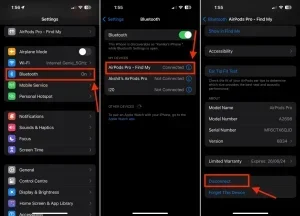
On iPhone and iPad
Apple makes it easy to unpair Bluetooth devices. Follow these steps:
- Open the Settings app on your iPhone or iPad.
- Tap on Bluetooth to open your Bluetooth settings.
- Find the device you want to remove in the list of paired devices.
- Tap the small “i” icon next to the device name.
- Select Forget This Device and confirm.
Once you do this, the device is removed from your list. It will no longer connect automatically. If you want to connect again later, you will need to go through pairing mode from scratch.
On Android Phones
Android phones have a slightly different path, but it is just as simple:
- Swipe down from the top of your screen to open Quick Settings.
- Tap and hold the Bluetooth icon to open Bluetooth settings.
- Look for the device you want to remove under Paired Devices.
- Tap the gear icon or the device name.
- Select Unpair or Forget Device.
Some Android phones let you remove a device directly from the Bluetooth settings menu by long-pressing the device name and choosing Remove. The exact wording depends on your phone brand and Android version.
On Windows Laptops and PCs
If you are using a Windows computer, here is how to kick someone off Bluetooth:
- Click the Start button and open Settings.
- Go to Devices and then click Bluetooth & other devices.
- Find the device you want to remove in the list.
- Click on it and select Remove device.
- Confirm your choice.
Windows also lets you remove Bluetooth devices through the Control Panel if you prefer the older interface. Just search for “Devices and Printers” and right-click the device to remove it.
On Mac Computers
Mac users can follow these steps:
- Click the Apple menu and select System Preferences (or System Settings on newer macOS versions).
- Click on Bluetooth.
- Find the device you want to remove.
- Hover over the device name and click the “X” button or choose Remove.
- Confirm the removal.
Your Mac will forget the device, and it will not try to reconnect the next time both devices are within Bluetooth range.
On Bluetooth Speakers and Headphones
Some Bluetooth speakers and headphones have their own way of handling unwanted connections. Here are a few methods:
- Reset the speaker: Most speakers have a reset button or a specific button combination. Check the manual for instructions. This clears all paired Bluetooth devices from memory.
- Delete from the source device: Go to your phone or laptop Bluetooth settings and forget the speaker. This breaks the connection from your end.
- Turn off the speaker: Simply powering off your speaker prevents new connections, but it does not remove old pairings. You still need to unpair from the source device.
Step-by-Step Guide to Unpairing a Bluetooth Device
Let us walk through a complete unpair Bluetooth scenario. Imagine you are at a party and your Bluetooth speaker got connected to a stranger’s phone. Here is exactly what you should do:
Step 1: Open Bluetooth settings on your phone or the device that is currently connected to the speaker.
Step 2: Look at the list of connected devices. You should see the speaker and any other devices that are currently linked.
Step 3: Find the unwanted device. It might show up as a random name or the brand name of their phone.
Step 4: Tap on the device and select Forget, Unpair, or Remove. The exact option depends on your device.
Step 5: Turn off Bluetooth temporarily, wait a few seconds, and turn it back on. This refreshes your Bluetooth connection and clears any lingering attempts to reconnect.
Step 6: Reconnect to your own device. Put your speaker back into pairing mode and connect from your phone.
That is it. The unwanted device is now kicked off, and your Bluetooth speaker is back under your control. It takes less than a minute once you know the steps.
Quick Tips for Smooth Unpairing
- Always restart Bluetooth after removing a device to clear any cached connections.
- If the device keeps showing up, try restarting your phone or computer.
- Make sure your device software is up to date. Older Bluetooth versions sometimes have bugs that cause phantom connections.
- Keep your Bluetooth range in mind. Most devices work within 30 feet, so moving away from the unwanted device can help break the connection faster.
How to Prevent Unwanted Bluetooth Connections
Removing unwanted devices is great, but preventing the problem in the first place is even better. Here are some simple ways to protect your Bluetooth connection and keep strangers from connecting to your devices.
Turn Off Bluetooth When Not in Use
The simplest Bluetooth security tip is to turn it off when you are not actively using it. If you are not streaming Bluetooth audio or sharing files, there is no reason to keep Bluetooth enabled. This also helps save battery life on your phone and other gadgets.
Set Your Device to Non-Discoverable
Most devices have a discoverable mode that makes them visible to other Bluetooth devices. Once you pair your devices, you can usually switch back to non-discoverable mode. This means your device will still work with already-paired gadgets, but new devices cannot see it or connect to it.
Use Bluetooth Security Features
Many modern phones and laptops come with built-in Bluetooth security features. Look for options like:
- Device visibility settings that let you control who can see your gadget.
- Pairing approval that requires your permission every time a new device tries to connect.
- Auto-reject features that block unknown devices by default.
Keep Your Software Updated
Software updates often include Bluetooth troubleshooting fixes and security patches. Keeping your device updated ensures you have the latest protections against unauthorized Bluetooth connections. This is especially important for older devices running outdated Bluetooth versions.
Be Careful in Public Spaces
Public places are the most common spots for unwanted Bluetooth pairing attempts. When you are in a crowded area, consider turning off Bluetooth or setting your device to non-discoverable. This small habit goes a long way in protecting your Bluetooth privacy.
Common Bluetooth Connection Problems and How to Fix Them
Even after you kick someone off Bluetooth, you might run into connection issues. Here are the most common problems and their solutions.
Device Keeps Reconnecting to the Unwanted Device
If a device keeps trying to connect after you removed it, the Bluetooth cache might be holding onto old data. Try this:
- Restart your device completely.
- Go to Bluetooth settings and make sure the device is fully removed.
- If the problem persists, reset your Bluetooth settings to factory defaults.
Bluetooth Is Not Showing Up in Settings
Sometimes Bluetooth just disappears from your settings menu. This can happen after a software update or if the Bluetooth driver has an issue. Try these fixes:
- Restart your device.
- Check for system updates.
- If you are on Windows, go to Device Manager and check for Bluetooth driver issues.
- On Android, try clearing the Bluetooth cache in the Apps settings.
Poor Audio Quality or Lag
If your Bluetooth audio sounds scratchy or there is a delay, it could be a Bluetooth signal issue. Distance, walls, and other wireless signals can all interfere. Move closer to the source device and make sure nothing is blocking the Bluetooth connection. Also check that both devices support the same Bluetooth version for the best performance.
Device Will Not Pair
If a device refuses to connect, try putting both gadgets back into pairing mode. Turn Bluetooth off on both devices, wait a few seconds, and turn it back on. If that does not work, remove all old pairings and start fresh. Sometimes a simple Bluetooth reset solves the problem completely.
Expert Insights on Bluetooth Security
Bluetooth security experts recommend treating your Bluetooth connection like you would treat your home Wi-Fi network. Do not leave it open and discoverable all the time. Only pair with devices you trust. Regularly review your paired Bluetooth devices list and remove anything you no longer use. These small habits make a big difference in keeping your data safe and your Bluetooth device management under control.
Frequently Asked Questions
Can someone hack my phone through Bluetooth?
While it is rare, it is possible for someone to exploit Bluetooth vulnerabilities if your device is discoverable and running outdated software. This is why it is important to keep your device updated and turn off Bluetooth when you are not using it. Removing unknown paired Bluetooth devices regularly also reduces risk.
Does removing a Bluetooth device delete any files?
No, unpairing a Bluetooth device does not delete any files from either device. It simply removes the connection between them. However, if you had shared files through Bluetooth sharing, those files remain on your device unless you delete them manually.
How do I know if someone is connected to my Bluetooth speaker?
Most Bluetooth speakers show the connected device name on their display or through a voice prompt. If your speaker suddenly starts playing audio you did not start, someone else may be connected. Check your Bluetooth settings on the source device to see active connections and remove any you do not recognize.
Can I kick someone off Bluetooth without their knowledge?
Yes, you can remove a Bluetooth device from your settings without notifying the other person. Since Bluetooth device management is controlled by the owner of the device, you have full authority to unpair any connected gadget from your end. The other person will simply lose the connection.
Why does my phone keep connecting to a device I already removed?
This usually happens because the Bluetooth cache is still holding onto the old connection data. Try restarting your phone, toggling Bluetooth off and back on, or resetting your Bluetooth settings entirely. If the problem continues, check for software updates on your device.
Is there a way to block Bluetooth connections permanently?
Yes, you can turn off Bluetooth completely, which prevents all new connections. Some devices also offer a non-discoverable mode that hides your gadget from other devices. For maximum Bluetooth privacy, combine both approaches: keep Bluetooth off when not needed and set it to non-discoverable when it is on.
Conclusion
Kicking someone off Bluetooth is something everyone should know how to do. Whether you are dealing with an unauthorized connection, an accidental pairing, or just want to clean up your device list, the process is quick and straightforward. You now know how to remove Bluetooth devices from phones, laptops, tablets, and speakers. You also know how to secure your Bluetooth pairing and prevent unwanted connections in the future.
Remember these key points: always review your paired Bluetooth devices regularly, keep your Bluetooth settings secure, and never leave your device in discoverable mode longer than you need to. Bluetooth technology is incredibly useful, but it comes with responsibility. Taking a few minutes to manage your Bluetooth connections properly keeps your devices safe and your experience smooth.
Now that you have the knowledge and the steps, go ahead and take control of your Bluetooth connection today. Remove any devices you do not recognize, update your settings, and enjoy a safer, cleaner wireless experience. Your Bluetooth privacy and device security are worth the small effort it takes to stay on top of your connections.