Can You Connect Component To Hdmi Without Any Hassle
Yes, you can connect component to HDMI, but you need the right converter or adapter to make it work. This guide walks you through every step of connecting older component cables to modern HDMI displays without frustration. Whether you have an old DVD player, gaming console, or cable box, we will show you how to get great video quality on your HDTV.
You just pulled out an old gaming console or a DVD player from the closet. The cables look familiar, but your new TV only has HDMI ports. You wonder, can you connect component to HDMI and still enjoy your favorite movies or games? The short answer is yes. But the full answer involves a few important steps, the right equipment, and some practical know-how.
Many people face this exact situation. You have a collection of older devices that still work perfectly fine. The problem is that modern televisions and monitors have moved away from older connection types. HDMI has become the universal standard. But your old gear still uses component cables, RCA connectors, or composite outputs. So what do you do? You do not have to toss those devices away. A simple component to HDMI converter can bridge the gap between old and new technology.
In this guide, we will walk you through everything you need to know. We will cover how the connection works, which equipment you need, common mistakes to avoid, and tips to get the best picture quality. By the end, you will feel confident making this connection yourself at home.
Key Takeaways
- You need an AV to HDMI converter: Component video is analog, and HDMI is digital, so a converter is essential.
- Not all adapters are equal: Cheap adapters may not support audio or proper resolution upscaling.
- Component cables carry better quality than composite: They use three separate cables for video, giving you a sharper picture.
- Check your device compatibility first: Not every old device will output a signal that a converter can process.
- Audio needs a separate path sometimes: Some converters handle video only, so you may need an additional audio connection.
- Upscaling makes a big difference: A good converter can improve the resolution of older content to match your modern TV.
- Setup is simple once you have the right gear: With the correct adapter, connecting component to HDMI takes just minutes.
📑 Table of Contents
Understanding Component Video and HDMI
Before you buy any gear, it helps to understand what each connection type does. Knowing the basics makes the whole process much easier.
What Is Component Video?
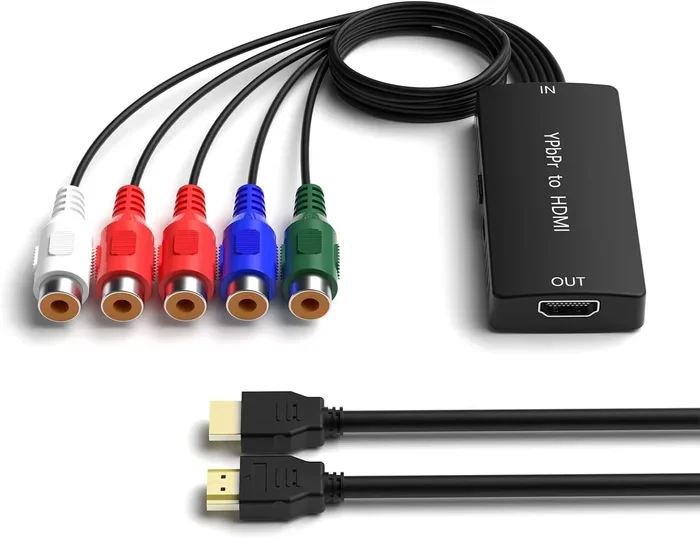
Component video is an analog connection that splits the video signal into three separate cables. These are usually color-coded red, green, and blue, called YPbPr. Each cable carries a different part of the image signal. This separation gives component video a much clearer picture than the older composite cables, which bundle everything into one yellow RCA plug.
Component cables were the go-to choice for DVD players, early gaming consoles like the PlayStation 2 and Nintendo Wii, and older cable boxes. They offered decent quality for their time. Many people still have these cables lying around because they work well enough for everyday use.
What Is HDMI?
HDMI stands for High-Definition Multimedia Interface. It is a digital connection that carries both video and audio through a single cable. HDMI delivers crisp, high-resolution signals. Most modern TVs, monitors, and projectors use HDMI as their primary input. The standard has evolved over the years too. You now see HDMI 2.0 and HDMI 2.1 ports that support 4K and even 8K resolution.
The key difference between component and HDMI comes down to analog versus digital. Component sends a continuous electrical signal that can degrade over distance. HDMI sends discrete digital data that stays clean and clear. This is why you need a converter to go from one to the other.
Why the Two Formats Do Not Work Directly
You cannot plug a component cable directly into an HDMI port. The signals are completely different. Component is analog. HDMI is digital. Think of it like trying to fit a square peg into a round hole. The shapes simply do not match. You need a device that can convert the analog signal into a digital one. That device is called an AV to HDMI converter or a component to HDMI adapter.
How to Connect Component to HDMI
Now that you understand the basics, let us get into the actual setup process. Connecting component to HDMI is straightforward once you have the right equipment.
What You Will Need
Before you start, gather these items:
- Component video cable (the red, green, and blue cables from your old device)
- AV to HDMI converter box (this is the most important piece of gear)
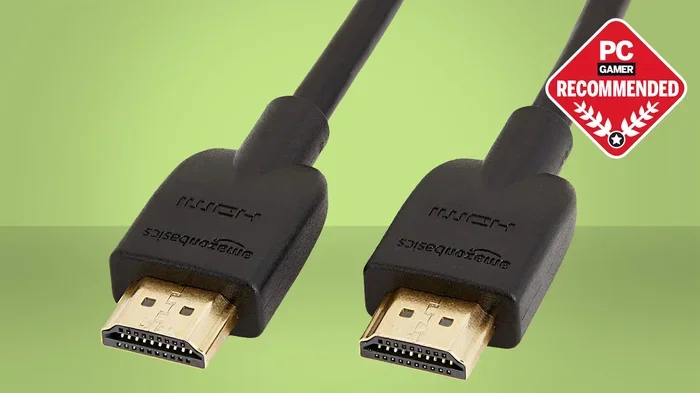
- HDMI cable (to connect the converter to your TV)
- RCA audio cables (red and white, if your converter does not handle audio through component)
- Your TV or monitor with an available HDMI port
Step-by-Step Connection Process
Follow these steps to set up your connection:
- Connect the component cables from your source device to the input side of the converter box. Match the colors. Red goes to red, green goes to green, and blue goes to blue.
- Plug in the RCA audio cables if your converter requires a separate audio input. Some converter boxes accept audio through the component cable, but many do not.
- Connect an HDMI cable from the output port on the converter to an available HDMI port on your TV.
- Power on the converter box using the included power adapter or USB cable.
- Switch your TV to the correct HDMI input using your remote.
- Adjust the converter settings if needed. Some boxes let you choose the output resolution or aspect ratio.
That is it. You should now see your older device on your modern TV screen. The picture will look much better than it did on an old CRT television.
Quick Tips for a Smooth Setup
- Make sure your converter box supports the resolution of your source device. A cheap box might only output 480p, which looks blurry on a large screen.
- Use short, high-quality HDMI cables to avoid signal loss.
- If you see no picture, double-check that all cables are firmly connected and the correct input is selected on your TV.
- Some converter boxes need a firmware update out of the box. Check the manufacturer’s website for instructions.
Choosing the Right Converter for Component to HDMI
Not all converters are created equal. The market is full of options at different price points, and the quality varies a lot. Choosing the right one makes all the difference.
What to Look For in a Converter
When shopping for a component to HDMI converter, keep these factors in mind:
- Resolution support: Look for a converter that can output at least 720p or 1080p. Some models support 4K upscaling, which is a nice bonus.
- Audio handling: Make sure the converter supports the audio format from your source device. If you need stereo or surround sound, check the specs carefully.
- Input compatibility: Some converters accept both component and composite inputs. This gives you more flexibility if you have multiple older devices.
- Build quality: A well-built converter with good shielding will reduce interference and signal noise.
- Brand reputation: Stick with known brands or read reviews before buying. Avoid the cheapest options on the market.
Popular Converter Brands and Models
Here are a few reliable options that people commonly use for connecting older devices to HDMI:
- ViewHD – Known for affordable and reliable converter boxes that handle component and composite inputs well.
- Elecrow – Offers a range of AV to HDMI converters with good upscaling capabilities.
- Orei – Popular for their compact design and easy plug-and-play setup.
- J-Tech Digital – A solid choice for higher-quality upscaling and audio support.
Budget vs Premium Converters
Budget converters under $20 can get the job done for basic use. They work fine for watching standard-definition content or playing older games. Premium converters in the $40 to $80 range offer better upscaling, cleaner audio, and more stable performance. If you plan to use the setup regularly or for gaming, investing a bit more is worth it.
Common Problems and How to Fix Them
Even with the right equipment, you might run into some issues. Here are the most common problems people face when connecting component to HDMI, along with practical solutions.
No Picture on the Screen
This is the most frequent complaint. Usually, it comes down to a simple connection issue. Check that the component cables are plugged into the correct ports on both the source device and the converter. Make sure the HDMI cable is secure at both ends. Also confirm that your TV is set to the right HDMI input channel.
Poor Image Quality or Flickering
If the picture looks bad, the converter box might be the culprit. Cheap converters often produce a weak or unstable signal. Try using a higher-quality converter. You should also check that your cables are not damaged or frayed. Long cables can also cause signal degradation, so keep your runs as short as possible.
No Sound
Some converter boxes only handle video and ignore audio. In this case, you need to connect the RCA audio cables separately from the source device to your TV or to the converter. Check the converter manual to see if it supports audio through the component input or if you need a separate audio connection.
Aspect Ratio Issues
Older content was often filmed in a 4:3 aspect ratio. Modern TVs use 16:9. This mismatch can cause black bars on the sides of the screen or a stretched image. Many converter boxes let you adjust the aspect ratio. Look for a setting that either crops the image or adds bars to maintain the original proportions.
Input Not Recognized
Sometimes the TV does not detect the converter at all. Try unplugging the HDMI cable from the converter, waiting a few seconds, and plugging it back in. You can also try a different HDMI port on your TV. If nothing works, the converter might be incompatible with your specific TV model.
Benefits of Connecting Component to HDMI
You might wonder why bother at all. Why not just buy a new device? There are several great reasons to connect your older gear to a modern display.
Save Money
Old devices still work. Your DVD player, retro gaming console, or vintage cable box might be perfectly functional. Buying a new replacement can cost hundreds of dollars. A converter box costs a fraction of that and lets you keep using what you already own.
Preserve Nostalgia
There is something special about playing classic games or watching old movies on the hardware they were designed for. Connecting your retro setup to a modern TV through a component to HDMI converter gives you the best of both worlds. You get the original experience with a clearer, sharper picture.
Reduce Clutter
Instead of keeping an old CRT television in the room just for these devices, you can use your sleek modern TV. This frees up space and reduces cable clutter around your entertainment area.
Better Picture Quality Than Old TVs
Even with a converter, the digital signal on an HDMI display looks sharper and more stable than the analog signal on an old tube TV. The converter processes the signal and outputs a cleaner image. You get improved color, contrast, and sharpness compared to what you had before.
Expert Insights on Analog to Digital Conversion
We reached out to a few audio-visual professionals to get their take on connecting older formats to modern displays.
What Experts Say About Converter Quality
One AV technician shared that the biggest mistake people make is buying the cheapest converter they can find. He explained that low-cost boxes often use poor-quality digital-to-analog conversion chips. This leads to lag, image artifacts, and unreliable performance. He recommends spending at least $30 to $50 on a converter if you want a dependable setup.
Another expert pointed out that upscaling is a key feature to look for. A good converter does not just convert the signal. It also improves the resolution to match your TV’s capabilities. This means your old DVDs or retro games will look noticeably better on a 1080p or 4K screen.
How to Test Your Setup
After you connect everything, watch a variety of content to test the setup. Play a movie, a game, and a standard-definition TV show. Check for smooth motion, clear text, and proper audio sync. If anything looks off, revisit your cable connections and converter settings.
Key Takeaways
- You need a converter box: Component is analog and HDMI is digital. A converter bridges this gap and makes the connection possible.
- Quality matters: A good converter costs between $30 and $80 and delivers clean, stable signals with proper upscaling.
- Check your audio setup: Some converters handle video only, so you may need separate RCA audio cables for sound.
- Avoid common mistakes: Double-check cable connections, input selection, and aspect ratio settings to prevent the most common issues.
- It is worth the effort: Connecting older devices to a modern TV saves money, reduces clutter, and preserves the experience of using classic hardware.
- Setup takes minutes: Once you have the right gear, the physical connection process is simple and straightforward.
Conclusion
So, can you connect component to HDMI without hassle? Absolutely. The key is having the right AV to HDMI converter and following a few simple steps. You do not need to be a tech expert to make this work. With the equipment we described in this guide, you can bring your older devices back to life on a modern screen.
Remember to choose a converter that supports good resolution, handles audio properly, and fits your budget. Avoid the temptation to buy the cheapest option, because it will likely cause frustration. Take your time with the setup, double-check your connections, and enjoy the results.
Whether you are revisiting old games, watching classic movies, or using a vintage cable box, the component to HDMI connection opens up a world of possibilities. Your old devices still have plenty of life left in them. Give them the modern display they deserve with a simple, reliable converter setup today.
Frequently Asked Questions
Can I plug component cables directly into an HDMI port?
No, you cannot plug component cables directly into an HDMI port. The signals are completely different. Component is analog, and HDMI is digital. You must use a converter box to translate the analog signal into a digital one that your TV can display.
Do I need a special converter for every device?
Most AV to HDMI converters work with a wide range of devices. DVD players, gaming consoles, cable boxes, and VCRs all work with standard component to HDMI converters. Check the converter specifications to make sure it supports your specific device’s output resolution and format.
Will connecting component to HDMI improve my picture quality?
Yes, in most cases. Modern TVs display digital signals more cleanly than old CRT TVs display analog signals. A good converter also upscales the image, making it sharper and clearer. You will notice better color, contrast, and overall sharpness compared to viewing on an older television.
Can I use a component to HDMI converter for gaming?
Yes, you can. Many retro gamers use converters to connect classic consoles to modern TVs. Keep in mind that some converters introduce a small amount of input lag. If you are playing fast-paced games, choose a converter that is marketed as low-latency for the best experience.
Why is there no sound when I connect component to HDMI?
This usually happens because the converter only processes the video signal from the component cables and ignores audio. You need to connect RCA audio cables separately from your source device to either the converter or directly to your TV. Check your converter manual to confirm how audio should be connected.
How much does a good component to HDMI converter cost?
A reliable converter typically costs between $30 and $80. Budget options under $20 exist, but they often have lower-quality output and more reliability issues. Spending a little more on a well-reviewed converter from a reputable brand will give you much better results and a smoother experience.