Can You Connect Android Phone To TV With USB Cable Only
Yes, you can connect your Android phone to TV with USB cable only, but the method depends on your phone model, TV type, and the kind of USB port available. Whether you want to mirror your screen, play media files, or use your TV as a larger display, a wired USB connection offers a reliable and lag-free alternative to wireless casting. This guide walks you through every method, cable type, and troubleshooting step so you can get it done quickly and correctly.
Key Takeaways
- USB-only connections are possible: You can connect Android phone to TV with USB cable only using MHL, USB-C direct output, or a smart TV’s built-in media player.
- Check compatibility first: Not all Android phones and TVs support USB video output. Verify your devices before buying any cables or adapters.
- You may need an adapter: Many phones require a USB-C to HDMI or MHL adapter to send video to your TV through a USB connection.
- Wired connections are stable: Unlike wireless screen mirroring, a USB cable connection delivers consistent performance with no lag or disconnection issues.
- Troubleshooting is straightforward: Most USB connection problems can be solved by trying a different cable, enabling USB debugging, or checking TV input settings.
- Alternatives exist: If USB-only doesn’t work for your setup, wireless options like Chromecast, Miracast, or a smart TV app can fill the gap.
📑 Table of Contents
- How Connecting Android Phone to TV With USB Cable Works
- What You Need to Connect Android Phone to TV With USB Cable Only
- Step-by-Step Guide to Connect Android Phone to TV With USB Cable
- Troubleshooting USB Connection Issues Between Phone and TV
- Pros and Cons of Using USB Cable for Phone-to-TV Connection
- Alternatives to USB-Only Connections Worth Considering
- Key Takeaways
- Conclusion
How Connecting Android Phone to TV With USB Cable Works
Connecting your Android phone to TV with USB cable only is simpler than most people think. The basic idea is to use a USB cable to send video and audio signals from your phone to your television. This wired approach gives you a stable, lag-free connection that wireless methods sometimes struggle to match.
When you plug your phone into a TV via USB, the communication works through a protocol called MHL (Mobile High-Definition Link) or through USB-C DisplayPort Alt Mode. These technologies let your phone treat the TV as an external screen. Your phone sends both video and audio through the cable, and the TV displays everything on its larger screen.
Not every phone and TV combination works the same way. Older Android devices often rely on MHL technology, which requires a specific MHL-compatible cable or adapter. Newer phones with USB-C ports may support direct video output without any extra hardware. Your smart TV’s USB port also plays a big role in determining what kind of connection is possible.
The good news is that most modern Android phones released after 2018 support some form of USB video output. You just need to know which method matches your specific device. Let us walk through the details so you can pick the right approach for your setup.
Understanding USB Video Output Technology
USB video output is the technology that allows your phone to send visual content to a TV through a USB connection. There are three main standards you should know about. MHL was the original standard and works with Micro USB and some USB-C phones. SlimPort is a similar alternative that does not need MHL licensing. USB-C DisplayPort Alt Mode is the newest standard and offers the best compatibility with modern devices.
Each standard has its own requirements. MHL needs an MHL-certified cable or adapter. USB-C Alt Mode works with standard USB-C cables in most cases. Your phone’s specifications will tell you which standard it supports. Check your phone manufacturer’s website or user manual for this information.
What You Need to Connect Android Phone to TV With USB Cable Only
Before you start, gather the right equipment. Having everything ready saves time and prevents frustration. The exact items you need depend on your phone model and TV type.
Essential Cables and Adapters
Here is a list of what you might need for your android phone to TV with USB cable setup:
- USB-C cable: A high-quality USB-C cable is essential for newer Android phones. Look for cables rated for data transfer and video output.
- MHL adapter: If your phone uses Micro USB, you need an MHL adapter or cable to convert the signal for your TV.
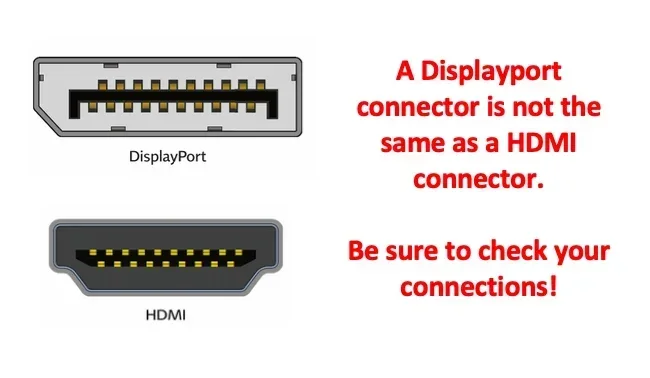
- USB-C to HDMI adapter: This adapter lets USB-C phones send video directly to an HDMI port on your TV.
- USB-A to USB-C cable: Some TVs have USB-A ports. You may need this cable to connect your phone to the TV.
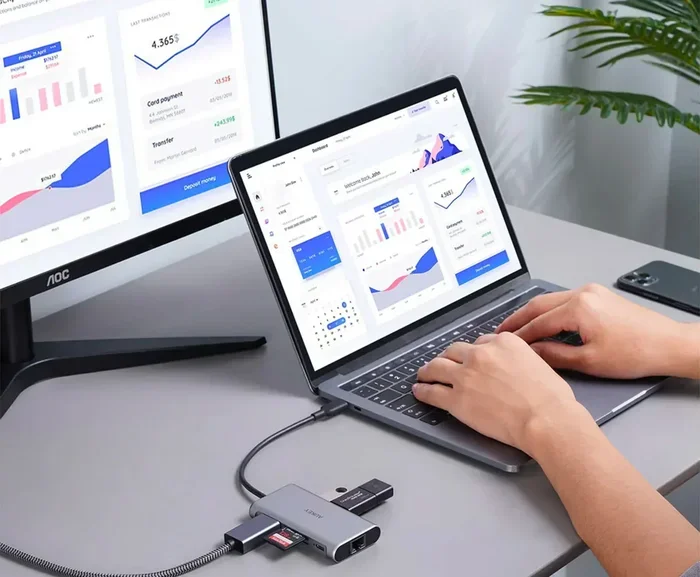
- USB-C hub with HDMI output: A hub adds extra ports and gives you more flexibility for connecting multiple devices.
Checking TV Compatibility
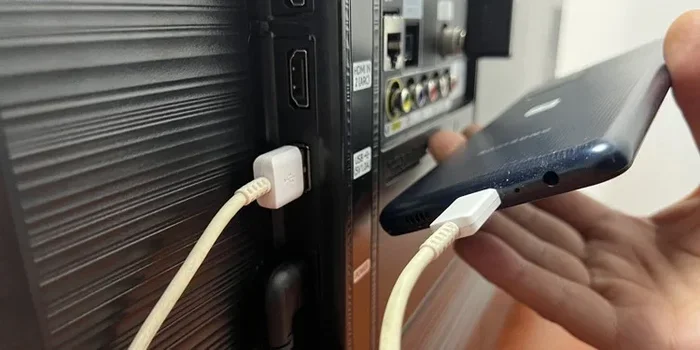
Your TV needs a USB port that supports video input. Most smart TVs have USB ports, but not all of them handle video signals. Look for a USB port labeled “Media Player” or “USB-In” on your TV. These ports are designed to receive video data from external devices.
If your TV only has USB ports for firmware updates or powering peripherals like streaming sticks, it may not support video input from a phone. Check your TV manual or look up the model number online to confirm. Some older TVs simply do not have the hardware to process video signals through USB.
Quick Tips for Buying the Right Cable
- Buy cables from reputable brands to avoid compatibility issues.
- Choose a cable length that reaches from your phone to your TV comfortably.
- Avoid cheap, uncertified cables that may not support video output.
- Check if your phone supports USB OTG (On-The-Go) for better peripheral compatibility.
- Keep a spare cable at home so you always have a backup ready.
Step-by-Step Guide to Connect Android Phone to TV With USB Cable
Now that you have the right equipment, let us walk through the actual connection process. Follow these steps carefully for the best results.
Method 1: Using USB-C Direct Connection
This method works for newer Android phones with USB-C ports that support DisplayPort Alt Mode.
- Plug one end of your USB-C cable into your Android phone.
- Connect the other end to your TV’s USB port or use a USB-C to HDMI adapter if needed.
- Switch your TV to the correct input source. Use your remote to select the USB input or HDMI port you connected to.
- Your phone screen should now appear on the TV. If it does not, try unlocking your phone and approving the connection prompt.
- Adjust your phone display settings to optimize the output for your TV screen size and resolution.
Method 2: Using MHL Adapter for Older Phones
If you have an older Android phone with a Micro USB port, MHL is your best bet.
- Get an MHL adapter that matches your phone’s charging port.
- Connect the MHL adapter to your phone.
- Plug an HDMI cable from the MHL adapter into your TV’s HDMI port.
- Switch your TV to the HDMI input you used.
- Your phone screen should mirror on the TV. You may need to enable MHL support in your phone’s developer settings.
Method 3: Using TV Built-in Media Player
Some smart TVs can read media files directly from a USB drive or connected phone.
- Connect your Android phone to your TV using a USB cable.
- On your phone, select “File Transfer” or “MTP” mode when prompted.
- On your TV, open the built-in media player app.
- Navigate to your phone’s storage and select the video or photo files you want to view.
- Enjoy your content on the big screen without needing any extra apps or adapters.
Enabling USB Debugging for Better Connectivity
Sometimes you need to enable USB debugging on your phone for the TV to recognize it properly. Go to Settings, then About Phone, and tap Build Number seven times to unlock Developer Options. Then go to Developer Options and toggle USB Debugging on. This setting helps your TV communicate with your phone more effectively.
Troubleshooting USB Connection Issues Between Phone and TV
Even with the right setup, you might run into problems. Do not worry. Most issues have simple fixes. Here are the most common problems and how to solve them.
TV Does Not Recognize Your Phone
If your TV does not detect your phone when you plug in the USB cable, try these steps. First, unplug the cable and try a different USB port on your TV. Some ports only work with specific devices. Second, make sure your cable supports data transfer, not just charging. Many cheap cables only carry power and cannot transmit video signals.
Third, check if your phone is set to the correct USB mode. Swipe down from the top of your screen and look for the USB notification. Select “File Transfer” or “MTP” mode instead of “Charging Only.” Finally, restart both your phone and TV, then try connecting again.
No Sound or Video Output
If your TV shows a signal but there is no picture or sound, the cable might be faulty. Try a different USB cable or adapter. Also check your phone display settings. Some phones have a “Cast” or “HDMI output” toggle in the display menu that needs to be turned on.
Another common cause is resolution mismatch. Your phone might be trying to output a resolution your TV does not support. Lower the display resolution on your phone and try again. This simple fix resolves the issue more often than you might expect.
Screen Mirroring Lags or Stutters
Wired connections should be smooth, but lag can still happen. Use a high-quality, short USB cable to reduce signal loss. Avoid using USB hubs or extensions unless they are powered. Also close background apps on your phone to free up processing power for video output.
Common Mistakes to Avoid
- Using a charging-only cable instead of a data cable.
- Plugging into the wrong USB port on your TV.
- Forgetting to switch the TV input source to match the connection.
- Ignoring phone notifications about USB mode selection.
- Using damaged or frayed cables that degrade signal quality.
Pros and Cons of Using USB Cable for Phone-to-TV Connection
Every connection method has its strengths and weaknesses. Let us look at what makes USB-only connections stand out and where they fall short.
Advantages of Wired USB Connections
- Reliable and stable: Unlike wireless casting, a USB cable connection does not drop or lag. You get a consistent viewing experience every time.
- No Wi-Fi needed: You do not need a home network or internet connection. This makes USB connections ideal for travel or areas with poor connectivity.
- Low latency: Video and audio stay perfectly in sync. This matters a lot for gaming or watching fast-action content.
- Charging while connected: Many USB connections charge your phone while you watch, so battery drain is not a concern.
- Simple setup: No apps to install, no accounts to sign in. Just plug and play.
Limitations of USB-Only Connections
- Device compatibility: Not all phones and TVs support USB video output. You may need to check compatibility before purchasing cables.
- Cable length constraints: Longer cables can degrade signal quality. You may need to stay close to your TV.
- Limited to media playback: Some USB connections only allow file transfer and do not support full screen mirroring.
- Adapter costs: You might need to buy adapters or special cables, which adds to the overall cost.
- Less flexibility: A wired connection ties your phone to your TV, limiting your mobility while watching.
Alternatives to USB-Only Connections Worth Considering
If the USB-only method does not work for your devices, you have other options. These alternatives can still get your phone content on the big screen without running cables everywhere.
Wireless Screen Mirroring with Miracast
Miracast is a wireless standard built into many Android phones and smart TVs. It lets you mirror your phone screen to your TV without any cables. Go to your phone’s display settings and look for “Cast” or “Wireless Display.” Select your TV from the list of available devices. This method works well for casual viewing and does not require any extra hardware.
Using Chromecast or Streaming Devices
A Chromecast device plugs into your TV’s HDMI port and connects to your Wi-Fi network. You can cast content from apps like YouTube, Netflix, and Spotify directly from your phone. While this is not a direct USB connection, it offers a convenient wireless alternative that most people find reliable and easy to use.
Smart TV Apps for Media Streaming
Many smart TVs come with apps like YouTube, Netflix, and Spotify built in. You can use these apps directly on your TV without connecting your phone at all. If your main goal is to watch streaming content, this might be the simplest solution. Your phone stays free for other tasks while you enjoy your favorite shows on the TV.
Expert Insight: When Wired Beats Wireless
According to tech experts, wired USB connections excel in situations where stability matters most. If you are gaming, presenting, or watching content where every second of lag counts, a USB cable connection is the clear winner. Wireless methods are convenient, but they depend on network strength and can introduce delays. For the best viewing experience with no compromises, a wired connection delivers what wireless simply cannot.
Key Takeaways
- USB-only connections work for most Android phones: You can connect Android phone to TV with USB cable only using MHL, USB-C Alt Mode, or your TV’s built-in media player.
- Check your devices first: Verify that both your phone and TV support USB video output before buying any accessories.
- Use the right cable and adapter: A quality USB-C cable or MHL adapter makes all the difference in getting a clean, reliable connection.
- Follow the step-by-step setup: Selecting the correct USB mode, switching TV inputs, and enabling developer settings solves most connectivity issues.
- Troubleshoot systematically: Start with cable checks, then USB mode settings, and finally device restarts to resolve connection problems.
- Consider alternatives if needed: Wireless options like Miracast, Chromecast, or smart TV apps can fill the gap when USB-only does not work.
Conclusion
The answer to “can you connect Android phone to TV with USB cable only” is a clear yes. With the right cable, adapter, and a bit of patience, you can enjoy your phone’s content on a much larger screen. Whether you use a USB-C direct connection, an MHL adapter, or your TV’s built-in media player, the wired route delivers a stable and reliable experience that wireless methods often struggle to match.
Remember to check your device compatibility before you start. Gather the right equipment, follow the setup steps carefully, and troubleshoot any issues that come up. The process is straightforward once you know what to look for. A USB-only connection gives you peace of mind because there are no Wi-Fi signals to worry about, no apps to configure, and no subscriptions to pay.
Give it a try with your own devices and see how easy it can be. Once you experience the crisp, lag-free quality of a wired connection, you may never go back to wireless casting again. Share this guide with friends and family who might be looking for a simple way to get their phone content on the big screen. The android phone to TV with USB cable method is practical, affordable, and works with a wide range of devices.
Start with the method that matches your phone and TV setup. You will be watching your favorite videos, photos, and apps on your television in no time. The convenience of a wired connection is hard to beat, and with this guide, you have everything you need to succeed.
Frequently Asked Questions
Can any Android phone connect to TV with a USB cable?
Most Android phones can connect to a TV via USB, but compatibility depends on your phone’s port type and video output support. Newer phones with USB-C ports generally support video output through DisplayPort Alt Mode. Older phones with Micro USB may need an MHL adapter. Check your phone’s specifications to confirm it supports USB video output before attempting the connection.
Do I need a special cable to connect my Android phone to TV?
You may need a special cable depending on your phone model. USB-C phones typically need a USB-C to HDMI adapter or a USB-C cable that supports video output. Older Micro USB phones require an MHL adapter or cable. Standard charging cables usually do not support video transmission, so always choose cables rated for data and video transfer.
Will connecting my phone to TV via USB charge the phone?
Yes, in most cases, a USB connection to your TV will charge your phone while you use it. However, some TVs provide low power through their USB ports, which may charge slowly or not at all. If you notice your phone draining while connected, try using a powered USB hub or a wall charger alongside the TV connection.
Can I stream Netflix from my Android phone to TV using USB?
Streaming Netflix directly through a USB cable connection is not straightforward because of digital rights management (DRM) restrictions. Netflix and similar apps block video output over USB to protect content. Your best option for streaming Netflix to your TV is using Chromecast, a smart TV app, or an HDMI adapter that bypasses the USB connection entirely.
What is MHL and do I need it?
MHL stands for Mobile High-Definition Link. It is a technology that allows mobile devices to send high-definition video and audio to TVs through a USB connection. You need MHL if your phone has a Micro USB port and supports the standard. Newer USB-C phones typically do not need MHL because they support DisplayPort Alt Mode natively.
Why won’t my TV recognize my Android phone via USB?
Several reasons can cause your TV not to recognize your phone. Try using a different USB port on your TV, a different cable, or switching your phone to File Transfer (MTP) mode. Also check if your TV’s USB port supports video input, as some ports only work with storage devices. Restarting both devices often resolves recognition issues as well.