Can Usb Type C 2 0 To Hdmi Connect Without Adapters
USB Type C 2.0 to HDMI cannot connect directly without an adapter or a special cable. USB-C 2.0 does not natively carry HDMI video signals, so you need a USB-C to HDMI adapter or a Type C HDMI cable with built-in conversion. This guide explains why, what works, and how to pick the right solution.
Have you ever plugged a USB Type C 2.0 to HDMI cable into your laptop and hoped for the best? You are not alone. Many people assume that because USB-C is modern and versatile, it should just work with any HDMI display. The truth is more complicated. Understanding how this connection works can save you time, money, and a lot of frustration.
This article breaks down everything you need to know about USB Type C 2.0 to HDMI connections. We will cover whether a direct link is possible, what adapters you need, and how to avoid common pitfalls. By the end, you will know exactly what to buy and what to avoid.
The short answer is no. A plain USB Type C 2.0 to HDMI connection without an adapter will not work. But do not worry. There are simple solutions that make this easy. Let us walk through them together.
Key Takeaways
- USB-C 2.0 alone cannot output HDMI signals: The standard lacks native HDMI support, so a direct plug-and-play connection is not possible.
- You need an adapter or a dedicated cable: A USB-C to HDMI adapter or a USB-C to HDMI cable with a chip is required for the conversion.
- Check your device’s alternate mode support: Some USB-C ports support DisplayPort over USB-C, which changes what is possible.
- Resolution and refresh rate matter: USB-C 2.0 limits bandwidth, so 4K HDMI output may not work smoothly.
- Cheap cables cause problems: Low-quality Type C HDMI cable options often fail or deliver poor picture quality.
- Compatibility varies by device: Not every laptop, phone, or tablet handles USB-C video output the same way.
- Always test before buying: Verify your device specs and match them with the right USB-C HDMI connection solution.
📑 Table of Contents
What Is USB Type C 2.0?
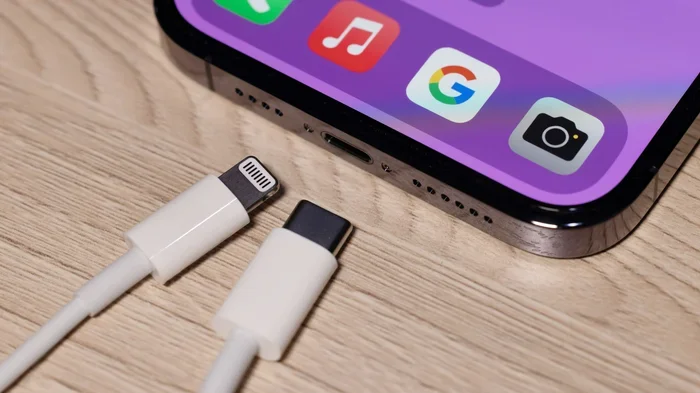
USB Type C 2.0 is a connector standard used for data transfer and charging. It is small, reversible, and found on many modern devices. Laptops, tablets, phones, and even some monitors use USB-C ports. But not all USB-C ports are created equal.
The “2.0” part refers to the USB 2.0 data protocol. This is the older, slower version of USB. It supports data transfer speeds up to 480 Mbps. That is much slower than USB 3.0 or USB 3.1, which can reach speeds of 5 Gbps or 10 Gbps. More importantly for our topic, USB 2.0 does not include video output capabilities by default.
What Makes USB-C Different from Other USB Types
The USB-C connector shape is different from the old USB-A or USB-B ports. It is oval-shaped and tiny. You can plug it in either way, which is a nice feature. But the shape of the connector does not automatically mean it can carry video signals. That depends on what the device supports inside.
Here are key facts about USB Type C 2.0:
- Data speed: Up to 480 Mbps (USB 2.0 standard)
- Connector type: Reversible, oval-shaped USB-C
- Power delivery: Up to 100W with USB-PD (depending on the device)
- Video output: Not natively supported in USB 2.0 mode
- Common devices: Budget laptops, older phones, external drives, peripherals
So your device has a USB-C port. Great. But if that port only supports USB 2.0, it cannot send a video signal to an HDMI display on its own. You need help from an adapter or a special cable.
How Does USB-C to HDMI Connection Work
To understand why a direct connection fails, it helps to know how USB-C HDMI connection actually works. When you plug something into your TV or monitor, the source device must convert its signal into a format the display understands. HDMI has its own protocol. USB-C has its own protocol. These two do not speak the same language without a translator.
The Role of Adapters and Converters
An adapter acts as a translator. It takes the signal from the USB-C port and converts it into an HDMI signal that your TV or monitor can display. Inside most adapters, there is a small chip that handles this conversion. Without that chip, the two standards simply cannot communicate.
Some devices support something called alternate mode. This is when a USB-C port can carry non-USB signals, like DisplayPort or HDMI, directly through the port. However, USB 2.0 ports rarely support alternate mode. Even if they do, the bandwidth of USB 2.0 is too low for smooth video.
What About DisplayPort over USB-C
Some modern devices use DisplayPort over USB-C for video output. This is different from USB 2.0. DisplayPort over USB-C requires USB 3.0 or higher, or a dedicated DisplayPort Alt Mode. It delivers much better bandwidth and supports higher resolutions. If your device only has USB 2.0 over USB-C, DisplayPort Alt Mode is usually not available.
So when you search for a Type C HDMI cable, make sure you understand what your device can actually do. A cable alone cannot add features that your hardware does not support.
Can USB Type C 2.0 Connect to HDMI Without Adapters
This is the big question, and the honest answer is no. A USB Type C 2.0 to HDMI connection without any adapter or special cable will not work in almost all cases. Here is why.
USB 2.0 was designed for data transfer and charging, not for video. The USB-C connector looks like it could handle video, and on newer devices it does. But on USB 2.0, the internal wiring and protocol simply do not include video signal paths. There is no way for the device to send an HDMI-compatible picture through a bare USB-C 2.0 port.
Even if you buy a USB-C to HDMI cable that looks like a simple cable with USB-C on one end and HDMI on the other, it contains a conversion chip inside. That chip is doing the work of an adapter. So technically, you are still using an adapter, just in cable form.
When Might It Seem Like It Works Without an Adapter
Sometimes people think their USB-C to HDMI setup works without an adapter when it actually does not. Here are a few scenarios that can cause confusion:
- Your device has a hidden chip: Some laptops have a small internal chip that handles USB-C to HDMI conversion. It feels like no adapter is needed, but the hardware is doing the work.
- You are using a smart dock or hub: A USB-C docking station often includes HDMI output built in. The dock acts as the adapter.
- Your cable has built-in conversion: As mentioned, a USB-C to HDMI cable has a chip inside. It is an adapter in cable clothing.
If you want a true plug-and-play experience with no extra box or dongle, you need a device that natively supports HDMI output over its USB-C port. This is common on modern Thunderbolt 3 and Thunderbolt 4 laptops, but very rare on USB 2.0 devices.
When Do You Need an Adapter
Most of the time, you will need an adapter to go from USB Type C 2.0 to HDMI. But not all adapters are the same. Choosing the right one depends on your device, your display, and what you want to do.
Types of Adapters You May Need
There are several kinds of USB-C to HDMI adapters on the market. Here is a quick look at each:
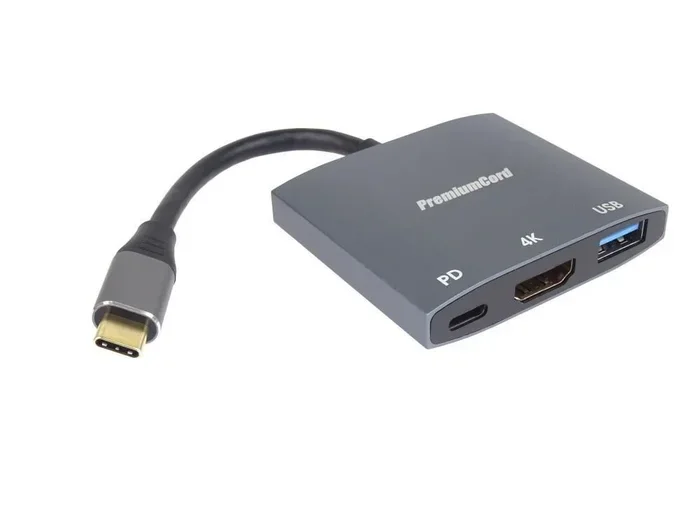
- Simple USB-C to HDMI adapter: A small dongle that plugs into your USB-C port and has an HDMI output. Most common and affordable.
- USB-C to HDMI cable: A cable with conversion built in. No separate adapter needed. Good for temporary setups.
- USB-C docking station: A larger hub with multiple ports including HDMI, USB-A, SD card slots, and charging pass-through.
- USB-C to HDMI adapter with Ethernet: Adds network connectivity along with video output. Useful for office setups.
Matching Your Device and Display
Before buying any USB-C HDMI adapter, check these things:
- Does your device have a USB-C port?
- What USB protocol does the port support? Is it USB 2.0, 3.0, or Thunderbolt?
- What resolution does your HDMI display support? 1080p, 4K, or higher?
- Do you need audio over HDMI as well?
- What is your budget?
Answering these questions will help you pick the right USB-C to HDMI connection solution without wasting money on something that does not work.
Quick Tips for Choosing the Right Adapter
Here are some fast tips to keep in mind when shopping:
- Buy from reputable brands. Cheap no-name adapters often fail or cause flickering.
- Check if the adapter supports your target resolution. A 1080p adapter may not handle 4K.
- Look for adapters that support audio if you need sound along with video.
- Consider cable length. A cable length that is too long can cause signal loss.
- Read reviews before buying. Real user experiences are the best guide.
Best USB-C to HDMI Solutions for USB 2.0 Devices
If your device only has USB Type C 2.0, you still have good options. You just need to pick the right USB-C to HDMI cable or adapter. Here are some solutions that work well.
Option 1: USB-C to HDMI Adapter Dongle
This is the most popular and affordable option. You plug the dongle into your USB-C port, then connect an HDMI cable from the dongle to your TV or monitor. Most dongles support 1080p output, which is perfect for presentations, streaming, and everyday use.
Look for adapters that explicitly state USB 2.0 compatibility. Some adapters are designed only for USB 3.0 or higher and will not work with USB 2.0 ports.
Option 2: All-in-One USB-C to HDMI Cable
A Type C HDMI cable with built-in conversion is a neat solution. It eliminates the need for a separate dongle. Just plug the USB-C end into your device and the HDMI end into your display. It is simple and portable.
However, these cables tend to be more expensive than simple dongles. They also have a fixed length, so you cannot swap in a longer HDMI cable if needed.
Option 3: USB-C Docking Station
If you use your laptop with an external monitor often, a docking station is the best long-term solution. You plug the dock into your USB-C port once, and then connect your HDMI cable to the dock whenever you need it. Many docks also charge your laptop and connect other peripherals at the same time.
Docks are more expensive but offer the most flexibility. They are ideal for home office setups and frequent travelers.
Comparison Table
| Solution | Pros | Cons | Best For |
|---|---|---|---|
| USB-C to HDMI Adapter Dongle | Affordable, portable, easy to use | Can be lost easily, single port | Occasional use, travel |
| USB-C to HDMI Cable | No extra dongle, clean setup | Fixed length, more expensive | Permanent setups, minimalists |
| USB-C Docking Station | Multiple ports, charges laptop | Expensive, less portable | Home office, daily use |
Common Problems and How to Fix Them
Even with the right USB-C to HDMI adapter, you might run into issues. Here are the most common problems and how to solve them.
No Signal on the HDMI Display
If your TV or monitor shows nothing, try these steps:
- Check that the adapter is fully plugged into the USB-C port.
- Make sure the HDMI cable is connected properly on both ends.
- Switch your TV or monitor to the correct HDMI input.
- Restart your device and try again.
- Update your device’s display drivers if possible.
Flickering or Poor Image Quality
Flickering often means the adapter or cable is low quality. A poor Type C HDMI cable can cause all sorts of visual issues. Try a different adapter or cable from a trusted brand. Also, check if your cable length is too long, which can weaken the signal.
No Audio Over HDMI
Sometimes you get video but no sound. This usually happens when the device does not send audio through the USB-C HDMI connection by default. Go into your device’s sound settings and select the HDMI output as the audio device.
Resolution Is Lower Than Expected
USB 2.0 has limited bandwidth. This means you might not get 4K output from a USB Type C 2.0 to HDMI setup. Stick to 1080p for the best results. If you need 4K, consider upgrading your device or using a USB-C port that supports a faster protocol.
Expert Insights on USB-C Video Output
According to industry experts, the key to a reliable USB-C HDMI connection is matching your hardware capabilities with the right accessory. Many users assume all USB-C ports are equal, but that is not true. The protocol inside the port matters just as much as the connector shape.
Tech reviewers also emphasize that USB 2.0 is not designed for video. If you need reliable HDMI output, look for USB 3.0 or Thunderbolt support on your device. These standards were built with video output in mind and will give you a much smoother experience.
If you are stuck with a USB 2.0-only device, a quality adapter or cable is your best bet. Do not try to force a connection that was never designed to work. You will save yourself a lot of headaches.
Key Takeaways
- USB Type C 2.0 cannot output HDMI natively: You always need an adapter or a conversion cable to connect to an HDMI display.
- The right adapter makes all the difference: Choose a reputable brand that explicitly supports USB 2.0 and your target resolution.
- USB-C to HDMI cables have built-in chips: Even if no separate adapter is visible, the cable itself is doing the conversion work.
- Bandwidth limits USB 2.0 video: Expect 1080p performance. 4K may not work reliably over USB 2.0.
- Check your device specs first: Not every USB-C port supports video, even with the right accessory.
- Docking stations offer the most flexibility: If you connect to external displays often, a dock is worth the investment.
- Troubleshooting starts with connections: Most issues are solved by checking cables, ports, and display input settings.
Conclusion
The bottom line is clear. A USB Type C 2.0 to HDMI connection without any adapter or special cable simply does not work. USB 2.0 was never designed to carry video signals, and the USB-C connector alone does not change that fact. You need a USB-C to HDMI adapter, a Type C HDMI cable with built-in conversion, or a docking station to bridge the gap.
The good news is that solutions are affordable and widely available. A simple adapter dongle can cost under $15 and get you up and running in minutes. If you need a more permanent setup, a docking station or a dedicated cable will serve you well.
Before you buy anything, take a moment to check your device specs. Know what your USB-C port supports. Match that with the right accessory, and you will have a smooth USB-C to HDMI connection every time. Do not let confusion stop you from sharing your screen or enjoying content on a bigger display. The right gear makes it easy.
Now that you understand how this works, you can shop with confidence. Pick the solution that fits your needs, follow the tips in this guide, and enjoy your HDMI output from any USB-C device. Happy connecting.
Frequently Asked Questions
Can I plug a USB-C cable directly into an HDMI port?
No, a standard USB-C cable cannot connect directly to an HDMI port. The two use different signal protocols. You need an adapter or a special USB-C to HDMI cable that contains a conversion chip inside to bridge the gap between the two standards.
Does USB 2.0 support video output over USB-C?
USB 2.0 does not natively support video output, even over a USB-C connector. The USB 2.0 protocol was designed only for data transfer and charging. To get video to an HDMI display, you need an external adapter or a cable with built-in conversion hardware.
What resolution can I expect from a USB-C 2.0 to HDMI setup?
Most USB Type C 2.0 to HDMI setups work best at 1080p resolution. The bandwidth of USB 2.0 is limited, so 4K output may not work reliably or at all. If you need 4K, look for a USB-C port that supports USB 3.0 or Thunderbolt.
Is a USB-C to HDMI cable the same as an adapter?
Not exactly. A USB-C to HDMI cable has a conversion chip built into the cable itself, so it looks like a single cable but functions like an adapter. A traditional adapter is a separate dongle that you plug into your device and then connect an HDMI cable to. Both achieve the same result but in different form factors.
Why does my USB-C to HDMI adapter keep flickering?
Flickering is usually caused by a low-quality adapter, a loose connection, or an incompatible cable. Try using a Type C HDMI cable or adapter from a reputable brand. Also make sure your cable length is not too long, as longer cables can lose signal strength.
Can I use a USB-C hub instead of a dedicated adapter?
Yes, a USB-C docking station or hub with an HDMI output works as a great alternative to a dedicated adapter. Hubs offer more ports and often include charging pass-through. They are ideal if you connect to external displays regularly and want a clean, organized setup.