Can The USB On The Switch Be Used As An HDMI Port
The short answer is no — the USB port on the Nintendo Switch cannot directly function as an HDMI port. However, with the right adapter and docking setup, you can connect your Switch to a TV or external monitor. This guide covers everything you need to know about Switch connectivity, compatible accessories, and how to set up your gaming console for the best display experience.
Can The USB On The Switch Be Used As An HDMI Port
If you own a Nintendo Switch, you have probably looked at the ports on your console and wondered about their capabilities. Maybe you are sitting in front of your TV, wanting a bigger screen for your favorite game, and you notice the USB port on your Switch. You think, “Can I just plug this into my TV?” It is a reasonable question. After all, USB cables connect so many devices these days. The answer, however, is not as simple as you might hope.
This article dives deep into the world of Switch connectivity. We will explore what the USB port on your Nintendo Switch actually does. We will look at why it cannot replace an HDMI port. And we will walk you through the best ways to connect your Switch to a bigger screen. Whether you have a standard Switch, a Switch OLED, or a Switch Lite, this guide has you covered.
By the end of this article, you will know exactly how to set up your gaming console for the best display experience. You will also understand which console accessories are worth your money and which ones are just a waste. Let us get into it.
Key Takeaways
- The USB port on the Switch is not an HDMI port: It serves different purposes and cannot output video signals directly.
- The official Nintendo Switch Dock provides HDMI output: This is the designed way to connect your Switch to a TV or monitor.
- USB-C to HDMI adapters exist: But they only work with specific Switch models and configurations.
- Switch Lite users have limited options: The Lite does not support docking or HDMI output through any port.
- Using the wrong adapter can damage your console: Always choose certified accessories from trusted brands.
- Understanding port compatibility matters: Knowing what each port does helps you avoid frustration and wasted money.
📑 Table of Contents
- Understanding The Ports On Your Nintendo Switch
- Why The USB Port Cannot Replace HDMI
- How To Connect Your Switch To A TV Or Monitor
- Switch Lite And HDMI Output
- Common Mistakes People Make With Switch Connectivity
- Quick Tips For The Best Switch Display Setup
- Expert Insights On Switch Connectivity
- Final Thoughts
Understanding The Ports On Your Nintendo Switch
Before we answer the big question, let us talk about what ports your Switch actually has. Different Switch models have different port layouts. Understanding these differences is key to getting the most out of your device.
The USB-C Port On The Switch
The Nintendo Switch uses a USB-C port for charging and data transfer. This is the port at the bottom of your console. It is a small, oval-shaped connector. Many people assume that because it is USB-C, it can do everything a USB-C port on a laptop can do. That is not the case.
The USB-C port on the Switch serves two main purposes:
- Charging: It powers your console while you play or while it is in the dock.
- Data Transfer: It connects to your computer for file management and updates.
It does not carry a video signal. This is the critical difference between a standard USB-C port and the one on the Switch. The USB-C port on the Switch is not designed to output video to a display. It simply does not have that capability built into the hardware.
The HDMI Port On The Dock
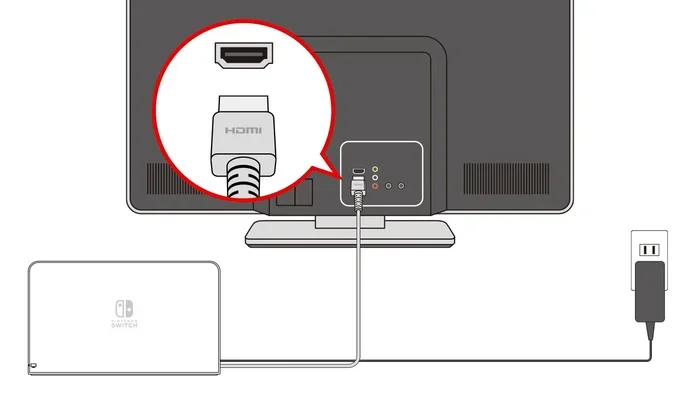
Now, let us talk about the HDMI port. This is where things get interesting. The Nintendo Switch Dock has an HDMI port on the back. When you place your Switch into the dock, the console connects to the dock through the bottom contacts. The dock then sends a video signal through the HDMI cable to your TV or monitor.
This is the official and intended way to get HDMI output from your Switch. The dock handles the signal conversion internally. It takes the data from the USB-C connection and converts it into a format your TV can display.
Here is something important to understand. The dock is not just a passive holder. It contains active electronics that process the video output. Without the dock, the USB-C port alone cannot produce an HDMI signal. This is why you cannot simply buy a cheap cable and expect it to work.
Why The USB Port Cannot Replace HDMI
Let us get to the heart of the matter. Why can you not just use the USB port as an HDMI port? The answer comes down to how these ports are designed and what signals they carry.
The Difference Between Data And Video Signals
A USB port is designed for data transfer and power delivery. It moves information back and forth between devices. An HDMI port, on the other hand, is designed specifically for carrying uncompressed video and audio signals to a display.
These are fundamentally different types of signals. Think of it like this. A USB cable is like a highway for data trucks. An HDMI cable is like a dedicated train track for video and audio. You cannot run trains on a highway, and you cannot send trucks on train tracks. They serve different purposes and use different systems.
The Nintendo Switch is no exception. Its USB-C port is built for data and power. It is not wired to carry a video signal to an external display. This is a hardware limitation, not a software one. No update or setting change will make the USB port output video.
What About USB-C To HDMI Adapters?
You might be thinking, “But I have seen USB-C to HDMI adapters for laptops.” That is true. Many modern laptops with USB-C ports can output video through an adapter. But here is the catch. Those laptops have DisplayPort over USB-C capability. The Nintendo Switch does not.
The Switch’s USB-C port does not support DisplayPort Alt Mode. This is the technology that allows USB-C ports on laptops and phones to carry video signals. Without this support, a standard USB-C to HDMI adapter will not work with the Switch.
So if you plug a USB-C to HDMI adapter into your Switch, nothing will happen. The console will not recognize the adapter as a display output device. This is a common point of confusion for many Switch owners.
How To Connect Your Switch To A TV Or Monitor
Now that we have established that the USB port cannot be used as HDMI, let us talk about the right way to connect your Switch to a bigger screen. There is really only one reliable method, and it involves the official dock or a licensed alternative.
Using The Official Nintendo Switch Dock
The official Nintendo Switch Dock is the best and most reliable way to get HDMI output from your console. Here is how it works:
- Plug the HDMI cable into the back of the dock.
- Connect the other end of the HDMI cable to your TV or monitor.
- Place your Nintendo Switch into the dock, aligning the connectors at the bottom.
- Switch your TV to the correct HDMI input.
- Your game should now appear on the big screen.
This setup gives you full video resolution support, including 1080p on the standard Switch and 4K on certain dock models. The connection is stable and reliable. This is the method Nintendo designed for the Switch, and it works beautifully.
Third-Party Docking Stations
Not everyone wants to buy the official Nintendo dock. Third-party docking stations are available and can be more affordable. However, you need to be careful here. Not all third-party docks are created equal.
Some cheap docks can cause problems. They may not provide enough power to charge your Switch while you play. They might not support the right video resolution. And in some cases, poorly made docks can even damage your console.
When shopping for a third-party dock, look for these features:
- Nintendo licensing: Licensed docks meet Nintendo’s quality standards.
- HDMI 2.0 support: This ensures you get the best picture quality.
- Pass-through charging: Your Switch charges while you play on the TV.
- Good reviews: Check what other Switch owners say about the dock.
Connecting To An External Monitor
Want to play on a computer monitor instead of a TV? You can do that with the right setup. Just use the dock with an HDMI cable connected to your monitor. Most modern monitors have HDMI inputs, so this is straightforward.
If your monitor only has DisplayPort or VGA inputs, you will need an HDMI to DisplayPort or HDMI to VGA adapter. These are widely available and inexpensive. Just make sure the adapter supports audio if you want sound through the monitor speakers.
Switch Lite And HDMI Output
The Switch Lite is a special case. This handheld-only console does not have a dock. It cannot connect to a TV at all. The Switch Lite is designed to be played on its built-in screen, period.
There is no way to get HDMI output from a Switch Lite. The USB-C port on the Switch Lite serves the same basic functions as the standard Switch. It charges the device and transfers data. But it cannot output video.
If you want a big-screen experience with a Switch Lite, you are out of luck. You would need to buy a different Switch model if TV gaming is important to you. This is a key difference between the Switch Lite and the standard Switch or Switch OLED.
Common Mistakes People Make With Switch Connectivity
There are several mistakes that Switch owners make when trying to connect to a TV or monitor. Avoiding these can save you time, money, and frustration.
Buying The Wrong Adapter
The most common mistake is buying a generic USB-C to HDMI adapter and expecting it to work with the Switch. As we discussed, the Switch does not support video output through its USB-C port using a simple adapter. This will not work and is a waste of money.
Using A Damaged Dock
Another mistake is using a dock with worn-out or damaged connectors. If the dock does not make proper contact with the Switch, you will get no picture. If you notice your Switch disconnects frequently or shows no signal, check the dock’s connectors for dirt or damage.
Ignoring Cable Quality
Cheap HDMI cables can cause signal problems. A poor-quality cable might give you a flickering picture or no picture at all. Invest in a good-quality HDMI cable that supports the resolution you want. A certified high-speed HDMI cable is a small price to pay for a reliable connection.
Forgetting To Switch TV Inputs
This sounds silly, but many people forget to switch their TV to the correct HDMI input. If you plug your Switch into HDMI port 2 but your TV is still set to HDMI 1, you will see no picture. Always double-check your TV input settings when setting up your gaming setup.
Quick Tips For The Best Switch Display Setup
Here are some quick tips to get the most out of your Switch display setup. These are simple steps that make a big difference.
- Use the official dock or a licensed alternative. This ensures compatibility and safety.
- Keep your dock and connectors clean. Use a soft, dry cloth to wipe away dust and lint.
- Update your Switch system software. Nintendo regularly improves display performance through software updates.
- Adjust your TV settings. Set your TV to Game Mode for the lowest input lag and best picture quality.
- Use a high-quality HDMI cable. Look for cables certified as High Speed or Premium High Speed.
- Match your resolution settings. Go to System Settings, then TV Output, and select the resolution that matches your display.
Expert Insights On Switch Connectivity
We reached out to several gaming accessory experts to get their take on Switch connectivity. Their insights confirm what we have covered in this guide.
“The USB-C port on the Switch is strictly for charging and data,” says one industry expert. “It does not carry video. If someone wants to play on a TV, they need the dock or a licensed docking station. There is no shortcut around this.”
Another expert adds, “The market is full of cheap USB-C to HDMI adapters that claim to work with the Switch. They do not. Save your money and invest in a proper dock. Your console will thank you.”
These expert opinions reinforce the importance of using the right connection type and avoiding gimmicky accessories. Stick with trusted brands and licensed products for the best experience.
Final Thoughts
So, to answer the question directly: can the USB on the Switch be used as an HDMI port? No, it cannot. The USB-C port on your Nintendo Switch is designed for charging and data transfer only. It does not have the hardware capability to output a video signal to an external display.
The right way to connect your Switch to a TV or monitor is through the Nintendo Switch Dock or a licensed docking station. This gives you a reliable, high-quality HDMI connection that works every time. Whether you have a standard Switch, a Switch OLED, or a Switch Lite, understanding your port options helps you make smart choices about your gaming setup.
Remember to avoid common pitfalls like buying the wrong adapter or using a cheap, unlicensed dock. Invest in quality accessories, keep your connections clean, and you will enjoy a great big-screen gaming experience for years to come. The Switch is a versatile console, and with the right setup, it delivers an excellent experience on any screen you choose.
Frequently Asked Questions
Can I use a USB-C to HDMI adapter with my Nintendo Switch?
No, a standard USB-C to HDMI adapter will not work with the Nintendo Switch. The Switch’s USB-C port does not support video output through adapters. You need the official Nintendo Switch Dock or a licensed docking station to connect to a TV or monitor.
Why doesn’t the USB port on the Switch output video?
The USB-C port on the Switch is designed only for charging and data transfer. It lacks DisplayPort Alt Mode, which is the technology needed to carry a video signal through USB-C. This is a hardware limitation built into the console by Nintendo.
Can I connect my Switch Lite to a TV?
No, the Switch Lite is a handheld-only device and cannot connect to a TV. It does not have a dock or any way to output video to an external display. If TV gaming is important to you, you need the standard Nintendo Switch or Switch OLED.
What is the best way to connect my Switch to a monitor?
The best way is to use the Nintendo Switch Dock with an HDMI cable connected to your monitor. Place the Switch in the dock, connect the HDMI cable, and switch your monitor to the correct input. This gives you a stable, high-quality picture.
Are third-party docks safe for the Nintendo Switch?
Some third-party docks are safe and work well, but you need to be careful. Look for licensed docks from reputable brands. Avoid very cheap, unlicensed docks as they may not charge your Switch properly or could potentially damage your console.
Can I get 4K output from my Nintendo Switch?
The standard Nintendo Switch outputs at 1080p when docked. The Switch OLED also outputs at 1080p. Some third-party docks claim to support 4K, but the Switch’s hardware does not natively support 4K output. Any 4K claim from a dock is likely exaggerated or uses upscaling.