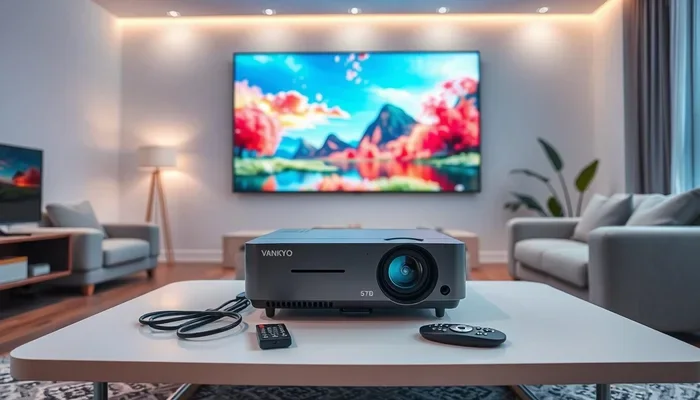
Can I Use a Projector Without the Remote Control
Yes, you can absolutely use a projector without the remote control. Most projectors come with built-in buttons on the device that let you power it on, adjust settings, and switch inputs. Whether your remote is lost, broken, or simply out of batteries, you have several easy alternatives to keep your movie night or presentation going without a hitch.
So your projector remote just stopped working. Maybe the batteries died, maybe the cat knocked it behind the couch, or maybe it simply vanished into thin air. Whatever the reason, you are standing in front of your projector, ready to watch a movie or start a presentation, and you cannot figure out how to turn it on. Here is the good news: you can use a projector without the remote control. It is simpler than you think, and there are more options than most people realize.
Whether you own a home theater projector, a portable projector for camping trips, or a business projector for office presentations, losing the remote does not mean your device becomes useless. Modern projectors come with built-in controls, smart features, and creative workarounds that keep you watching or presenting without missing a beat. In this guide, we will walk through every method you can use to run your projector without reaching for that little remote. We will also cover troubleshooting tips, replacement options, and simple habits to prevent this problem from happening again.
The truth is, projector remotes are small, easy to lose, and often the first thing to break. This is exactly why manufacturers build manual controls right into the device. You just need to know where to look and how to use them. Let us dive in and explore all the ways you can keep your projector running smoothly, even when the remote is nowhere to be found.
Key Takeaways
- Built-in buttons work: Every projector has manual controls on the device itself for basic operations.
- Remote apps exist: Many brands offer free smartphone apps that replace the physical remote.
- Universal remotes are affordable: A universal remote can replace a lost projector remote for under $15.
- Smart projectors offer voice control: Newer models support voice commands and Wi-Fi connectivity.
- HDMI-CEC lets you control with your TV remote: This handy feature works through your HDMI cable.
- Prevention is simple: Keeping spare batteries and a backup remote saves you from future headaches.
📑 Table of Contents
What Happens When You Lose Your Projector Remote?
Losing your projector remote can feel like a small crisis, especially when you have guests over or a big presentation coming up. But the reality is that your projector was designed to work independently. The remote is a convenience, not a necessity. Understanding what your projector can do on its own will give you confidence and save you time. Let us look at what you can expect when the remote goes missing.
Basic Functions You Can Still Access
Every projector has a set of physical buttons, usually located on the top, back, or side of the unit. These buttons give you access to the most essential functions. You can power the projector on and off, adjust the volume, switch between input sources, and navigate the on-screen menu. Some models also let you control the focus and keystone settings directly from the device. While it is not as smooth as using a remote, these manual controls handle the basics just fine.
For example, if you want to watch a movie from a laptop, you can plug in the HDMI cable, press the source or input button on the projector, and select the right port. It takes a few extra seconds, but it works perfectly. The same goes for adjusting brightness or switching between presentation mode and movie mode. You just navigate through the built-in menu using the directional buttons and the OK or Enter key.
When the Remote Matters Most
There are times when having the remote makes things much easier. If you are giving a slide deck presentation and need to advance slides, the remote lets you do that from across the room. If you are adjusting keystone correction or focusing the image, the remote gives you more precise control. And if you want to mute the volume quickly during a movie, pressing a button on the remote is faster than walking over to the projector.
That said, none of these functions are impossible without the remote. You just need a bit more patience and maybe a second person to help with adjustments from the other side of the room. For everyday home use or small meetings, the built-in controls are more than enough to get the job done.
How to Use a Projector Without the Remote Control
Now that you know your projector can work without the remote, let us walk through exactly how to do it. Each method is straightforward, and most of them require nothing more than the projector itself and a standard cable. You will be surprised at how quickly you can get comfortable with manual controls.
Using the Built-In Control Buttons
The most direct way to operate your projector without a remote is by using the buttons on the device. These buttons are usually found on the top panel, the rear side, or sometimes hidden under a small flap. Look for a cluster of buttons that includes power, menu, directional arrows, and OK or Enter. Some projectors also have dedicated buttons for source selection, volume, and lamp settings.
Here is a simple step-by-step guide to get started:
- Plug in your projector and make sure it is connected to your input source, whether that is a laptop, streaming stick, or gaming console.
- Press the power button to turn the projector on. It may take a few seconds for the lamp to warm up and the image to appear.
- Press the source or input button to cycle through available options until you see the correct signal on the screen.
- Use the menu button to access settings like brightness, contrast, keystone, and focus. Navigate with the arrow keys and confirm with OK or Enter.
- Adjust volume using the volume buttons or mute button if your projector has built-in speakers.
Once you try this a couple of times, it becomes second nature. You will find that the few extra seconds it takes to navigate the menu manually are well worth it, especially when you are in a pinch.
Controlling Your Projector Through a Smartphone App
Many modern projectors come with a free companion app that turns your smartphone into a remote control. Brands like Epson, BenQ, Optoma, and ViewSonic offer apps that connect to your projector through Wi-Fi or Bluetooth. These apps let you power on the projector, adjust settings, switch inputs, and even control playback from your phone. It is one of the best alternatives to a physical remote, and most people already have their phone within arm’s reach.
To get started, check your projector brand’s app store listing. Download the app, make sure your phone and projector are on the same Wi-Fi network, and follow the pairing instructions. Once connected, you will have a virtual remote on your screen with all the same buttons as the physical one. Some apps even offer extra features like keystone adjustment sliders and color settings that are easier to use on a touchscreen than on a physical remote.
If you cannot find an official app for your projector, try searching for third-party universal projector remote apps. These work with most projectors that support Wi-Fi or have a built-in network receiver. Just make sure your projector is connected to the same network as your phone for the best experience.
Using a Universal Remote Control
A universal remote is a fantastic backup option for any projector owner. These remotes are widely available at electronics stores and online, and they typically cost between $10 and $30. A universal remote can be programmed to work with your specific projector brand and model, giving you nearly all the same functions as the original remote.
To set up a universal remote, look up the code for your projector brand in the included manual or on the manufacturer’s website. Enter the code using the remote’s number pad, and test if it controls the projector. If the first code does not work, try the next one until you find the right match. Most universal remotes support hundreds of brands, so finding a match is almost always successful.
This is a great long-term solution, especially if you have multiple devices in your home theater setup. A single universal remote can control your projector, soundbar, streaming device, and TV all at once. It reduces clutter and makes it easy for everyone in the family to operate the system.
Alternative Ways to Control Your Projector
Beyond buttons, apps, and universal remotes, there are several other clever ways to control your projector without the original remote. These methods are especially useful if you want a more seamless experience or if you are setting up a projector in a place where the remote is impractical.
HDMI-CEC: Control Through Your TV Remote
If your projector has an HDMI port and supports HDMI-CEC (Consumer Electronics Control), you can use your TV remote to control basic projector functions. HDMI-CEC is a feature that allows connected devices to communicate with each other through the HDMI cable. When enabled, your TV remote can power on the projector, switch inputs, and adjust volume without needing a separate remote.
Different brands call this feature by different names. Samsung calls it Anynet+, LG calls it SimpLink, Sony calls it BRAVIA Sync, and Philips calls it EasyLink. Check your projector’s manual to see if HDMI-CEC is supported and how to enable it. Once turned on, you can use your TV remote to handle basic projector tasks, which is incredibly convenient for everyday use.
Voice Control with Smart Projectors
If you own a smart projector or a projector with built-in voice assistant support, you can use voice commands to control it. Many newer projectors integrate with Amazon Alexa, Google Assistant, or Apple Siri. This means you can say commands like “turn on the projector,” “switch to HDMI 1,” or “increase brightness” without touching any button or remote.
Voice control is especially handy when your projector is mounted on the ceiling or mounted high on a wall. Reaching the buttons becomes difficult, but a simple voice command solves the problem instantly. To use this feature, you need a compatible smart speaker or a phone with the voice assistant enabled, and your projector must be connected to the same Wi-Fi network.
Using a Computer or Streaming Device Remote
If you are using a streaming stick like a Roku, Amazon Fire Stick, or Chromecast with your projector, you can control playback using the streaming device’s own remote or app. While this does not give you full control over the projector itself, it handles all your media playback needs. You can play, pause, rewind, and adjust volume directly from the streaming remote.
For laptop users, many presentation and media apps have their own keyboard shortcuts that work just as well as a projector remote. Pressing the spacebar to pause a video or using keyboard shortcuts to advance slides keeps you in control without ever needing the projector’s remote. This is a simple but effective workaround that most people already have available.
Common Problems When Using a Projector Without the Remote
Using your projector without the remote is generally smooth, but you may run into a few hiccups along the way. Understanding these common issues and their solutions will help you stay prepared and keep your viewing or presentation on track.
Projector Will Not Turn On
If your projector does not respond when you press the power button, check the power cable first. Make sure it is firmly plugged into both the projector and the wall outlet. Some projectors have a power switch on the back near the cable, and it needs to be in the “on” position as well. If the projector still does not turn on, the power board or lamp may need professional inspection.
No Image on Screen
A blank screen usually means the input source is not set correctly. Press the source or input button on the projector to cycle through available options. Make sure your laptop or streaming device is also turned on and sending a signal through the correct cable. If you are using HDMI, try unplugging and replugging the cable at both ends. Sometimes a loose connection is all it takes to cause a no-image problem.
Image Looks Blurry or Distorted
If the projected image is blurry, you may need to adjust the focus ring on the projector lens manually. Most projectors have a small ring around the lens that you can turn clockwise or counterclockwise to sharpen the image. If the image appears crooked or has uneven edges, use the keystone correction feature in the projector menu to straighten it out.
Tips for Keeping Your Projector Remote Safe
Preventing remote loss is always better than finding a workaround after the fact. A few simple habits can save you a lot of frustration and keep your projector remote exactly where it belongs.
- Designate a home for the remote. Pick a specific spot, like a small tray or drawer near the projector, and always place the remote there after use.
- Keep spare batteries on hand. A dead battery is the most common reason a remote stops working. Stock up on AA or AAA batteries so you are never caught off guard.
- Use a remote clip or lanyard. Attaching the remote to a strap or clip makes it harder to misplace and easier to find if it does slide off a coffee table.
- Clean the remote regularly. Dust and crumbs can build up under the buttons and cause sticky or unresponsive keys. Wipe it down with a damp cloth once a week.
- Set a reminder to check batteries. Every few months, test the remote to make sure the batteries still have a strong charge. Replace them proactively before they die completely.
These small habits take almost no time but make a big difference. They keep your projector experience seamless and eliminate the need for workarounds most of the time.
When to Replace Your Projector Remote
Sometimes the remote is simply beyond saving. If the buttons are physically broken, the infrared sensor is damaged, or the remote has been lost for good, it is time to get a replacement. Most projector manufacturers sell original remotes directly through their websites or customer support. Third-party remotes are also available on Amazon and other retailers, often for a fraction of the original price.
Before ordering a replacement, check your projector model number. This is usually printed on a label on the back or bottom of the device. Having the model number handy ensures you order the correct remote that is fully compatible with your unit. If you prefer a more permanent solution, a universal remote programmed with your projector codes is an excellent and affordable option.
Keep in mind that some newer projectors rely heavily on app-based control. If your projector is a smart model with Wi-Fi connectivity, you may not even need a physical remote at all. The smartphone app can handle everything, and you will never have to worry about losing another remote again.
Final Thoughts
Using a projector without the remote control is not only possible but often easier than people expect. Built-in buttons, smartphone apps, universal remotes, HDMI-CEC, and voice control give you plenty of options to keep your projector running no matter what. Whether you are at home watching a movie, setting up for a business presentation, or enjoying a backyard movie night, these methods ensure you are never stuck just because the remote is missing.
The key is to familiarize yourself with your projector’s manual controls before you actually need them. Spend a few minutes exploring the buttons and menu when you first set up the device. This small investment of time pays off big when the remote goes missing, and it gives you the confidence to handle any situation on your own. Your projector is a powerful and versatile tool, and it is designed to work for you with or without that little remote in your hand.
So the next time you reach for the remote and it is not there, do not panic. Take a deep breath, walk over to the projector, and use the methods you have learned here. You will be back to enjoying your content in just a few minutes. And if you take the prevention tips to heart, you may never have to face this situation again.
Frequently Asked Questions
Can I use any projector without a remote control?
Yes, virtually every projector comes with built-in manual buttons that allow you to power it on, switch inputs, and adjust basic settings. Whether you have a home theater projector, a portable model, or a business projector, manual controls are standard on all of them. You may just need to look a little harder to find the buttons on some slim or ceiling-mounted models.
How do I find the buttons on my projector?
Check the top panel, the rear side, and sometimes the bottom or side edges of the projector. Most models have a clearly marked cluster of buttons including power, menu, directional arrows, and source selection. If you are still having trouble, consult your projector’s user manual or look up the model online for a diagram of button locations.
Is a smartphone app as good as a physical projector remote?
For most users, a smartphone app is just as effective as a physical remote. It offers the same buttons and often includes additional features like keystone sliders and color settings. The main advantage is that you always have your phone with you, so you are less likely to lose it. The only limitation is that it requires Wi-Fi or Bluetooth connectivity, which may not be available on older projector models.
Can I use my TV remote to control the projector?
If your projector supports HDMI-CEC, you can use your TV remote to control basic functions like power and input switching. This feature works through the HDMI cable and is enabled in the settings of both devices. Check your projector and TV manuals for HDMI-CEC compatibility and setup instructions.
What should I do if my projector remote stops working suddenly?
First, try replacing the batteries. If that does not work, clean the remote’s infrared sensor and buttons with a soft, dry cloth. If the remote still does not function, use the built-in projector buttons or download a remote app as a temporary solution. You can then order a replacement remote or a universal remote as a long-term fix.
Are smart projectors better than regular projectors for remote-free use?
Smart projectors offer more remote-free options like voice control, Wi-Fi connectivity, and dedicated smartphone apps. They are designed with modern convenience in mind and make it easy to operate without a physical remote. However, standard projectors are just as capable when it comes to manual controls, and they often cost less upfront.
=== SEO META DATA ===
SEO Title: Can I Use a Projector Without the Remote Control?
Meta Title: Can You Use a Projector Without the Remote Control?
URL Slug: use-projector-without-remote-control
Primary Keyword: projector without remote
LSI Keywords: projector remote control, projector controls, projector settings, HDMI connection, projector menu buttons, wireless projector, projector lamp, home theater projector, projector troubleshooting, projector remote replacement, smart projector, projector power button, projector input sources, projector lens, projector keystone, projector brightness, portable projector, projector compatibility, projector remote app, projector maintenance