Can I Use My iPhone As A Router Yes You Can Do This
Yes, you can use your iPhone as a router. With the built-in personal hotspot feature, you can share your cellular data with laptops, tablets, and other devices anywhere. iPhone hotspot is easy to set up, works over Wi-Fi or USB, and keeps you connected when you need internet the most.
Have you ever been in a situation where you needed internet on your laptop but had no Wi-Fi around? Maybe you were at a coffee shop, on a train, or staying at a hotel with bad reception. The good news is that your iPhone can solve this problem. Can I use my iPhone as a router? The answer is a clear yes. Your phone has a built-in feature that turns it into a mobile hotspot. This means you can share your cellular data connection with other devices. It is simple, fast, and does not require any extra equipment.
In this guide, we will walk you through everything you need to know about using your iPhone as a router. We will cover how to set it up, the different connection methods, common problems you might face, and tips to get the best performance. Whether you are a frequent traveler or just need backup internet at home, this article has you covered. Let us dive in and explore how iPhone hotspot can keep you connected wherever you go.
Key Takeaways
- iPhone hotspot works out of the box: No extra apps or hardware needed to share your cellular data.
- Three connection methods available: Wi-Fi hotspot, USB tethering, and Bluetooth tethering all work on iPhones.
- Watch your data usage: Using your phone as a router can drain your data plan quickly if you are not careful.
- Battery drain is real: Running a hotspot uses significant power, so keep your phone charged or plugged in.
- Carrier restrictions may apply: Some mobile plans limit or charge extra for hotspot data usage.
- iPhone hotspot is great for travel: It replaces the need for a portable Wi-Fi device when you are on the go.
📑 Table of Contents
- What It Means to Use Your iPhone as a Router
- How to Set Up Your iPhone as a Router
- Comparing iPhone Hotspot to a Traditional Router
- Common Issues and How to Fix Them
- Tips to Get the Most Out of iPhone Hotspot
- When Should You Use Your iPhone as a Router
- Security Considerations for iPhone Hotspot
- How Carriers Handle iPhone Hotspot Usage
- Frequently Asked Questions
- Conclusion
What It Means to Use Your iPhone as a Router
A router is a device that shares an internet connection with multiple devices. Your home Wi-Fi router does this every day. But did you know your iPhone can do the same thing? When you use your iPhone as a router, it shares its cellular data connection with other devices nearby. This process is also called tethering or personal hotspot. Apple has included this feature in iPhones for many years, and it works very well.
How iPhone Hotspot Works
When you turn on the personal hotspot feature, your iPhone creates a small Wi-Fi network. Other devices can connect to this network just like they would connect to a regular router. Your iPhone then routes internet traffic from those devices through your cellular data plan. The whole process happens in seconds. You do not need any cables, extra apps, or special settings in most cases. Apple designed this feature to be as simple as possible.
There are three ways your iPhone can share its internet connection:
- Wi-Fi Hotspot: This is the most common method. Your iPhone broadcasts a Wi-Fi signal that other devices can connect to. It works just like a home router.
- USB Tethering: You connect your iPhone to a computer with a cable. The computer gets internet through the iPhone’s data connection. This method is more stable and uses less battery.
- Bluetooth Tethering: Your iPhone connects to another device via Bluetooth and shares data that way. It is slower than Wi-Fi but uses very little power.
Why People Use Their iPhone as a Router
There are many reasons why people turn to iPhone as a router. Here are the most common ones:
- No Wi-Fi available: You are traveling or working remotely and there is no reliable internet nearby.
- Backup connection: Your home internet goes down and you need a quick alternative.
- Travel convenience: You do not want to carry a separate portable hotspot device.
- Temporary needs: You need internet for a short period and do not want to set up a full network.
- Rural or remote areas: Wi-Fi infrastructure is limited, but cellular coverage is available.
Using your iPhone this way is incredibly convenient. It gives you portable internet access without the hassle of extra devices. You always have your phone with you, so your router is always with you too.
How to Set Up Your iPhone as a Router
Setting up iPhone personal hotspot is straightforward. Apple keeps the process simple so anyone can do it. Here is how to get started with each method.
Setting Up Wi-Fi Hotspot
The Wi-Fi hotspot method is the most popular way to share your iPhone’s internet. Follow these steps:
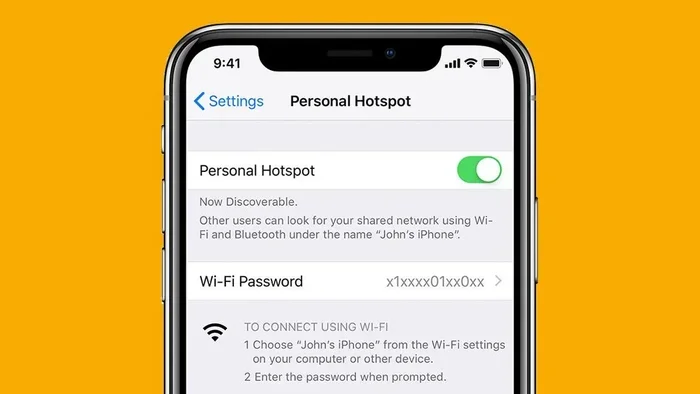
- Open the Settings app on your iPhone.
- Tap Personal Hotspot (it may also be under Cellular or Mobile Data).
- Toggle Allow Others to Join to ON.
- Set a Wi-Fi password for your hotspot. Use something strong and memorable.
- On your other device, open Wi-Fi settings and find your iPhone’s name in the list.
- Enter the password and connect.
That is it. Your other device now has internet through your iPhone. You can see how many devices are connected at the bottom of the hotspot settings screen. Apple limits the number of simultaneous connections, but most people only need one or two.
Using USB Tethering
USB tethering is a great option when you need a stable connection. It also charges your iPhone while you work. Here is how to do it:
- Plug your iPhone into your computer using a USB cable.
- Go to Settings on your iPhone.
- Tap Personal Hotspot.
- Toggle Allow Others to Join to ON.
- On your computer, it should recognize the iPhone and connect to the internet automatically.
If your computer does not connect right away, try trusting the iPhone when prompted. USB tethering is especially useful for long work sessions because it does not drain your battery as fast as Wi-Fi hotspot.
Bluetooth Tethering
Bluetooth tethering is the slowest method, but it is useful in certain situations. It uses very little power and works without a cable. To use it:
- Go to Settings and turn on Bluetooth on both your iPhone and the other device.
- Pair the two devices.
- On the other device, look for network settings and select your iPhone as a Bluetooth network option.
Bluetooth tethering works best for basic tasks like email or light browsing. It is not ideal for streaming or large downloads because the speed is limited.
Quick Tip: Always set a strong Wi-Fi password for your hotspot. This keeps your connection secure and prevents strangers from using your data. Use at least eight characters with a mix of letters, numbers, and symbols.
Comparing iPhone Hotspot to a Traditional Router
While your iPhone can absolutely work as a router, it is helpful to understand how it compares to a dedicated router. Both devices share internet connections, but they have important differences.
Speed and Performance
A traditional Wi-Fi router is designed to handle many devices at once. It has stronger antennas and better hardware for distributing data. Your iPhone is a single device that shares its connection with a few others. In most cases, the speed difference is not noticeable for one or two connected devices. However, if you connect three or more devices, you may notice slower speeds on your iPhone hotspot.
The speed also depends on your cellular signal. If you have a strong 4G LTE or 5G connection, your iPhone hotspot will be fast. If the signal is weak, the hotspot speed will drop too.
Battery Life and Data Usage
This is where iPhone hotspot differs the most from a traditional router. A regular router plugs into the wall and does not need charging. Your iPhone runs on a battery, and running a hotspot drains it fast. Here is a rough comparison:
| Feature | iPhone Hotspot | Traditional Router |
|---|---|---|
| Power Source | Battery (needs charging) | Wall outlet (always on) |
| Battery Impact | High drain during use | No battery (unlimited use) |
| Data Limit | Depends on your cellular plan | Usually unlimited or high cap |
| Portability | Very portable | Stays in one place |
| Number of Devices | Up to 5-10 devices | Up to 20-100+ devices |
| Setup Time | Under 2 minutes | Requires configuration |
As you can see, iPhone hotspot wins on portability and ease of setup. A traditional router wins on battery life, data limits, and the number of devices it can support.
Common Issues and How to Fix Them
Using your iPhone as a router is not always perfect. You may run into some issues along the way. Here are the most common problems and how to solve them.
iPhone Hotspot Not Working
If your hotspot is not showing up on other devices, try these fixes:
- Restart your iPhone: A simple restart often fixes temporary software glitches that affect hotspot functionality.
- Check your cellular data: Make sure you have an active data connection. Without cellular data, the hotspot cannot work.
- Turn hotspot off and on again: Sometimes toggling the feature off and back on resets the connection.
- Update iOS: Go to Settings > General > Software Update to make sure your iPhone is running the latest version.
- Reset network settings: Go to Settings > General > Transfer or Reset iPhone > Reset > Reset Network Settings. This clears all network configurations and can fix stubborn issues.
Slow Speeds and Connectivity Problems
If your connected devices have slow internet through the hotspot, try these steps:
- Move to a better signal area: Stand near a window or outside to get a stronger cellular signal.
- Limit connected devices: Too many devices on one hotspot slows everyone down. Disconnect devices you are not using.
- Switch connection methods: Try USB tethering instead of Wi-Fi for a more stable connection.
- Check for carrier settings updates: Go to Settings > General > About and look for a carrier update prompt.
- Avoid heavy usage: Streaming video or downloading large files on multiple devices can overwhelm the hotspot.
Expert Insight: The most common reason for slow hotspot speeds is a weak cellular signal. Your iPhone hotspot is only as fast as the cellular connection it receives. If you are indoors, try stepping outside or moving to a higher floor for better reception.
Tips to Get the Most Out of iPhone Hotspot
To make the most of your iPhone when using it as a router, follow these practical tips. They will help you save battery, manage data, and stay connected longer.
Reducing Battery Drain
Running a hotspot uses a lot of power. Here is how to conserve battery while sharing your connection:
- Keep your iPhone plugged in: Use a charger or power bank when you plan to use the hotspot for a long time.
- Lower screen brightness: The screen is one of the biggest battery hogs. Dimming it helps save power.
- Close unused apps: Background apps drain battery. Close anything you are not using.
- Use Wi-Fi hotspot instead of Bluetooth: Wi-Fi is faster, which means your phone works less hard and uses less battery overall.
- Turn off hotspot when not in use: Do not leave the hotspot on if no one is connected. It wastes battery and data.
Managing Data Usage
Hotspot data adds up fast. Here are some ways to keep your data usage under control:
- Monitor your data: Go to Settings > Cellular to see how much data your hotspot has used.
- Avoid streaming: Video and music streaming use a lot of data. Download content for offline use when possible.
- Set data limits: Many carriers let you set data alerts or limits in your account settings online.
- Use lighter apps: Text-based apps and email use much less data than video calls or cloud backups.
- Check your plan: Make sure your cellular plan includes enough hotspot data. Some plans charge extra or slow down speeds after a certain amount.
Quick Tip: If you know you will be using your iPhone as a router often, consider upgrading to a plan with more hotspot data. Most major carriers offer add-on options or unlimited hotspot plans. It is worth checking your options.
When Should You Use Your iPhone as a Router
Now that you know how to set up and optimize your iPhone hotspot, let us talk about when it makes the most sense to use this feature.
Travel and On-the-Go Needs
If you travel frequently, your iPhone can replace a separate portable hotspot device. Whether you are on a business trip, vacation, or road trip, you can share your connection with travel companions. You do not need to find Wi-Fi at every hotel or café. Your iPhone becomes your own personal mobile Wi-Fi hotspot. This is especially useful in countries where you do not have access to local Wi-Fi networks.
Emergency Internet Access
What happens when your home internet goes down unexpectedly? Your iPhone hotspot can be a lifesaver. You can connect your laptop, tablet, or smart TV to your phone and stay productive or entertained. It is not a permanent solution, but it works well for short-term needs. Keep your phone charged and your hotspot password handy for these situations.
Working Remotely
Remote workers who do not have reliable home internet can benefit greatly from iPhone tethering. You can work from parks, cafes, or any place with cellular coverage. Just make sure your data plan can handle the extra usage. A strong cellular data connection and a fully charged iPhone can get you through a full workday.
Sharing with Guests
If you have guests over and they need internet access, your iPhone hotspot is a quick and easy solution. You do not need to share your home Wi-Fi password. Just set up a temporary hotspot, give them the password, and they can connect. When they leave, you simply turn the hotspot off.
Security Considerations for iPhone Hotspot
When you share your internet connection, you also open a door to your network. It is important to think about security when using your iPhone as a router.
Always use a strong Wi-Fi password for your hotspot. Avoid simple passwords like “12345678” or “password.” A strong password prevents unauthorized users from connecting to your hotspot and using your data. Apple gives you the option to use WPA2 encryption for your hotspot, which is the same security standard used by most home routers. Make sure this is enabled in your hotspot settings.
Another important security tip is to turn off your hotspot when you are not using it. An active hotspot that is not in use is a potential security risk. Someone nearby could try to connect if the hotspot is visible. Also, avoid using public Wi-Fi networks while your hotspot is active, as this can create conflicting network connections.
If you use USB tethering, your connection is inherently more secure because it requires a physical cable. Bluetooth tethering is also relatively secure because it has a short range. Wi-Fi hotspot is the most convenient but also the most exposed, so always use a strong password with it.
How Carriers Handle iPhone Hotspot Usage
Your mobile carrier plays a big role in how you can use your iPhone as a router. Some carriers include hotspot data in your regular plan, while others charge extra or limit the amount of data you can use for tethering.
Before you start using your iPhone as a router, check your plan details. Look for terms like “personal hotspot,” “tethering,” or “mobile hotspot” in your plan description. If your plan does not include hotspot data, you may need to add a hotspot add-on or switch to a different plan. Some carriers offer unlimited hotspot data, while others cap it at 10 GB, 20 GB, or 50 GB per month.
If you go over your hotspot data limit, your carrier may slow down your speeds or charge overage fees. This is why it is important to monitor your usage regularly. You can check your data usage in the Settings > Cellular menu on your iPhone. Some carriers also offer apps that let you track your data in real time.
International travelers should be especially careful. Using your iPhone as a router abroad can result in very high roaming charges if your plan does not include international data. Consider purchasing a local SIM card or an international data plan before you travel to avoid unexpected bills.
Frequently Asked Questions
Can I use my iPhone as a router without Wi-Fi?
Yes, you can. If Wi-Fi is not available or not working, you can use USB tethering or Bluetooth tethering instead. USB tethering requires a cable and is the most stable option. Bluetooth tethering works wirelessly but is slower than Wi-Fi. Both methods let you share your iPhone’s cellular data with other devices.
Does using my iPhone as a router drain the battery quickly?
Yes, running a hotspot uses a significant amount of battery power. Your iPhone has to maintain a Wi-Fi signal and process data for connected devices at the same time. To reduce battery drain, keep your phone plugged in, lower the screen brightness, and turn off the hotspot when you are not using it. A portable power bank is a great accessory for extended hotspot use.
Can I use my iPhone as a router for a smart TV or tablet?
Absolutely. Any device that can connect to Wi-Fi can connect to your iPhone hotspot. This includes smart TVs, tablets, laptops, gaming consoles, and even other smartphones. Just make sure your cellular data plan has enough data to support all connected devices. Streaming content on a smart TV will use data very quickly through a hotspot.
Is it legal to use my iPhone as a router?
Yes, it is completely legal. Using your iPhone’s personal hotspot feature is a standard function built into iOS by Apple. As long as you are using your own cellular data plan and following your carrier’s terms of service, there is nothing illegal about tethering. However, some carriers may have specific rules about hotspot usage, so always check your plan details.
How many devices can connect to my iPhone hotspot at once?
Most iPhones support up to five simultaneous connections on the personal hotspot. However, the practical limit depends on your cellular data speed and signal strength. Connecting more than two or three devices at once can slow down the connection for everyone. If you need to connect many devices, consider using a dedicated portable hotspot router instead.
Will my iPhone get hot when I use it as a router for a long time?
It is normal for your iPhone to warm up when running a hotspot for an extended period. The processor and radio antennas work hard to maintain the connection and share data. If your iPhone becomes uncomfortably hot, turn off the hotspot for a few minutes to let it cool down. Keep it out of direct sunlight and consider removing the case to help with heat dissipation.
Conclusion
Can I use my iPhone as a router? The answer is a resounding yes. Your iPhone has everything you need to share your cellular data with other devices. Whether you use Wi-Fi hotspot, USB tethering, or Bluetooth tethering, the process is simple and built right into iOS. You do not need any extra hardware or apps. Just turn on your personal hotspot, set a strong password, and connect your devices.
Using your iPhone as a router is incredibly useful for travel, emergencies, remote work, and everyday backup internet. It gives you portable internet access wherever you go. Just remember to keep an eye on your data usage and battery life. With the tips and tricks shared in this guide, you can get the most out of your iPhone hotspot experience.
So the next time you find yourself without Wi-Fi, do not worry. Your iPhone has you covered. Turn on that hotspot and stay connected. It is one of the most powerful and underrated features your phone has to offer. Start using it today and enjoy the freedom of mobile internet sharing wherever life takes you.