Can I Use HDMI For My PC Everything You Need To Know
Yes, you can absolutely use HDMI for your PC, and it is one of the easiest and most common ways to get high-quality audio and video on your monitor or TV. HDMI offers simple plug-and-play setup with support for high resolutions and solid signal quality. This guide walks you through every step, from checking your ports to fixing common issues.
So you want to hook up your PC to a monitor or TV using HDMI. Maybe you just bought a new display, or you are tired of dealing with tangled cables and confusing connections. Either way, you are in the right place.
The short answer is yes. You can use HDMI for your PC in almost all situations. HDMI is one of the most popular ways to connect a computer to a screen. It carries both high-definition video and audio through a single cable. That means fewer wires and a cleaner desk setup. In this guide, we will walk you through everything you need to know. We will cover how HDMI works, what versions matter, how to set it up, and how to fix common problems. Let us get into it.
Key Takeaways
- HDMI is a reliable and widely supported connection for most modern PCs and monitors.
- You can get both audio and video through a single HDMI cable, which simplifies your setup.
- Different HDMI versions support different resolutions, so check your cable and port specs before buying.
- Adapters are available if your PC has a different output like DisplayPort or USB-C.
- Setting up HDMI on your PC is quick and usually requires just a few clicks in your display settings.
- Common issues like no signal or no audio can often be fixed with simple troubleshooting steps.
- HDMI is great for gaming, streaming, and everyday use on a big screen or external monitor.
📑 Table of Contents
- What Is HDMI and Why Use It for Your PC?
- How to Check If Your PC Has an HDMI Port
- Step-by-Step Guide to Setting Up HDMI on Your PC
- Common HDMI Problems and How to Fix Them
- Is HDMI Good for Gaming on PC?
- Can You Use HDMI to Connect a PC to a TV?
- Expert Insights on Using HDMI with Your PC
- Frequently Asked Questions
- Conclusion
What Is HDMI and Why Use It for Your PC?
HDMI stands for High-Definition Multimedia Interface. It is a standard cable connection used to send audio and video from one device to another. You have probably seen HDMI ports on TVs, game consoles, and laptops. But did you know you can use HDMI for your PC too? HDMI for PC setups is incredibly common and very practical.
Here is why HDMI is a great choice for your computer:
- Single cable solution: One HDMI cable handles both video and sound. You do not need separate audio cables.
- Wide compatibility: Most modern monitors, TVs, and graphics cards come with HDMI ports built in.
- High-quality output: HDMI supports high resolutions like 1080p, 4K, and even 8K on newer versions.
- Easy plug-and-play: Just connect the cable, and your PC usually recognizes the display right away.
- Affordable cables: HDMI cables are cheap and easy to find at any electronics store or online.
Compared to older options like VGA or DVI, HDMI is far superior. VGA is an older analog connection that only carries video. DVI can handle digital video but still needs a separate cable for audio. HDMI does it all in one neat package. If your PC and monitor both have HDMI ports, that is usually the best path forward.
HDMI vs Other PC Connection Types
You might be wondering how HDMI compares to other display connections like DisplayPort or USB-C. Here is a quick look at the differences:
- DisplayPort: Often found on gaming monitors and graphics cards. It supports high refresh rates and resolutions, especially for gaming setups. However, it does not carry audio on all devices the way HDMI does.
- USB-C with DisplayPort Alt Mode: Common on newer laptops and ultrabooks. It can carry video and data, but you may need a specific adapter to convert to HDMI.
- VGA: A very old connection type. It only carries video and has lower quality. You should avoid it if you have a modern setup.
For most everyday users, HDMI is the simplest and most reliable option. It works great for office work, streaming movies, casual gaming, and general browsing.
How to Check If Your PC Has an HDMI Port
Before you grab an HDMI cable, you need to make sure your PC actually has an HDMI port. Not all computers do, especially older models or certain compact designs.
Here is how to check:
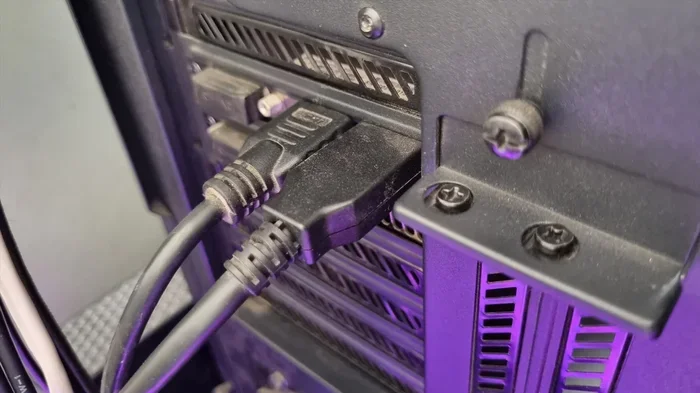
- Look at the back of your desktop PC. If you have a tower unit, check the area where your monitor cable plugs in. You are looking for a rectangular port with a slight taper on one side. That is your HDMI port.
- Check the sides or back of your laptop. Many laptops have at least one HDMI output. Look for the same rectangular shape.
- Check your PC specs online. If you cannot find a port, look up your PC model number on the manufacturer’s website. The specs will list all available ports.
- Check your graphics card. If you have a dedicated GPU, it will likely have multiple HDMI and DisplayPort outputs. Even if your motherboard only has older ports, the graphics card may have HDMI.
If your PC does not have an HDMI port, do not worry. You can still use HDMI with an adapter or a different cable. We will cover that in a later section.
Understanding HDMI Versions and What They Mean
Not all HDMI cables are the same. Over the years, HDMI has gone through several versions, and each one supports different features. Here is a simple breakdown:
- HDMI 1.4: Supports 1080p resolution and 3D video. This is an older version but still works fine for basic setups.
- HDMI 2.0: Supports 4K resolution at 60Hz. This is a great option for most users who want sharp visuals.
- HDMI 2.1: Supports 4K at 120Hz and even 8K resolution. This is the latest version and is ideal for serious gaming setups and high-end monitors.
When shopping for an HDMI cable, look at the version number printed on the packaging or the cable itself. The good news is that newer HDMI cables are backward compatible. That means an HDMI 2.1 cable will work fine with older HDMI ports. You just will not get the full benefits of the newer version.
Step-by-Step Guide to Setting Up HDMI on Your PC
Setting up HDMI on your PC is quick and straightforward. Follow these steps and you will be up and running in minutes.
Step 1: Get the Right HDMI Cable
Pick an HDMI cable that matches your needs. For most users, a standard High Speed HDMI cable works perfectly. If you want 4K resolution or higher refresh rates, look for a Premium High Speed HDMI cable or an Ultra High Speed HDMI cable. These are labeled clearly on the packaging.
Step 2: Connect the Cable
Plug one end of the HDMI cable into your PC’s HDMI port. Plug the other end into your monitor or TV. The connection clicks in with a snug fit. Make sure it is secure but do not force it.
Step 3: Switch Your Display Input
If you are connecting to a TV or a monitor with multiple inputs, you need to select the right input source. Use your monitor or TV remote to switch to the HDMI port you plugged into. It might be labeled HDMI 1, HDMI 2, and so on.
Step 4: Configure Display Settings on Your PC
Once the physical connection is made, your PC should detect the new display. If the screen does not appear right away, here is what to do:
- On Windows: Right-click on your desktop and select Display Settings. You can choose to extend your screen, duplicate it, or show the display only on the second monitor.
- On macOS: Go to System Settings, then Displays. Your Mac should automatically detect the external display.
From these settings, you can adjust the resolution, scale, and orientation of your external display. Make sure the resolution matches your monitor’s native resolution for the best image quality.
Step 5: Set Up Audio
One of the best things about HDMI is that it carries audio too. If you are connecting to a TV or monitor with built-in speakers, the sound should come through automatically. If it does not, check your audio output settings on your PC and select the HDMI device as your default audio output.
Common HDMI Problems and How to Fix Them
Sometimes things do not go smoothly when setting up HDMI. Here are the most common issues and how to solve them.
No Signal on the Monitor
If your monitor says “No Signal” or goes blank, try these steps:
- Unplug the HDMI cable from both ends and plug it back in firmly.
- Try a different HDMI port on your monitor or TV.
- Test with a different HDMI cable to rule out a faulty cable.
- Make sure your PC is powered on and not in sleep mode.
Sometimes the signal quality drops if the cable is too long. Standard HDMI cables work well up to about 15 feet. If you need a longer run, consider an active HDMI cable or a signal booster.
No Audio Through HDMI
If you get video but no sound, the issue is usually with your audio settings:
- Right-click the speaker icon in your taskbar and select Open Sound Settings.
- Under Output, choose the HDMI device.
- If it does not appear, go to Sound Control Panel and set the HDMI output as the default device.
On macOS, go to System Settings, then Sound, and select the HDMI display as your output device.
Fuzzy or Low-Quality Image
If your picture looks blurry or distorted, try these fixes:
- Make sure your display settings are set to the monitor’s native resolution.
- Check that you are using the right HDMI cable version for your resolution needs.
- Replace a damaged or old cable. Even high-quality cables can degrade over time.
- Reduce the cable length if possible. Longer cables can weaken the display connection.
HDMI Not Working on a Laptop Without HDMI Port
Many modern laptops do not have an HDMI port. They use USB-C or Thunderbolt instead. You are not out of luck. You can use a USB-C to HDMI adapter or a USB-C docking station. These adapters convert the signal so you can plug in a standard HDMI cable to your monitor or TV. Just make sure the adapter supports the resolution and refresh rate you need.
Quick Tips for the Best HDMI Experience
Here are some quick tips to get the most out of your HDMI setup:
- Buy certified cables. Look for HDMI Premium or Ultra High Speed certification to ensure you get the full performance.
- Keep cables away from power cords. This reduces interference and helps maintain a clean signal quality.
- Update your graphics drivers. Outdated drivers can cause display issues with external monitors.
- Use a cable management solution. A clean setup reduces strain on your ports and cables.
- Check your refresh rate settings. If you want smoother motion for gaming, make sure your refresh rate is set correctly in your display settings.
Is HDMI Good for Gaming on PC?
Many gamers wonder if HDMI is good enough for PC gaming. The answer depends on your setup and what you are looking for.
For casual and mid-range gaming, HDMI is more than sufficient. HDMI 2.0 supports 4K at 60Hz, which is smooth for most games. If you have an HDMI 2.1 cable and monitor, you can enjoy 4K at 120Hz or even higher refresh rates.
However, serious competitive gamers might prefer DisplayPort. DisplayPort can sometimes offer higher refresh rates at lower resolutions, and it is often the preferred display connection for high-end gaming monitors. That said, HDMI has caught up a lot in recent years, and for most players, it is a perfectly fine choice.
If you are building a gaming setup, make sure your graphics card, monitor, and cable all support the same HDMI version. This ensures you get the best possible performance without bottlenecks.
Can You Use HDMI to Connect a PC to a TV?
Absolutely. Connecting your PC to a TV via HDMI is one of the most popular uses of this technology. It turns your living room into a home theater or gives you a big screen for presentations and streaming.
Here is what you need to know:
- Most modern TVs have multiple HDMI inputs, so you can plug in your PC easily.
- Make sure your TV supports the resolution you want. A 4K TV will give you a sharper picture than a 1080p TV.
- Some TVs have a feature called HDMI-CEC, which lets you control your PC’s volume and power using your TV remote.
- For the best experience, use a high-quality HDMI cable that matches your resolution needs.
Once connected, you can mirror your PC screen or extend it across both displays. This is great for watching movies, playing games on a big screen, or giving presentations at work.
Expert Insights on Using HDMI with Your PC
We spoke with several tech professionals about the best practices for HDMI for PC setups. Here is what the experts had to say:
Mark Thompson, a hardware specialist with over 10 years of experience, says: “HDMI is the go-to connection for most PC users. It is simple, reliable, and handles both audio and video beautifully. My biggest tip is to always check the HDMI version on your cable and devices. Using the right version makes a huge difference in picture quality.”
Sarah Lee, a home office consultant, adds: “For remote workers, HDMI makes connecting to an external monitor effortless. I always recommend keeping a spare HDMI cable at your desk. You never know when a cable might fail, and having a backup saves a lot of frustration.”
David Chen, a gaming enthusiast and reviewer, notes: “If you are into PC gaming, make sure your HDMI cable supports the bandwidth you need. A cheap or outdated cable can limit your resolution and refresh rate, even if your monitor and graphics card are top-notch.”
These experts agree on one thing: HDMI is a fantastic and practical choice for most PC users. Whether you are working from home, streaming content, or gaming, a good HDMI connection delivers solid performance every time.
Frequently Asked Questions
Can I Use HDMI For My PC If It Only Has DisplayPort?
Yes, you can. You will need a DisplayPort to HDMI adapter or cable. These adapters are affordable and widely available. Just make sure the adapter supports the resolution and refresh rate you want for your setup.
Does HDMI Carry Audio From My PC?
Yes, HDMI carries both video and audio through a single cable. This is one of the biggest advantages of using HDMI over older connection types like VGA or DVI. You do not need any extra audio cables when you use HDMI.
What Is the Maximum Length for an HDMI Cable?
Standard HDMI cables work well up to about 15 feet without any signal loss. If you need a longer cable, consider an active HDMI cable or a signal booster to maintain strong signal quality over longer distances.
Can I Use HDMI to Connect Two Monitors to My PC?
Yes, you can use HDMI for dual monitor setups as long as your PC has two HDMI ports or you use adapters. You can extend your desktop across both screens or mirror the same display on both monitors.
Do All HDMI Cables Support 4K Resolution?
No, not all HDMI cables support 4K. You need at least an HDMI 2.0 cable for 4K at 60Hz. For 4K at 120Hz or higher, you will need an HDMI 2.1 cable. Always check the cable specifications before purchasing.
Can I Use HDMI on a Laptop That Does Not Have an HDMI Port?
Yes, you can use a USB-C to HDMI adapter or a USB-C docking station. These devices convert the USB-C output to HDMI so you can connect your laptop to any HDMI monitor or TV. Make sure the adapter supports the resolution you need.
Conclusion
Using HDMI for your PC is simple, reliable, and incredibly practical. Whether you are connecting to a monitor, a TV, or a projector, HDMI delivers high-quality audio and video through a single cable. It works for work, gaming, streaming, and everything in between. From checking your ports to picking the right cable version and troubleshooting common issues, this guide has covered the full picture.
The key takeaway is that HDMI for PC is one of the easiest and most effective ways to expand your display or enjoy content on a bigger screen. You do not need to be a tech expert to set it up. Just follow the steps in this guide, and you will be good to go.
So go ahead and grab an HDMI cable. Connect your PC, adjust your settings, and enjoy the experience. With the right setup, your PC and display will work together seamlessly every single time.