Can I Use A Docking Station With A Hp Laptop Explained
Yes, you can absolutely use a docking station with an HP laptop. Whether you own an HP EliteBook, ProBook, or Pavilion, connecting a docking station transforms your laptop into a powerful workstation. This guide covers compatibility, setup, and the best docks for every HP model.
So you just got an HP laptop and someone told you a docking station would change your work life. Maybe you are tired of unplugging cords every time you move from your desk to the couch. Or perhaps you want to connect two monitors and a full keyboard setup without a tangled mess of cables. Whatever your reason, the question is simple: can you use a docking station with an HP laptop?
The short answer is yes. The longer answer is that it depends on your HP model, the type of dock you choose, and a few small setup steps. This guide walks you through everything you need to know. By the end, you will feel confident picking the right dock, setting it up, and getting the most out of your HP laptop.
Let us start with the basics and then dive into the details that really matter.
Key Takeaways
- Universal Compatibility: Most HP laptops work with USB-C or Thunderbolt docking stations, but always check your model first.
- Single Cable Solution: A dock lets you connect monitors, keyboards, and peripherals with one cable.
- Power Delivery: Many docks charge your HP laptop while you work, eliminating the need for a separate charger.
- Driver Updates Matter: Installing the latest HP docking station drivers prevents display and connectivity issues.
- Match the Dock to Your Needs: Basic docks suit simple setups, while Thunderbolt 4 docks handle dual monitors and fast data transfer.
- Setup Is Easy: Plug in, install drivers, and you are ready to go in minutes.
📑 Table of Contents
- What Is a Docking Station and Why Do HP Laptop Users Need One
- Which HP Laptops Are Compatible With Docking Stations
- Types of Docking Stations for HP Laptops
- How to Set Up a Docking Station With Your HP Laptop
- Best Docking Stations for HP Laptops in 2024
- Common Problems and How to Fix Them
- Key Takeaways
- Conclusion
- FAQs
What Is a Docking Station and Why Do HP Laptop Users Need One
A docking station is a hub that connects your laptop to multiple devices at once. Think of it as a central station for your workspace. You plug your laptop into the dock, and suddenly you have access to external monitors, a wired internet connection, a full keyboard, a mouse, speakers, and more.
For HP laptop users, a dock is especially useful. HP makes a wide range of laptops, from lightweight consumer models to powerful business machines. Many of these laptops support docking, but the type of dock you need varies. A USB-C docking station works with most modern HP laptops. Older models might need a different connection type.
Here is why a dock matters so much:
- One cable connection: You plug in one cable and instantly connect all your peripherals.
- Cleaner workspace: No more cable clutter on your desk.
- Dual or triple monitor support: Expand your screen real estate for productivity.
- Charging while working: Many docks deliver power delivery through the same cable.
- Easy transitions: Undock and go mobile in seconds.
The beauty of a laptop docking hub is how it simplifies your daily routine. You sit down at your desk, plug in one cable, and your entire workspace springs to life. When you leave, you unplug and take everything with you.
How a Docking Station Works With an HP Laptop
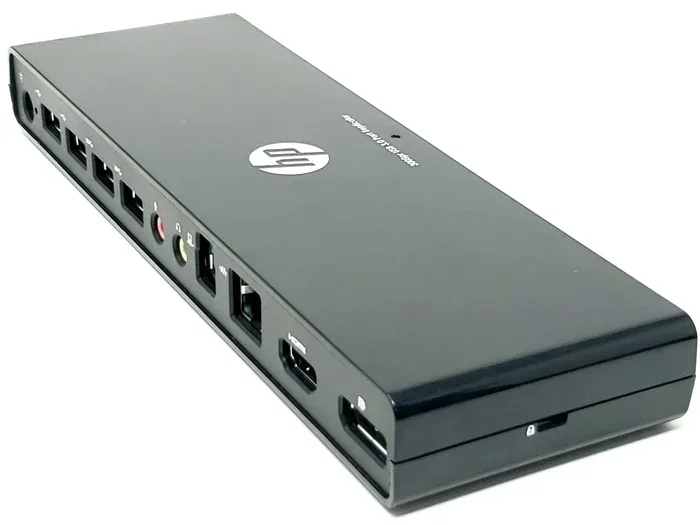
When you connect a dock to your HP laptop, the dock acts as a bridge. It takes the single connection from your laptop and splits it into multiple outputs. These outputs can include video signals for monitors, USB ports for peripherals, and even an ethernet jack for a wired internet connection.
The connection type determines how much bandwidth the dock can use. USB-C is the most common connector today. Thunderbolt 3 and Thunderbolt 4 offer even faster speeds and support for more displays. HP laptops, especially business models like the EliteBook and ZBook lines, often come with Thunderbolt ports built in.
Which HP Laptops Are Compatible With Docking Stations
Most HP laptops made in the last five years support docking stations. However, compatibility depends on the port type and the dock you choose. Here is a breakdown of popular HP laptop series and what you need to know.
HP EliteBook Series
The HP EliteBook line is built for professionals and business users. These laptops almost always support docking. Many EliteBook models come with Thunderbolt 4 or USB-C ports that work seamlessly with HP-certified docks. If you own an EliteBook 840, 860, or similar model, you will have no trouble finding a compatible HP docking station.
HP ProBook Series
HP ProBook laptops are another great option for docking. These machines are designed for small businesses and often include USB-C or Thunderbolt ports. The ProBook 440, 460, and 640 series all work well with modern docking stations. Check the port type on your specific model to be sure.
HP Pavilion and Envy Series
Consumer models like the HP Pavilion and Envy also support docking, but the experience depends on the ports available. Most Pavilion and Envy laptops from 2020 onward include USB-C ports. These work with standard USB-C docks. However, they may not support Thunderbolt, which limits some advanced features.
HP ZBook Workstation Series
If you use an HP ZBook for demanding work like video editing or 3D rendering, you are in luck. ZBook laptops are built for docking. They often feature Thunderbolt 3 or Thunderbolt 4 ports and support multiple high-resolution monitors. The HP ZBook dock is specifically designed for these machines and delivers top performance.
How to Check Your HP Laptop for Dock Compatibility
Not sure if your HP laptop supports a dock? Follow these simple steps:
- Look at the sides of your laptop for a USB-C or Thunderbolt port.
- Check your laptop manual or the HP support website for your model number.
- Search for your specific model along with the word “dock” to see official compatibility info.
If your laptop has a USB-C port, there is a good chance it will work with a docking station. Thunderbolt ports offer the best experience, but USB-C docks are still very capable.
Types of Docking Stations for HP Laptops
Not all docks are the same. Understanding the different types helps you choose the right one for your needs. Here are the main categories of docking stations for HP laptops.
USB-C Docking Stations
USB-C docks are the most popular option right now. They are compact, affordable, and work with the vast majority of HP laptops that have a USB-C port. A typical USB-C dock offers two to three monitor outputs, several USB-A ports, and an ethernet connection.
These docks are perfect for users who want a simple single cable solution. You plug one USB-C cable into your laptop, and everything else connects through the dock.
Thunderbolt Docks
Thunderbolt docks are the premium option. They use the Thunderbolt protocol to deliver faster data transfer speeds and support more displays. If you have an HP EliteBook or ZBook with Thunderbolt 3 or Thunderbolt 4, a Thunderbolt dock unlocks the full potential of your laptop.
Thunderbolt docks are ideal for users who need:
- Dual or triple monitor setups
- Fast external storage for large files
- Low-latency displays for creative work
- Future-proof connectivity that works across devices
USB-A Docking Stations (Older Models)
Older HP laptops may not have USB-C ports. In that case, you can still use a dock with a USB-A connection. These docks are less common today but still work for basic setups. They typically offer monitor output through VGA or DisplayPort and a few USB ports.
Proprietary HP Docks
HP sells its own line of docking stations designed specifically for HP laptops. These include the HP USB-C Travel Dock, the HP Thunderbolt Dock G2, and the HP E24m G4 Monitor with built-in dock. Proprietary HP docks often come with dedicated drivers and support for HP-specific features like HP Thunderbolt Accessory Management.
| Dock Type | Best For | Speed | Monitor Support | Price Range |
|---|---|---|---|---|
| USB-C Dock | Basic home or office setups | Good | 1 to 2 monitors | $50 – $150 |
| Thunderbolt Dock | Power users and creatives | Excellent | 2 to 4 monitors | $150 – $400 |
| USB-A Dock | Older HP laptops | Moderate | 1 monitor | $30 – $100 |
| HP Proprietary Dock | HP laptop owners wanting seamless integration | Very Good to Excellent | 1 to 2 monitors | $100 – $300 |
How to Set Up a Docking Station With Your HP Laptop
Setting up a docking station with your HP laptop is straightforward. Follow these steps and you will be up and running in minutes.
Step 1: Choose the Right Dock
Before you buy, confirm your HP laptop has the right port. If your laptop has a Thunderbolt port, go with a Thunderbolt dock. If it only has USB-C, a standard USB-C dock will work just fine for most tasks.
Step 2: Connect the Dock
Plug the dock into your HP laptop using the appropriate cable. If your dock supports power delivery, connect your laptop charger to the dock as well. This lets the dock charge your laptop while it is connected.
Step 3: Connect Your Peripherals
Now connect your external devices to the dock:
- Monitors: Use HDMI, DisplayPort, or USB-C cables depending on your dock and monitor inputs.
- Keyboard and mouse: Plug them into the USB ports on the dock.
- Ethernet cable: Connect for a wired internet connection.
- Speakers or headset: Use the audio jack on the dock if available.
Step 4: Install Drivers
This step is important and often overlooked. Go to the HP support website and search for docking station drivers for your specific laptop model. Install the latest drivers to ensure smooth performance. Without proper drivers, you may experience display flickering, missing USB ports, or connection issues.
Step 5: Test Your Setup
Once everything is connected, open your display settings on your HP laptop. You should see your external monitors listed. Arrange them to match your physical setup and adjust the resolution as needed. Test each USB port, the ethernet connection, and the charging function.
Quick Tips for a Smooth Setup
- Use high-quality cables to avoid signal issues.
- Restart your laptop after installing dock drivers.
- Keep your HP laptop plugged in while using a dock for best performance.
- If your monitor does not detect, try disconnecting and reconnecting the cable.
Best Docking Stations for HP Laptops in 2024
The market is full of docking stations, but not all of them are created equal. Here are some of the best options for HP laptop users in 2024.
HP Thunderbolt Dock G2
This is HP’s own premium dock and one of the best choices for HP laptop owners. It supports Thunderbolt 3, offers dual monitor output, and delivers up to 100W of power delivery. The build quality is excellent and it works seamlessly with EliteBook and ZBook models.
CalDigit TS4
The CalDigit TS4 is a top-rated Thunderbolt 4 dock. It supports up to four monitors, offers 98W of charging power, and has a wide range of ports. It is a great choice for HP ZBook users who need maximum connectivity.
Anker 577 USB-C Docking Station
If you want a reliable and affordable option, the Anker 577 is a solid pick. It supports dual 4K monitors, has plenty of USB ports, and works well with most HP laptops that have USB-C ports.
Targus USB-C Universal Docking Station
Targus has been making docks for years and the USB-C Universal model is a dependable choice. It offers good connectivity, easy setup, and works with most HP laptops. It is a great budget-friendly option for everyday use.
What to Look for When Buying a Dock
Before you buy any docking station, consider these factors:
- Port type: Make sure it matches your HP laptop’s ports.
- Number of monitors: Choose a dock that supports the number of displays you need.
- Power delivery: Look for at least 60W if you want to charge your laptop through the dock.
- Data transfer speed: Thunderbolt 4 is the fastest option available today.
- HP certification: HP-certified docks are tested to work flawlessly with HP laptops.
Common Problems and How to Fix Them
Even with the right dock, you may run into issues. Here are the most common problems HP laptop users face with docking stations and how to solve them.
Monitor Not Detected
If your external monitor does not show up, start by checking the cable connections. Try a different cable or port. Then go to your Windows display settings and click “Detect.” If that does not work, update your graphics drivers from the HP support website.
Dock Not Charging the Laptop
Some docks do not deliver enough power to charge your HP laptop while it is in use. Check the dock’s wattage rating. If it is below your laptop’s charging requirement, the battery may drain slowly even while connected. Using a dock with at least 60W power delivery solves this for most HP laptops.
USB Devices Not Working
If your keyboard, mouse, or external drive does not respond when connected to the dock, try these steps:
- Unplug the dock and wait 30 seconds.
- Reconnect the dock to your laptop.
- Check if the USB devices work on a different port.
- Update the dock drivers through Device Manager.
Display Flickering or Low Resolution
Flickering screens are often caused by outdated drivers or incompatible cables. Update your display and dock drivers. Use high-quality HDMI or DisplayPort cables rated for the resolution you want. If you are using a USB-C to HDMI adapter, make sure it supports the resolution of your monitor.
Audio Issues
If sound does not come through your dock’s audio jack, go to your sound settings and make sure the dock is set as the default audio output device. Sometimes Windows switches the audio device automatically, which can be confusing.
When to Contact HP Support
If you have tried all the troubleshooting steps and your dock still does not work, it may be time to contact HP support. They can help you determine if the issue is with the dock, the laptop, or a driver conflict. Keep your laptop model number and dock model handy when you reach out.
Key Takeaways
- Universal Compatibility: Most HP laptops work with USB-C or Thunderbolt docking stations, but always check your model first.
- Single Cable Solution: A dock lets you connect monitors, keyboards, and peripherals with one cable.
- Power Delivery: Many docks charge your HP laptop while you work, eliminating the need for a separate charger.
- Driver Updates Matter: Installing the latest HP docking station drivers prevents display and connectivity issues.
- Match the Dock to Your Needs: Basic docks suit simple setups, while Thunderbolt 4 docks handle dual monitors and fast data transfer.
- Setup Is Easy: Plug in, install drivers, and you are ready to go in minutes.
Conclusion
Using a docking station with an HP laptop is one of the best upgrades you can make to your workspace. It turns your portable laptop into a full desktop setup with multiple monitors, wired peripherals, and fast charging. The process is simple, the benefits are real, and the range of compatible docks means there is an option for every budget and need.
Whether you use an HP EliteBook for business, a ZBook for creative work, or a Pavilion for everyday tasks, a dock can transform how you work. The key is choosing the right dock for your laptop model, installing the proper drivers, and enjoying the seamless experience that comes with a single cable solution.
Take the time to check your HP laptop’s ports, pick a dock that fits your workflow, and set it up following the steps in this guide. You will wonder how you ever worked without one. A docking station is a small investment that pays off every single day in productivity and convenience.
FAQs
Can I use any docking station with my HP laptop?
Most modern HP laptops work with USB-C or Thunderbolt docking stations. However, you should check your specific model for compatibility. Older HP laptops with only USB-A ports may need a different type of dock. Always verify the port type on your laptop before purchasing a dock.
Do I need special drivers for my HP docking station?
Yes, installing the correct drivers is important for smooth performance. Visit the HP support website, enter your laptop model number, and download the latest docking station drivers. Without proper drivers, you may experience display issues or missing peripheral connections.
Can I connect two monitors to my HP laptop with a docking station?
Absolutely. Many docking stations support dual monitor setups. Thunderbolt docks and higher-end USB-C docks can drive two or even three external displays. Check your dock’s specifications to confirm how many monitors it supports and at what resolution.
Will a docking station charge my HP laptop?
Many docks support power delivery, which charges your laptop while it is connected. Look for a dock that offers at least 60W of power delivery for most HP laptops. Some premium docks deliver up to 100W, which is enough to charge even the most power-hungry HP ZBook models.
Can I use an HP docking station with a non-HP laptop?
Yes, most HP docking stations work with any laptop that has a compatible port. If the dock uses USB-C or Thunderbolt, it will work with laptops from Dell, Lenovo, Apple, and other brands. However, HP-branded docks may include features optimized for HP laptops, so some functions might work better with an HP machine.
What is the difference between a USB-C hub and a docking station?
A USB-C hub is a smaller device that adds a few extra ports to your laptop. A docking station is a more complete solution that supports multiple monitors, power delivery, and a full set of peripherals. For HP laptop users who want a true desktop experience, a docking station is the better choice over a simple hub.