Can I Play Usb Through Hdmi Here is What You Need to Know
Can I Play USB Through HDMI? The short answer is yes, you can connect USB devices to HDMI displays using the right adapter or cable. USB to HDMI adapters let you mirror your screen, stream media, and extend your display with ease. This guide walks you through everything you need, from choosing the right USB HDMI adapter to troubleshooting common issues.
Can I Play USB Through HDMI? If you have ever wondered whether you can plug a USB device directly into an HDMI port and get video output, you are not alone. Many people have USB drives, cameras, or laptops and want to display their content on a bigger screen through HDMI. The good news is that playing USB through HDMI is absolutely possible, but it requires the right adapter or cable. This article explains exactly how it works, what you need, and how to avoid common mistakes. By the end, you will know everything about USB to HDMI connections and feel confident setting up your own display.
Connecting a USB device to an HDMI display might seem tricky at first. You might think you just plug one into the other and it works. But the truth is that USB and HDMI carry different types of signals. USB handles data and power, while HDMI carries audio and video. So you need a converter or adapter to bridge the gap. This guide breaks down every option, every device type, and every tip you need to make it work smoothly.
Key Takeaways
- Yes, you can play USB through HDMI: With the right adapter or cable, connecting USB devices to HDMI displays is straightforward and works with most modern devices.
- USB to HDMI adapters come in different types: USB-A to HDMI, USB-C to HDMI, and Micro USB to HDMI options serve different devices and needs.
- Plug and play is common: Many USB HDMI adapters work instantly without needing extra software or drivers.
- Resolution matters: Check that your adapter supports the resolution you need, whether 1080p or 4K.
- Common issues are easy to fix: Most problems like no signal or poor quality come from cable faults, port issues, or driver needs.
- Not all devices are compatible: Always check your device specs before buying a USB HDMI adapter to avoid compatibility headaches.
📑 Table of Contents
- What Does It Mean to Play USB Through HDMI?
- How Does USB to HDMI Connection Work?
- Types of USB to HDMI Adapters and Cables
- Which Devices Support USB HDMI Connections?
- Common Problems When Playing USB Through HDMI
- Expert Tips for the Best USB HDMI Experience
- Can I Play USB Through HDMI? Final Thoughts
What Does It Mean to Play USB Through HDMI?
When we talk about playing USB through HDMI, we mean sending video or audio content from a USB source to an HDMI display. Your USB device holds the content, and the HDMI cable carries it to your TV, monitor, or projector. The connection between them needs an adapter or a cable that converts the USB signal into an HDMI signal.
Think of it like a translator. Your USB device speaks one language, and your HDMI display speaks another. The USB to HDMI adapter bridges the gap and makes them understand each other. Once the signal is converted, you can see your content on the big screen in full quality. This is how people watch movies from a USB drive on their TV, extend their laptop screen to a monitor, or share photos on a large display.
How USB and HDMI Signals Differ
USB and HDMI are not the same thing. USB was designed mainly for data transfer and charging. HDMI was built specifically for audio and video. A standard USB cable cannot carry video on its own. That is why you need a USB HDMI adapter or a USB to HDMI cable that has the conversion chip built in.
The signal conversion happens inside the adapter. The USB port sends data to the adapter, the adapter processes it, and then sends a clean HDMI signal to your display. This process is fast and seamless in most modern adapters. You will rarely notice any delay or quality loss. Understanding this basic difference helps you choose the right gear and set realistic expectations for your setup.
How Does USB to HDMI Connection Work?
The process of connecting USB to HDMI is simpler than most people think. Once you have the right adapter, the setup takes just a few minutes. Here is how it works step by step.
First, you plug the USB end of the adapter into your device. This could be a laptop, a desktop computer, a gaming console, or even a streaming stick. The device recognizes the adapter as an external display output. Then you take an HDMI cable and connect it from the adapter to your TV or monitor. Finally, you switch your display input to the correct HDMI port, and your screen appears.
Some adapters are plug and play, meaning they work instantly. Others might need a quick driver install, especially on older computers. But the vast majority of modern USB to HDMI adapters work without any extra setup. You just plug them in and start using them right away.
What Happens Inside the Adapter
Inside a USB to HDMI adapter, there is a small chip that handles the signal conversion. This chip takes the data from the USB port and turns it into a video and audio signal that HDMI can understand. The quality of this chip matters a lot. A cheap adapter with a low-quality chip might give you a fuzzy picture or no sound at all.
Better adapters use higher-quality conversion chips that support higher resolutions and smoother frame rates. If you want crisp 1080p or even 4K video, you need an adapter that can handle that bandwidth. Always check the specs before you buy. A good chip makes the difference between a frustrating experience and a smooth one.
Do You Need a Driver?
Most modern operating systems like Windows 10, Windows 11, macOS, and Linux recognize USB HDMI adapters automatically. You do not need to download any drivers. This is what makes the plug and play experience so convenient. Just connect the adapter and your display should appear within seconds.
However, some older devices or less common adapters might require a driver update. If your screen does not show up after connecting, try visiting the adapter manufacturer website. They usually have a support page with driver downloads and troubleshooting steps. In most cases, though, you will not need to do anything extra. Your device will recognize the adapter on its own.
Types of USB to HDMI Adapters and Cables
Not all USB HDMI adapters are the same. There are several types, and each one works best with certain devices. Choosing the right one is key to getting a good experience with playing USB through HDMI.
USB-A to HDMI Adapters
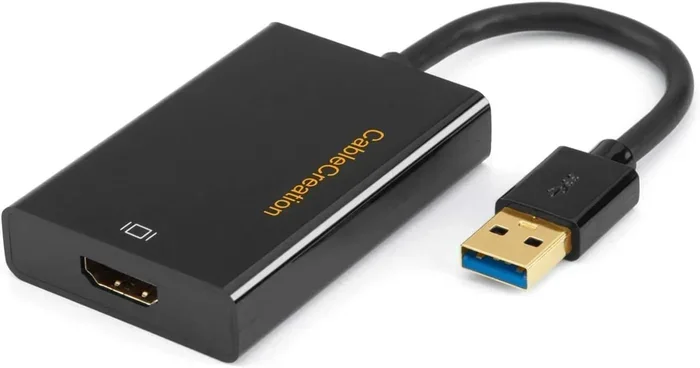
The USB-A to HDMI adapter is the most common type. It has a standard rectangular USB-A plug on one end and an HDMI output on the other. This type works great with desktop computers, laptops, and any device that has a traditional USB-A port. Most people use this adapter to connect their laptop to a TV or monitor for presentations or movie nights.
Quick Tip: If your laptop only has USB-C ports, a USB-A to HDMI adapter will not work directly. You need a USB-C to HDMI adapter instead. Check your ports before you buy to save time and money.
USB-C to HDMI Adapters
The USB-C to HDMI adapter is perfect for modern laptops, tablets, and smartphones. USB-C is smaller and reversible, which makes it very convenient. Many new laptops and tablets only have USB-C ports, so this adapter is essential for them.
A good USB-C to HDMI adapter supports high resolutions and fast data transfer. Some even support DisplayPort Alt Mode, which means they can deliver video signals directly without needing a driver. Look for adapters that support at least 1080p at 60Hz for smooth video playback. This is the go-to choice for most users today.
Micro USB to HDMI Adapters
Older phones and tablets sometimes use Micro USB ports. If you have one of these devices, you can still connect to an HDMI display using a Micro USB to HDMI adapter. These adapters are less common today but still useful for older devices that you want to connect to a TV or monitor.
Keep in mind that Micro USB adapters may not support the same resolutions as USB-C adapters. They are usually limited to 1080p or lower. If you need 4K output, consider upgrading your device to one with a USB-C port. These older adapters still get the job done for basic display needs.
USB to HDMI Cables vs. Adapters
You will see both USB to HDMI cables and separate adapters with HDMI cables. A cable combines both functions into one piece, which is convenient. An adapter gives you more flexibility because you can use any HDMI cable you want. Here is a quick comparison of the two options:
| Feature | USB to HDMI Cable | USB HDMI Adapter + Cable |
|---|---|---|
| Setup | Simple, one piece | Two parts, slightly more setup |
| Flexibility | Fixed cable length | Choose any HDMI cable length |
| Pocketability | Compact | A bit bulkier |
| Price | Usually lower | Slightly higher |
| Quality | Good for basic use | Better quality options available |
| Best For | Travel and simple setups | Home theater and high-quality setups |
Both options work well for everyday use. If you travel often, a USB to HDMI cable might be the better choice. If you want the best quality and flexibility, go with a separate adapter and HDMI cable setup. You can also use an HDMI splitter if you need to connect multiple displays from one USB source.
Which Devices Support USB HDMI Connections?
One of the most common questions people ask is can I play USB through HDMI with their specific device. The answer is usually yes, but it depends on the device type and its ports. Let us look at the most common devices that work with USB to HDMI connections.
Laptops and Desktop Computers
Most laptops and desktop computers support USB to HDMI connections. Whether you have a Windows PC or a Mac, you can find an adapter that works. Windows computers tend to have wider adapter compatibility because USB-A and USB-C ports are standard. Mac computers often use USB-C or Thunderbolt, so you need a USB-C to HDMI adapter or a Thunderbolt to HDMI adapter.
Expert Insight: If you use a Mac, make sure your adapter is MFi certified or explicitly labeled as compatible with macOS. Some cheap adapters do not work properly with Apple devices. Investing in a certified adapter saves you from headaches and ensures a stable display connection every time.
Streaming Devices and Media Players
Streaming devices like Roku, Amazon Fire Stick, and Chromecast sometimes have USB ports. However, these ports are usually for power only, not for video output. If you want to connect a media player to an HDMI display, you typically use the device built-in HDMI output, not a USB port.
That said, some media players and external hard drives with built-in media players can output video through USB to HDMI adapters. These devices read media files from a USB drive and send the video signal to your TV via HDMI. This is a great option for watching movies stored on a USB drive without needing a computer. It is simple, direct, and works well for laptop to TV setups too.
Gaming Consoles and Cameras
Some gaming consoles and digital cameras have USB ports that can output video through an adapter. For example, certain capture cards use USB to HDMI signal conversion to stream gameplay to a PC or display. These specialized adapters are different from basic USB to HDMI adapters but work on the same principle.
Digital cameras with HDMI output are more straightforward. You can use a USB adapter to connect your camera to a display, but a direct HDMI cable from the camera usually gives better results. Check your camera manual to see what options are available. For most users, a simple USB HDMI adapter is all you need for everyday use.
Smart TVs and Monitors
Most modern smart TVs and external monitors have HDMI inputs. This makes them perfect targets for a USB to HDMI adapter. Whether you want to extend your desktop screen, mirror your laptop, or watch media from a USB drive on the big screen, a smart TV or monitor with HDMI input is all you need.
Quick Tip: When choosing a TV or monitor for USB HDMI use, make sure it has enough HDMI ports. If you plan to switch between multiple devices, consider getting a TV with three or more HDMI inputs. This gives you flexibility and avoids the hassle of unplugging cables every time you switch sources.
Common Problems When Playing USB Through HDMI
Even with the right adapter, you might run into issues when trying to play USB through HDMI. Most problems are easy to fix, but they can be frustrating if you do not know what to look for. Here are the most common issues and how to solve them.
No Signal or Black Screen
The most common issue is connecting everything and getting a black screen. This usually happens for one of a few reasons. First, check that the HDMI cable is firmly connected at both ends. A loose connection is the number one cause of no signal. Second, make sure your TV or monitor is set to the correct HDMI input. Third, try unplugging the adapter, waiting a few seconds, and plugging it back in.
If none of these steps work, the adapter might be faulty. Try it on a different device to rule out a problem with your original device. A compatible devices check can also help make sure your device supports the adapter you are using. Sometimes simply switching to a different USB port on your device solves the problem right away.
Poor Video Quality or Flickering
If your video looks fuzzy, pixelated, or flickers, the problem is often the cable or the adapter quality. Cheap HDMI cables or low-quality adapters may not support the resolution you are trying to use. Try using a higher-quality HDMI cable first. If that does not help, upgrade to a better USB HDMI adapter that supports your desired resolution.
Common Mistakes: Do not use a very long HDMI cable with a cheap adapter. Long cables lose signal strength, and cheap adapters cannot boost it. Keep your cable under 6 feet for the best results. Also, avoid running HDMI cables near power cables, as this can cause interference and flickering.
No Audio Through HDMI
Sometimes the video works fine but there is no sound. This is a common issue with USB to HDMI connections. The fix is usually simple. Go to your device sound settings and make sure the HDMI output is selected as the audio device. On Windows, right-click the speaker icon in your taskbar and choose the HDMI output. On Mac, go to System Preferences and select the HDMI display as your audio output.
If you still have no sound, the adapter might not support audio passthrough. Check the adapter specs to confirm it handles both video and audio. Most modern adapters do, but some budget models only carry video. Always check for audio and video support before purchasing if sound matters to you.
Adapter Not Recognized by Device
If your device does not recognize the adapter at all, try a different USB port. Some USB ports, especially those on the back of a desktop, provide more power than front-facing ports. Also, avoid using USB hubs. Plug the adapter directly into your device for the best results and the most stable display connection.
If you are on Windows, go to Device Manager and check for any yellow warning icons. This might indicate a driver issue. Updating your display drivers can also help your device recognize the new external display connected through the adapter. A simple restart after connecting the adapter can also trigger detection in many cases.
Expert Tips for the Best USB HDMI Experience
Getting the most out of your USB HDMI setup is all about choosing the right gear and following a few best practices. Here are some expert tips that make a big difference in your daily use.
Buy Quality Over Price
It is tempting to buy the cheapest USB to HDMI adapter you can find, but this often leads to disappointment. A quality adapter with a good conversion chip will give you stable video, clear audio, and support for higher resolutions. Look for adapters from reputable brands and read user reviews before you buy. Spending a little extra upfront saves you from buying a replacement later.
Quick Tip: Spending an extra 10 to 20 dollars on a better adapter can save you hours of frustration. A reliable adapter lasts longer and works with more devices. Look for adapters with good return policies so you can test them risk-free.
Check Resolution Support Before Buying
Not all adapters support the same resolutions. Before you buy, check what resolution the adapter supports. If you want to watch 4K content or play games at high resolution, you need an adapter that supports 4K at 30Hz or 60Hz. For everyday use like presentations and streaming, 1080p at 60Hz is usually plenty.
Resolution support depends on the adapter chip and the USB version. USB 3.0 adapters generally handle higher resolutions better than USB 2.0 adapters. Always check the specs and match them to your needs. This one step prevents a lot of disappointment down the road.
Use the Right USB Port
If your device has both USB 2.0 and USB 3.0 ports, use the USB 3.0 port for your adapter. USB 3.0 provides more power and faster data transfer, which results in better video quality and more stable connections. USB 2.0 ports can work, but they might struggle with high-resolution video or experience occasional glitches.
Expert Insight: If you are using a USB hub, plug the adapter directly into your device instead. Hubs can reduce power delivery and cause connection drops. A direct connection gives you the most reliable video output and the best overall experience with playing USB through HDMI.
Keep Your Cables Organized
Cable management might seem like a small thing, but it makes a big difference in your setup. Use cable clips or a cable management box to keep your USB HDMI cables neat. Tangled cables can cause connection issues and make it harder to switch between devices. A clean setup also helps you spot problems faster.
Expert Insight: Label your cables at both ends. It sounds simple, but it saves a lot of time when you have multiple devices connected. You will always know which cable goes where without unplugging and testing. This small habit pays off big time, especially in home theater setups.
Update Your Device Software
Keeping your device software up to date helps with display connection stability. Operating system updates often include fixes for display issues and improved support for external adapters. Before you set up your USB to HDMI connection, make sure your device is running the latest software version. This simple step can resolve many common issues before they even start.
Can I Play USB Through HDMI? Final Thoughts
So, can I play USB through HDMI? The answer is a clear yes. With the right USB HDMI adapter or cable, you can connect almost any USB device to an HDMI display and enjoy your content on a bigger screen. Whether you want to mirror your laptop, watch movies from a USB drive, or extend your desktop, the setup is simple and affordable.
The key is to choose the right type of adapter for your device, check for compatibility, and use quality cables. Avoid the common mistakes we covered, like using cheap adapters or long cables that lose signal. Follow the troubleshooting tips if you run into issues, and you will have a smooth USB to HDMI experience every time.
Playing USB through HDMI opens up a world of possibilities. You can turn any HDMI display into a versatile screen for work, entertainment, or presentations. Once you set it up, you will wonder how you ever managed without it. So go ahead, grab the right adapter, and start enjoying your content on the big screen today. The right USB to HDMI adapter makes all the difference, and now you have everything you need to make it work perfectly.
Frequently Asked Questions
Can I Connect a USB Flash Drive Directly to an HDMI Port?
No, you cannot plug a USB flash drive directly into an HDMI port. USB and HDMI use different signal types. You need a USB to HDMI adapter that can convert the USB data signal into an HDMI video and audio signal. Without this adapter, the two ports simply cannot communicate with each other.
Do USB to HDMI Adapters Work with All TVs?
Most modern TVs with HDMI inputs will work with a USB HDMI adapter. The adapter sends a standard HDMI signal that any TV with an HDMI port can read. However, very old TVs without HDMI inputs will not work with these adapters. Always check that your TV has at least one HDMI port before purchasing an adapter.
Why Does My USB HDMI Adapter Have No Sound?
No sound usually means your device is not routing audio through the HDMI output. Check your sound settings and make sure the HDMI display is selected as the audio output device. Some budget adapters do not support audio passthrough, so check the adapter specs to confirm it handles both video and audio signals.
Can I Use a USB HDMI Adapter for Gaming?
Yes, you can use a USB to HDMI adapter for gaming, but the experience depends on the adapter quality and your device. High-quality adapters that support 1080p at 60Hz or higher will give you a smooth gaming experience. Cheap adapters may cause lag or low frame rates, which can affect gameplay. For competitive gaming, a direct HDMI connection is always better.
What Is the Difference Between USB-C to HDMI and USB-A to HDMI?
The main difference is the USB connector type. A USB-A to HDMI adapter has a traditional rectangular USB plug and works with devices that have USB-A ports. A USB-C to HDMI adapter has a smaller, reversible USB-C plug and works with modern laptops, tablets, and phones that use USB-C ports. Make sure you match the adapter to your device port type for the best results.
Do I Need to Install Drivers for a USB HDMI Adapter?
Most modern USB HDMI adapters are plug and play and do not need any drivers. Windows 10, Windows 11, macOS, and Linux all recognize them automatically. However, some older devices or specialized adapters might require a driver update. If your adapter is not recognized, check the manufacturer website for driver downloads or try connecting to a different USB port.