Can I Play Minecraft On My Windows Laptop Without Lag
Yes, you can play Minecraft on your Windows laptop without lag. With the right settings, hardware upgrades, and a few simple tweaks, even older machines can deliver smooth Minecraft performance. This guide covers everything from system requirements to game settings that make a real difference.
Key Takeaways
- Minecraft runs on most Windows laptops: Even budget devices can handle the game with proper optimization.
- Lowering graphics settings is the fastest fix: Reducing render distance and turning off fancy effects dramatically cuts lag.
- Allocating more RAM helps Java Edition: Giving Minecraft more memory prevents stuttering and crashes.
- OptiFine is a game-changer: This free mod boosts FPS and adds performance-friendly options.
- Hardware upgrades make a lasting difference: Adding RAM or switching to an SSD transforms Minecraft performance.
- Laptop cooling matters: Overheating causes throttling, which leads to dropped frames and stutters.
📑 Table of Contents
- Can I Play Minecraft On My Windows Laptop Without Lag?
- Minecraft System Requirements for Windows Laptops
- Why Does Minecraft Lag on Windows Laptops?
- How to Reduce Minecraft Lag on Your Windows Laptop
- Best Settings for Smooth Minecraft Gameplay
- Upgrades That Make a Real Difference
- Common Mistakes That Cause Minecraft Lag
- Expert Insights on Minecraft Performance
- Conclusion
Can I Play Minecraft On My Windows Laptop Without Lag?
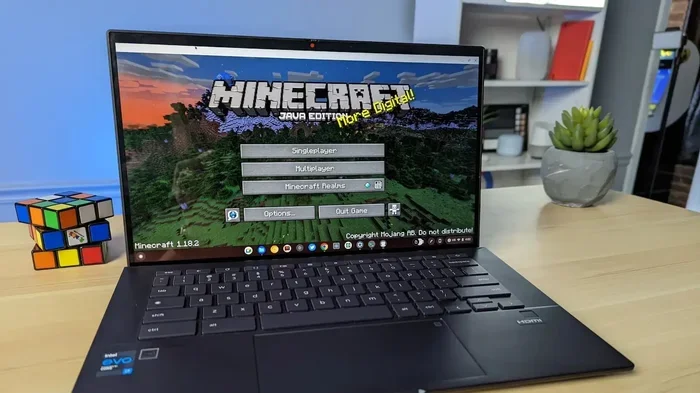
If you have been wondering whether your Windows laptop can handle Minecraft, the short answer is yes. Most modern Windows laptops can run Minecraft, even budget-friendly ones. But “running” the game and running it smoothly are two very different things.
Minecraft is not a heavy game by modern standards. It uses simple blocky graphics that do not demand a powerful machine. Yet many players still experience lag, stuttering, and low frame rates. Why? Because laptop hardware varies a lot, and default settings are not always optimized for every device.
This guide will walk you through everything you need to know. You will learn about system requirements, why lag happens, and exactly how to fix it. Whether you have a gaming laptop or an older budget machine, you will find practical steps that work. Let us dive in and get your Minecraft experience running smoothly.
Minecraft System Requirements for Windows Laptops
Before you start tweaking settings, it helps to understand what Minecraft actually needs. The requirements differ slightly between Minecraft Java Edition and Minecraft Bedrock Edition. Here is a quick look at what Microsoft officially recommends.
Minimum Requirements (Java Edition)
- Operating System: Windows 10 or later
- Processor: Intel Core i3 or equivalent
- RAM: 4 GB (8 GB recommended)
- Graphics: Intel HD Graphics 4000 or better
- Storage: At least 1 GB free space
Recommended Requirements (Java Edition)
- Processor: Intel Core i5 or AMD equivalent
- RAM: 8 GB or more
- Graphics: Dedicated GPU with at least 2 GB VRAM
- Storage: SSD for faster loading times
For Bedrock Edition, the requirements are slightly lower. Microsoft designed it to run on a wider range of devices, including tablets and phones. If you have a weak laptop, Bedrock Edition might be your best bet for smooth gameplay.
What Do These Specs Mean for You?
Here is the thing most people miss. Minimum requirements only let the game run. They do not guarantee a good experience. If your laptop barely meets the minimum, you will likely see lag during intense moments. Think about exploring a new biome or fighting a mob spawner. Those situations push your hardware to its limits.
The best approach is to check your laptop specs first. You can do this by typing “System Information” in the Windows search bar. Look at your processor, RAM, and graphics card. Once you know what you are working with, you can make smart decisions about settings and upgrades.
Why Does Minecraft Lag on Windows Laptops?
Lag in Minecraft can come from many sources. Understanding the root cause helps you fix the right problem instead of guessing. Here are the most common reasons your game might be running slowly.
Weak Hardware
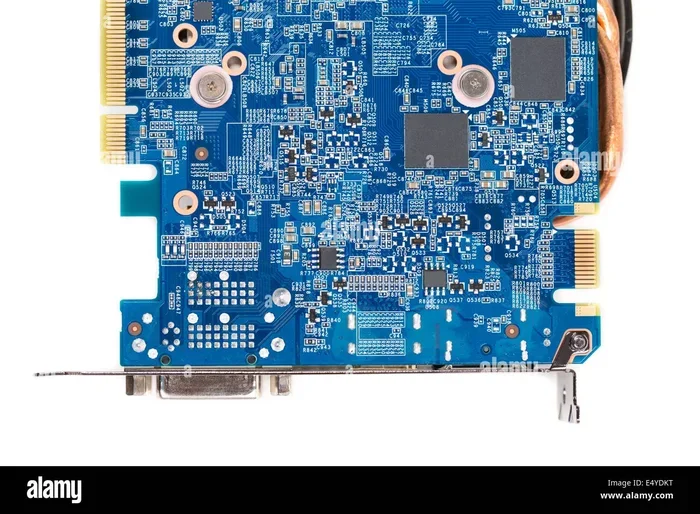
The most obvious reason is hardware that simply cannot keep up. Older laptops often have integrated graphics chips that struggle with rendering. Low RAM also causes problems, especially in Java Edition. When your laptop runs out of memory, the game slows down or crashes entirely.
Overheating
Laptops heat up fast, especially when running games. When the internal temperature climbs too high, the CPU and GPU slow themselves down to prevent damage. This is called thermal throttling. It is one of the sneakiest causes of Minecraft lag because your hardware is fine on paper but underperforms in practice.
Background Programs
Windows laptops often run many programs in the background. Browsers with multiple tabs, antivirus scans, and cloud sync services all compete for resources. When Minecraft tries to use the same CPU and RAM that other apps are consuming, performance drops.
Java Edition Optimization Issues
Minecraft Java Edition is known for being poorly optimized out of the box. It does not use your GPU efficiently by default. The game relies heavily on single-thread CPU performance, which means one core does most of the work. This design choice can cause lag even on decent machines.
Chunk Loading and Render Distance
Minecraft loads chunks of the world around you. The farther your render distance, the more chunks your laptop must process at once. On a weak machine, a high render distance is the fastest way to kill your frame rate. This is especially true when exploring large open areas or oceans.
How to Reduce Minecraft Lag on Your Windows Laptop
Now that you know why lag happens, let us fix it. These steps are ordered from the easiest and most effective to more advanced tweaks. Try them one by one and see which ones make the biggest difference for your setup.
Step 1: Lower Your In-Game Graphics Settings
This is the single fastest way to improve performance. Open Minecraft, go to Options, then Video Settings. Make these changes:
- Graphics: Set to Fast instead of Fancy. This disables transparent leaves and other GPU-heavy effects.
- Render Distance: Lower it to 6-8 chunks for smoother gameplay.
- Smooth Lighting: Turn it off or set it to minimum.
- Clouds: Disable them. They look nice but cost FPS.
- Trees: Turn this off to reduce foliage rendering.
- Sky: Disable the sky if you do not mind losing the visual flair.
You do not need to turn everything off. But each setting you lower gives your laptop breathing room. Start with render distance and graphics quality, since those have the biggest impact.
Step 2: Allocate More RAM to Minecraft
Minecraft Java Edition benefits greatly from extra RAM. By default, it uses only a small portion of your available memory. You can change this in the Minecraft Launcher.
- Open the Minecraft Launcher.
- Go to the Installations tab.
- Click the three dots next to your profile and select Edit.
- Click More Options.
- Find the JVM Arguments field.
- Change the -Xmx2G value to -Xmx4G or higher (depending on your total RAM).
Be careful not to allocate too much RAM. If you have 8 GB total, do not give Minecraft more than 4 GB. Leaving enough RAM for Windows itself keeps your system stable.
Step 3: Install OptiFine
OptiFine is a free mod that dramatically improves Minecraft performance. It adds features like dynamic lighting, better chunk loading, and advanced video settings. Many players report a 30-50% FPS boost just from installing it.
To install OptiFine:
- Visit the official OptiFine website.
- Download the version that matches your Minecraft version.
- Run the installer and select your Minecraft directory.
- Launch Minecraft and select the OptiFine profile.
Once installed, go to Video Settings in-game and explore the OptiFine options. Features like “Smooth FPS” and “Smooth World” help reduce stuttering during gameplay.
Step 4: Close Background Programs
Before launching Minecraft, close anything you do not need. This includes web browsers, music apps, and download managers. On Windows, you can use the Task Manager (Ctrl + Shift + Esc) to see what is using your CPU and RAM. Right-click unnecessary processes and select End Task.
Also, disable startup programs you do not need. Go to Task Manager, click the Startup tab, and disable apps that launch with Windows. This frees up resources every time you boot your laptop.
Step 5: Adjust Java VM Arguments
For advanced users, tweaking Java VM arguments can squeeze out extra performance. These are the same arguments you see in the Minecraft Launcher’s JVM settings.
A good set of arguments for most laptops looks like this:
-Xmx4G -Xms2G -XX:+UseG1GC -XX:+ParallelRefProcEnabled -XX:MaxGCPauseMillis=200 -XX:+DisableExplicitGC -XX:+AlwaysPreTouch -XX:G1NewSizePercent=30 -XX:G1MaxNewSizePercent=40 -XX:G1HeapRegionSize=8M -XX:G1ReservePercent=20 -XX:G1HeapWastePercent=5 -XX:G1MixedGCCountTarget=4 -XX:InitiatingHeapOccupancyPercent=15 -XX:G1MixedGCLiveThresholdPercent=90 -XX:G1RSetUpdatingPauseTimePercent=5 -XX:SurvivorRatio=32 -XX:+PerfDisableSharedMem -XX:MaxTenuringThreshold=1
Do not panic if this looks complicated. These arguments tell Java how to manage memory more efficiently for Minecraft. You can paste them directly into the JVM Arguments field in the launcher. Just make sure the -Xmx value matches your allocated RAM.
Best Settings for Smooth Minecraft Gameplay
Finding the sweet spot between visual quality and performance is an art. Here are the recommended settings for different types of Windows laptops.
For Low-End Laptops (2-4 GB RAM, Integrated Graphics)
- Render Distance: 4-6 chunks
- Graphics: Fast
- Smooth Lighting: Off
- Clouds: Off
- Trees: Off
- Sky: Off
- Entities: Minimal
- Smooth FPS: On (via OptiFine)
- Smooth World: On (via OptiFine)
For Mid-Range Laptops (8 GB RAM, Dedicated GPU)
- Render Distance: 8-12 chunks
- Graphics: Fancy (if GPU allows)
- Smooth Lighting: Minimum
- Clouds: On
- Trees: On
- Sky: On
- Entities: Normal
- Smooth FPS: On
- Smooth World: On
For High-End Gaming Laptops (16+ GB RAM, Dedicated GPU)
- Render Distance: 12-16 chunks
- Graphics: Fancy
- Smooth Lighting: On
- All Visuals: On
- Mipmap Levels: 4
- Smooth FPS: On
- Smooth World: On
- VSync: Off (for lowest input lag)
These settings give you a starting point. Every laptop is different, so experiment and see what feels right. A good rule of thumb is to lower one setting at a time until your FPS stabilizes above 30 frames per second.
Upgrades That Make a Real Difference
If your laptop still lags after optimizing settings, consider hardware upgrades. Not all upgrades are possible on every laptop, but these are the ones that help the most with Minecraft.
Add More RAM
RAM is one of the easiest and most affordable upgrades. Many laptops have accessible RAM slots. Adding 4 GB or 8 GB of DDR4 or DDR5 memory can transform Minecraft performance. The game uses RAM for storing world data, textures, and entity information. More RAM means fewer stutters and smoother chunk loading.
Switch to an SSD
If your laptop still uses a traditional hard drive (HDD), upgrading to a solid-state drive (SSD) is a game-changer. SSDs load chunks and worlds much faster than HDDs. You will notice shorter load times and fewer frame drops when exploring new areas. Most modern laptops support SSD upgrades, and the cost has dropped significantly.
Improve Cooling
As mentioned earlier, overheating causes thermal throttling. A simple cooling pad can lower your laptop’s temperature by 5-10 degrees Celsius. Some gamers also clean their laptop’s internal fans and replace thermal paste. These steps keep the CPU and GPU running at full speed without throttling.
External GPU (eGPU)
For laptops with Thunderbolt ports, an external GPU enclosure can add serious graphics power. This is an expensive option, but it turns a weak laptop into a capable gaming machine. eGPUs work with both Java and Bedrock Edition of Minecraft.
Common Mistakes That Cause Minecraft Lag
Many players unknowingly make mistakes that hurt Minecraft performance. Avoiding these habits can keep your game running smoothly.
Running Too Many Mods
Mods add great features, but each one uses system resources. If you install 20 or 30 mods, your laptop will struggle. Stick to essential mods like OptiFine and only add what you truly need. Test each mod individually to see how it affects performance.
Using Shaders on Weak Hardware
Shaders make Minecraft look stunning, but they are extremely demanding. Even high-end GPUs can struggle with shader packs. If you have a low-end laptop, skip shaders entirely. OptiFine’s built-in lighting enhancements give you a nice visual boost without the performance hit.
Ignoring Windows Updates
Outdated Windows versions sometimes have graphics driver issues that affect game performance. Keep your system updated and make sure your GPU drivers are current. NVIDIA, AMD, and Intel all release regular driver updates that improve game compatibility.
Playing on Heavily Modded Servers
Even if your laptop is powerful, heavily modded servers can cause lag. The server processes many blocks and entities, and your laptop has to keep up. If you notice lag only on certain servers, the issue is likely on the server side, not your machine.
Never Restarting Your Laptop
Running your laptop for days without a restart causes memory leaks and resource buildup. A simple restart clears temporary files and refreshes system processes. Make it a habit to restart your laptop before a gaming session.
Expert Insights on Minecraft Performance
We asked several Minecraft technical experts about their top tips for laptop performance. Here is what they had to say.
Reducing entity count matters more than most people realize. Large groups of mobs, animals, and dropped items strain both CPU and RAM. Use mods or server plugins that limit the number of entities loaded at once.
Chunk updates cause the worst lag spikes. When you first enter a new area or change the time of day, Minecraft updates many chunks at once. Pre-generating your world with a chunk loader eliminates these spikes during gameplay.
Use the latest Java version. Newer Java releases include performance improvements and bug fixes. Make sure your Java installation is up to date, especially if you are running Java Edition.
Monitor your FPS. Use the F3 debug screen in Java Edition or a third-party overlay to track your frame rate. If your FPS drops below 30 consistently, something needs to change. Identifying the exact moment lag occurs helps you pinpoint the cause.
Conclusion
So, can you play Minecraft on your Windows laptop without lag? Absolutely. The game is designed to run on a wide range of hardware, and with the right approach, even older laptops can deliver a great experience. Start by checking your system specs and lowering your graphics settings. Install OptiFine and allocate more RAM. Close background programs and keep your laptop cool.
If these steps are not enough, consider hardware upgrades like more RAM or an SSD. And remember, avoiding common mistakes like overloading on mods or shaders keeps your game running smoothly for years.
Minecraft is a game meant to be enjoyed, not fought with technical issues. Take the time to optimize your setup, and you will be building, exploring, and surviving without frustrating lag. Your Windows laptop is more capable than you think. Give it the right settings, and it will surprise you.
Frequently Asked Questions
Can a low-end Windows laptop run Minecraft smoothly?
Yes, a low-end laptop can run Minecraft, especially Bedrock Edition. With lower settings and OptiFine installed, even laptops with 2 GB of RAM can deliver playable frame rates. The key is reducing render distance and turning off fancy graphics.
Is Minecraft Java Edition or Bedrock Edition better for Windows laptops?
Bedrock Edition generally performs better on lower-end laptops. It is more optimized for a variety of hardware and runs smoother on integrated graphics. Java Edition offers more customization but requires more tweaking to run well on weak machines.
How much RAM do I need for Minecraft on a Windows laptop?
4 GB of RAM is the minimum for a smooth experience. 8 GB is recommended for comfortable gameplay, especially if you use mods. Allocating 2-4 GB of RAM to Minecraft through the launcher settings makes a noticeable difference.
Does OptiFine really improve Minecraft performance?
Yes, OptiFine significantly improves performance. It optimizes rendering, adds FPS-boosting options, and supports advanced graphics features. Most players see a 30-50% increase in frame rates after installing OptiFine and adjusting its settings.
Why does Minecraft lag more when I explore new areas?
This happens because Minecraft loads new chunks when you move to unexplored areas. Your CPU and RAM work harder to generate and render these new chunks. Lowering your render distance reduces how many chunks load at once, which cuts down on lag spikes.
Can a cooling pad help reduce Minecraft lag?
Yes, a cooling pad can help. When a laptop overheats, it throttles its CPU and GPU to cool down. This causes dropped frames and stuttering. A cooling pad keeps temperatures lower, allowing your hardware to maintain consistent performance during long Minecraft sessions.