Can I Have 2 Os On One USB Drive Everything You Need To Know
Yes, you can have 2 operating systems on one USB drive. This setup lets you boot into different OS environments from a single flash drive, giving you flexibility and portability. Whether you want to run Windows and Linux or create a recovery toolkit, a dual boot USB is a powerful and practical solution for any user.
Have you ever wondered if you can carry two entire computer systems on a single tiny flash drive? The answer is a resounding yes. Can I Have 2 Os On One USB? Absolutely. This guide walks you through everything you need to know about running two operating systems from a single USB drive. Whether you are a developer, a student, or just someone who loves tech, this setup can change the way you work.
Running two operating systems on one USB is not just a cool trick. It is a genuinely useful skill. Imagine walking into a friend’s house and pulling out a single drive that gives you both a Windows environment and a Linux environment. You can troubleshoot computers, test software, or just work on your projects with complete flexibility. This guide covers every angle of this topic in simple, practical terms.
We will explore what this setup actually means, how to set it up step by step, which USB drives work best, and what common mistakes to avoid. By the end, you will have all the knowledge you need to create your own dual boot USB with confidence. Let us dive right in.
Key Takeaways
- It is possible: You can install two operating systems on a single USB drive with the right tools and method.
- Multiple methods exist: Options include manual partitioning, multi-boot tools, and Windows To Go alternatives.
- USB quality matters: A high-speed, large-capacity USB drive is essential for smooth performance with two OS setups.
- Common mistakes to avoid: Skipping backups, using slow drives, and ignoring BIOS settings can cause problems.
- It is beginner-friendly: With the right guide, anyone can set up a multi-boot USB in under an hour.
- Portability is the big win: Carry two complete operating systems in your pocket and use them on any compatible computer.
📑 Table of Contents
What Does It Mean to Have 2 OS on One USB?
When we talk about having two operating systems on one USB drive, we mean creating a portable device that can boot into two different OS environments. Each operating system lives in its own partition on the same physical drive. When you start your computer from the USB, a boot menu appears. You then choose which system you want to load.
This is different from a standard bootable USB. A regular bootable USB usually carries just one installer or one live environment. A multi-boot USB gives you options. You get the power of two complete systems in one compact package. This concept is closely related to dual booting, but instead of splitting your internal hard drive, you are splitting a portable external drive.
How Is This Different from a Regular Bootable USB?
A standard bootable USB is designed to do one job. It might carry a Windows installer, a Linux live environment, or a recovery tool. You boot from it, use it for that specific purpose, and that is it. A dual boot USB changes the game because it gives you two options at startup.
Think of it like a Swiss Army knife for your computer. One tool, multiple functions. You get the same USB drive, but it now serves two different operating systems. This is especially handy if you need both Windows and Linux for different tasks but do not want to carry two separate drives.
Common Terms You Should Know
Before we go further, let us clear up some terms you will encounter often:
- Bootable USB: A USB drive configured to start a computer and load an operating system.
- Live USB: A USB that runs an OS entirely from the drive without installing anything on the host computer.
- Partition: A divided section of a storage device. Each partition can hold a different file system or operating system.
- Bootloader: Software that loads the operating system. GRUB is a popular bootloader for multi-boot setups.
- ISO file: A disk image file that contains a complete copy of an operating system installer.
Understanding these terms makes the whole process much easier. You do not need to be a tech expert. You just need to know what each piece does.
How to Set Up 2 Operating Systems on a USB Drive
Now let us get into the practical part. Setting up two operating systems on one USB is easier than most people think. There are a few different methods, and we will cover the most reliable ones. Pick the one that fits your comfort level and needs.
Method 1: Manual Partitioning with a Tool Like Rufus
This method gives you the most control. You manually create two partitions on your USB drive, each holding a different operating system. Here is how it works:
- Plug your USB drive into your computer.
- Download and open Rufus, a free and trusted tool for creating bootable drives.
- Select your USB drive from the device dropdown.
- Choose the first ISO file you want to install, such as a Linux distribution.
- Under partition scheme, select GPT for newer computers or MBR for older ones.
- Click Start to create the first bootable partition.
- Once done, open Disk Management on your computer.
- Shrink the first partition to make room for the second one.
- Create a new partition in the free space.
- Use Rufus again to install the second ISO onto the new partition.
- Install a bootloader like GRUB to manage both operating systems.
This method works well, but it does require some patience. Take your time and follow each step carefully. The payoff is a fully customized dual boot USB that does exactly what you want.
Method 2: Using a Multi-Boot USB Tool
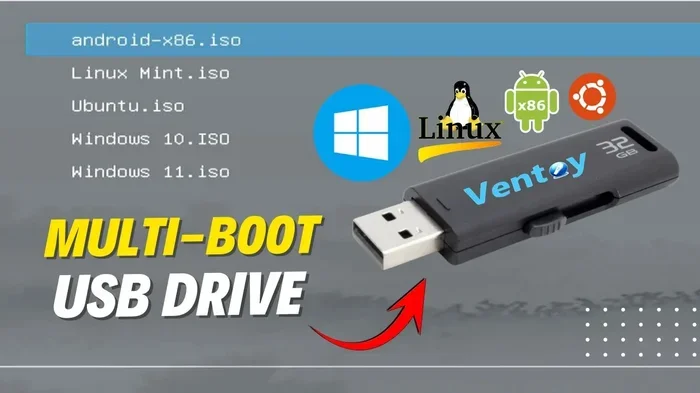
If manual partitioning sounds intimidating, there is an easier path. Multi-boot tools automate much of the process. Popular options include YUMI Multiboot Bootable USB Creator and Ventoy. These tools let you load multiple ISO files onto a single USB drive.
Here is why people love this approach:
- Simple interface: Most tools are point-and-click. No command line needed.
- Flexibility: You can add or remove operating systems easily.
- Time-saving: Setup takes minutes instead of hours.
- No formatting required each time: You can update or swap ISO files without starting over.
Ventoy, for example, is a game-changer. You install Ventoy once on your USB drive, then simply copy ISO files directly to the drive. At boot time, Ventoy presents a menu of all the ISOs you have loaded. You pick one, and it boots. This is one of the simplest ways to answer the question can I have 2 os on one USB without complicated setup.
Method 3: Windows To Go (For Windows Environments)
Windows To Go was a feature in older Windows versions that allowed you to create a bootable Windows environment on a USB drive. While Microsoft has officially retired this feature, third-party tools like WinToUSB and AOMEI Partition Assistant still offer similar functionality.
This method is ideal if you want two Windows environments or a Windows and Linux combo where Windows is the primary focus. The tool handles the partitioning and bootloader setup for you, making it a great choice for beginners.
Best USB Drives for Running Multiple Operating Systems
Not all USB drives are created equal. When you are running two full operating systems from a single drive, speed and capacity matter a lot. A slow or small drive will frustrate you quickly. Here is what to look for.
Capacity Requirements
Each operating system needs its own space. A lightweight Linux distribution might need as little as 8 GB. A full Windows installation can require 32 GB or more. If you want two complete systems, aim for at least a 64 GB drive. For maximum flexibility, a 128 GB or 256 GB drive gives you plenty of room.
| USB Drive Size | Best For | Can It Handle 2 OS? |
|---|---|---|
| 16 GB | One lightweight Linux live USB | No, too small |
| 32 GB | One Windows or Linux OS | Tight, but possible with one small OS |
| 64 GB | Two lightweight OS setups | Yes, good starting point |
| 128 GB | Windows + Linux with room for files | Yes, ideal for most users |
| 256 GB | Multiple OS installations plus data | Yes, best overall choice |
Speed Matters
USB speed directly affects how fast your operating systems boot and run. Look for drives that use USB 3.0 or USB 3.1 connectors. These offer much faster read and write speeds compared to older USB 2.0 drives. Brands like SanDisk Extreme, Samsung FIT Plus, and Kingston DataTraveler are reliable choices.
A quick tip: always check the read speed before buying. A drive with at least 100 MB/s read speed will give you a smooth experience with both operating systems.
Durability and Portability
Since you will be carrying this drive around, durability counts. Some USB drives are built with metal casings that resist drops and scratches. Others are tiny and fit easily on a keychain. Choose one that fits your lifestyle. A rugged drive also protects your two operating systems from physical damage.
Common Uses for a Dual-Boot USB
You might be wondering why anyone would need two operating systems on a single USB drive. The answer is that the use cases are surprisingly varied and practical.
Troubleshooting and System Recovery
One of the most popular uses is computer repair. Carry a Linux live environment for diagnosing hardware issues and a Windows installer for fixing a broken system. When a friend’s computer won’t start, you can pull out your dual boot USB and handle almost any situation.
Software Development and Testing
Developers often need to test their software on different platforms. A multi-boot USB lets you switch between Windows and Linux without rebooting your main computer or carrying multiple devices. You can test applications, check compatibility, and debug code on the fly.
Privacy and Security
Some people prefer Linux for privacy-sensitive work and Windows for everyday tasks. With a portable operating system setup on a USB drive, you can keep your private work isolated from your main computer. You boot into Linux when you need privacy and Windows when you need your regular apps.
Education and Learning
Students learning about IT or computer science benefit enormously from a multi-boot USB. It gives them hands-on experience with different operating systems without risking their main computer. They can experiment, break things, and learn in a safe environment.
Common Mistakes to Avoid
Setting up two operating systems on one USB is straightforward, but a few missteps can cause big headaches. Here are the most common mistakes and how to avoid them.
Skipping Backups
Formatting a USB drive to set up partitions erases everything on it. If you skip backing up your data, you lose it permanently. Always copy your files to your computer or cloud storage before starting the setup process.
Using a Slow or Old USB Drive
A USB 2.0 drive will make both operating systems painfully slow. Even a basic USB 3.0 drive makes a world of difference. Do not cheap out on the drive. It is the foundation of your entire setup.
Ignoring BIOS Settings
If your computer does not boot from the USB, check your BIOS settings first. Make sure USB booting is enabled and that your USB drive is listed as a boot option. This simple step is often overlooked and causes a lot of confusion.
Choosing the Wrong Partition Style
Using MBR on a computer that supports UEFI, or GPT on an older system, can prevent booting. Always match your partition style to your computer’s firmware. GPT works with UEFI systems, and MBR works with Legacy BIOS systems.
Not Testing Both Operating Systems
After setup, always test both operating systems before relying on the drive. Boot into each one, check that files are accessible, and make sure the boot menu works correctly. Catching a problem early saves you from frustration later.
Expert Tips for a Smooth Dual-Boot USB Experience
Experienced users have learned a few tricks over the years that make the whole process smoother. Here are some insider tips that can save you time and effort.
Label your partitions clearly. When you have two operating systems on one drive, it is easy to forget which partition holds which system. Use a naming convention like “Windows_OS” and “Linux_OS” so you always know what is what.
Keep your ISO files organized. Store copies of your ISO files on your computer. If you ever need to rebuild the USB drive, having the original files ready makes the process much faster.
Update your bootloader regularly. A bootloader like GRUB can sometimes miss an operating system after updates. Running a bootloader update command ensures both systems remain accessible from the boot menu.
Use a USB hub with external power for best results. Some computers struggle to power a USB drive while also running two operating systems. A powered USB hub provides stable power and reduces the chance of disconnections during boot.
Encrypt sensitive partitions. If one of your operating systems handles private data, consider encrypting that partition. Tools like VeraCrypt work well with USB-based operating systems and add an extra layer of security.
Quick Tips Summary
- Use at least a 64 GB USB drive for two operating systems.
- Choose USB 3.0 or higher for faster performance.
- Back up your USB data before starting any setup.
- Match your partition style (GPT or MBR) to your computer’s firmware.
- Test both operating systems after setup to confirm everything works.
- Label your partitions so you can easily identify each operating system.
- Keep ISO copies safe on your computer for future use.
Conclusion
The answer to can I have 2 os on one USB is a clear and definitive yes. You now have everything you need to create a powerful dual boot USB that carries two complete operating systems in your pocket. From choosing the right USB drive to picking the best setup method, this guide has covered the full journey.
Whether you use your multi-boot USB for troubleshooting, development, learning, or privacy, the flexibility it offers is unmatched. You are no longer tied to a single operating system on a single device. One drive gives you two worlds of possibility.
Start with the method that feels most comfortable. Try a multi-boot tool like Ventoy if you want simplicity, or go the manual route if you prefer full control. Whichever path you choose, you are taking a big step toward becoming a more versatile and capable computer user. Your portable operating system setup is waiting to be built.
Grab a USB drive, pick your two operating systems, and get started today. The freedom of carrying two complete computer systems in one small device is closer than you think.
Frequently Asked Questions
Can I have 2 operating systems on one USB drive?
Yes, you absolutely can. By partitioning the USB drive and installing each operating system on a separate partition, you create a dual boot USB that lets you choose which OS to load at startup. Tools like Ventoy, Rufus, or YUMI make this process straightforward and beginner-friendly.
What size USB drive do I need for two operating systems?
A 64 GB USB drive is the minimum recommended size for running two operating systems. If you want extra space for files and applications, a 128 GB or 256 GB drive is a better choice. Always check the size requirements of each operating system ISO before purchasing your drive.
Will running two OS on a USB be slow?
Speed depends mainly on your USB drive quality. A USB 3.0 or USB 3.1 drive with fast read speeds will perform much better than an older USB 2.0 drive. Expect the operating systems to run slower than they would on an internal hard drive, but modern USB speeds make the experience perfectly usable.
Do I need special software to set up a multi-boot USB?
You do not need expensive software. Free tools like Ventoy, Rufus, and YUMI handle the entire process. Ventoy is especially popular because you simply copy ISO files to the drive and it creates the boot menu automatically. No technical expertise is required.
Can I boot a dual-boot USB on any computer?
Most modern computers support booting from USB drives. However, you may need to change the boot order in your BIOS or UEFI settings. Some older computers may have limitations with certain partition styles, so always check compatibility before relying on your USB drive for important tasks.
Is it safe to use a dual-boot USB on public computers?
It is generally safe, but you should take precautions. Always scan your USB drive for malware regularly. If one of your operating systems handles sensitive data, consider encrypting that partition with a tool like VeraCrypt. Using a live USB environment adds an extra layer of security since it does not write to the host computer’s hard drive.