Can I Use Alcohol Wipes To Clean My Laptop Without Damage
Can I Use Alcohol Wipes To Clean My Laptop safely? The answer is yes, but only if you follow the right steps. Using the wrong cleaning method can damage your screen, keyboard, or internal components. In this guide, you will learn exactly how to use alcohol wipes without causing harm. We will cover which laptop parts are safe to clean and which ones to avoid.
If you have ever looked at your laptop and thought it was time for a good cleaning, you are not alone. Dust, fingerprints, and grime build up fast. Many people reach for alcohol wipes because they are quick and easy. But the big question remains: Can I Use Alcohol Wipes To Clean My Laptop without causing damage? The short answer is yes, but there are important rules you need to follow. Using alcohol wipes the wrong way can harm your screen, ruin coatings, or even short out internal parts. In this article, we will walk you through everything you need to know. You will learn which parts of your laptop are safe to wipe, which parts to avoid, and the best techniques for laptop screen cleaning and keyboard cleaning. By the end, you will feel confident about keeping your device spotless without any risk.
Your laptop is a big investment. Whether you use it for work, school, or fun, you want it to last. Device cleaning is a simple habit that can extend the life of your machine. But not all cleaning methods are created equal. Some products that work great on countertops can be terrible for electronics. That is why it is so important to understand what you are putting on your laptop. Alcohol wipes have become a popular choice for electronics cleaning because they are convenient and effective at removing germs. However, convenience does not always mean safety. Let us dive deep into this topic so you can clean your laptop with confidence and peace of mind.
Key Takeaways
- Yes, you can use alcohol wipes: 70% isopropyl alcohol wipes are generally safe for most laptop surfaces when used correctly.
- Avoid the screen: Alcohol wipes can damage anti-glare and oleophobic coatings on laptop screens. Use a damp microfiber cloth instead.
- Safe for the keyboard and exterior: Alcohol wipes work great for cleaning the laptop keyboard, chassis, and touchpad without leaving residue.
- Check your warranty: Using alcohol wipes on certain parts may void your laptop warranty if the manufacturer prohibits it.
- Power off first: Always shut down and unplug your laptop before cleaning to prevent electrical damage and static buildup.
- Wring out excess liquid: Never apply a dripping wet wipe to your laptop. Squeeze out extra moisture first to prevent liquid from seeping inside.
- Consider alternatives: Pre-moistened electronics wipes or a simple mix of water and isopropyl alcohol can be safer options for full-device cleaning.
📑 Table of Contents
- What Are Alcohol Wipes and Why Do People Use Them?
- Is It Safe to Use Alcohol Wipes to Clean My Laptop?
- Which Parts of Your Laptop Can Handle Alcohol Wipes?
- How to Clean Your Laptop with Alcohol Wipes the Right Way
- What Happens If You Use Alcohol Wipes the Wrong Way?
- Better Alternatives to Alcohol Wipes for Laptop Cleaning
- Final Thoughts on Cleaning Your Laptop with Alcohol Wipes
What Are Alcohol Wipes and Why Do People Use Them?
Understanding Isopropyl Alcohol Wipes
Alcohol wipes are pre-moistened cloths soaked in a cleaning solution, usually isopropyl alcohol. This type of alcohol is different from the kind you drink. Isopropyl alcohol evaporates quickly, which makes it ideal for cleaning electronics. It dissolves oils, kills bacteria, and leaves almost no moisture behind. Most alcohol wipes you find in stores contain about 70% isopropyl alcohol. This concentration is considered the sweet spot for disinfecting electronics. It is strong enough to kill germs but gentle enough not to cause immediate damage to most surfaces.
People love alcohol wipes for a few reasons. First, they are incredibly convenient. You do not need sprays, paper towels, or a lot of time. Second, they are affordable. You can buy a pack for just a few dollars. Third, they feel effective. The wipe removes visible dirt and grime in seconds. But here is the thing that many people overlook: not all surfaces on a laptop react the same way to alcohol. That is where things get tricky.
Common Uses for Alcohol Wipes in Electronics
Alcohol wipes are widely used in many electronics cleaning routines. They are great for wiping down phone screens, keyboard keys, mouse surfaces, and external device casings. In office settings, electronics cleaning with alcohol wipes is a standard practice. Many IT professionals use them to sanitize shared equipment like keyboards and trackpads. For laptop maintenance, alcohol wipes can be a useful tool, but only when applied to the right areas. Understanding the difference between safe and risky surfaces is the key to cleaning your laptop without regret.
Is It Safe to Use Alcohol Wipes to Clean My Laptop?
The Short Answer: Yes, But With Conditions
Can I Use Alcohol Wipes To Clean My Laptop without any risk? Not entirely. The safety of alcohol wipes depends entirely on which part of the laptop you are cleaning and how you apply the wipe. The exterior casing and keyboard are generally safe. The screen, however, is a different story. Alcohol can strip away special coatings that protect your display. These coatings include anti-glare finishes, oleophobic layers that repel fingerprints, and anti-reflective treatments. Once these coatings are damaged, there is no easy fix. You cannot simply reapply them at home.
This is why experts often recommend a cautious approach. You can use alcohol wipes on your laptop, but you need to know where and how. Think of it like washing a car. You would not use the same cleaner on the paint and the interior leather. Your laptop deserves the same careful treatment. Taking a few extra seconds to choose the right cleaning method for each part can save you from costly repairs or replacements.
What the Manufacturer Says
Most laptop manufacturers have specific cleaning guidelines. Companies like Apple, Dell, HP, and Lenovo all publish recommendations for laptop care tips. Many of them explicitly warn against using alcohol-based cleaners on screens. Apple, for example, suggests using a damp microfiber cloth for displays. Other manufacturers allow alcohol wipes on non-screen surfaces but advise against soaking any part of the device. Before you start cleaning, it is always a good idea to check your laptop’s user manual or support website. This small step can save you from accidentally voiding your laptop warranty.
| Laptop Part | Safe for Alcohol Wipes? | Risk Level |
|---|---|---|
| Exterior casing | Yes | Low |
| Keyboard | Yes (with caution) | Low to Medium |
| Touchpad | Yes | Low |
| LCD / LED Screen | No | High |
| Trackpad surface | Yes | Low |
| Ventilation grilles | Yes | Low |
| Internal components | Never | Very High |
Which Parts of Your Laptop Can Handle Alcohol Wipes?
Safe Surfaces for Alcohol Wipe Cleaning
The exterior body of your laptop is usually made of aluminum, plastic, or a combination of both. These materials handle alcohol-based cleaner solutions very well. You can safely use an alcohol wipe to clean the top and bottom of your laptop, the sides, and the back panel. These surfaces do not have delicate coatings, so the alcohol will not cause damage. In fact, wiping down the exterior with an alcohol wipe is one of the best ways to remove oils, germs, and smudges from daily use.
Your laptop keyboard is another area where alcohol wipes can work well. Keyboards collect crumbs, dust, and bacteria throughout the day. A quick wipe between the keys can freshen things up significantly. However, you should be gentle. Do not press too hard, and make sure the wipe is not dripping wet. Excess moisture can seep between the keys and reach the underlying circuitry. If you are worried about moisture, you can lightly dampen a microfiber cloth with a small amount of isopropyl alcohol instead of using a pre-made wipe.
Parts You Should Never Wipe with Alcohol
The laptop screen is the most vulnerable part of your device. The display has special coatings that make it easy to clean and pleasant to look at. Alcohol wipes can strip these coatings over time. You may not notice the damage right away, but after several cleanings, your screen might develop a hazy or streaky appearance. In some cases, the coating damage is permanent.
Other parts to avoid include any open ports, speakers, or vents where liquid could enter the internal laptop parts. Never spray or wipe alcohol directly into openings. The liquid can drip down and reach the motherboard or other sensitive components. This kind of damage is often not covered under warranty, which means you would have to pay for repairs out of pocket. When in doubt, keep alcohol wipes away from any opening or gap in your laptop.
How to Clean Your Laptop with Alcohol Wipes the Right Way
Step-by-Step Cleaning Process
Follow these steps to clean your laptop safely with alcohol wipes. Doing it the right way ensures you get great results without any risk of damage.
- Power off your laptop completely. Do not just put it to sleep. Shut it down and unplug the power cable. This prevents any electrical issues and keeps moisture away from live components.
- Grab a dry microfiber cloth. Use this to gently wipe away any loose dust or debris from the surface. Skipping this step can cause scratches when you follow up with the alcohol wipe.
- Choose the right wipe. Look for alcohol wipes that contain 70% isopropyl alcohol. Avoid wipes with added fragrances, moisturizers, or harsh chemicals. These extras can leave residue on your laptop.
- Wring out excess moisture. If the wipe feels too wet, squeeze it gently against the side of the container. You want it damp, not dripping. This is one of the most important laptop maintenance habits you can build.
- Wipe the exterior and keyboard gently. Use light, circular motions. Do not press hard. Let the alcohol do the work. Focus on areas with visible grime or fingerprints.
- Let it air dry completely. Do not turn your laptop back on until the surface is fully dry. Alcohol evaporates quickly, but giving it a minute or two ensures no moisture remains.
Quick Tips for Best Results
- Always use a lint-free static-free cloth as your primary cleaning tool.
- Clean your laptop in a well-lit area so you can see all the smudges and spots.
- Wipe down your laptop once a week to prevent buildup of grime and oils.
- Keep a small spray bottle of diluted isopropyl alcohol (50/50 with distilled water) for a gentler option.
- Wash your hands before cleaning to avoid transferring more oils onto the surface.
Expert Insights on Electronics Cleaning
According to IT professionals, the biggest mistake people make is using too much moisture. Screen residue and internal corrosion often result from excess liquid, not from the alcohol itself. If you are unsure about using a wipe, a safer alternative is to spray a small amount of safe cleaning solution onto a microfiber cloth first, then wipe your laptop. This gives you more control over how much liquid touches the device. Many experts also recommend keeping a dedicated cleaning cloth for your laptop. Using the same cloth every time prevents cross-contamination and keeps your laptop hygiene at a high standard.
What Happens If You Use Alcohol Wipes the Wrong Way?
Common Mistakes to Avoid
Even with the best intentions, it is easy to make mistakes when cleaning electronics. Here are the most common errors people make when using alcohol wipes on their laptops:
- Using too much pressure: Pressing hard on the screen or keyboard can force liquid into gaps and openings. Always use a light touch.
- Wiping a powered-on laptop: This creates a risk of short circuits. Power down completely before you start cleaning.
- Using wipes with added chemicals: Some wipes contain lotions or fragrances that leave a greasy film. Stick to pure isopropyl alcohol wipes.
- Soaking the keyboard: Drenching the keyboard area can cause liquid to seep beneath the keys. Use a lightly dampened wipe, not a soaking wet one.
- Ignoring the manufacturer’s guidelines: Every laptop is different. What works for one model may not be safe for another. Always check your manual first.
Signs of Alcohol Damage on Your Laptop
How do you know if alcohol has already caused damage? Watch for these warning signs. If your screen develops a cloudy or streaky film that no amount of wiping can remove, the protective coating may be stripped. If your keyboard starts sticking or keys feel different after cleaning, moisture may have seeped underneath. A discolored or peeling surface on the laptop casing could also indicate chemical damage from an inappropriate cleaner. If you notice any of these issues, stop using alcohol wipes immediately and consult a professional for laptop repair advice.
Better Alternatives to Alcohol Wipes for Laptop Cleaning
Safe Cleaning Solutions You Can Use
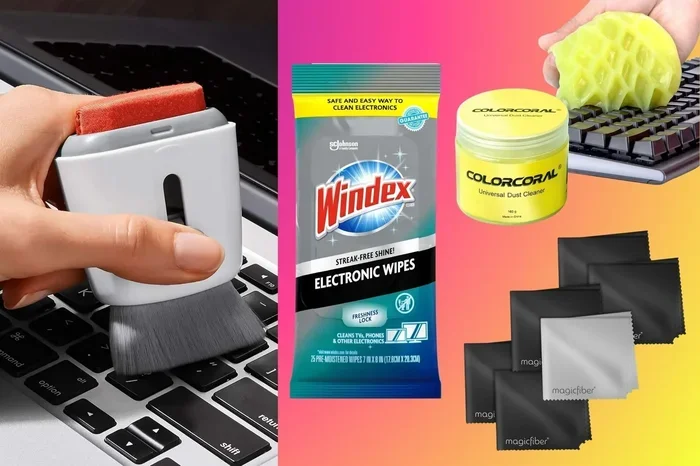
If you are not comfortable using alcohol wipes, there are several great alternatives. A simple microfiber cloth dampened with distilled water is one of the safest options for cleaning your entire laptop, including the screen. For a deeper clean, you can mix a 50/50 solution of distilled water and 70% isopropyl alcohol in a small spray bottle. Spray the solution onto the cloth, not directly onto the laptop. This gives you full control over moisture levels.
Another excellent option is pre-moistened electronics wipes that are specifically designed for screens and devices. These wipes are formulated to be safe on coatings and delicate surfaces. They are a bit more expensive than regular alcohol wipes, but they offer peace of mind. You can also invest in a LCD screen cleaner spray and a dedicated microfiber cloth for your display. These products are widely available and affordable.
When to Seek Professional Help
Sometimes, regular cleaning is not enough. If your laptop has stubborn stains, deep grime buildup, or visible damage, it may be time to seek professional laptop maintenance services. A technician can clean internal components, replace damaged parts, and provide deep cleaning that is not possible at home. This is especially important if you have spilled liquid on your laptop or dropped it in a dusty environment. Professional cleaning may cost a bit more, but it can significantly extend the lifespan of your device.
Final Thoughts on Cleaning Your Laptop with Alcohol Wipes
Can I Use Alcohol Wipes To Clean My Laptop without damage? Yes, you absolutely can, as long as you are smart about it. The key is knowing which parts to clean and which to leave alone. Use alcohol wipes on the exterior casing, keyboard, and touchpad. Avoid the screen and any open ports. Always power off your laptop first, use a lightly dampened wipe, and let everything dry completely before turning it back on. These simple steps will keep your laptop looking great and functioning well for years to come.
Remember, laptop hygiene is about more than just appearances. Regular cleaning reduces germs, prevents dust buildup, and helps your device run cooler. A clean laptop is a happy laptop. So go ahead, grab those alcohol wipes, and give your device the care it deserves. Just be gentle, be smart, and follow the tips in this guide. Your laptop will thank you for it.
Taking a few minutes each week to clean your laptop can make a huge difference. It is a small habit that pays off big time. Whether you use alcohol wipes, a microfiber cloth, or a dedicated cleaning solution, the most important thing is that you do it regularly. Keep your device clean, keep it safe, and enjoy a better computing experience every single day.
Frequently Asked Questions
Can alcohol wipes damage my laptop screen?
Yes, alcohol wipes can damage your laptop screen. They can strip away anti-glare and oleophobic coatings over time. This can lead to a hazy, streaky, or discolored display that is difficult or impossible to fix. Always use a damp microfiber cloth for your screen instead.
What type of alcohol is safe for cleaning laptops?
70% isopropyl alcohol is the safest and most effective option for cleaning laptops. It evaporates quickly and does not leave behind residue. Avoid using rubbing alcohol with additives, scented formulas, or concentrations higher than 70%, as these can be too harsh for electronic surfaces.
How often should I clean my laptop with alcohol wipes?
You can clean the exterior and keyboard of your laptop with alcohol wipes once or twice a week. For the screen, stick to a dry or slightly damp microfiber cloth and clean it as needed. Regular cleaning prevents buildup of oils, dust, and bacteria without risking damage to your device.
Will using alcohol wipes void my laptop warranty?
It depends on the manufacturer and how you use them. Some laptop warranties cover damage from improper cleaning, while others do not. If alcohol wipes cause visible damage to coated surfaces, the manufacturer may deny a warranty claim. Always check your warranty terms and follow the manufacturer’s cleaning recommendations to stay protected.
Can I use alcohol wipes on my laptop keyboard?
Yes, you can use alcohol wipes on your laptop keyboard. The keys and surrounding areas are generally safe to clean with a lightly dampened alcohol wipe. Just be careful not to let excess liquid seep between the keys. Wring out the wipe well and use gentle pressure to avoid moisture entering the internal components.
Are there alcohol-free alternatives for cleaning my laptop?
Yes, there are many alcohol-free alternatives. A microfiber cloth with distilled water works great for most surfaces. Electronics-specific wipes designed for screens are also a safe option. You can also use a 50/50 mix of distilled water and isopropyl alcohol sprayed onto a cloth rather than directly onto the laptop for a gentler approach.