Can I Airplay From My Laptop Heres How To Get Started
Yes, you can AirPlay from your laptop to stream content wirelessly to your TV, speakers, or other compatible devices. Whether you use a Mac or a Windows laptop, AirPlay screen mirroring lets you share your display without cables. This guide walks you through every step of how to AirPlay from laptop devices with easy-to-follow instructions.
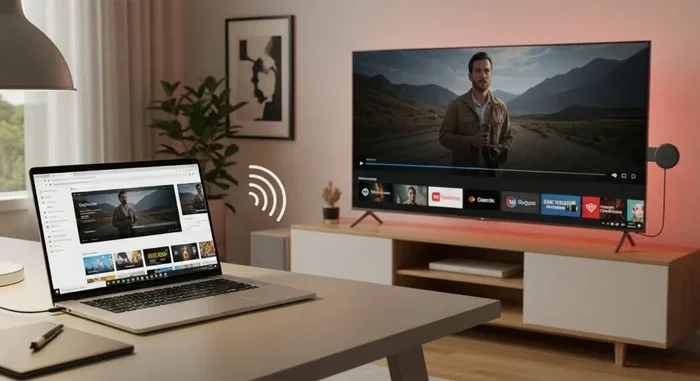
Have you ever wanted to share what is on your laptop screen with a bigger display? Maybe you are watching a movie, presenting slides, or just want to browse the web from your couch. Can I AirPlay from my laptop? The short answer is absolutely yes. AirPlay screen mirroring lets you send whatever is on your laptop to a TV, speaker, or other compatible device without any messy cables.
How to AirPlay from laptop devices is simpler than most people think. Whether you are on a Mac or a Windows machine, there is a way to get your content streaming wirelessly. In this guide, we will walk you through every step. You will learn what AirPlay is, which devices work with it, and exactly how to set it up. By the end, you will be mirroring your laptop screen to TV like a pro.
Let us get started. No technical expertise is needed. Just a laptop, a compatible receiving device, and a good Wi-Fi connection. That is all you need to enjoy wireless display laptop streaming in your own home.
Key Takeaways
- AirPlay works on both Mac and Windows laptops with the right setup and software.
- Mac users have built-in AirPlay support through macOS, making it effortless to mirror your screen.
- Windows users need third-party AirPlay receiver software to enable wireless streaming from their laptop.
- Apple TV is the most popular AirPlay compatible device for receiving content from your laptop.
- Common AirPlay issues like connection drops and latency can be fixed with simple troubleshooting steps.
- Wireless screen sharing eliminates the need for HDMI cables and adapters.
- Setting up AirPlay takes only a few minutes once you know the right steps for your operating system.
📑 Table of Contents
What Is AirPlay and Why It Matters for Laptop Users
AirPlay is Apple’s wireless streaming technology. It lets you send audio, video, and your entire screen from one device to another over your home Wi-Fi network. Originally designed for iPhones and iPads, AirPlay has become one of the most popular ways to stream from Mac to TV and other displays.
Here is why AirPlay matters for laptop users:
- No cables needed. You do not need to fumble with HDMI cords or adapters.
- Works across your home network. As long as your laptop and receiving device are on the same Wi-Fi, you are good to go.
- High-quality streaming. AirPlay supports HD and even 4K content depending on your setup.
- Built-in on Mac. MacBooks come with built-in AirPlay feature support, so no extra software is required.
- Versatile use. You can mirror your entire screen or just stream a single video or audio file.
AirPlay screen mirroring is especially useful for people who work from home. Want to share your screen during a video call on a big TV? AirPlay makes it easy. Planning a movie night? Cast your laptop directly to your living room TV. The possibilities are plenty.
How AirPlay Works Under the Hood
AirPlay uses your home Wi-Fi network to create a direct connection between your sending device (your laptop) and the receiving device (like an Apple TV or smart TV). The technology compresses the audio and video data and sends it in real time. This means you get smooth playback with minimal delay. Most users barely notice any AirPlay latency issues when streaming normal content like movies or presentations.
The key requirement is that both devices must be on the same local network. If your laptop is connected to one Wi-Fi band and your TV is on another, the connection might fail. Always make sure both devices are on the same network for the best experience.
Can I Airplay From My Laptop on Different Operating Systems
The answer depends on what kind of laptop you own. MacBooks have native AirPlay support, while Windows laptops need a little extra help. Let us break down both scenarios so you know exactly what to expect.
Can You Airplay From a Mac Laptop
If you use a MacBook, MacBook Air, or MacBook Pro, you are in luck. MacBook AirPlay to TV is built right into macOS. You do not need to download anything extra. Here is how it works:
- Make sure your Mac and your receiving device are on the same Wi-Fi network.
- Click the Screen Mirroring icon in your menu bar (it looks like two rectangles stacked).
- Select your target device from the list.
- Your Mac screen will now appear on your TV or display.
You can also use AirPlay to stream just audio to AirPlay-compatible speakers without mirroring your entire screen. This is great when you want to listen to music from your laptop through a smart speaker in another room.
One thing to keep in mind: older Macs may not support the latest AirPlay features. If your MacBook is from 2012 or earlier, you might run into compatibility issues. Always check Apple’s official support page for your specific model.
Can You Airplay From a Windows Laptop
Windows laptop AirPlay is a bit different. Windows does not have native AirPlay support built in. But that does not mean you are out of options. There are several reliable ways to mirror laptop screen to TV wirelessly from a Windows machine.
Here are the most common methods:
- Use AirPlay receiver software. Apps like AirServer, Reflector, or LonelyScreen turn your Windows PC into an AirPlay sender. You install the software, connect to the same network as your receiving device, and stream away.
- Use a smart TV with AirPlay built in. Many modern Samsung, LG, and Sony TVs support AirPlay natively. You can cast directly from your Windows laptop using the TV’s built-in AirPlay receiver.
- Use third-party streaming apps. Apps like Plex or VLC can also help you stream content from your Windows laptop to a TV, though they are not true AirPlay solutions.
The most popular approach is installing AirPlay receiver software on your laptop. These apps are affordable and work reliably. They essentially give your Windows laptop the same AirPlay capabilities that a Mac has by default.
How To Set Up AirPlay From Your Laptop
Setting up AirPlay setup guide steps is straightforward once you know what to do. Below is a step-by-step walkthrough for both Mac and Windows users.
Step 1: Check Your Wi-Fi Connection
Before anything else, make sure your laptop and your receiving device are connected to the same Wi-Fi network. This is the most common reason AirPlay not working issues happen. If your laptop is on the 2.4 GHz band and your TV is on the 5 GHz band, they may not see each other.
Quick Tip: If your router uses band steering, you are usually fine. But if you have manual band separation, connect both devices to the same one.
Step 2: Enable AirPlay on Your Receiving Device
On an Apple TV, go to Settings and make sure AirPlay is turned on. On a smart TV that supports AirPlay, look for the AirPlay setting in the network or display menu. Some TVs call it “Screen Mirroring” or “Wireless Display” instead.
Step 3: Start Streaming From Your Laptop
On a Mac, click the Screen Mirroring icon in the menu bar and choose your TV. On a Windows laptop, open your AirPlay software and select the target device. Your screen should now appear on the TV.
Step 4: Adjust Display Settings
You can choose to mirror your entire screen or use the TV as an extended display. Mirroring shows the same thing on both screens. Extended display lets you use the TV as a second monitor, which is great for multitasking or presentations.
Quick Tips for a Smooth Setup
- Restart both devices if the connection fails the first time.
- Keep your laptop close to the router for the strongest signal.
- Close unnecessary apps on your laptop to free up bandwidth.
- Use the 5 GHz Wi-Fi band for better streaming quality.
Best Devices for AirPlaying From Your Laptop
Not all devices work equally well with AirPlay compatible devices streaming. Here is a look at the best options for receiving AirPlay content from your laptop.
| Device | Type | AirPlay Support | Price Range |
|---|---|---|---|
| Apple TV 4K | Streaming Box | Full native support | $129 – $149 |
| Samsung Smart TV (2018+) | Smart TV | Native AirPlay 2 | $400 – $2000+ |
| LG Smart TV (2019+) | Smart TV | Native AirPlay 2 | $300 – $1500+ |
| Sony Smart TV (2019+) | Smart TV | Native AirPlay 2 | $400 – $1800+ |
| Roku Streaming Stick+ | Streaming Stick | AirPlay supported | $50 – $70 |
| AirPort Express | Audio Receiver | AirPlay audio only | $99 (discontinued) |
| Belkin SoundForm | Smart Speaker | AirPlay 2 | $50 – $100 |
The Apple TV 4K remains the gold standard for laptop to TV wireless streaming. It offers the smoothest experience, the lowest latency, and the most features. But you do not need an Apple TV to enjoy AirPlay. Many modern smart TVs now come with built-in AirPlay 2 support, which means you can receive AirPlay streams directly without any extra hardware.
If you just want to stream audio, a smart speaker with AirPlay 2 support is a great budget option. Brands like Bose, Sonos, and Belkin make affordable speakers that work perfectly with AirPlay from your laptop.
What to Look for When Choosing a Receiving Device
- AirPlay 2 support. This is the latest version and offers better performance and multi-room audio.
- Wi-Fi speed. A receiving device on a fast Wi-Fi network will deliver smoother streaming.
- Resolution support. If you want to stream 4K content, make sure your receiving device supports it.
- Ease of setup. Some devices require complex setup while others work right out of the box.
Common AirPlay Problems and How To Fix Them
Even with the best setup, you might run into issues. AirPlay troubleshooting is something every user should know. Here are the most common problems and their solutions.
AirPlay Not Working or Device Not Showing Up
This is the number one complaint among users. If your receiving device does not appear in the AirPlay menu, try these steps:
- Make sure both devices are on the same Wi-Fi network.
- Restart your router, laptop, and receiving device.
- Check that AirPlay is enabled on the receiving device.
- Update your laptop’s operating system to the latest version.
- Turn AirPlay off and back on again on both devices.
Expert Insight: Many users do not realize that VPN software can block AirPlay connections. If you use a VPN on your laptop, try disconnecting it before streaming. This simple fix resolves the issue for a surprising number of people.
Poor Video Quality or Lagging
If your AirPlay screen mirroring looks choppy or pixelated, the problem is usually your Wi-Fi connection. Here is what to do:
- Move your router closer to both devices.
- Switch to the 5 GHz Wi-Fi band for faster speeds.
- Reduce the number of devices using your network while streaming.
- Lower the streaming resolution if possible.
Audio and Video Are Out of Sync
This AirPlay latency issue can be frustrating. It usually happens when your Wi-Fi network is congested. Try these fixes:
- Restart your router to clear the network buffer.
- Limit other internet activity during streaming.
- Use a wired Ethernet connection for your receiving device if possible.
- Update the firmware on your router and receiving device.
AirPlay Keeps Disconnecting
Frequent disconnections often point to an unstable Wi-Fi signal. Check for interference from other electronic devices, microwave ovens, or thick walls between your router and your streaming devices. A Wi-Fi range extender can help solve this problem in larger homes.
Common Mistakes to Avoid
- Skipping software updates. Outdated macOS or Windows versions can cause AirPlay compatibility issues.
- Using public Wi-Fi. AirPlay requires a private home network. It will not work on guest or public networks.
- Ignoring firewall settings. Your laptop’s firewall might block AirPlay traffic. Check your firewall settings if connections fail.
- Overloading the network. Too many devices streaming at once can degrade performance for everyone.
AirPlay vs Other Wireless Streaming Options
AirPlay is not the only way to stream wirelessly from your laptop. Let us compare it to other popular options so you can decide what works best for you.
| Feature | AirPlay | Chromecast | Miracast | DLNA |
|---|---|---|---|---|
| Best For | Apple ecosystem users | Android and Chrome users | Windows and Android | Media file streaming |
| Native on Mac | Yes | No | No | No |
| Native on Windows | No (needs software) | Yes (Chrome browser) | Yes (built-in) | Yes (built-in) |
| Screen Mirroring | Yes | Yes (cast tab) | Yes | No (media only) |
| Audio Streaming | Yes | Yes | Yes | Yes |
| Quality | Excellent | Very Good | Good | Good |
| Latency | Low | Moderate | Moderate | Low |
| Setup Difficulty | Easy | Easy | Moderate | Easy |
Wireless screen sharing through AirPlay offers the smoothest experience for Apple users. If you are in the Windows ecosystem, Miracast or Chromecast are solid alternatives. Each technology has its strengths, but for most laptop users asking “Can I AirPlay from my laptop,” AirPlay is the most seamless option.
One advantage AirPlay has over Miracast is its support for audio streaming to multiple speakers simultaneously. You can send the same audio to AirPlay speakers in different rooms. This multi-room capability is a game changer for home entertainment setups.
Chromecast, on the other hand, works well if you mostly cast from a web browser. You open Chrome, click the cast icon, and select your Chromecast device. It is not true screen mirroring, but it works well for streaming web content and videos from supported apps.
If you want the best of both worlds, consider getting a device that supports multiple protocols. Some smart TVs and streaming sticks now support AirPlay, Chromecast, and Miracast all at once. This gives you flexibility no matter what device you are streaming from.
Conclusion
Can I AirPlay from my laptop? The answer is a resounding yes. Whether you use a Mac or a Windows laptop, AirPlay screen mirroring gives you a simple, wireless way to share your screen with a bigger display. Mac users have a built-in advantage with native AirPlay support, while Windows users can easily add AirPlay functionality with affordable receiver software.
Setting up how to AirPlay from laptop devices takes just a few minutes. You need a Wi-Fi connection, a compatible receiving device, and a willingness to try the steps outlined in this guide. Once it is working, you will wonder how you ever lived without it. Wireless display laptop streaming opens up a world of convenience for work, entertainment, and everyday use.
Remember to keep your devices updated, use a strong Wi-Fi connection, and troubleshoot common issues with the tips provided. With the right setup, AirPlay from your laptop will feel seamless and effortless every time you use it.
Now that you know how easy it is to get started, grab your laptop, find your TV or speaker, and give it a try. The best way to learn AirPlay is to use it. You will be streaming your favorite content wirelessly in no time.
Frequently Asked Questions
Do I need an Apple TV to AirPlay from my laptop?
No, you do not need an Apple TV. Many modern smart TVs from Samsung, LG, and Sony support AirPlay natively. You can also use Roku streaming devices or third-party AirPlay receiver software on your TV or speaker to receive AirPlay streams from your laptop.
Can I AirPlay from my laptop to multiple devices at once?
Yes, AirPlay 2 supports multi-room audio streaming. You can send audio from your laptop to multiple AirPlay-compatible speakers simultaneously. For video mirroring, you can only send to one display at a time, but some third-party software allows multi-screen output.
Why is my AirPlay lagging or delayed?
Lag usually comes from a weak or congested Wi-Fi connection. Try switching to the 5 GHz band, moving closer to your router, or reducing the number of devices using your network. Outdated software on either your laptop or receiving device can also cause delays.
Can I use AirPlay on a work or corporate laptop?
It depends on your company’s IT policies. Some corporate networks block AirPlay for security reasons. If AirPlay is not working on your work laptop, check with your IT department. They may be able to whitelist AirPlay or provide an alternative solution.
Is AirPlay the same as screen mirroring?
AirPlay includes screen mirroring as one of its features. You can use AirPlay to mirror your entire laptop screen, or you can use it to stream just audio or video without mirroring. Screen mirroring shows everything on your laptop on the TV, while selective streaming sends only specific content.
What is the difference between AirPlay and screen mirroring from laptop?
AirPlay is Apple’s technology that includes screen mirroring, audio streaming, and video casting. “Screen mirroring from laptop” is a broader term that can refer to any technology that duplicates your laptop screen on another display, including Miracast, Chromecast, or proprietary solutions. AirPlay is specifically Apple’s implementation of this concept.